Creating Storage Buckets - dteck/Mediawiki-GCP-CR GitHub Wiki
Getting Started
While the pages of our wiki will be stored in the MySQL database any uploaded files or images will need to be stored somewhere outside of our database and outside of our container. Google offers a relatively cheap storage solution with its Buckets that we can leverage as a file store. It should be noted that using google buckets to store files for our server less Cloud Run instance does introduce some latency that may be a problem if you need something with fast read and write times. In my use case I am more concerned with keeping costs down and I do not expect a large amount of traffic to these files.
For our purposes we will need to follow these steps twice as we want to create two separate buckets.
- A bucket to Store our Wiki configuration files
- A bucket to store our uploaded images
Navigate to Cloud Storage
On the top left of the screen there are three horizontal white lines. This is generally known as a "Hamburger" menu. Clicking on this will fly out a list of Google Cloud Resources that you can set up inside of your project. To start we will want to go to Cloud Storage. So we need to scroll down this list until we find the “Storage” section and the item “Cloud Storage”.
Storage Overview - Create Buckets
The Cloud Storage menu item will take you to the cloud storage overview page. Here any buckets you have already created will be listed. Since this is our first time creating a bucket there is an information screen describing buckets and showing you a button to Create Bucket. We will click on that button and walk though the setup in the next steps.
Bucket Name
Here we need to provide a name for our bucket. It is important to note that the name needs to be unique across all of Google Cloud. If a name has already been taken Google will display a warning message and ask you to pick another name.
Bucket Region
Here we need to select what region or regions we want our buckets to be stored in. We are given the option to have our data stored in multiple regions which helps prevent data loss due to disaster as well as letting google route users to the fastest location if our users are in different regions. You can also set the buckets to se a region pair which is determined by Google to keep your data safe while minimizing latency. The last option is to have the data stored in a single Region. This is the lowest cost option and again I am less concerned with the risk of data loss from disaster so this is an acceptable choice for me. Always review your personal use case when making these decisions.
Storage Class
Next we need to select a Storage Class. The easiest way to understand the different classes is to think about how often you expect to access the data. Standard is best for daily data use, Nearline is for data accessed once a month, coldline is data accessed every 3 or 4 months, and archive is data accessed less than once a year. As you access the data less and less the cost to store the data goes down, but at the same time the cost to read the data goes up. For the purposed of the wiki I am going to use the Standard storage class. The price is slightly higher to store the data but not knowing how often the data will be read by users means I also need to minimize my read costs.
Object Control
The next step is to set object controls. Think of this as the permissions you want to set for each file. You are given the choice to set one policy and have it applied to all of the files in your bucket. Or to set the policy for each file in your bucket. For ease of administering your buckets I recommend using a Uniform set of controls and only switching to per file permissions if you have a very specific need for it. You can also enable an option to ensure that the files in your bucket are not able to be accessed by the public. I recommend enabling this. In my use case I do not expect to have any sensitive information or files but it is still good practice to prevent accidental access.
Object Versioning and Encryption
These last few settings cover object protection by either allowing you to set a minimum number of days to retain files or by keeping backups of file revisions. In my case I do not want to have the bucket enforce a minimum number of days to keep a file. I also do not want it to handle file verisoning as MediaWiki will do that for us. So I will go with None
The last option is if you would like for google to manage the keys it uses to encrypt your data while it is stored in buckets. Or if you would like to supply your own encryption keys. I personally trust google to manage my keys because again I do not expect to have any sensitive data stored here.
Overview
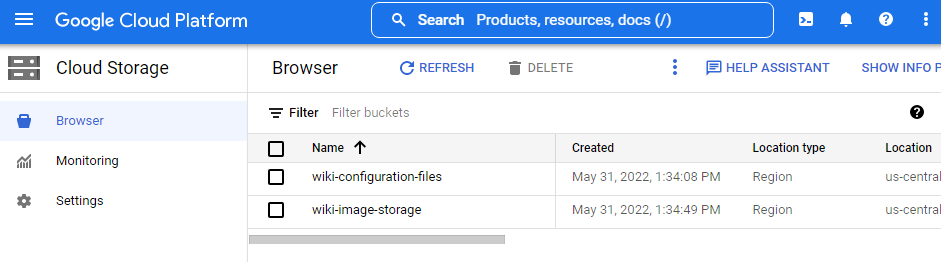
Once you have completed these steps for both your configuration files bucket and your images bucket you should see a list similar to the one above on your Cloud Storage Overview page.