FenixServerApi - dgsoftlabs/FenixModbusS7 GitHub Wiki
FenixServer.Api — User Guide
FenixServer.Api works in two ways:
- Embedded — hosted inside FenixServer, starts and stops with the server window.
- Standalone console — runs independently as
FenixServer.Api.exe, no GUI needed.
Standalone Console Mode
Run FenixServer.Api directly from the command line. Ideal for headless servers, Docker, or Windows Service wrappers.
Starting
FenixServer.Api.exe
Loads the last project from the Windows Registry and starts everything automatically.
FenixServer.Api.exe demo.pse
Loads a specific project file.
FenixServer.Api.exe .\projects\line1.pse
Full path to a project file.
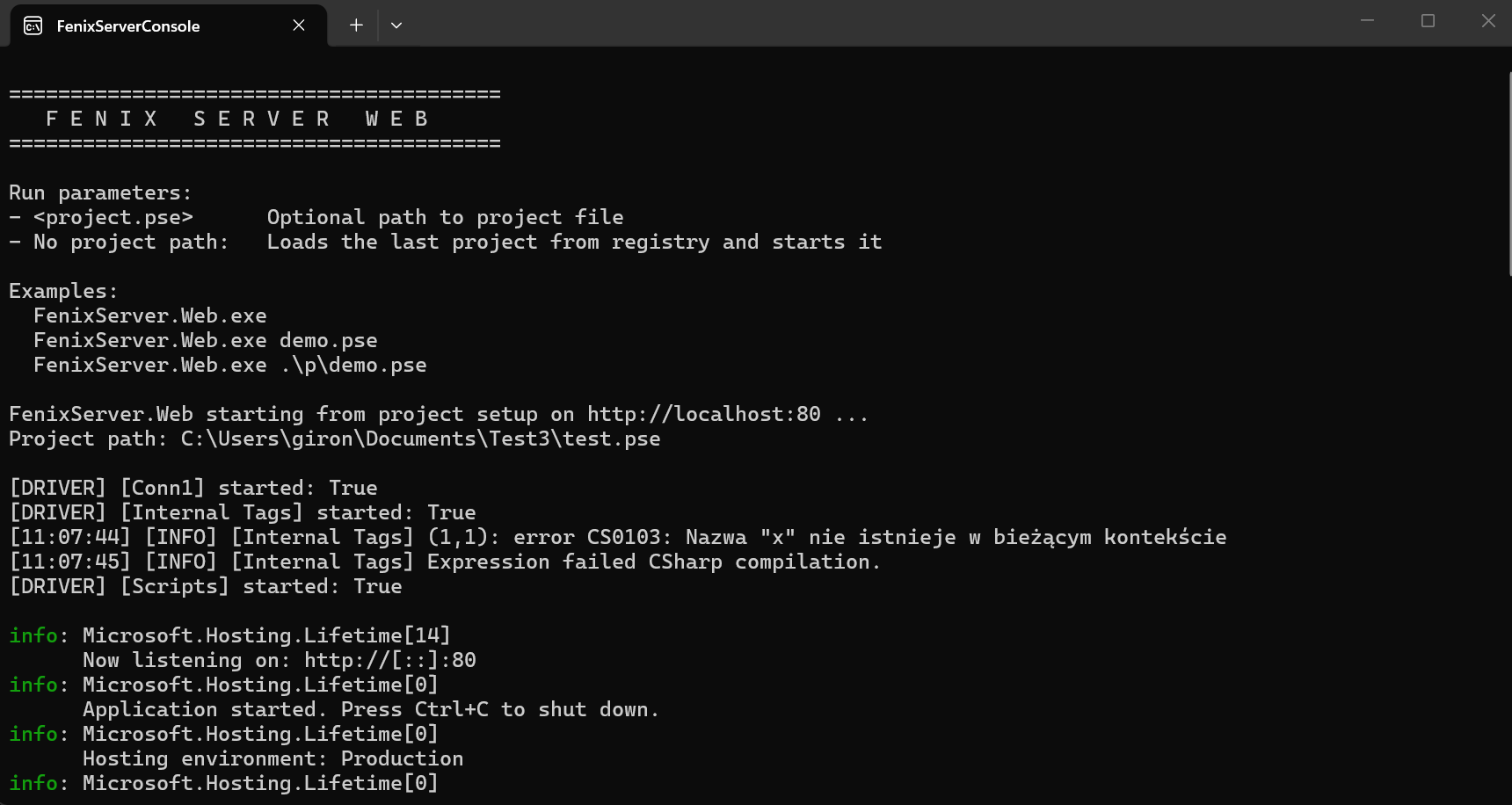
What Happens at Startup
- Loads the project (from argument, registry, or starts empty).
- Configures the web host on the port from the project settings (default 80).
- Starts all communication drivers — Modbus, S7, Internal Tags, Scripts.
- Prints a banner and status to the console.
- Listens for HTTP requests until you press Ctrl+C.
Console Output
Drivers log to the console in real time:
[14:05:32] [INFO] [PLC_Line1] Communication started
[14:05:32] [DRIVER] [PLC_Line1] started: True
[14:05:32] [DRIVER] [Internal Tags] started: True
[14:05:32] [DRIVER] [Scripts] started: True
Server running. Press Ctrl+C to stop.
Shutdown
- Ctrl+C — graceful: stops all drivers, shuts down the web host, exits.
- Closing the console window also triggers a clean shutdown.
- Driver errors are printed to console but don't crash the server.
Port Configuration
The port comes from the project's WebServer prefix setting. If not set, defaults to 80.
Embedded Mode (via FenixServer)
When FenixServer starts with a project loaded and communication running, the REST API is available automatically. The server window has a 🌐 Browser button that opens the API in your browser.
For the full server app guide, see FenixServer User Guide.
1. Before You Start
- FenixServer must be running with a project loaded.
- Communication drivers must be started (▶ Start).
- Default address:
http://localhost:80(port is set in the project configuration).
2. Quick Test
GET http://localhost:80/health
→ {"status": "healthy"}
GET http://localhost:80/
→ {"app": "FenixServer.Api", "status": "running", "health": "/health"}
3. Reading Data
Get All Tags
GET http://localhost:80/api/tags
Response (real API format):
[
  {
    "tagName": "Temperature",
    "value": 23.5,
    "formattedValue": "23.50",
    "typeData": "Float",
    "areaData": "HoldingRegisters",
    "startData": 1,
    "deviceAdress": 40001,
    "description": "Room temperature"
  }
]
Key fields: tagName, value, formattedValue, typeData, areaData, startData, deviceAdress, description.
Get a Single Tag
GET http://localhost:80/api/tags/Temperature
{
  "tagName": "Temperature",
  "value": 23.5,
  "formattedValue": "23.50",
  "typeData": "Float"
}
Get Connections
GET http://localhost:80/api/connections
Returns the same JSON format as the legacy WebServer — includes connection parameters, name, driver name, blocked/live status.
Get Graph Data
GET http://localhost:80/api/graph
Returns time-series data for charting:
[
  {
    "label": "Temperature",
    "data": [1715846400000, 23.1], [1715846401000, 23.2](/dgsoftlabs/FenixModbusS7/wiki/1715846400000,-23.1],-[1715846401000,-23.2)
  },
  {
    "label": "Humidity",
    "data": [1715846400000, 58.0](/dgsoftlabs/FenixModbusS7/wiki/1715846400000,-58.0)
  }
]
Each data point is [unix_timestamp_ms, value]. Graph data lives in server memory — it resets when the server restarts.
Get Events
GET http://localhost:80/api/events
[
  {
    "Tm": "2026-05-16T10:00:00+00:00",
    "Mess": "Driver started: PLC_Line1",
    "frDateTime": "16.05.2026 10:00"
  }
]
Holds up to 1000 entries — oldest are automatically removed.
4. Writing Data
To set a tag value, use a query parameter (NOT JSON body):
PUT http://localhost:80/api/tags/Pump_Running?value=0
Or via route:
PUT http://localhost:80/api/tags/Pump_Running/0
| Tool | Command |
|---|---|
| cURL | curl -X PUT "http://localhost:80/api/tags/Pump_Running?value=0" |
| PowerShell | Invoke-RestMethod -Uri "http://localhost:80/api/tags/Pump_Running?value=0" -Method Put |
⚠️ Writing changes the actual device. Double-check the tag address and data type first.
5. Configuring the Sampling Rate
Controls how long graph data is kept (default: 100 seconds).
| Action | Request |
|---|---|
| Read interval | GET /api/server/buffor → {"seconds": 100} |
| Set interval | PUT /api/server/buffor/300 → {"seconds": 300} |
6. Complete Endpoint Reference
Modern API (/api/...)
| Method | Endpoint | Notes |
|---|---|---|
GET |
/ |
Root — app name and health link |
GET |
/health |
Health check |
GET |
/api/version |
API version (1.0) |
GET |
/api/tags |
All tags: tagName, value, formattedValue, typeData, areaData, startData, deviceAdress, description |
GET |
/api/tags/{name} |
Single tag: tagName, value, formattedValue, typeData |
PUT |
/api/tags/{name}?value=X |
Set tag value via query string. Also works as /{name}/{value} |
GET |
/api/connections |
Active connections |
GET |
/api/graph |
[{label, data: [[ts, val], ...]}] |
GET |
/api/events |
[{Tm, Mess, frDateTime}] — max 1000 |
GET |
/api/server/buffor |
Read sampling window (seconds) |
PUT |
/api/server/buffor/{seconds} |
Set sampling window |
GET |
/api/timer/{name} |
Timer value |
GET |
/api/user/{name} |
User info |
GET |
/api/machine/{name} |
Machine info |
All endpoints mirror under /api/v1/....
Legacy Endpoints
Pattern: /{obj}/{name}/{param}/{value}. Accept both GET and POST. Return text/plain.
| Example | What It Does |
|---|---|
/Tags/All/All |
All tags as JSON array |
/Tag/Temp/Value |
Get tag value (plain text) |
/Tag/Temp/Value/25.5 |
Set tag value |
/Connections/All/All |
Connections JSON |
/Graph/All/All |
Graph series JSON |
/Events/All/All |
Events JSON |
/Server/Buffor/Get |
Read probe counter |
/Server/Buffor/Set/200 |
Set probe counter |
/Timer/{name}/Value |
Timer value |
/User/{name}/Value |
User value |
/Machine/{name}/Value |
Machine value |
Legacy tag DTO fields: tagName, areaData, startData, deviceAdress, scAdres, value, formattedValue, typeData, description.
7. Code Examples (updated for real API)
Python
import requests

# Read all tags
tags = requests.get("http://localhost:80/api/tags").json()
for t in tags:
    print(f"{t['tagName']}: {t['value']} ({t['typeData']})")

# Write a value (query param)
requests.put("http://localhost:80/api/tags/Pump_Running?value=1")
JavaScript
// Read tags
fetch("http://localhost:80/api/tags")
  .then(r => r.json())
  .then(tags => tags.forEach(t => console.log(t.tagName, t.value)));

// Write value
fetch("http://localhost:80/api/tags/Pump_Running?value=0", { method: "PUT" });
How It Works
The REST API is an ASP.NET Core app embedded in FenixServer — no IIS, no separate process. Key points:
- CORS fully open (
AllowAnyOrigin) — any browser dashboard can call the API. - Port configured in the project settings, default 80.
- Static files from the
Http/project folder are served automatically — drop anindex.htmlfor a web dashboard. - Authentication — optional Basic Auth, controlled in project settings.
- Legacy compatibility — old routes preserved byte-for-byte for existing integrations.