FenixServer - dgsoftlabs/FenixModbusS7 GitHub Wiki
FenixServer — User Guide
FenixServer is the server edition of Fenix. It runs in the background, communicates with your industrial devices, and exposes all data through a built-in REST API. Use it as a gateway between your PLCs and any HTTP-based system — web dashboards, mobile apps, cloud services, or SCADA software.
1. Starting the Server
FenixServer can run in three modes:
Manual Mode (default)
Double-click FenixServer.exe. The window opens and waits — you load a project and control everything manually.
Auto-Run Mode
FenixServer.exe -r
Loads the last project automatically and starts all drivers without any user interaction. Perfect for unattended servers that need to resume after a reboot.
Simulation Mode
FenixServer.exe -s
Runs without hardware. All drivers pretend to work — great for testing your REST API client or web dashboard before deploying to production.
Only one instance can run at a time. Trying to start a second one shows a warning.
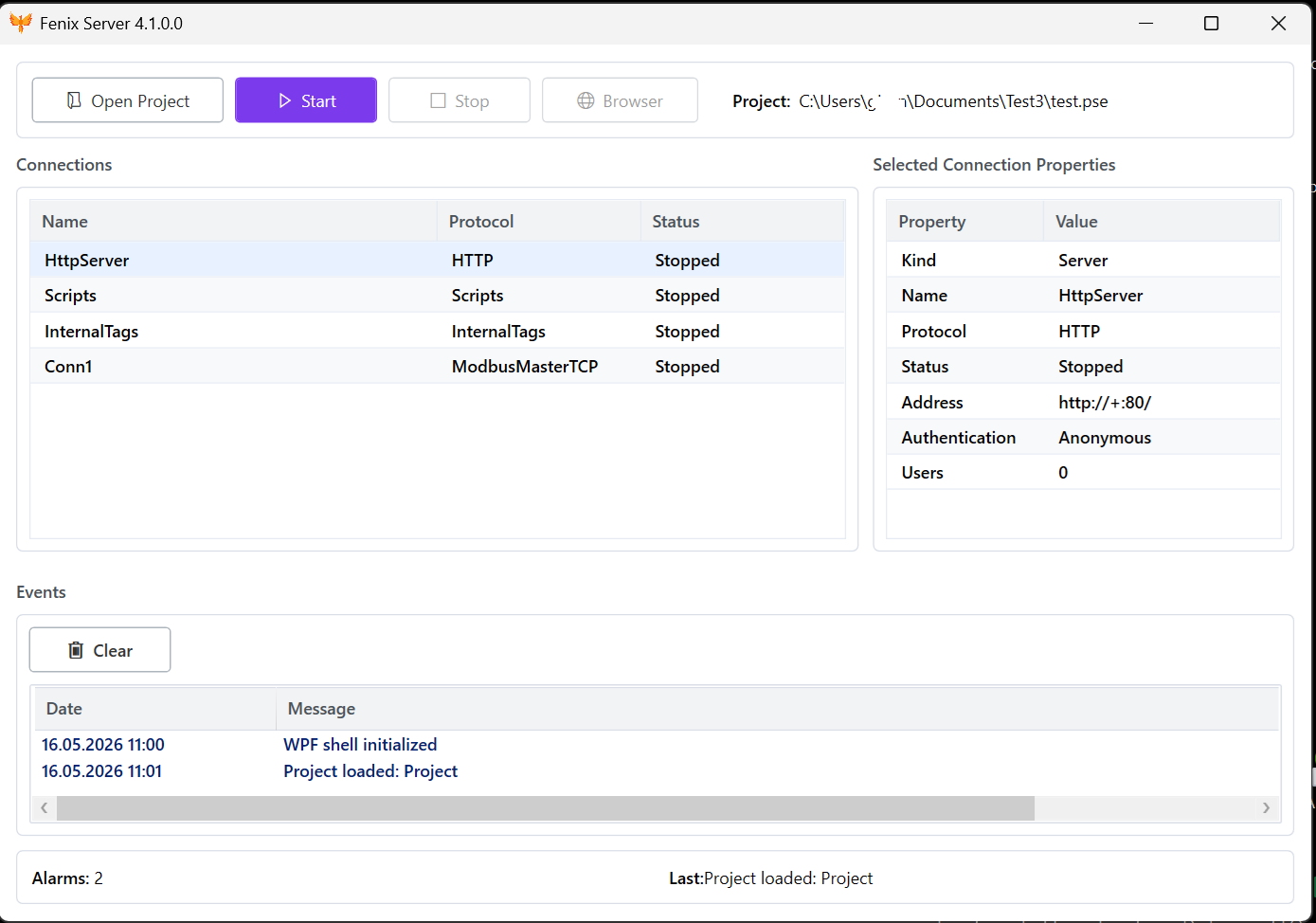
2. The Server Window
┌─────────────────────────────────────────────────────────────┐
│  [Open Project]  [▶ Start]  [■ Stop]  [🌐 Browser]  Status  │
├──────────────────────────────┬──────────────────────────────┤
│  Connections                 │  Selected Connection         │
│  Type | Name | Status | ...  │  Properties                  │
├──────────────────────────────┴──────────────────────────────┤
│  Events Log — time-stamped messages                         │
├─────────────────────────────────────────────────────────────┤
│  Status bar: alarm count | last message                     │
└─────────────────────────────────────────────────────────────┘
3. Loading a Project
- Click Open Project.
- Choose a
.psefile (created in Fenix). - All connections from the project appear in the Connections grid.
Projects are configured in Fenix — see the Fenix User Guide.
4. Controlling Communication
| Button | What It Does |
|---|---|
| ▶ Start | Activates all drivers. Devices are polled, tags update, and the REST API starts serving live data. |
| ■ Stop | Gracefully stops all drivers. Communication pauses but the web API stays online. |
The Status indicator shows whether communication is Running or Stopped.
5. Monitoring Connections
The left side of the window shows all active connections:
| Column | Meaning |
|---|---|
| Kind | Protocol — "Modbus TCP", "S7-300/400", etc. |
| Name | Connection name from your project. |
| Protocol | Technical protocol identifier. |
| Status | Running, Stopped, or Error. |
| Sent | Total requests sent to the device. |
| Received | Total responses received from the device. |

Click any row to see its full details — IP address, port, timeout, retries — in the Properties panel on the right.
6. Events and Alarms
The Events panel at the bottom logs everything that happens:
- Driver started / stopped
- Connection errors and timeouts
- Device communication failures
The status bar shows the total alarm count and the most recent message.
7. Accessing the REST API
Click the 🌐 Browser button to open the API in your web browser. Call any endpoint directly:
http://localhost:80/api/tags
http://localhost:80/health
For a complete walkthrough with code examples, see FenixServer.Api — User Guide.
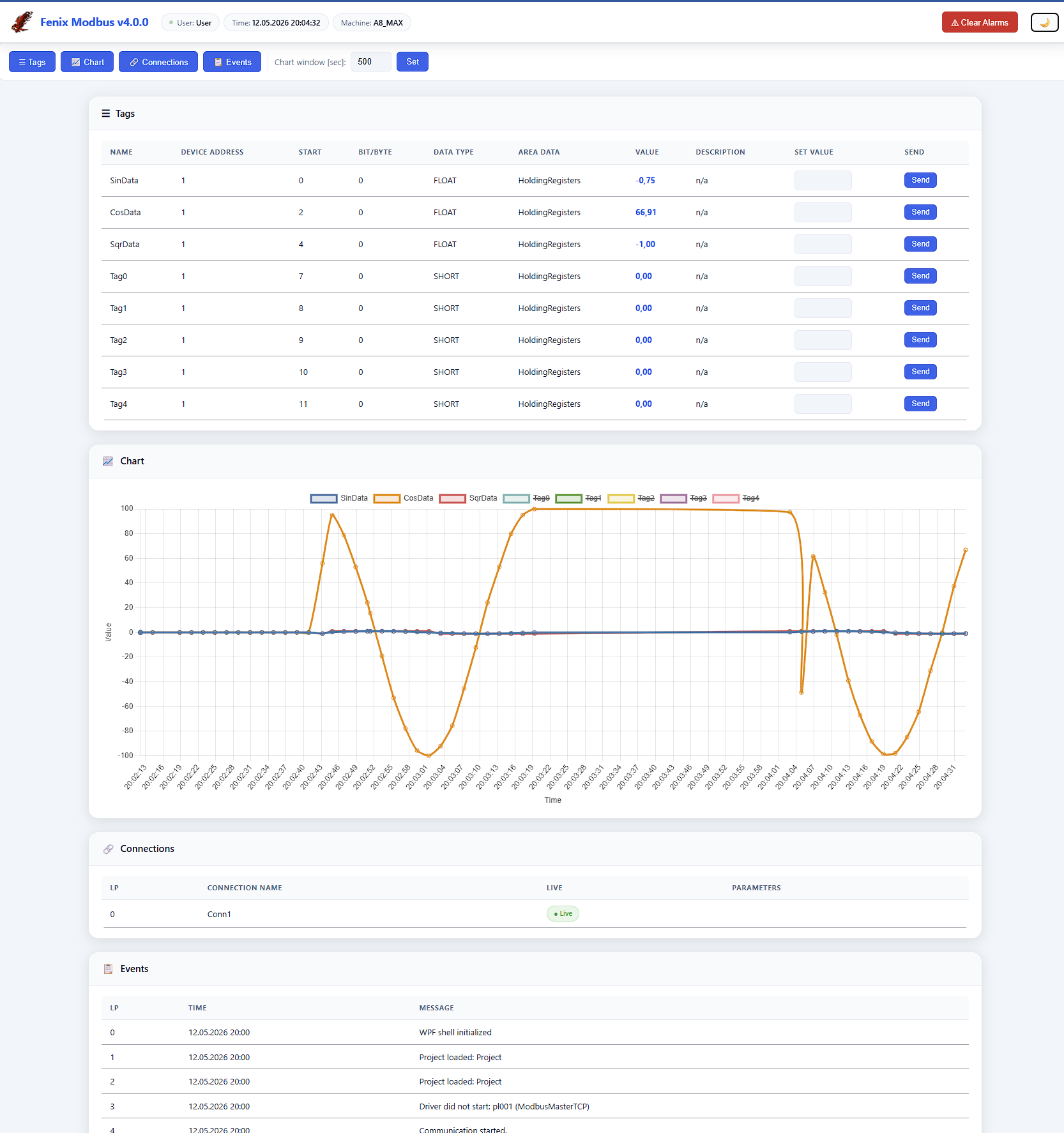
8. Web Dashboard
If your project includes web files (in the Http/ folder), they are served automatically:
http://localhost:80/
This means you can view a browser-based monitoring dashboard without installing anything extra.

9. Shutting Down
Close the window. The server will:
- Stop all drivers gracefully.
- Shut down the web API.
- Release all resources.
For auto-run mode (-r), use Windows Task Scheduler to restart the app automatically after system reboots.
How It Works (Briefly)
Under the hood, FenixServer does three things simultaneously:
- Drivers — the same Modbus and S7 communication engines from Fenix run in the background, polling your devices.
- Web Host — an ASP.NET Core server is embedded directly in the application, no IIS required. It listens on port 80 (configurable) and serves both the REST API and static dashboard files.
- UI — the WPF window gives you visibility into what's happening: connection status, sent/received counters, and an event log.
All three components start and stop together. When you close the window, everything shuts down cleanly.