Fenix - dgsoftlabs/FenixModbusS7 GitHub Wiki
Fenix — User Guide
This guide walks you through everything you can do with Fenix: from your first project to advanced scripting and data visualization.
1. Getting Started
Launching the Application
You can start Fenix from:
- Desktop — double-click the
Fenixshortcut. - Start Menu — Start → Fenix.
- Installation folder — run
Fenix.exedirectly (typically inC:\Program Files (x86)\DGSoftLabs\Fenix\).
The application needs Administrator rights — a UAC prompt will appear on launch. This is required for serial port and network access.
What Happens at Startup
- A splash screen appears for about 2 seconds.
- The app checks online for a newer version and notifies you if one is available.
- If the window layout file got corrupted (e.g. after a crash), it's automatically repaired so the app starts cleanly.
- If an unexpected error occurs, it's logged to the
Logs\folder with a timestamp.
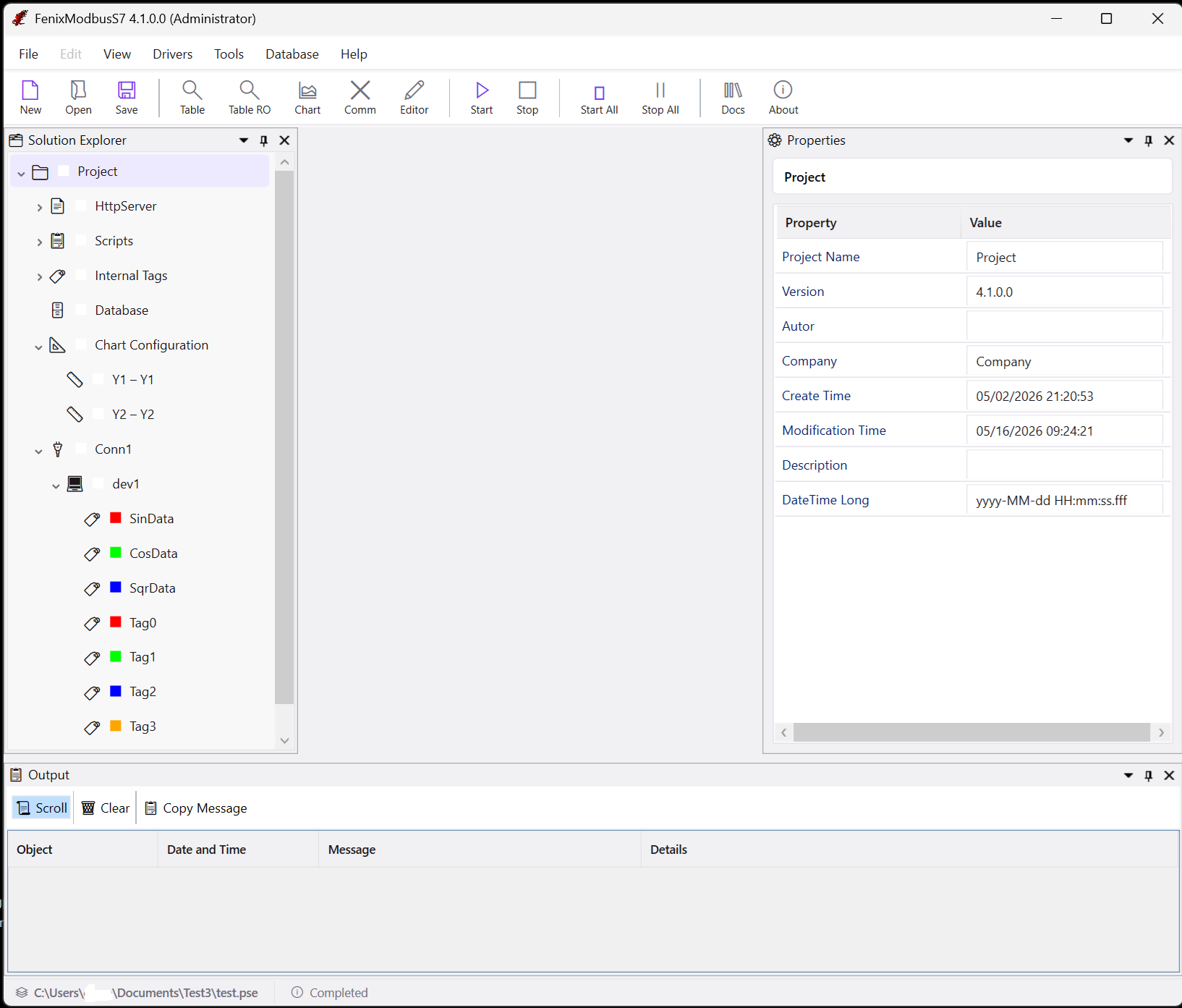
You can also check for updates manually: Help → Check For Updates.
The Main Window
The main window is divided into dockable panels that you can drag, resize, float, or pin however you like. Your layout is saved automatically and restored next time.
| Panel | What It Shows |
|---|---|
| Solution Explorer (left) | Your project tree — projects, connections, devices, tags, scripts. Right-click for actions, drag to reorganize. Color dots show driver status. |
| Properties (right) | Settings for whatever you selected in the tree. Grouped into expandable categories. |
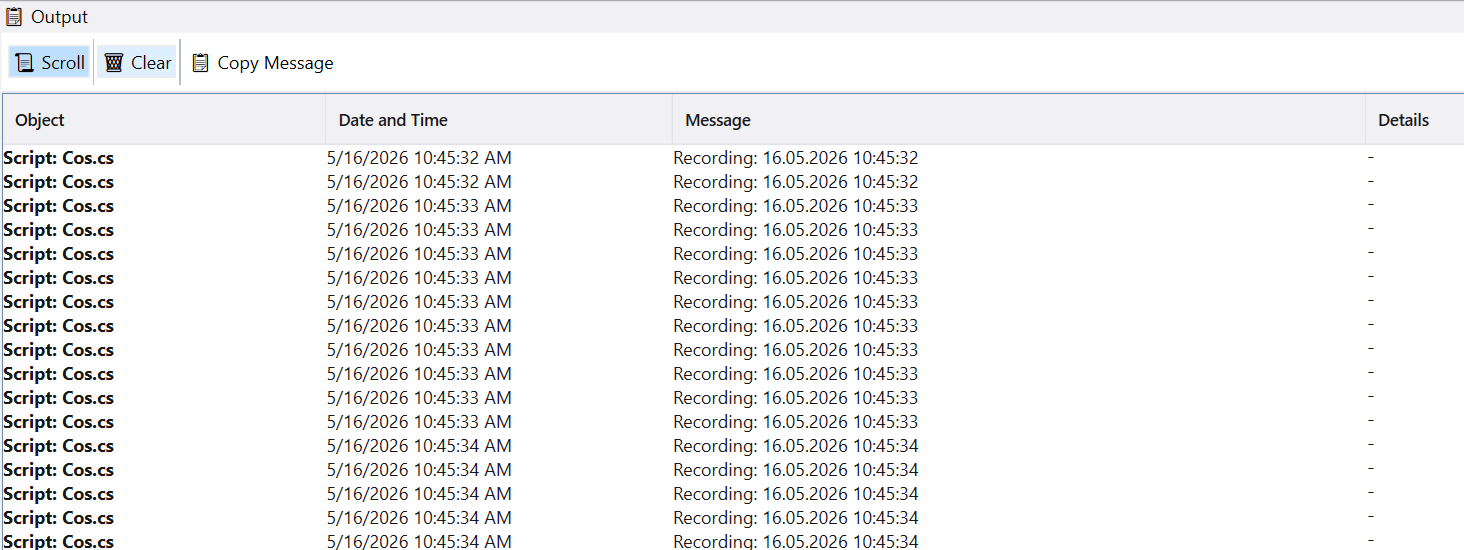
| Output (bottom) | Messages from scripts (Write() calls) and system diagnostics. Has a scroll-lock toggle and clear button. |
| Communication View | Live log of all data sent and received — raw hex bytes, timestamps, tag names. Can be filtered and exported to CSV. |
Keyboard Shortcuts
These work even when Fenix is in the background:
| Shortcut | Action |
|---|---|
| Ctrl+Shift+R | Stop all drivers → Save project → Start all drivers (full restart) |
| Ctrl+Shift+S | Save project → Start all drivers |
| Ctrl+Shift+C | Stop all drivers |
2. Creating a Project
A Project holds everything — connections, devices, tags, scripts, database settings.
- Click New on the toolbar, or File → New Project.
- Fill in:
- Project Name (required) — unique name.
- Author — who created it.
- Description — what this project is for (optional but recommended).
- Click Save and choose a folder.

The project is saved as a .pse file. You'll see it appear in the Solution Explorer.
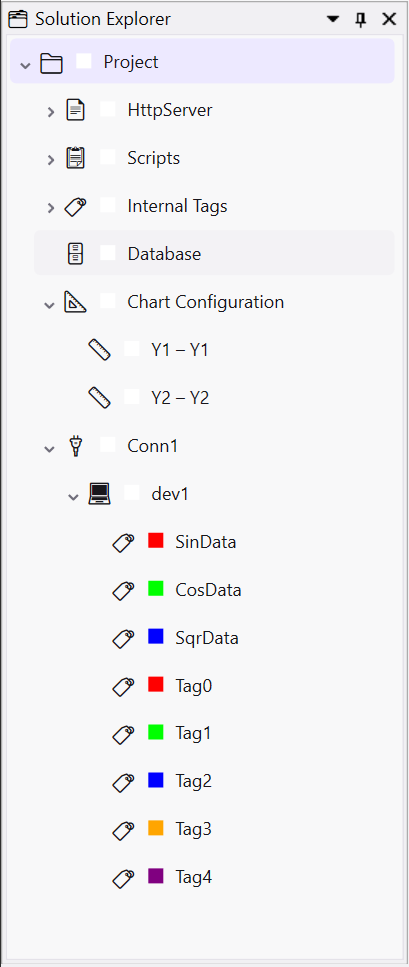
To change project settings later, select the project node and edit them in the Properties panel.

3. Setting Up Communication Drivers
Before connecting to any device, make sure the right protocol drivers are installed:
- Go to Tools → Driver Configuration.
- The window lists all drivers found on your system with their name, version and file path.
- Click Reset to force Fenix to re-scan for drivers on next startup.
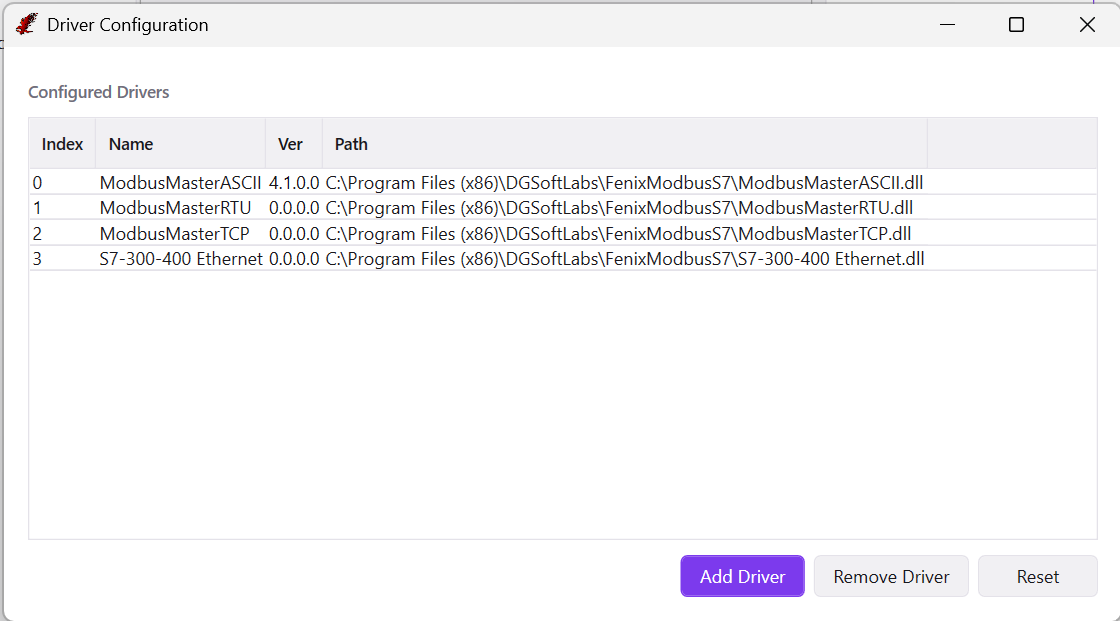
Fenix supports four protocols out of the box:
| Protocol | How It Connects |
|---|---|
| Modbus TCP | Ethernet — IP address + port |
| Modbus RTU | Serial — COM port, baud rate, parity |
| Modbus ASCII | Serial — same as RTU but with ASCII framing |
| Siemens S7-300/400 | Ethernet — ISO/TSAP protocol |
4. Adding a Connection
A Connection is the link between Fenix and a physical device (PLC, sensor, etc.).
- In Solution Explorer, right-click your project → Add Connection.
- Configure:
- Driver Name — choose the protocol.
- Connection Name — e.g. "PLC_Line1".
- Related params — Parameters related with selected parameters. .
- Click Save.

Adding a Device
After saving the connection, add a Device under it. A device groups tags that share a common address range.
- Right-click the connection → Add Device.
- Fill in:
- Name — e.g. "Rack1", "RemoteIO_Station3".
- Device Address — address offset applied to all tags in this device.
- Click OK.
You can add multiple devices under the same connection — useful when a single PLC has several I/O modules at different address ranges.

5. Defining Tags
A Tag is a single data point — a temperature reading, a pump status, a counter value. Tags are what you actually read from and write to devices.
Adding Tags
- Right-click a Device node → Add Tag.
- Fill in:
- Tag Name — must be unique in the project.
- Data Type — what kind of data:
Bool,Int16,Float,String, etc. - Memory Area — which part of device memory to read:
- Modbus: Coils, Discrete Inputs, Input Registers, Holding Registers
- S7: DataBlock, Input, Output, Marker
- Start Address — where to start reading.
- Bit/Byte — for bit-level access (e.g. 3rd bit of register 2: Start=2, Bit=3).
- Bytes Order — Big Endian or Little Endian (important for 32-bit values).
- DB — DataBlock number (S7 only).
- Check Add Range to create many tags at once (e.g. 10 consecutive registers).
- Click Save.

Editing Tags
Double-click a tag in the tree to open its properties. You can change its name, color, data type, format string, and more.

6. Internal Tags (No Hardware Required)
Internal Tags live only in Fenix's memory — they don't communicate with any device. Use them for calculations, temporary values, or script results.
- Right-click Internal Tags → Add Internal Tag.
- Give it a name and data type.

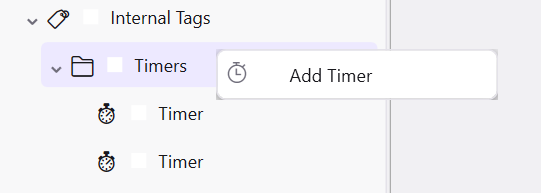
Making Internal Tags Run on a Timer
- Select the Internal Tags node.
- In Properties, set the timer interval in milliseconds (e.g.
2000= every 2 seconds).
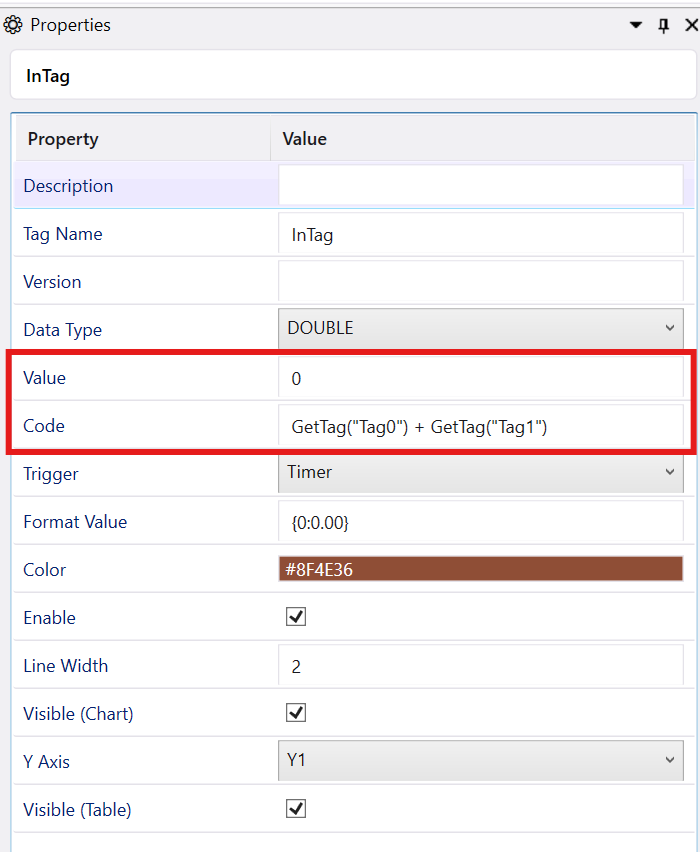
Formula Example
You can assign a formula to an internal tag. This example computes the average of five device tags:
(GetTag("Temp1") + GetTag("Temp2") + GetTag("Temp3") + GetTag("Temp4") + GetTag("Temp5")) / 5
7. C# Scripting
For anything more complex than a single formula, Fenix has a built-in C# script editor. Scripts run on a timer and have full access to all tags.
How Scripts Work
Every script has three entry points:
| Method | When It Runs |
|---|---|
Start() |
Once, when the script is first activated |
Cycle() |
Repeatedly, every time the timer ticks |
Stop() |
Once, when the script is deactivated |
Scripts can read any tag with GetTag("TagName") and write messages to the Output window with Write("message").
Setting Up a Script
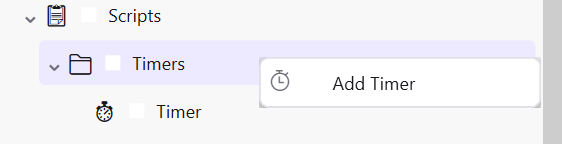
- Create a timer — right-click the project or Internal Tags → define a timer with your desired interval.
- Create a script — right-click → Add Script. Choose C# as the language.
- Bind the timer — in the script properties, select which timer triggers it.
- Write your code — double-click the script to open the code editor.
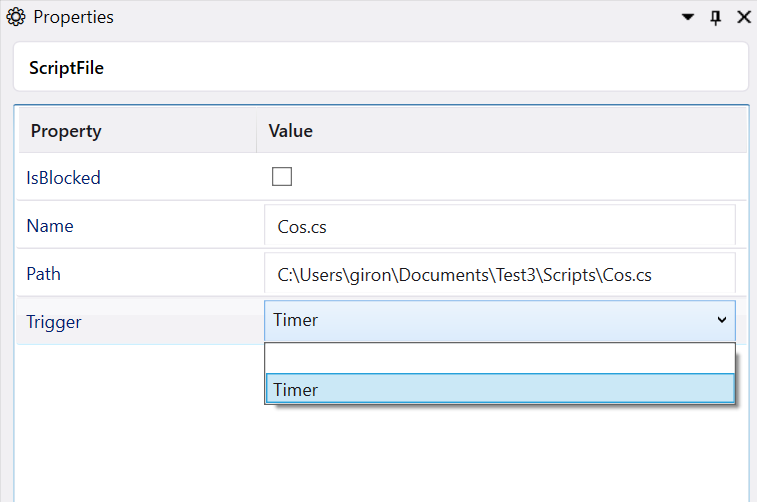
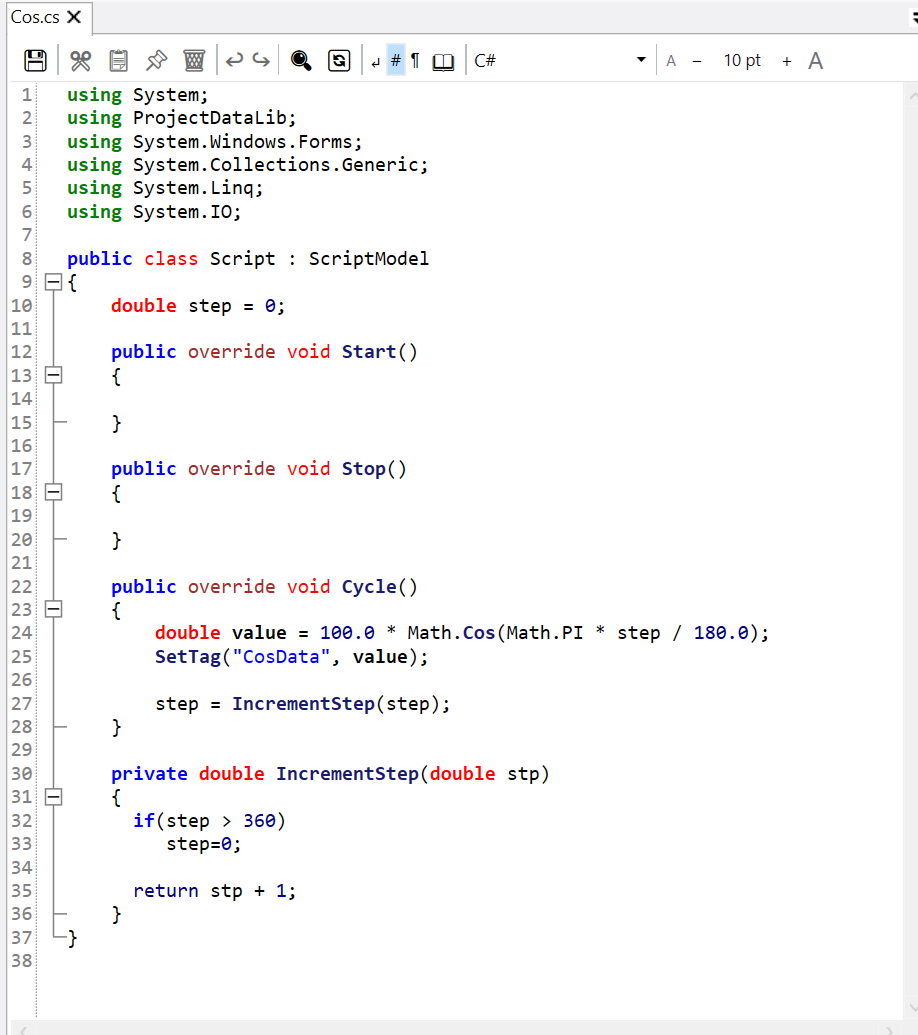
To temporarily pause a script without deleting it, set Enable → false in its properties.
Example: Logging Data to CSV
using System;
using ProjectDataLib;
using System.IO;

public class Script : ScriptModel
{
    StreamWriter file;

    public override void Start()
    {
        file = new StreamWriter("C:\\log.csv");
        Write("Logging started: " + DateTime.Now);
        file.WriteLine("Date;Tag10;Tag11");
    }

    public override void Cycle()
    {
        Write("Recording: " + DateTime.Now);
        file.WriteLine(DateTime.Now + ";" + GetTag("Tag10") + ";" + GetTag("Tag11"));
    }

    public override void Stop()
    {
        Write("Logging stopped: " + DateTime.Now);
        file.Close();
        file = null;
    }
}
8. Editors & Data Visualization
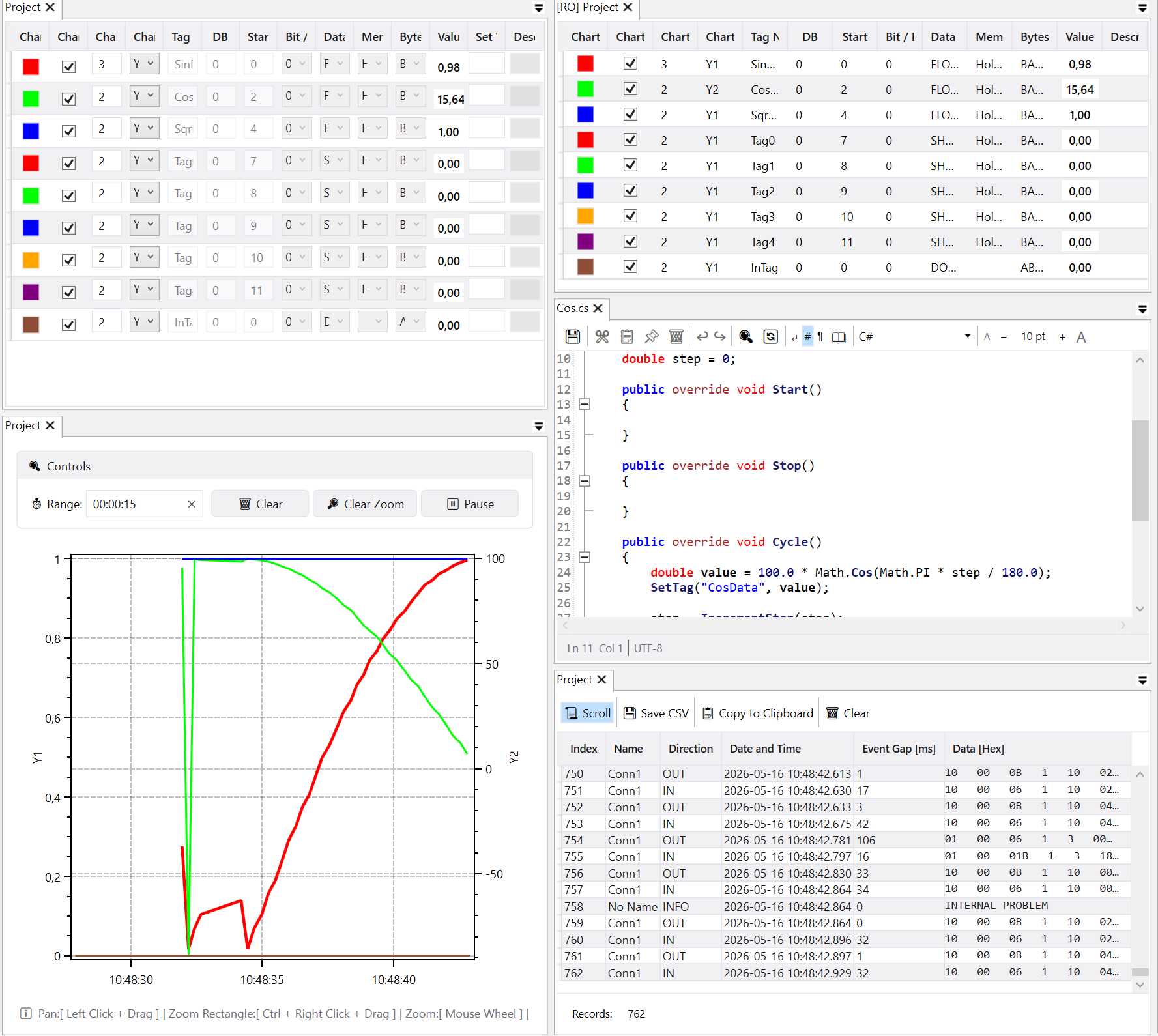
Fenix has five editors, each opened by right-clicking a node in the Solution Explorer:
| Editor | What It Does | Data Source |
|---|---|---|
| TableView | Live data in an editable grid | Device |
| ChartView | Real-time trend charts with zoom | Device |
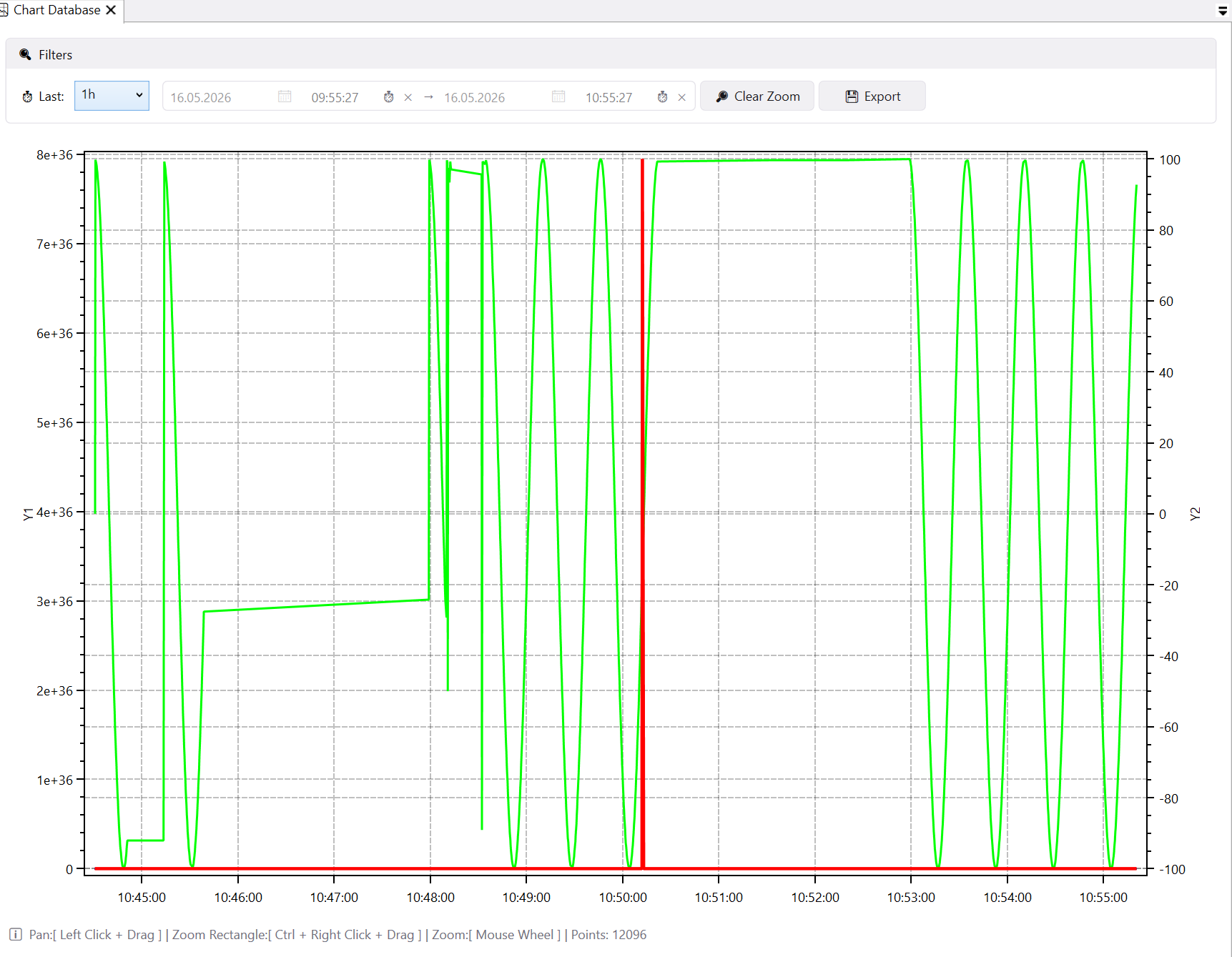
| DBTableView | Database table with snapshots and pivot | SQLite |
| DBChartView | Historical charts from database | SQLite |
| ScriptEditor | C# code editor with syntax highlighting | Script files |
To start viewing data: select a node, right-click → choose an editor, then click ▶ Start (or ▶ Start All).
TableView
The main editor — shows tags in a table with live values. You can edit tag parameters and write values to devices directly from the grid.
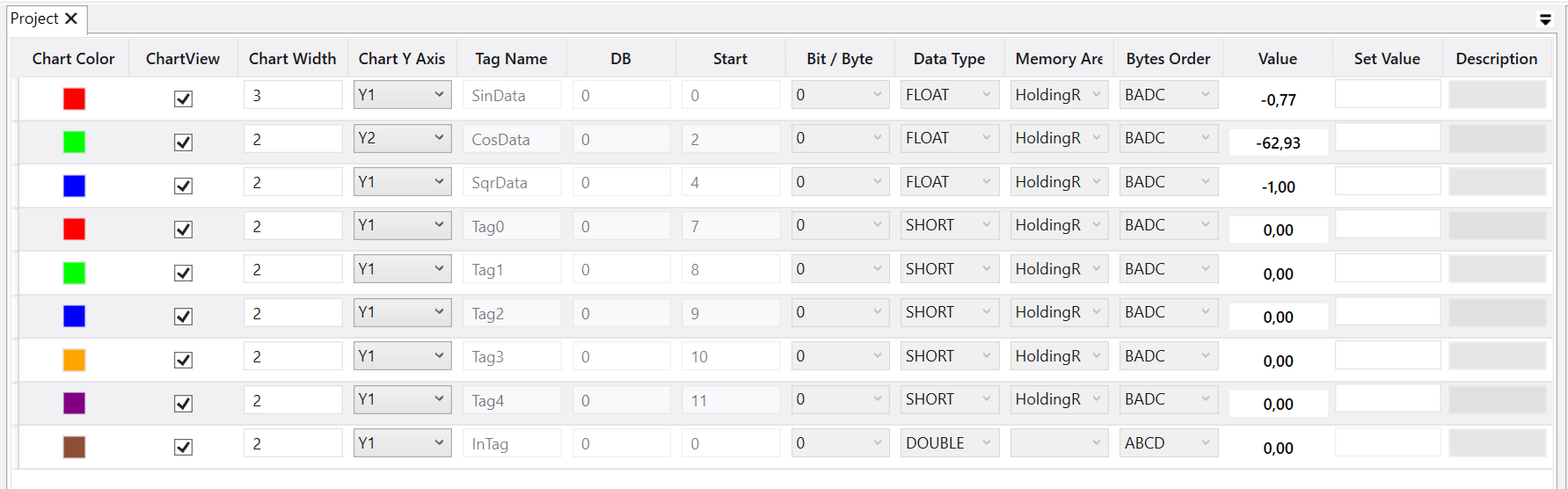
Columns:
| Column | What It Means |
|---|---|
| Color | Tag color — also used in charts |
| Tag Name | Unique name in the project |
| DB | DataBlock number (Siemens S7 only) |
| Start | Memory address to read from |
| Bit / Byte | Sub-address for bit access (e.g. Start=2, Bit=3 = 3rd bit of 2nd register) |
| Data Type | Bool, Byte, Int16, UInt16, Int32, UInt32, Float, Double, String |
| Memory Area | Modbus: Coils, Discrete Inputs, Input Registers, Holding Registers. S7: DataBlock, Input, Output, Marker |
| Bytes Order | Big Endian / Little Endian for multi-byte values |
| Value | Current live value |
| Progress | Visual bar — driver communication status |
| Set Value | Write a new value to the device |
| Description | Your notes about this tag |
What you can do:
- Edit parameters inline without opening dialogs
- Watch values update in real time
- Write new values to devices
- Assign colors for quick identification
- Hide tags with the Visibility property (they stay active in scripts)
TableView (Read Only)
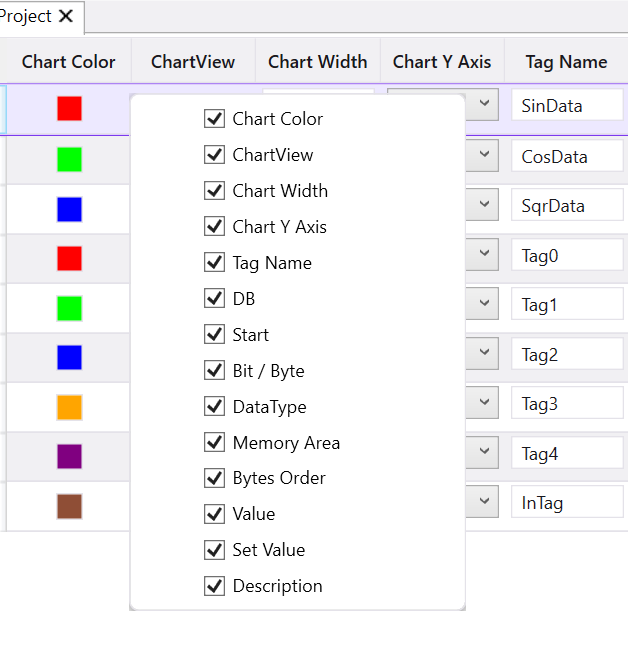
A read-only variant of TableView — same columns, but no editing. Useful for monitoring-only workstations where you don't want accidental writes. Columns can be shown/hidden via the right-click context menu: Color, ChartView, Width, Tag Name, DB, Start, Bit/Byte, DataType, Memory Area, Bytes Order, Value, Description.
Communication View
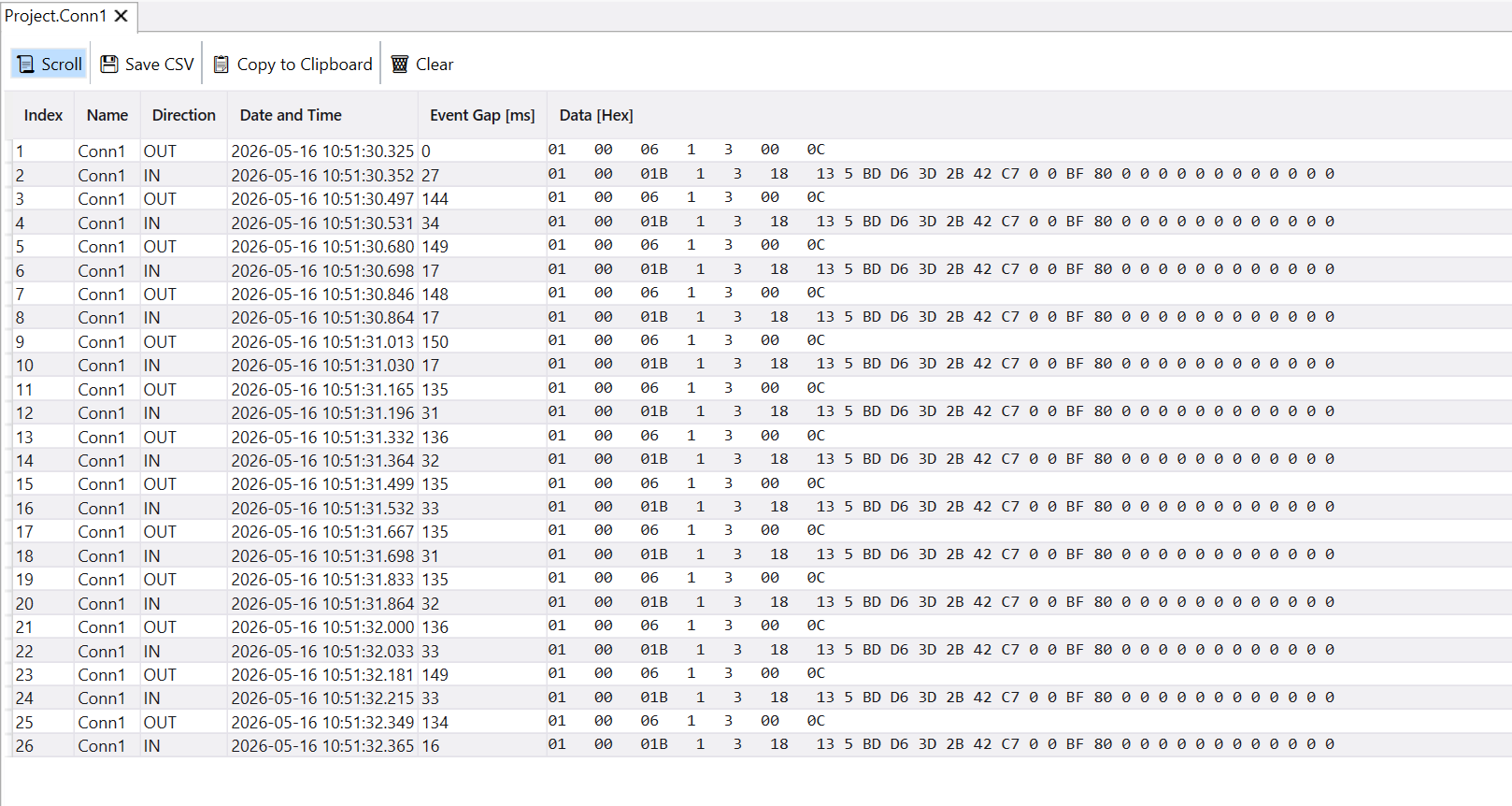
A detailed log of every communication frame sent and received. Essential for debugging connection problems.
Columns (each can be toggled on/off):
| Column | What It Shows |
|---|---|
| Index | Sequential frame number |
| Name | Driver/connection name |
| Direction | Sent or Received |
| Date and Time | Timestamp of each frame |
| Event Gap [ms] | Time since previous frame |
| Data [Hex] | Raw bytes in hexadecimal with tag annotations |
Toolbar actions: Scroll lock toggle, Save to CSV, Copy to clipboard, Clear log. The status bar shows the total record count.
When troubleshooting, open this view first — the raw hex data and timing gaps immediately reveal communication issues.
ChartView
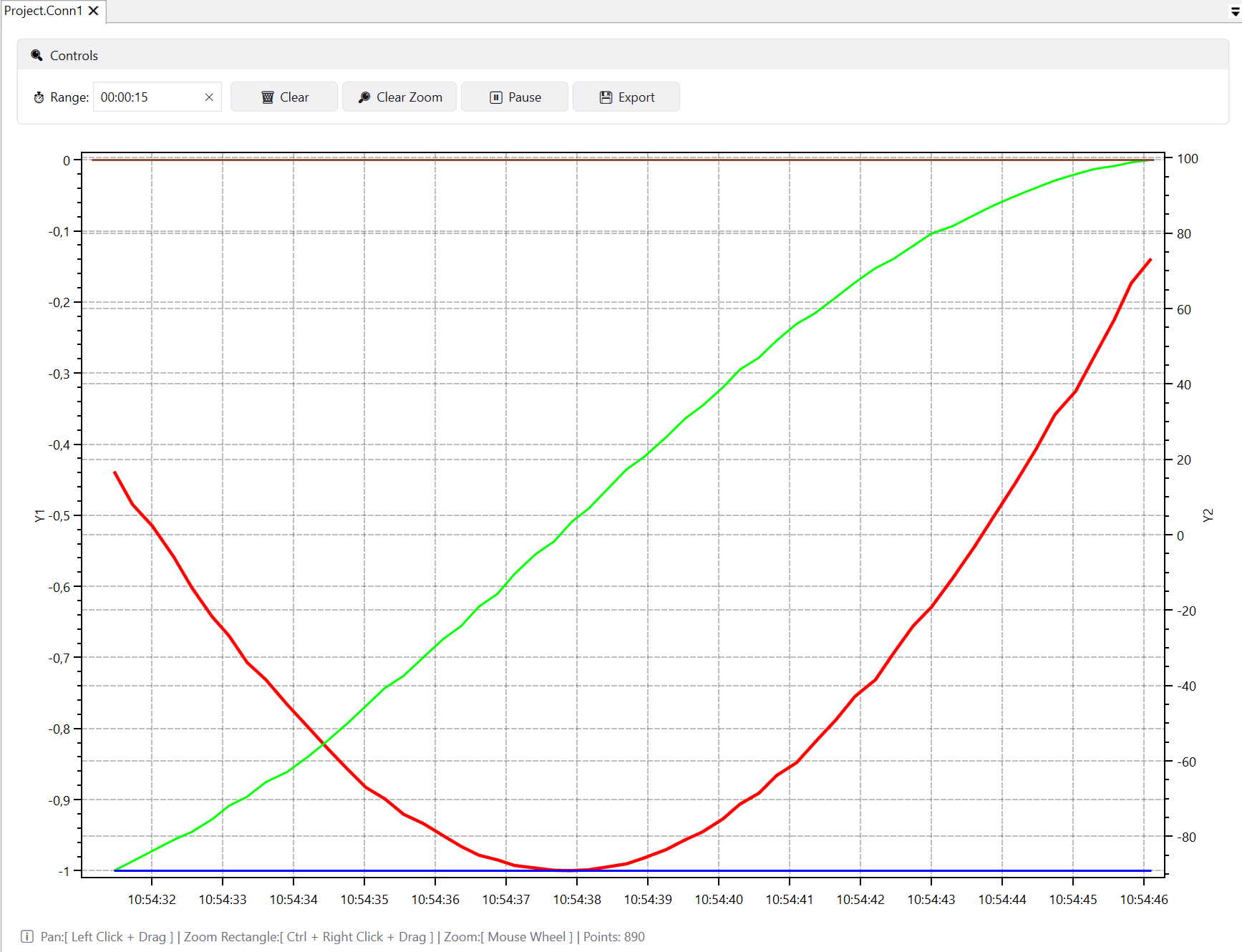
Real-time trend charts powered by OxyPlot:
- Multiple Y-axes — each tag can have its own scale
- Zoom & pan — mouse wheel to zoom, drag to pan, reset button to go back
- Colors match TableView automatically
- Live scrolling — continuously updating time window
DBTableView
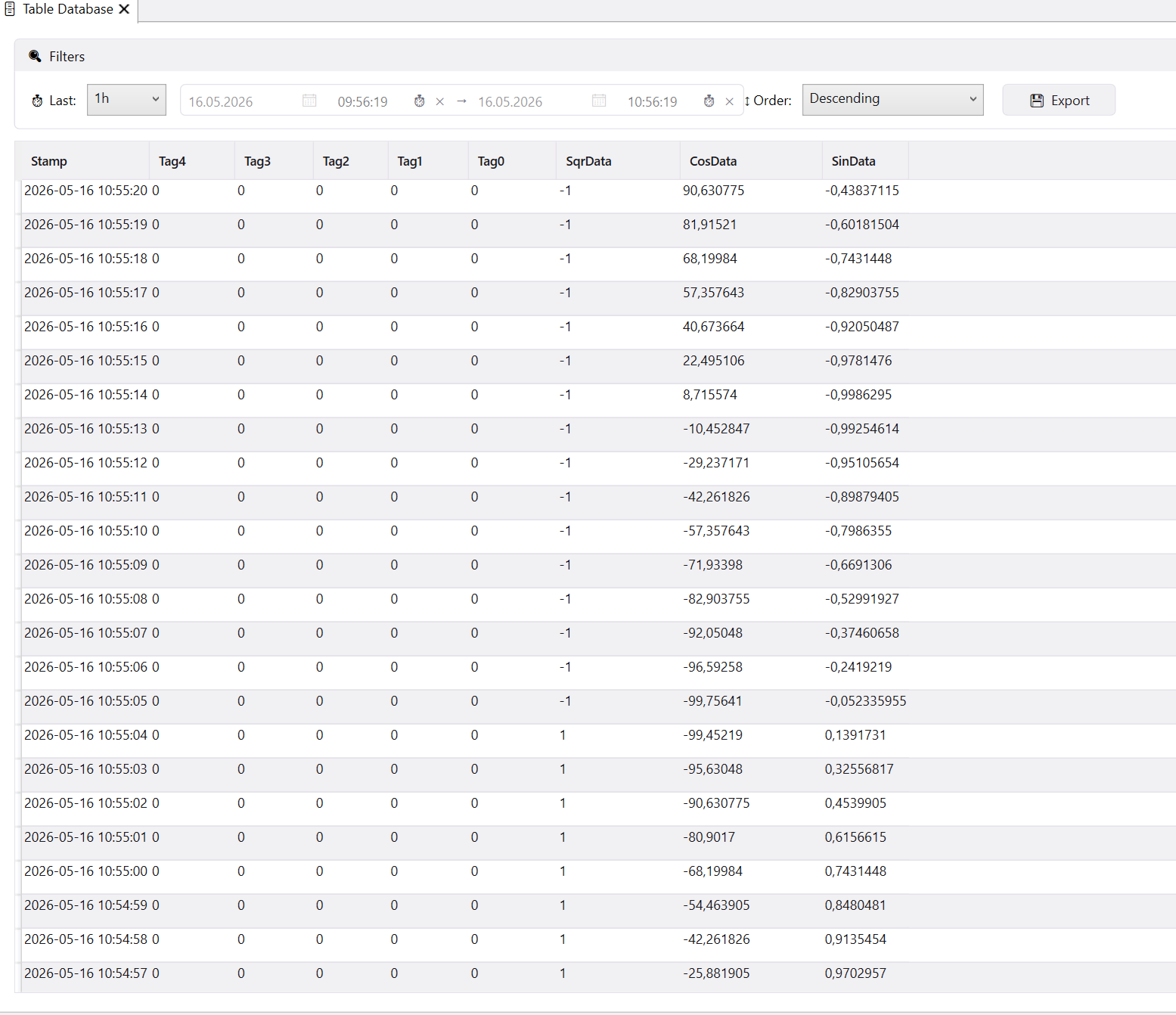
Data stored in the SQLite database:
- Snapshots — save and compare data from different moments
- Pivot grid — cross-tabular view for analysis
- CSV export — with pivot support
DBChartView
Historical charts from database records — analyze trends over hours, days, or weeks.
ScriptEditor
Built-in C# code editor powered by AvalonEdit. Features:
- Syntax highlighting — syntax coloring for C#, with a dropdown to switch languages
- Find & Replace — Ctrl+F / Ctrl+H
- Undo/Redo — full edit history
- Line numbers and word wrap toggles
- Script API catalog — press F2 for a reference of available methods (
GetTag,Write, etc.) - Save — Ctrl+S saves the script file
9. Troubleshooting
The app won't start
- Make sure no other instance is running (only one allowed).
- Run as Administrator.
- Check the
Logs\folder for crash reports.
Can't connect to a device
- Verify the IP address / COM port in the connection properties.
- Check that the driver is visible in Tools → Driver Configuration.
- Look at the Communication View for raw sent/received data — this often reveals the problem.
Layout looks broken
- Close the app, delete
Layout_.xmlfrom your project folder, restart. The layout will reset to default.
Script isn't running
- Check that a timer is assigned to the script.
- Check that Enable is set to
truein the script properties. - Look at the Output window for error messages.