Debugger - de-jcup/eclipse-bash-editor GitHub Wiki
With Bash Editor V2.0.0 a bash script debugger is included.

There is another video at YouTube available showing the debugger in action on a Windows 10 machine.
Open Window→Preferences and type debug into search field. Select then debug settings of bash editor:
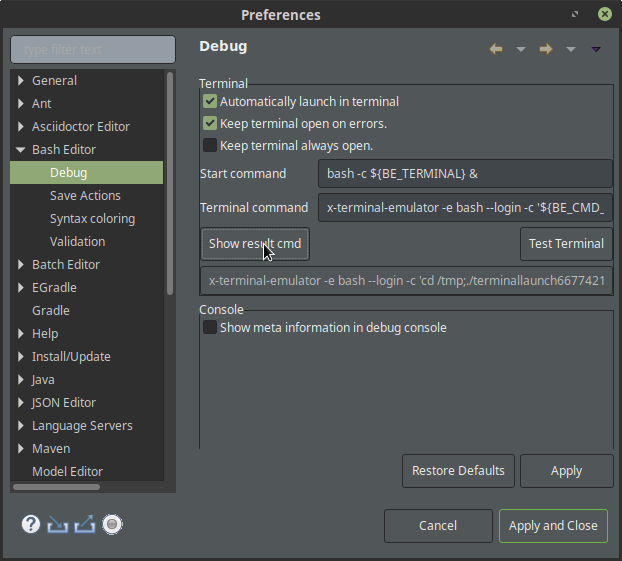
When enabled a debug session will automatically open a terminal and starts the bash script to debug. When disabled only the remote debug session will be started and you have to start the bashscript by your own and include the remote script part in top line.
When an error occurres the terminal will be kept open, exit code 0 will close the terminal automatically when debug session
ends.
and *.sh should be linked to bash as well.
TIP: You have to use set -e inside your code to have correct exit codes…
With this option enabled, the terminal will alwJust release 2.2.0 on marketplace containing the changes. Please setup your mapped user home in preferences there and give me feedback if its now working with WSL.ays be open, no matter which exit code returned.
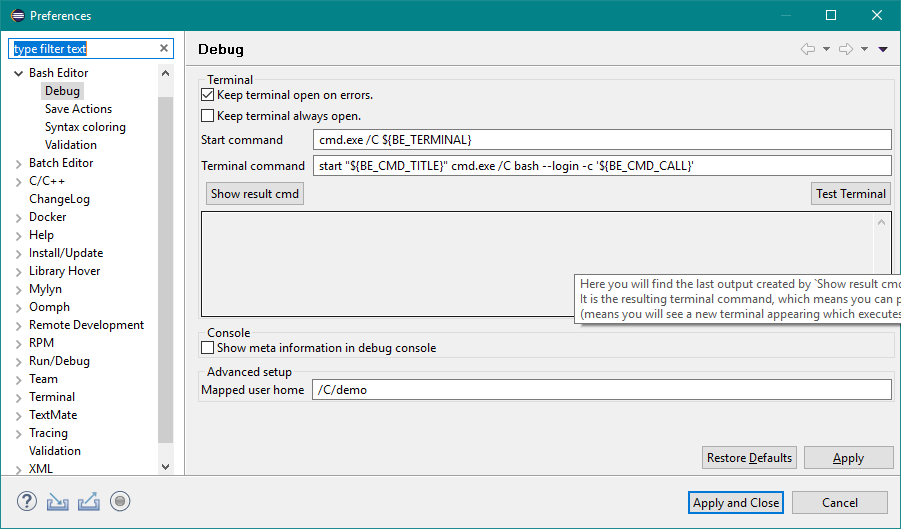
The start command is an initial command which is used inside eclipse to start a foreign process (which will then execute the terminal command.
${BE_TERMINAL} represents the (calculated) content of the next editor field in preferences.
|
🔥
|
At linux do not forget to add the & at the end to execute the process in background.
|
This command is repsonsible to start a graphical UI interface where the script will be launched ${BE_CMD_CALL} and ${BE_CMD_TITLE} are variables which will be injected automatically.
You can define your own way to get things working, when you do not want to install the perl script x-terminal-emulator which does some magic with paramters automatically.
When using gnome-terminal directly, please use defaults and change terminal command to
gnome-terminal -- bash --login -c '${BE_CMD_CALL}'
(for more details see #150 )
If you have problems starting up the terminal you can press Show result cmd butotn and get the resulting command
string which is used by bash editor. You can copy the content and execute it inside a shell at your system. So you can tune up and play around easily in console. It contains the generated parts of ${BE_CMD_CALL} and ${BE_CMD_TITLE} as well. Only start command will not be added to output because it’s not needed for testing - you already have got a bash instance running when working in console…
You can test if your preference changes are working by pressing the Test Terminal button.
When you press Test Terminal in preferences, a simple test bash script will be executed by using your
terminal setup. If your setup is correct, you will see (without a debug session):
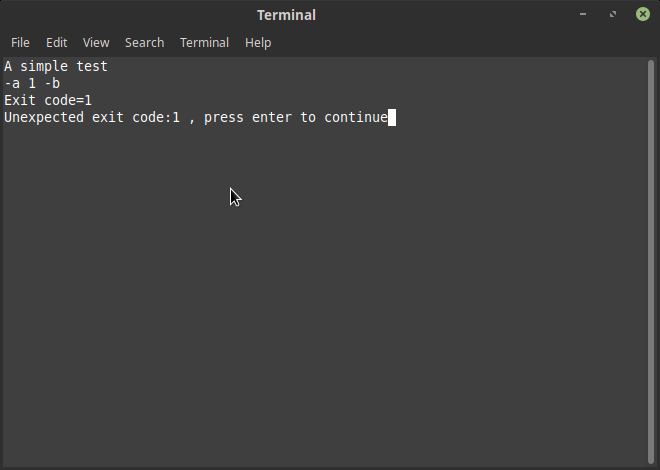
The terminal should be kept open, except when you have turned off Keep terminal open on errors.
Here you can set the mapping for user home if this differs at runtime. This is intesting for developers using WSL (see also Issue 155)
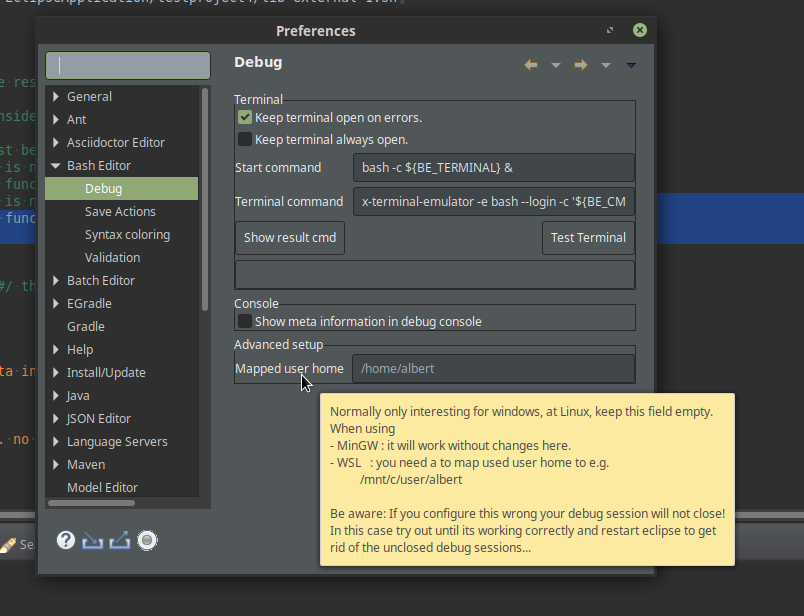
There is not much to do. Please refer to OS specific blocks below.
|
ℹ️
|
Former Versions did contain a bug in Windows setup. Was fixed with V2.2.3 But to provide the new windows settings out-of-the-box the preference keys has changed and are set with new defaults on startup. So if you have customized values for launcher and terminal command, you should backup them inside a text file before updating to 2.2.3 |
When you are working with Gnome or Mate desktop environment it will work out of the box.
If your are using another Desktop Environment (e.g. KDE) you will have to change x-terminal-emulator -e in preferences to an option where terminal will execute a given shell script string. (Or you isntall and setup the x-terminal-emulator alternative package so it uses gnome or mate shell).
Try out your preferences working with Test Terminal button.
You have to install a bash variant, e.g. GIT for Windows includes a full working bash. Bash editor will simply use cmd.exe and bash to bring up a terminal visualization on debug time. So you need at least
access to cmd.exe, and your bash installation is available by your PATH environment variable.
Maybe it is necessary to enable Use Git and optional Unixtools from the Command Prompt at installer wizard page:
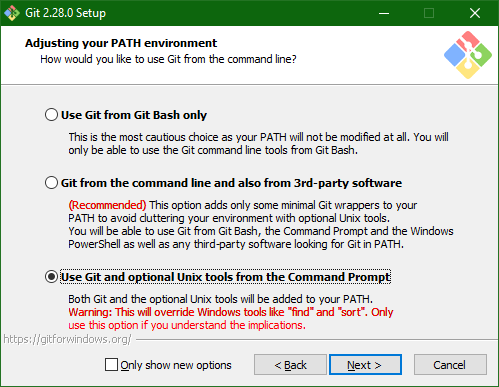
Example:
When you have installed Git for windows (32bit) from https://git-scm.com/download/win you should add C:\Program Files (x86)\Git\bin to your PATH variable so "bash" call on command line will open a bash.
The initial preferences for launcher and terminal command at a Windows machine looks like this:
|
💡
|
If you change your PATH environment variable and you have a running eclipse instance you have to
close eclipse and start a new fresh instance. Otherwise those changes have no effect.
|
It should work - currently I have no possibility to test it. Please see Linux block before and the XTerminal command. There should be a terminal command for apple which could be entered there.
You have two choices:
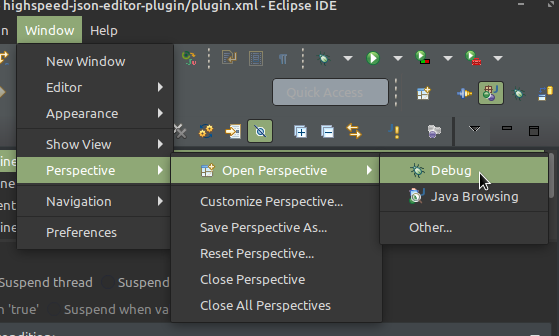
Simply switch to debug perspective (contains already debug view, breakpoints view etc.).
You can do this by opening Window→Perspective→Open Perspective → Debug as shown in next picture:
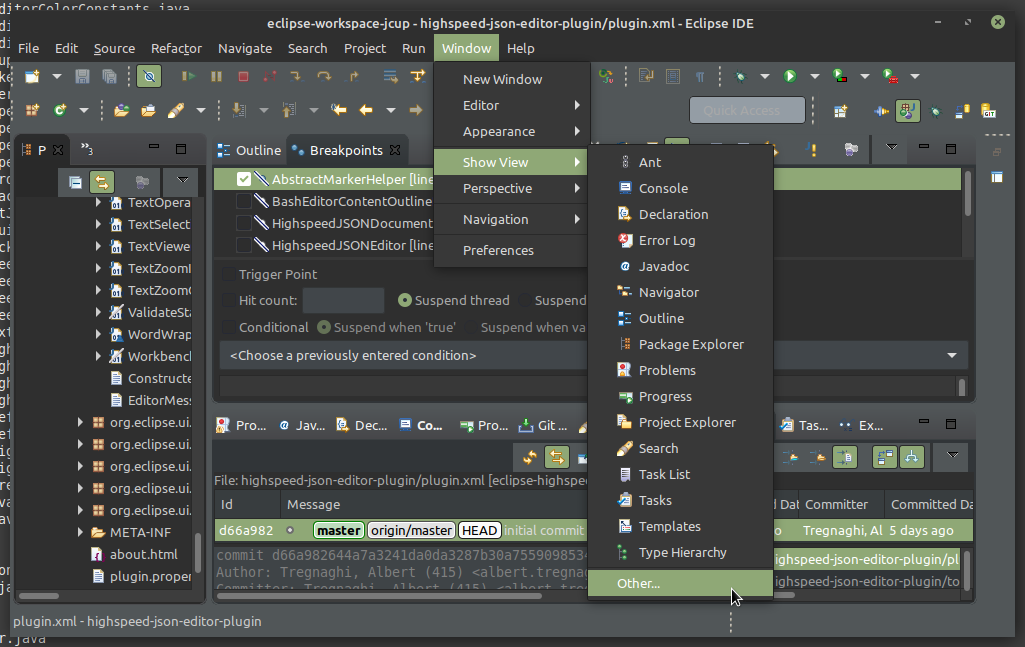
Open the "Other views" dialog:
Then search for your wanted view (e.g. Debug or Breakpoints) - as shown in next picture:
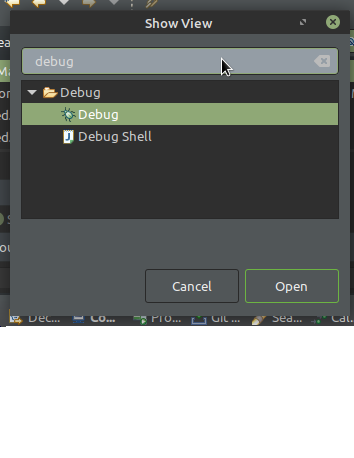
When you pressed Open button the view it will be added to your current perspective where you can simply drag and drop to another location - if wanted.
Please enable and you are Keep terminal always open option in preferences. Having this option enabled you will always see the terminal output.
If there is still no output,please test your terminal works by using Test Terminal button in preferences.
If this happens and you got a zombie debug session active which is not visible for you, do following:
ss -tulpen
Look for the PID which listens to port 33333 and kill it (kill -9 $pid). Check again - if still a PID is active kill this one again.
Now you are done and it will work again.
-
Debugger will temporary add a special remote connection script by adding a include line at top of debugged script.
-
Eclipse will do a remote connection to the remote connection script and start debug session.
-
Temporary code will be automatically removed when debug session ends and you are done
Thanks to Alex Kosinsky and his previous work on basheclipse. The idea used there to enable debugging of bash scripts in Eclipse by using bash function trace outputs was also reused in Bash-Editor. Without this inspiration the debugger would have never been integrated.