Code Generation and Blueprint41 - circles-arrows/blueprint41 GitHub Wiki
Code Generation and Blueprint41 Project
In this tutorial, we will see how to generate codes and use it on a Blueprint41 project.
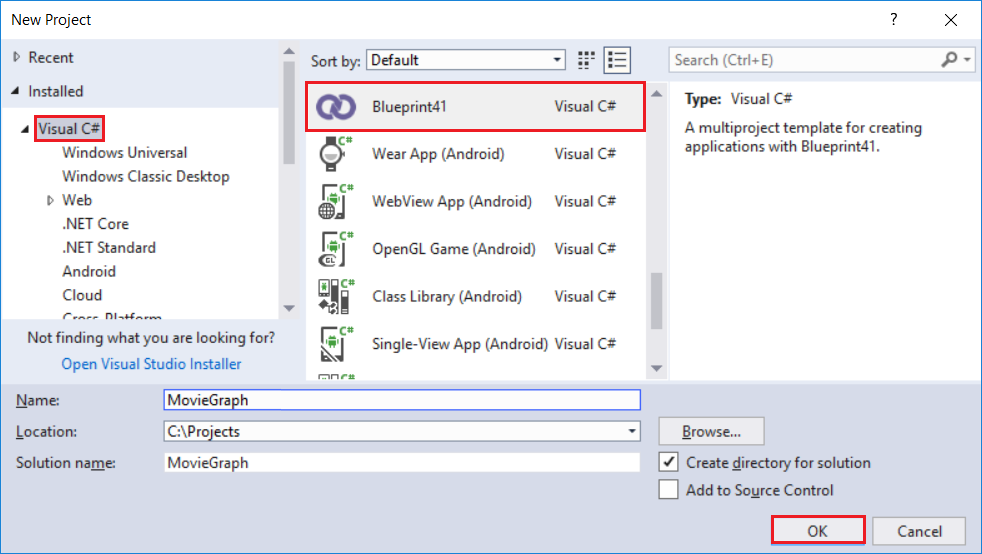
- Launch Visual Studio 2017, create a blueprint41 project "MovieGraph". Select the OK button.
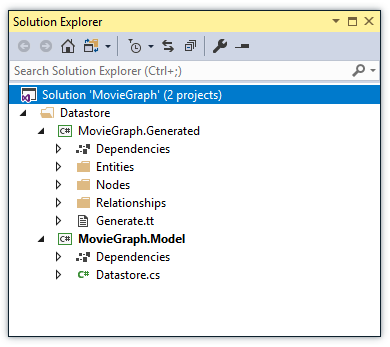
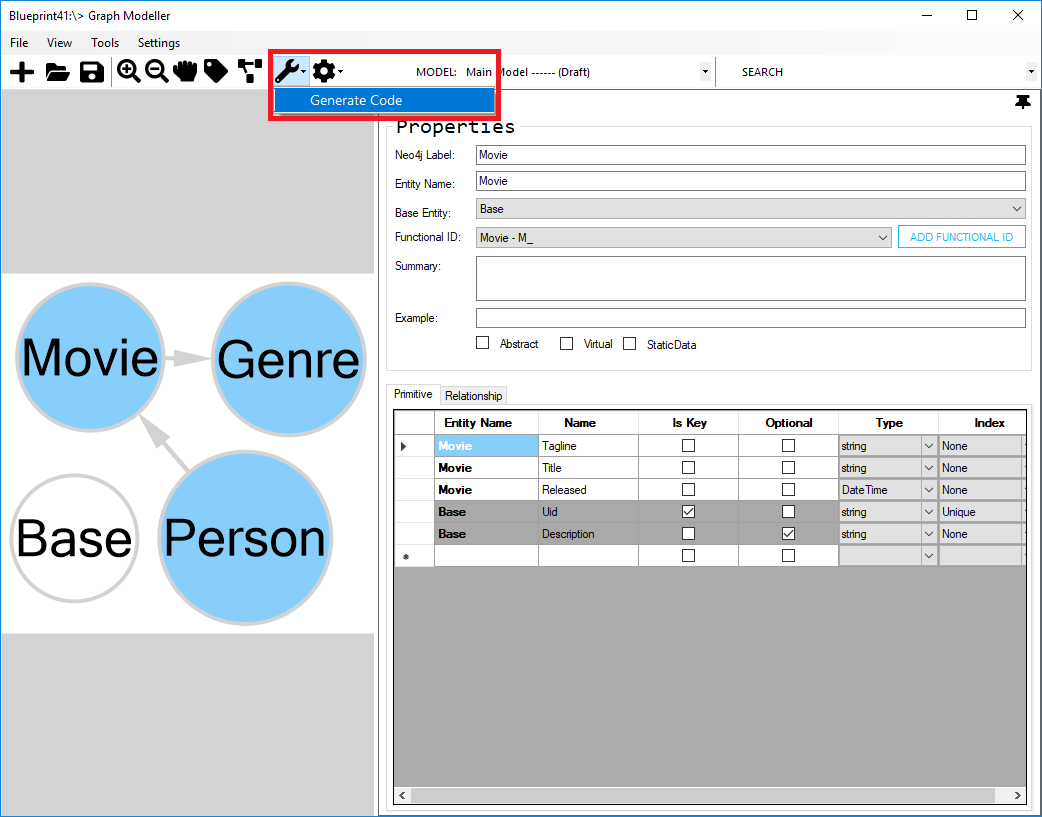
- On the Graph Modeller, open the "Code Generation" dialog.
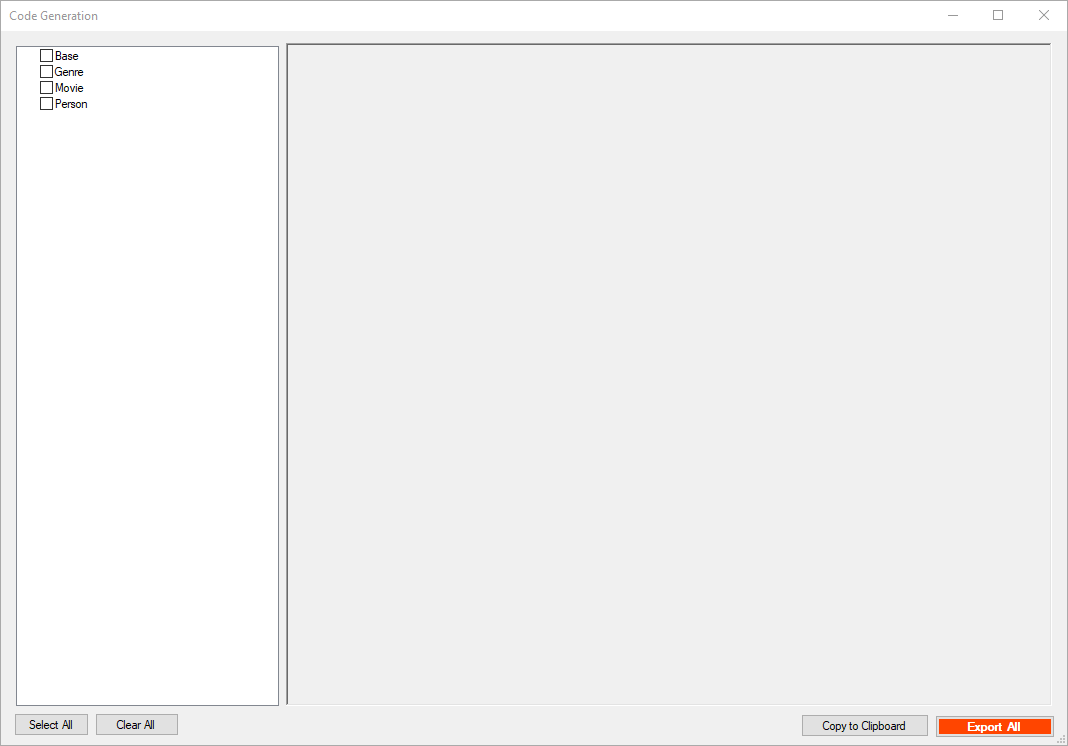
- On the "Code Generation" dialog, check the "Movie". You will see the generated code for "Movie" entity on the right side of the window.
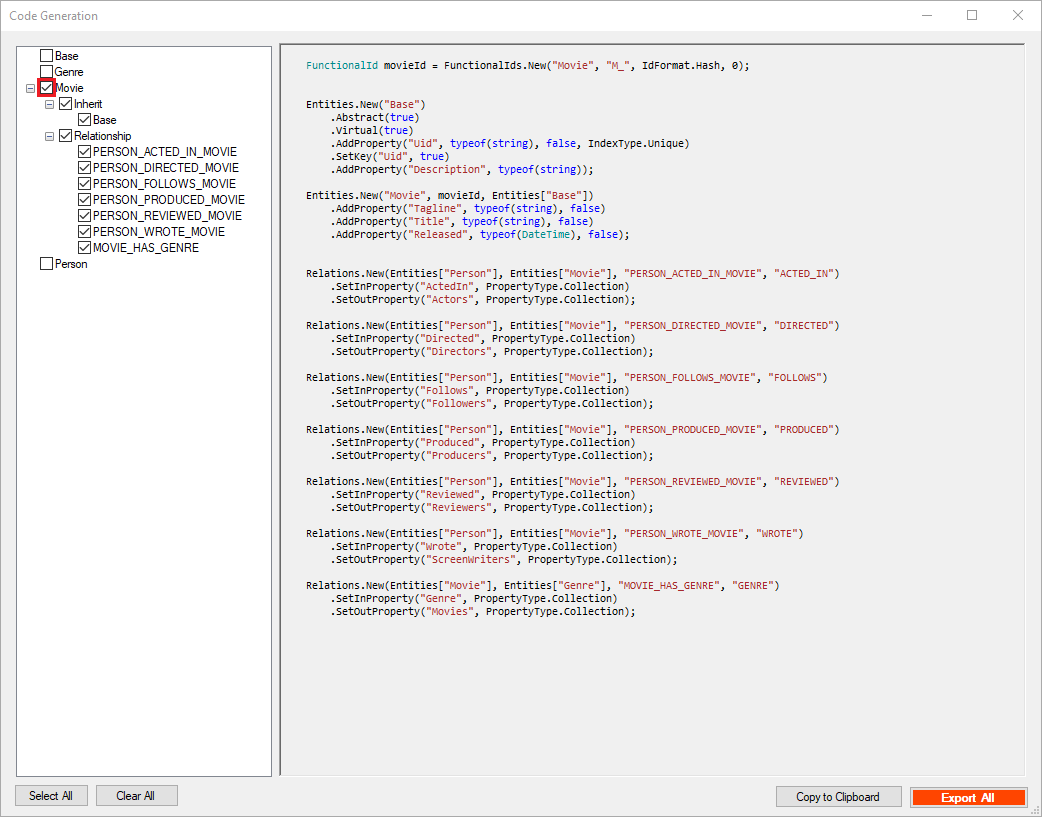
- Click the "Select All" button to generate codes for all entities in the model.
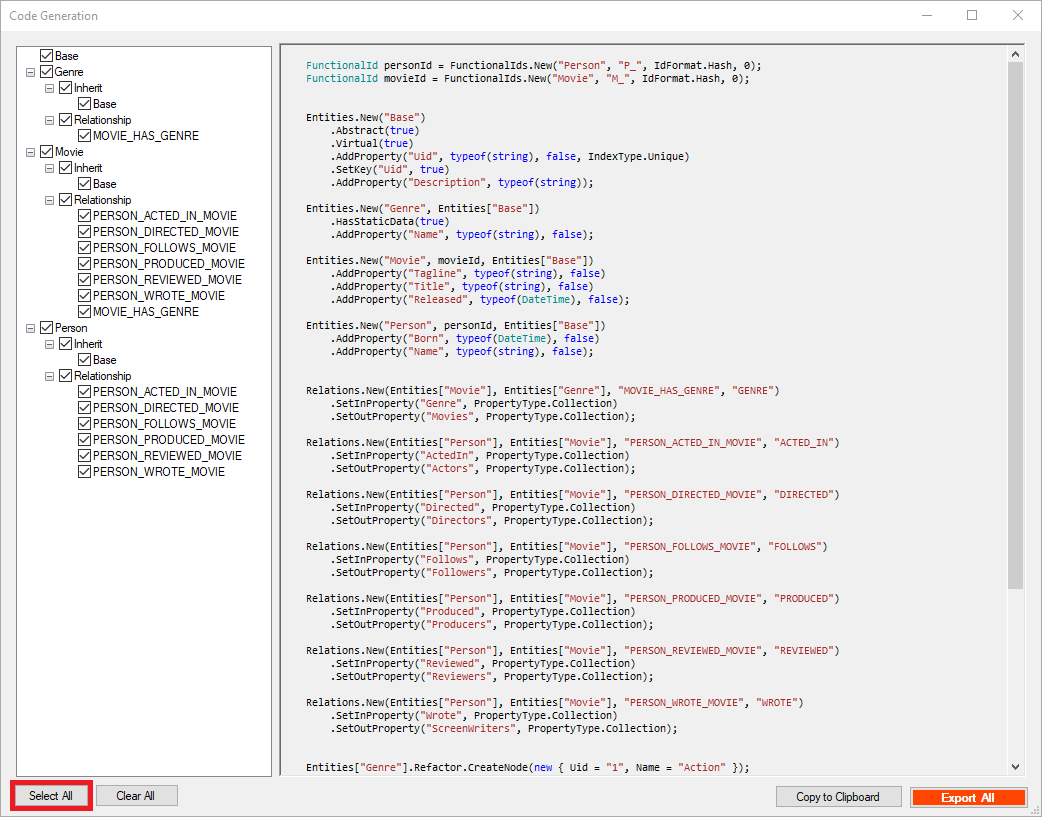
- You can export the generated code by clicking the Export All button.
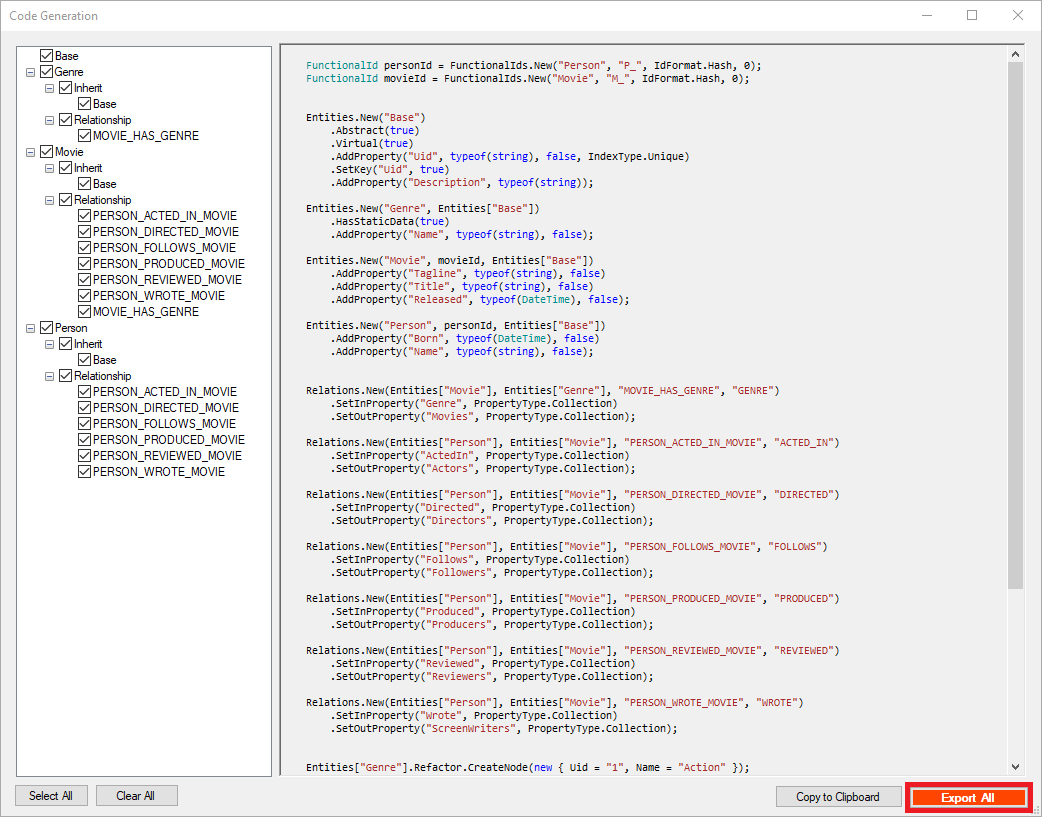
- Click "Copy to Clipboard" button to copy the generated codes.
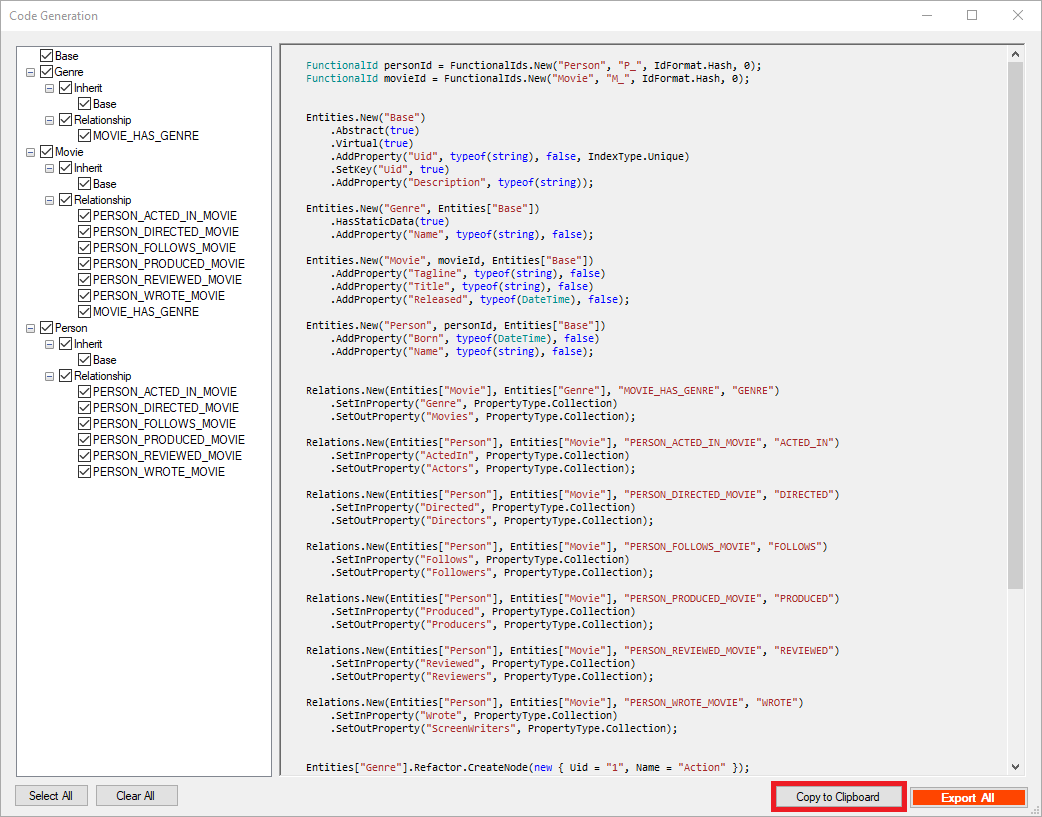
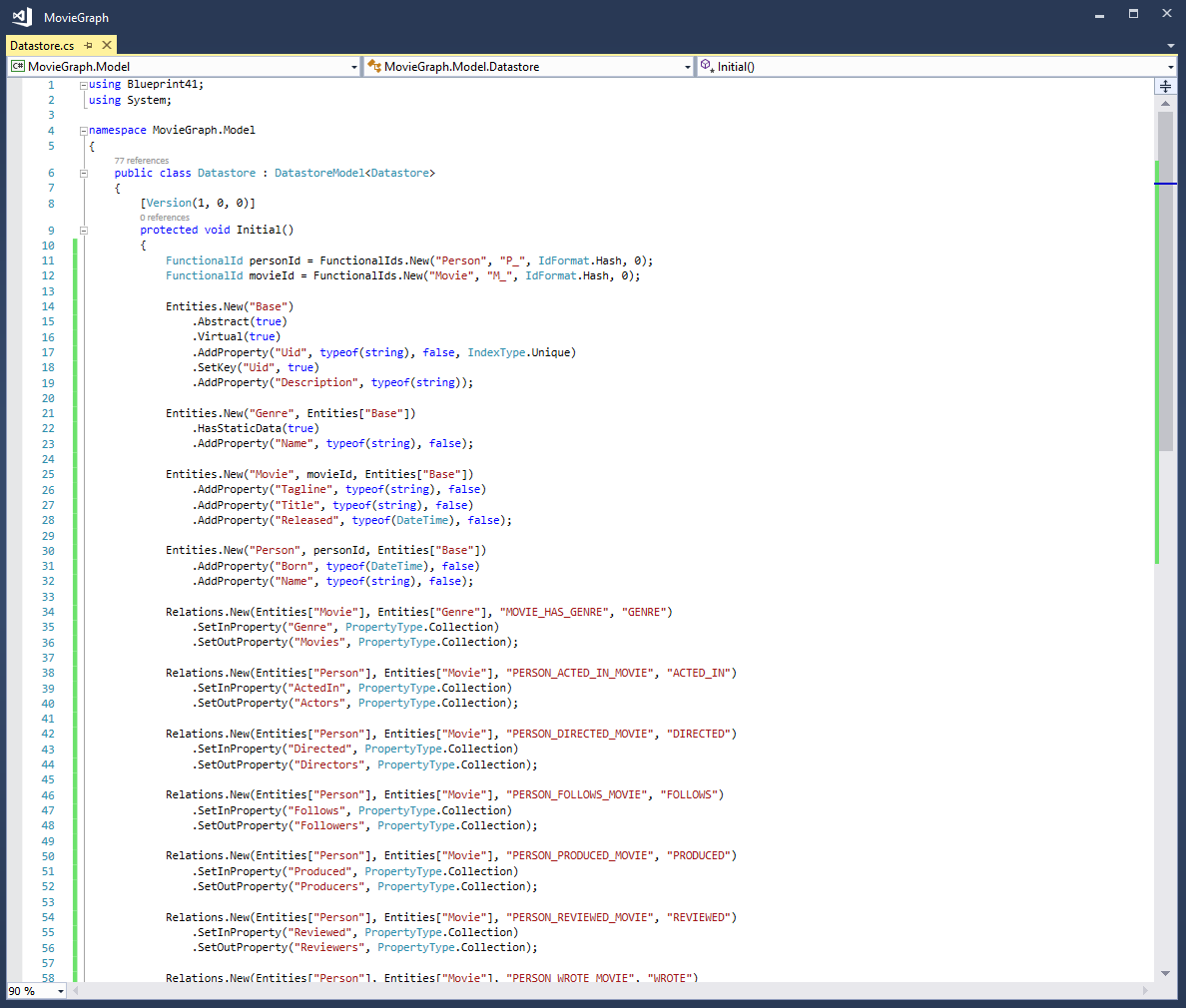
- On the "MovieGraph" project, open the "Datastore.cs" and paste the copied code to the
Initialmethod.
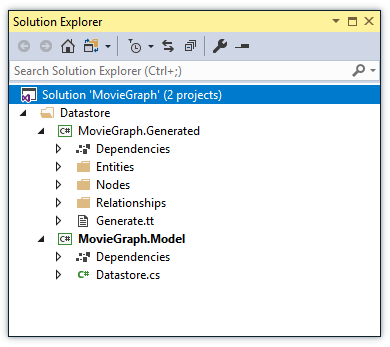
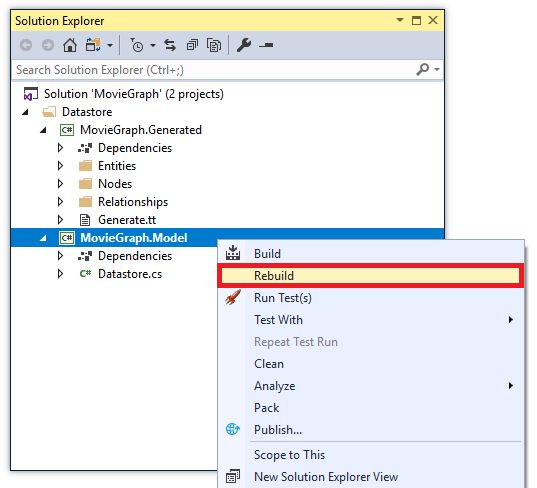
- Rebuild the "MovieGraph.Model" project to generate type-safe generated models..
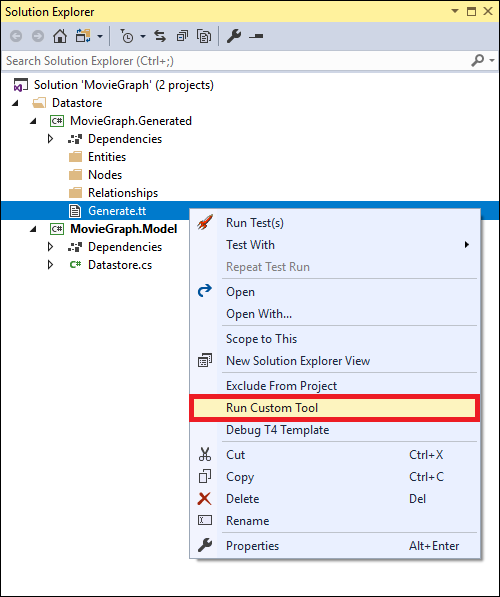
As you can see, you have now the generated files based on the graph modeller's generated codes.
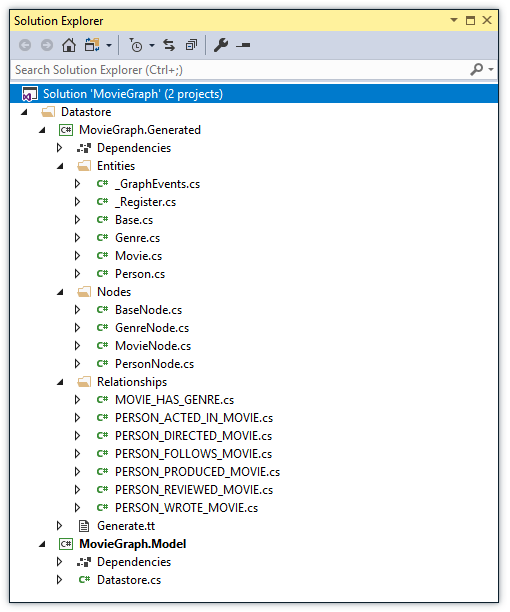
-
Rebuild the "MovieGraph.Generated" project.
-
Now, let's use our datastore
MovieGraph.Model. Add a new project "MovieGraph" console application. Select File > Add > New Project from the menu bar. In the Add New Project* dialog, select the Visual C# node. Then select the Console App (.NET Framework) project template. In the Name text box, type "MovieGraph". Select the Browse button.
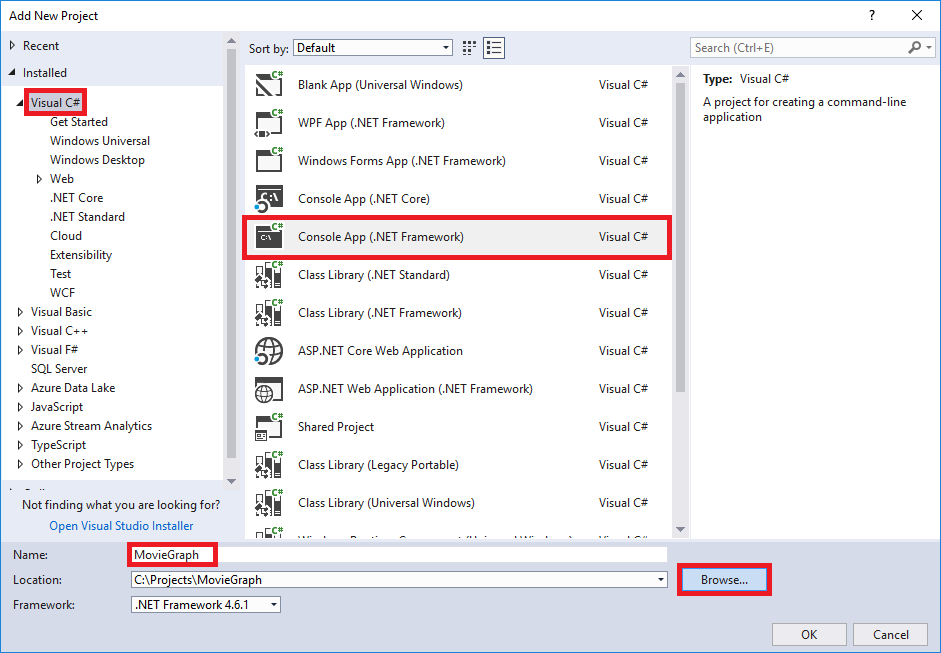
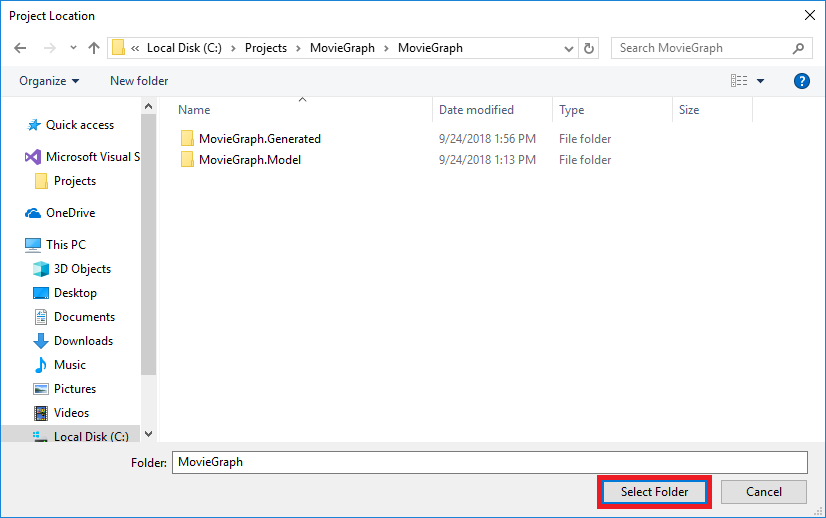
- Select the MovieGraph folder and click Select Folder. In the Add New Project* dialog, select the OK button to create the project.
- Set the "MovieGraph" console application as a startup project, right-click the "MovieGraph" project and click Set as StartUp Project.
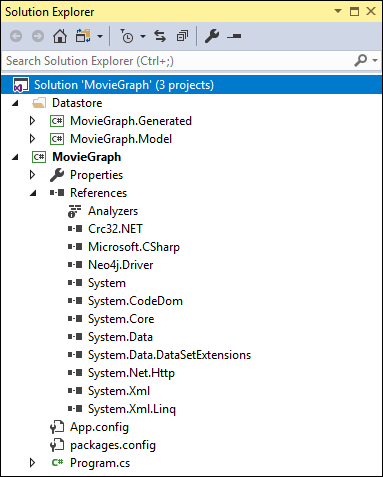
- Add References to
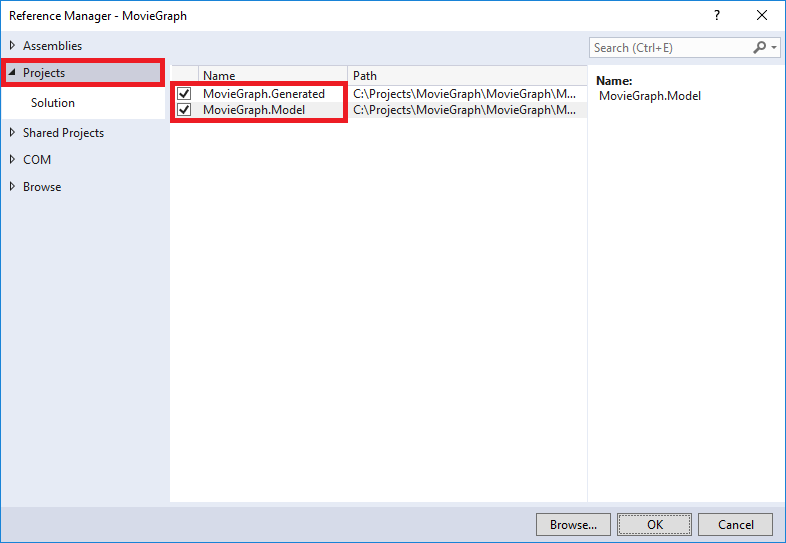
MovieGraphConsole Application. Right-clickMovieGraphproject, select Add > Reference. In the Reference Manager* dialog, select Projects node, check theMovieGraph.GeneratedandMovieGraph.Modelprojects. Select the OK button.
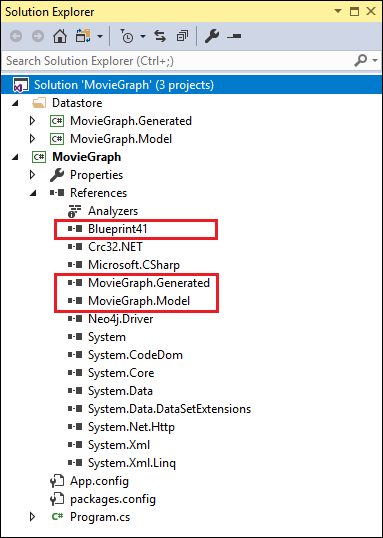
- Add Blueprint41 Nuget package reference to "MovieGraph" Console Application.
Select Tools > NuGet Package Manager > Package Manager Console from the menu bar. In the NuGet Package Manager Console, type
Install-Package Blueprint41and wait until the Blueprint41 package successfully installs.
- After you've created the "MovieGraph" project, select the file
Program.cs, then include the following namespaces:
using Blueprint41;
using Blueprint41.Core;
using Blueprint41.Neo4j.Persistence;
using Domain.Data.Manipulation;
using MovieGraph.Model;
using System;
- On the
Mainmethod, setup your neo4j database connection. Specify the database server and its authentication credentials.
    PersistenceProvider.CurrentPersistenceProvider =
        new Neo4JPersistenceProvider($"bolt://localhost:7687", $"neo4j", $"neo");
- On the
Mainmethod, create an instance of your datastoreMovieGraph.Modeland call theExecutemethod to perform a database upgrade if it exists or creates the database if it's not.
    Datastore model = new Datastore();
    model.Execute(true);
- To insert records on
MovieGraphdatabase, create theInsertRecordsmethod.
private static void InsertRecords()
{
    using (Transaction.Begin())
    {
        Movie movie1 = new Movie()
        {
            Title = "The Matrix",
            Tagline = "Welcome to the Real World",
            Released = new DateTime(1999, 3, 31)
        };

        Movie movie2 = new Movie()
        {
            Tagline = "Free your mind",
            Title = "The Matrix Reloaded",
            Released = new DateTime(2003, 5, 15)
        };

        Person person1 = new Person()
        {
            Name = "Keanu Reeves",
            Born = new DateTime(1964, 9, 2)
        };

        Person person2 = new Person()
        {
            Name = "Laurence Fishburne",
            Born = new DateTime(1961, 7, 30)
        };

        Person person3 = new Person()
        {
            Name = "Lana Wachowski",
            Born = new DateTime(1961, 7, 30)
        };

        Person person4 = new Person()
        {
            Name = "Lilly Wachowski",
            Born = new DateTime(1967, 12, 29)
        };

        Person person5 = new Person()
        {
            Name = "Joel Silver",
            Born = new DateTime(1952, 7, 14)
        };

        movie1.Actors.Add(person1);
        movie1.Actors.Add(person2);
        movie1.Directors.Add(person3);
        movie1.Directors.Add(person4);
        movie1.ScreenWriters.Add(person3);
        movie1.ScreenWriters.Add(person4);
        movie1.Producers.Add(person5);
        movie1.Genre.Add(Genre.Lookup(Genre.StaticData.Name.Action));
        movie1.Genre.Add(Genre.Lookup(Genre.StaticData.Name.Sci_Fi));

        movie2.Actors.Add(person1);
        movie2.Actors.Add(person2);
        movie2.Directors.Add(person3);
        movie2.Directors.Add(person4);
        movie2.ScreenWriters.Add(person3);
        movie2.ScreenWriters.Add(person4);
        movie2.Producers.Add(person5);
        movie2.Genre.Add(Genre.Lookup(Genre.StaticData.Name.Action));
        movie2.Genre.Add(Genre.Lookup(Genre.StaticData.Name.Sci_Fi));

        Transaction.Commit();
    }
}
- Invoke the
InsertRecordsmethod from theMainmethod.
static void Main(string[] args)
{
    PersistenceProvider.CurrentPersistenceProvider =
        new Neo4JPersistenceProvider($"bolt://localhost:7687", $"neo4j", $"neo");

    Datastore model = new Datastore();
    model.Execute(true);

    InsertRecords();

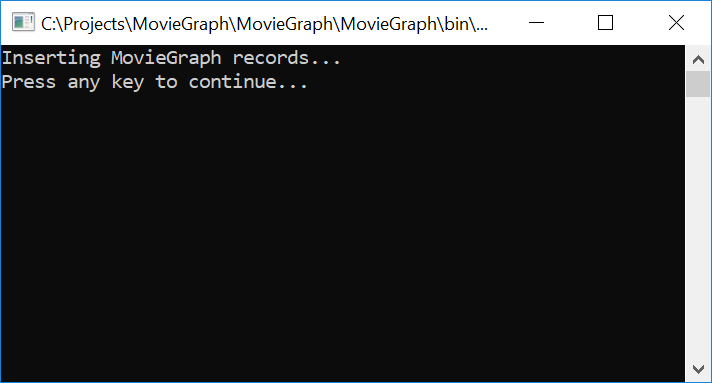
    Console.WriteLine("Inserting MovieGraph records...");
    Console.WriteLine("Press any key to continue...");
    Console.ReadKey(true);
}
- Rebuild the solution and run the
MovieGraphapplication.
- Open the Neo4j browser and execute the following script:
MATCH p=()-->() RETURN p LIMIT 25
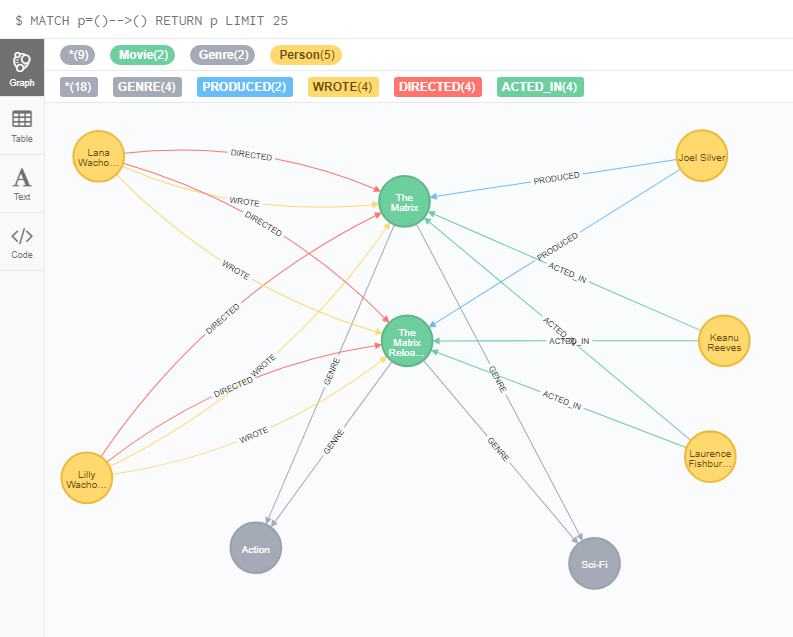
Congratulations! :tada: You have successfully used the graph modeller's generated code on the Blueprint41 "MovieGraph" project and inserted records on the "MovieGraph" database.
Next, we'll take a look at how to create to create sub-models.