Usage - celtic-project/wordpress-lti-platform GitHub Wiki
A link to an LTI tool can be added to a content page using the WordPress shortcodes facility; for example:
Launch the [lti-platform tool=saltire id=iofkljfg]saLTIre[/lti-platform] LTI testing tool.
or just:
[lti-platform tool=saltire id=iofkljfg]
The latter format is particularly useful when the LTI tool is to be opened in an embedded iframe. A pro-forma shortcode can be inserted into the page by hand, or by selecting the LTI tool option from the More rich text controls menu on the content editor toolbar (highlight any text to be hyperlinked first).
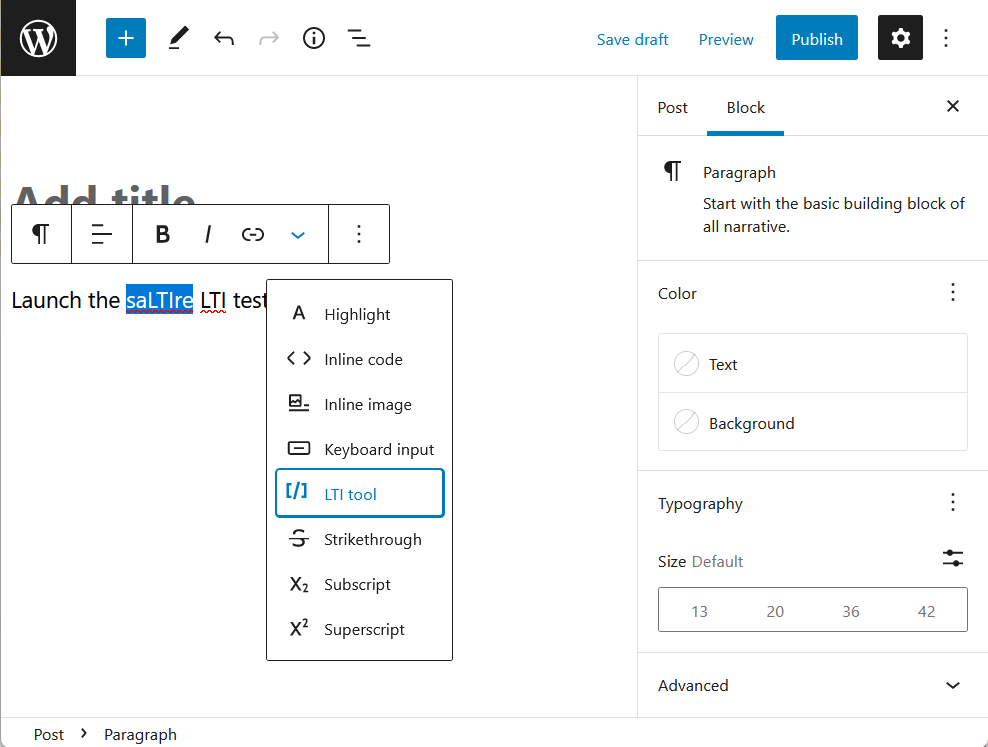
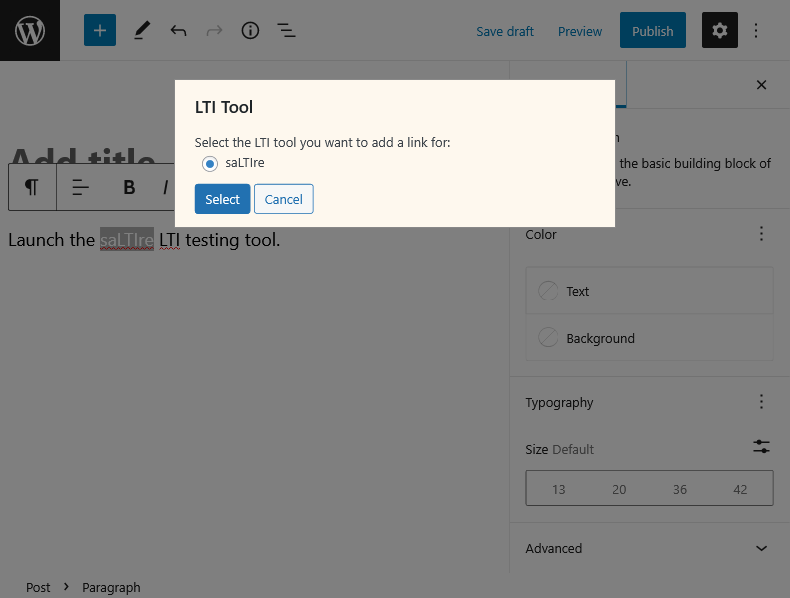
This will display a list of available tools to select from.
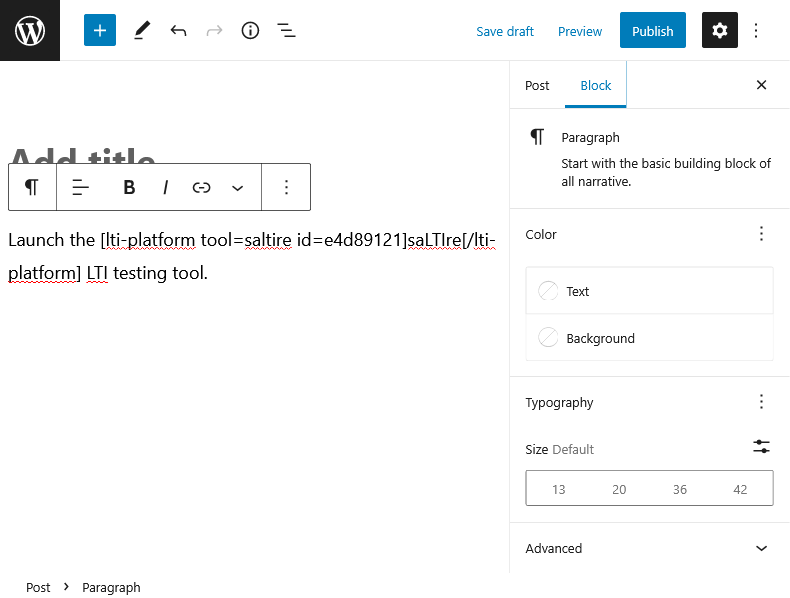
A shortcode for the selected tool will be created.
If the tool is configured to use the content-item/deep linking message type, the user will be redirected to the tool to use its interface to make a selection. On completion,
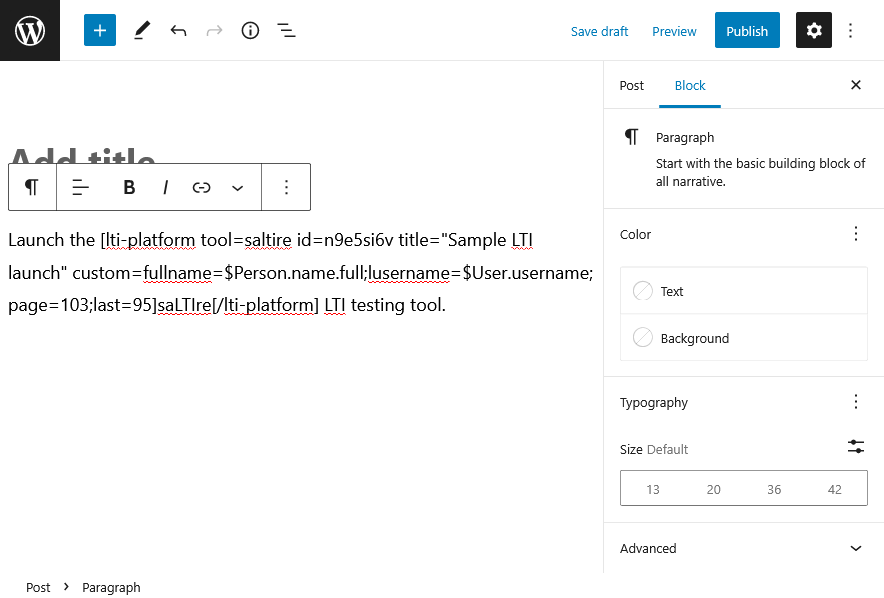
All LTI shortcodes must include the following attributes (except for some of the output options, see below):
-
tool- the code for the LTI tool to be launched -
id- an identifier used as the LTIresource_link_idmessage parameter. If more than one link to an LTI tool link is included on a page, theidvalues must be unique. The ID of the content page is used as a prefix for theresource_link_idvalue to ensure that it is unique across the entire platform.
When a required attribute is omitted a message of Missing attribute(s): ... is displayed. If no LTI tool exists with the value of the tool attribute then a message of Tool parameter not recognised: test is displayed.
The following attributes are optional:
-
title- a value to be used as theresource_link_titleparameter in the launch message -
url- override the message URL (see below) -
target- a value ofwindow,popup,iframeorembedto override where the LTI tool will be opened -
width- override the width to be used when opening the LTI tool in a popup window or iframe, including when embedded -
height- override the height to be used when opening the LTI tool in a popup window or iframe, including when embedded -
custom- additional custom parameters to include in the launch message, entered in the formatname=valuewith multiple parameters separated with a semi-colon, for example,debug=true;source=WordPress(any parameters with the same name as one specified in the configuration of the LTI tool will be ignored) -
class- a space-separated list of class names to apply to the launch hyperlink (for example,class="field input") -
style- a set of CSS styles to apply to the launch hyperlink (for example,style=text-decoration:none;color:#00f;) -
output- a value ofhref,title,widthorheightto override the default rendering of the shortcode; a value ofdefaultcan be used to specify that the default rendering should be applied (see below)
If any attribute value contains one or more spaces it must be enclosed in double or single quotes. If the value includes any of the quotes so used, prefix them with a backslash, for example:
[lti=platform tool=... id=... title="A \"sample\" title"]Launch LTI tool[/lti-platform]
Alternatively, single quotes could be used to avoid having to prefix the double quotes:
[lti=platform tool=... id=... title='A "sample" title']Launch LTI tool[/lti-platform]
If any of the custom parameter values contain a semicolon, they must be prefixed with a backslash; for example, to set the tags parameter to a value of ceLTIc;LTI;1EdTech enter this:
custom=debug=true;tags=ceLTIc\;LTI\;1EdTech;source=WordPress
If the url attribute is not a full URL, its contents will be prefixed with the message URL defined for the tool. Otherwise the start of the URL must match the tool's message URL. It is not possible to launch a tool to a URL which does not at least start with the message URL configured for the tool. The following table provides some examples of how the two values are combined:
| Message URL | URL attribute | Launch URL |
|---|---|---|
https://tool.com/lti |
None | https://tool.com/lti |
https://tool.com/lti |
https://tool.com/lti/xyz |
https://tool.com/lti/xyz |
https://tool.com/lti |
https://www.tool.com/lti/xyz |
None - this is not allowed |
https://tool.com/lti/ |
xyz |
https://tool.com/lti/xyz |
https://tool.com/lti? |
id=xyz |
https://tool.com/lti?id=xyz |
https://tool.com/lti?id= |
xyz |
https://tool.com/lti?id=xyz |
A typical shortcode added to a WordPress page would be rendered as in the following example:
A link to the <a href="https://.../?lti-platform&post=...&id=..." title="Launch saltire tool" target="_blank">saLTIre</a> tool.
which would appear something like this (depending upon the WordPress theme in use):
A link to the saLTIre tool.
This presentation can be overridden by adding a class and/or style attribute to the shortcode. For example,
A link to the [lti-platform tool=... id=... style=text-decoration:underline;]saLTIre[/lti-platform] tool.
would appear with the link underlined:
A link to the saLTIre tool.
Using these attributes allows a wide variety of display options; for example, the following shortcode:
A link to the [lti-platform tool=... id=... class=button style="background: #2271b1; color: #fff; padding: 5px 10px; border-radius: 3px;"]saLTIre[/lti-platform] tool.
would create a simple button look:
A link to the saLTIre tool.
If all links to a tool are to be rendered in the same way, the class and style settings can be saved in the tool configuration. A class or style can be added to the list for a specific shortcode, or a style overridden, but including it in the shortcode. For example, to give the button a red background colour use the following shortcode:
A link to the [lti-platform tool=... id=... style="background: #f00;"]saLTIre[/lti-platform] tool.
All the configured styles will be applied, except that the background colour will be changed.
A link to the saLTIre tool.
If the standard HTML generated for a shortcode is not desired, the output attribute can be used to render specific elements of the link and inserted into your own HTML. For example,
<button type="button" href="[lti-platform tool=... id=... output=href][/lti-platform]">[lti-platform tool=saltire output=title][/lti-platform]</button>
would generate a button to launch the tool:
Launch saltire tool
Other values for the output attribute allow the tool's configured popup window width and height to be output. Note: the WordPress editor may automatically prefix a URL with a protocol (e.g. https) when one is missing; this can be removed by using the "Edit ad HTML" option.
The message generated to connect to an LTI tool includes the following parameters:
-
context_id- ID of the content page -
context_title- title of the content page -
context_type- the valueCourseSection -
ext_username- user's login ID (omitted if the privacy setting has not been selected for the LTI tool) -
launch_presentation_document_target- the valuewindoworiframe -
launch_presentation_height- the height of the popup window or iframe (omitted when opening the LTI tool in a new window) -
launch_presentation_width- the width of the popup window or iframe (omitted when opening the LTI tool in a new window) -
lis_person_contact_email_primary- user's email address (omitted if the privacy setting has not been selected for the LTI tool) -
lis_person_name_family- user's last name (omitted if the privacy setting has not been selected for the LTI tool) -
lis_person_name_full- user's display name (omitted if the privacy setting has not been selected for the LTI tool) -
lis_person_name_given- user's first name (omitted if the privacy setting has not been selected for the LTI tool) -
lti_message_type- the valuebasic-lti-launch-request -
lti_version- the valueLTI-1p0 -
oauth_signature_method- the valueHMAC-SHA1 -
resource_link_id- the value of theidattribute prefixed with the ID of the content page and a dash (for example,183-iofkljfg) -
resource_link_title- the value of thetitleattribute, the text between theshortcodetags, or thecodeof the LTI tool -
roles- the role(s) configured for the tool based on the user's WordPress role (it is also possible for no roles to be passed) -
tool_consumer_info_product_family_code- the valueWordPress -
tool_consumer_info_version- the WordPress version (for rxample,5.6) -
tool_consumer_instance_contact_email- the site's administration email address -
tool_consumer_instance_description- the sites description -
tool_consumer_instance_guid- the GUID value specified on the default settings page -
tool_consumer_instance_name- the site's name -
tool_consumer_instance_url- the site's URL -
user_id- user's ID (omitted if the privacy setting has not been selected for the LTI tool)
The resource_link_id and resource_link_title parameters are not included in content-item messages.
In addition any custom parameters will be included, with their names given a prefix of custom_.
LTI 1.3 passes the same parameter values as LTI 1.0 but as claims in a JWT; for example:
{
    "aud": [
      "..."
    ],
    "email": "...",
    "exp": ...,
    "family_name": "...",
    "given_name": "...",
    "https://purl.imsglobal.org/spec/lti/claim/context": {
        "id": "...",
        "title": "...",
        "type": [
            "CourseSection"
        ]
    },
    "https://purl.imsglobal.org/spec/lti/claim/custom": {
        "...": "..."
    },
    "https://purl.imsglobal.org/spec/lti/claim/deployment_id": "...",
    "https://purl.imsglobal.org/spec/lti/claim/ext": {
        "username": "..."
    },
    "https://purl.imsglobal.org/spec/lti/claim/launch_presentation": {
        "document_target": "..."
    },
    "https://purl.imsglobal.org/spec/lti/claim/message_type": "LtiResourceLinkRequest",
    "https://purl.imsglobal.org/spec/lti/claim/resource_link": {
        "id": "...-...",
        "title": "..."
    },
    "https://purl.imsglobal.org/spec/lti/claim/roles": [
        "http://purl.imsglobal.org/vocab/lis/v2/membership#..."
    ],
    "https://purl.imsglobal.org/spec/lti/claim/target_link_uri": "...",
    "https://purl.imsglobal.org/spec/lti/claim/tool_platform": {
        "contact_email": "...",
        "description": "...",
        "family_code": "WordPress",
        "name": "...",
        "url": "...",
        "version": "..."
    },
    "https://purl.imsglobal.org/spec/lti/claim/version": "1.3.0",
    "nonce": "rjoa6QtbSsDqndTbVmEzccr1DTNvIZOI",
    "iat": ...,
    "iss": "...",
    "name": "...",
    "sub": "..."
}
The only differences in values are the message type and the LTI version, with the addition of the following values:
-
iss- Platform ID -
aud- Client ID -
https://purl.imsglobal.org/spec/lti/claim/deployment_id- Deployment ID -
iat- timestamp for when the JWT was issued -
exp- timestamp for when the JWT expires -
nonce- a unique identifier for the JWT
The configuration of each tool determines how it is displayed to a user. If a value of embed has been selected, the tool will be displayed within an iframe on the page. Otherwise the tool is displayed as a hyperlink which, when clicked, will open the tool in a new browser tab or window (window), a popup window (popup) or an iframe (iframe). The iframe option renders the tool in exactly the way as the embed option, except that it only does so after the hyperlink has been clicked, rather than doing so immediately.
A shortcode is normally replaced by HTML which will cause the LTI tool to be opened according to the target selected, but this can be overridden by including the output attribute with one of the following values:
-
href- render the URL required to launch the LTI tool -
title- render the title (defaults toLaunch <tool code> tool, where<tool code>is the code given for the tool) -
width- render the width configure for the tool -
height- render the height configured for the tool
In this way, it is possible to add custom HTML to a post which is able to launch an LTI tool. For example, the following is a sample hyperlink:
<p><a href="[lti-platform tool=saltire id=iofkljfg output=href]" title="[lti-platform tool=saltire output=title]">[lti-platform tool=saltire output=title]</a></p>
The default rendering will be applied when the output attribute is omitted or has a value of default.