SRT stream I O - brunoherbelin/vimix GitHub Wiki
The SRT Protocol was originally developed by Haivision and is now supported by an increasing range of industrial partners.
SRT is an open source video transport protocol and technology stack that optimizes video streaming performance across unpredictable networks. With secure streams and simplified firewall traversal, SRT delivers the best quality video over the worst networks.
The SRT Protocol is open source (on GitHub), and integrated in GStreamer Bad Plugins.
There are several open / free resources to send and receive SRT streams. Here are the ones I tested:
- Softvelum; player, camera broadcaster, and screencaster (well documented).
- Haivision; Haivision PlayPro allows both streaming and playing in a single app.
The SRT Cookbook gives more info.
The Caller-Listener Handshake defines how two processes agree to establish an SRT connection; the Caller is the Initiator of the connection, and the Listener is the Responder. Caller and Listener roles are independent of the direction of streaming, i.e. the sender of a video (streamer) could be Caller or Listener, depending on the established roles.
SRT protocol ensures a reliable transfer of images thanks to a mechanisms of latency buffer on both sender and receiver sides; in short, with a latency of e.g., 1 second, the protocol has 1 second to send, receive, check, request again packets that are broken or incomplete, re-send, re-receive and re-check the correct reception of all packets before displaying the images. A long latency gives time to have perfect images. For live transmission, a minimal latency of 120ms is recommended.
With vimix, you can both broadcast the output to the network and receive an SRT stream in a source. This allows sending the output of vimix to another computer that is receiving this SRT stream as a source in another instance of vimix:
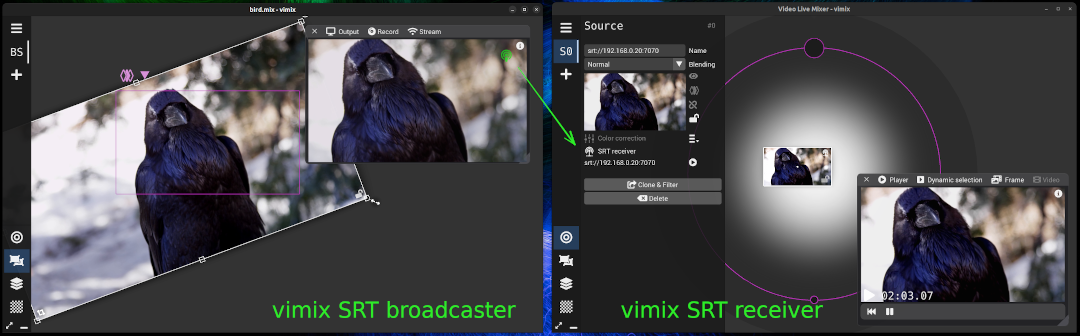
The way vimix implements the Caller-Listener roles is the following:
- The Output SRT broadcast is a Listener; this way, streaming is pending until a Caller establishes the connection.
- The SRT Receiver source is a Caller; this way, the streaming is active only when calling an SRT listener is successful.
Only the callers have to know the IP of the machine streaming a video;
- a vimix SRT receiver source must know the IP of the device to call (e.g., another computer or a phone)
- a device with SRT player must know the IP of the machine running vimix
vimix sets the Latency to 200 ms on both sides.
To activate SRT Broadcast of vimix, select the menu Stream of the Display window and choose SRT Broadcast;
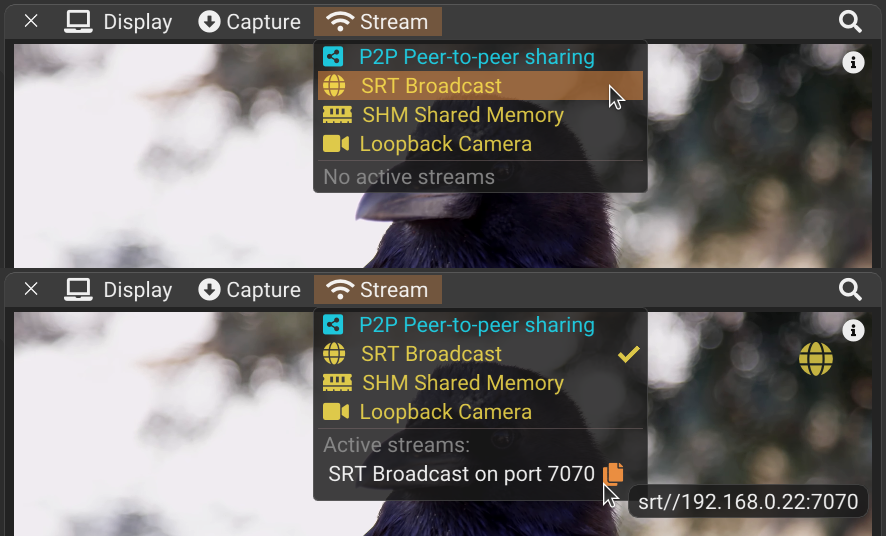
TIP: mouse over the icon on the SRT Active Stream to show a tooltip with the full SRT URL of vimix; clic to copy URL to clipboard.
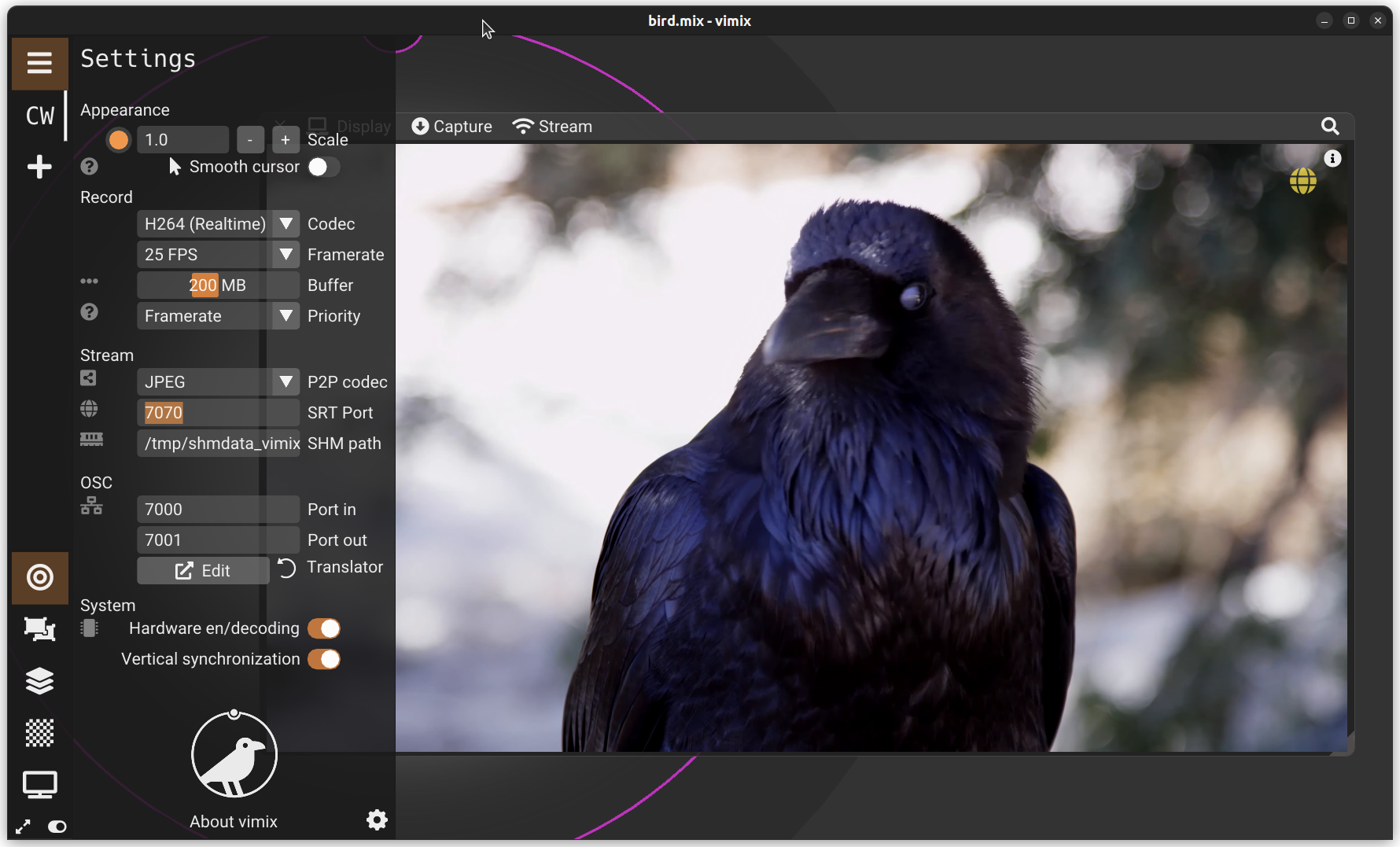
You can configure the network Port for SRT Broadcasting in the Settings panel;
To receive an SRT stream in vimix, create a new source with +, select Connected source, and choose SRT Broadcaster.

The connection parameters shall then be entered to connect to a network IP address with a given Port.
After pressing Call, an SRT Receiver is established:
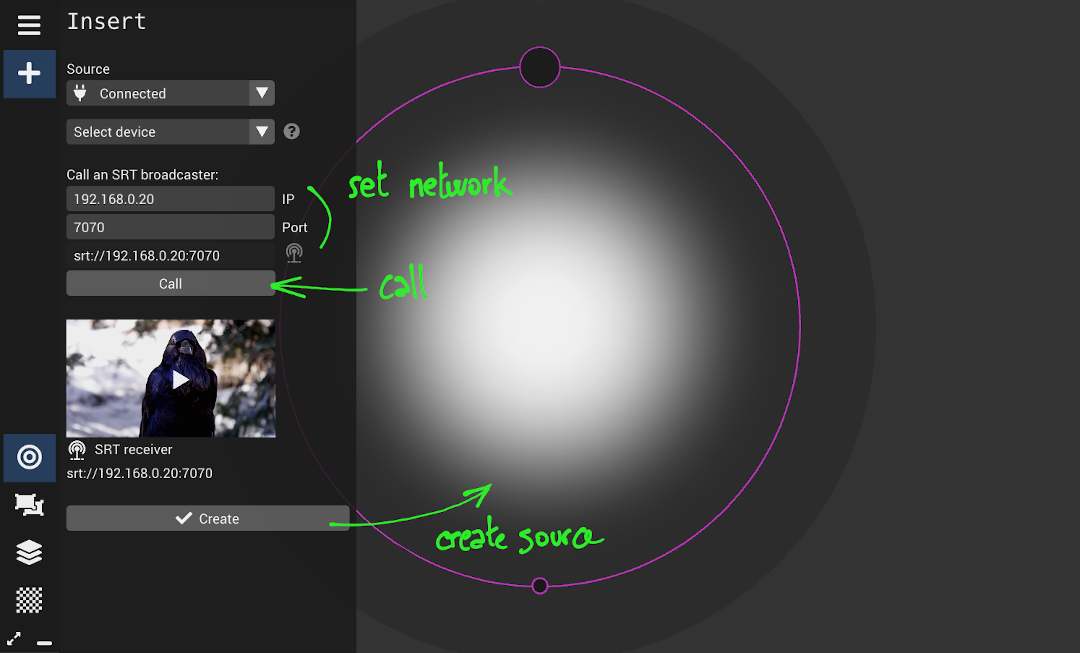
If the connection succeeded, clic Create to add the source into vimix:
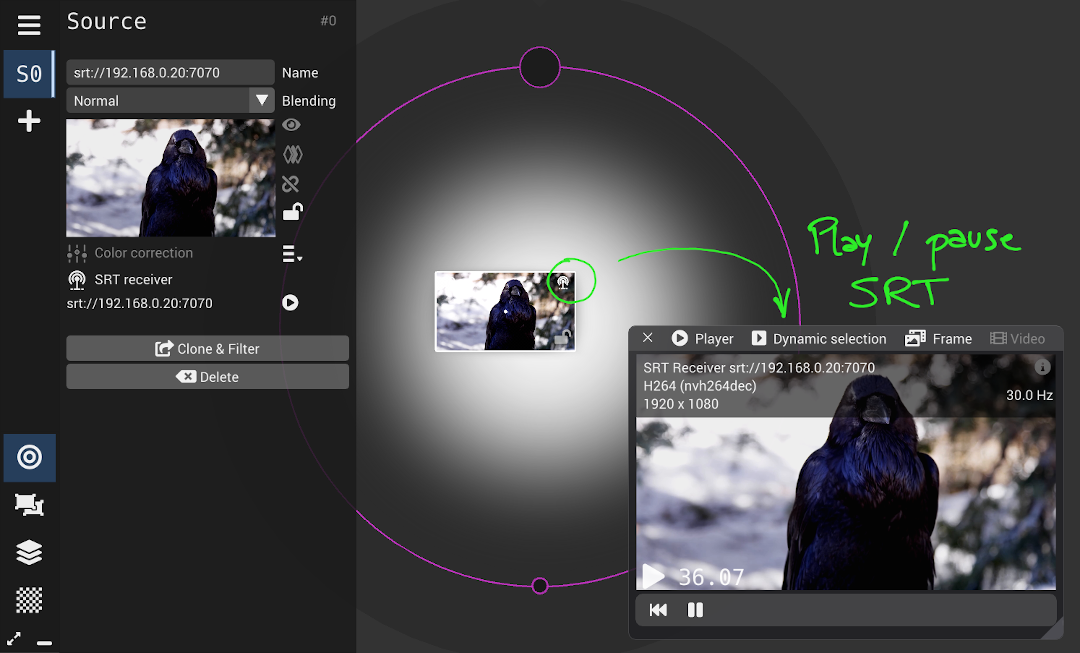
If the connection did not succeed, a timeout message will be displayed (possible causes: the listener can be offline, the IP is wrong or the Port is incorrect).
Given the <ip> of the machine running vimix (e.g. replace <ip> by 127.0.0.1 for testing on the same localhost), launch these commands to open a window receiving the SRT stream (see above to activate)
gstreamer;
gst-launch-1.0 srtsrc uri=srt://<ip>:7070 ! decodebin ! videoconvert ! autovideosink
ffmpeg;
ffplay -i "srt://<ip>:7070?mode=caller&latency=200"
Examples sending test patterns to vimix
gstreamer;
gst-launch-1.0 -v videotestsrc ! video/x-raw, height=360, width=640 ! videoconvert ! x264enc tune=zerolatency ! video/x-h264, profile=high ! mpegtsmux ! srtsink localport=7070 mode=listener
ffmpeg;
for i in {1..2}; do ffmpeg -f lavfi -re -i smptebars=duration=600:size=1280x720:rate=30 -c:v libx264 -f mpegts "srt://:7070?mode=listener&transtype=live"; done
Note: the for i in {1..2}; is a hack to run the ffmpeg command twice in a row; vimix indeed first launches a query SRT stream to get the resolution and options, and secondly launches the creation of the source with the obtained parameters.
Play a video indefinitely (stream_loop)
for i in {1..2}; do ffmpeg -stream_loop -1 -i ~/Videos/test.mp4 -an -c:v libx264 -f mpegts "srt://:7070?mode=listener&transtype=live"; done
The OBS documentation explains in details how to setup SRT. Here is a quick HOWTO for vimix.
- Activate 'SRT Broadcast' in vimix
- Create a
Media Sourcein OBS and uncheck 'Local File'. - In the
Inputfield, enter the SRT url in the formsrt://<ip>:<port>, e.g.srt://127.0.0.1:7070 -
Input formatshould automatically set to 'mpegts' (you can set to this value in case it doesn't).
- In
Settingsof OBS, set 'Stream' toCustomService, and set Server tosrt://<ip>:<port>?mode=listener(e.g.srt://127.0.0.1:port?mode=listener) - Activate
Start Streamingin OBS - Create a
ConnectedSource in vimix, with stream 'SRT Broadcaster'; set<ip>and<port>and pressCallto create the source (see above).
Here are some solutions for streaming from a phone or a tablet (Android or iOS).
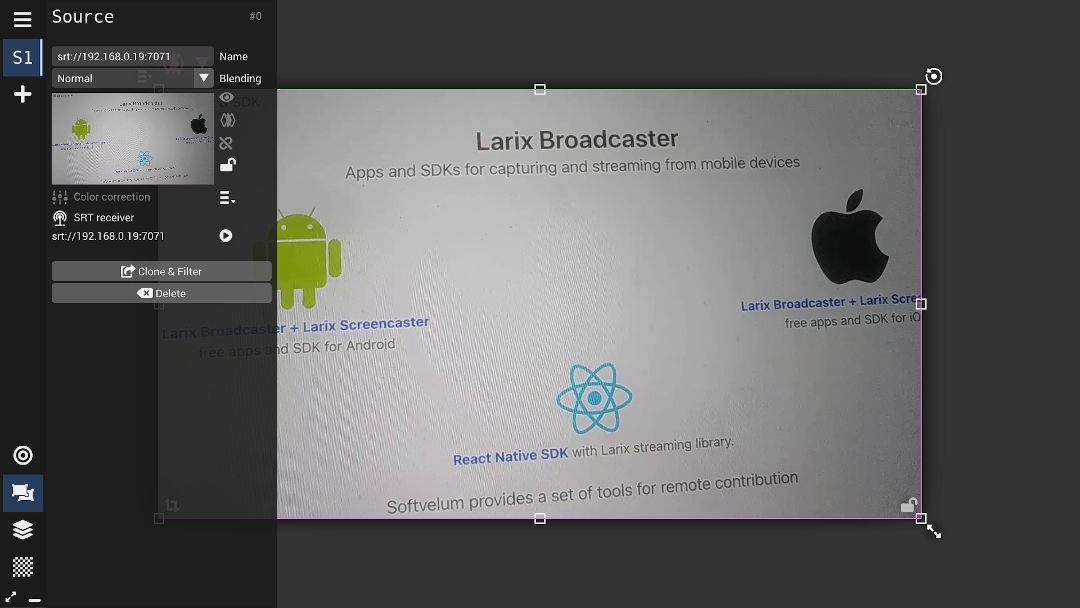
Larix Broadcaster by Softvelum
Larix Broadcaster streams the image of the camera, like a remote webcam.
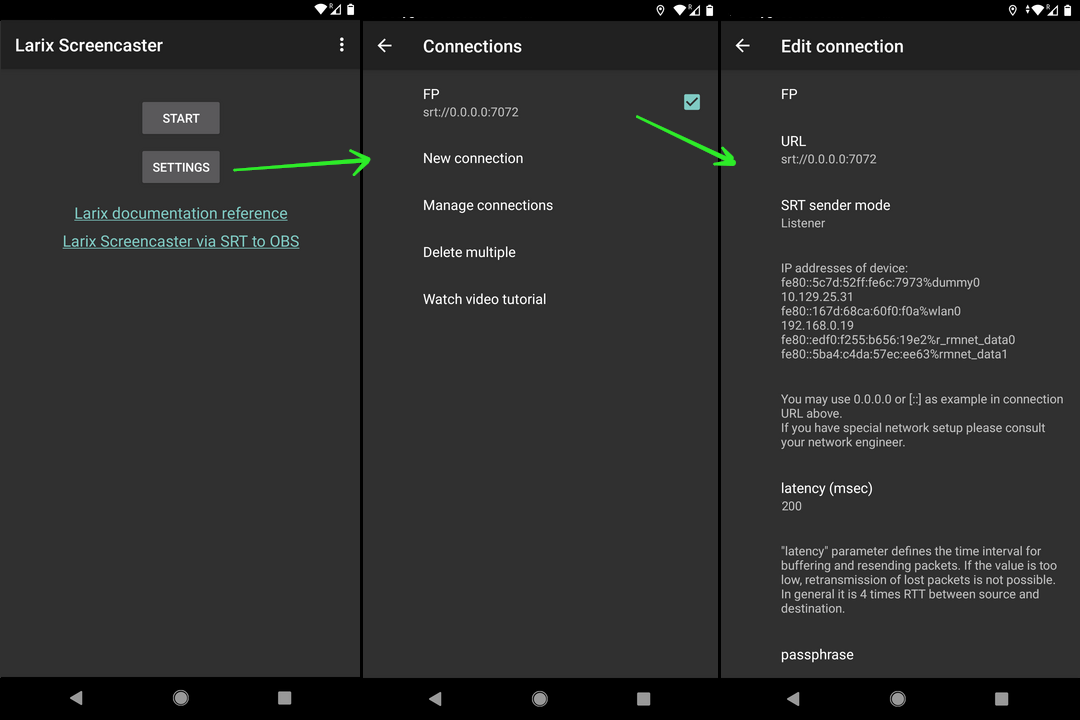
To setup a Connection, enter Settings, Connection, New connection:
- Enter a name (e.g., "vimix")
- Enter the URL
- start with
srt:// - sets the IP : for accepting calls from anyone, use IP
0.0.0.0. - enter a column
:followed by a Port number, e.g.,:7071
- start with
- Set Mode to
Video only - Select SRT Sender mode
Listener - You set a latency; use 200ms to match vimix broadcast latency.
TIP: the app lists for you the valid IP addresses for calling this connection (here, it shows the IP address of the device in local network is "192.168.0.19").
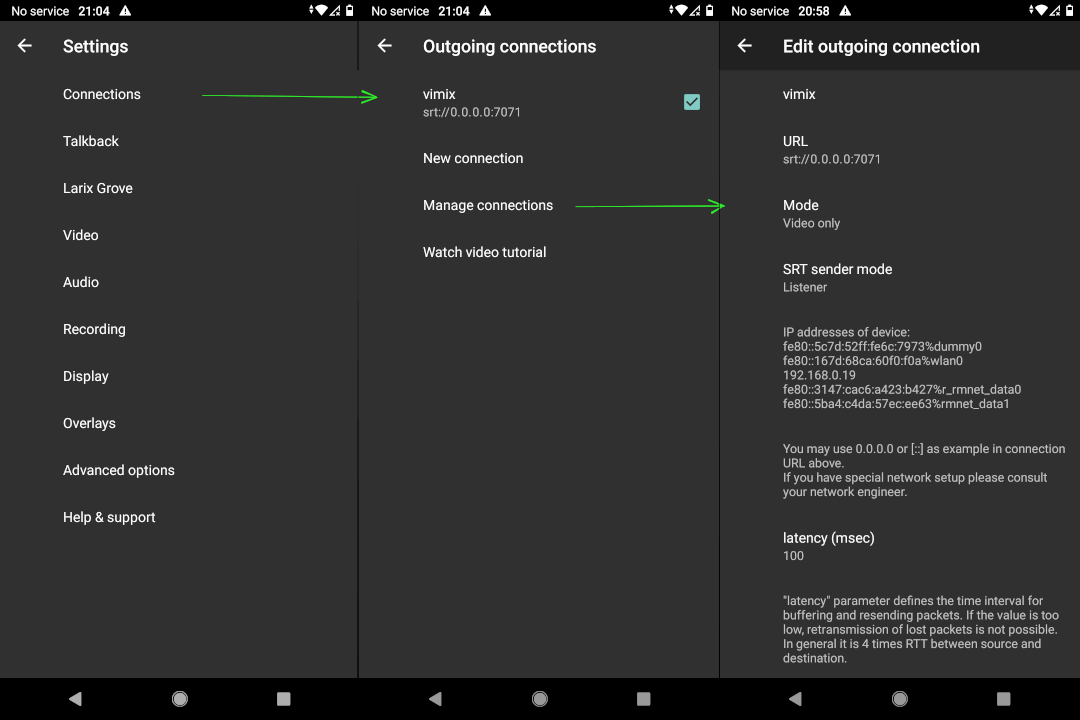
Save the configuration and return to the main app window. The connection settings are stored and can be activated / deactivated; the active connection for streaming is indicated in lower-left corner.
Press the Record button (red circle) to start the streaming (i.e., listen to incoming calls).
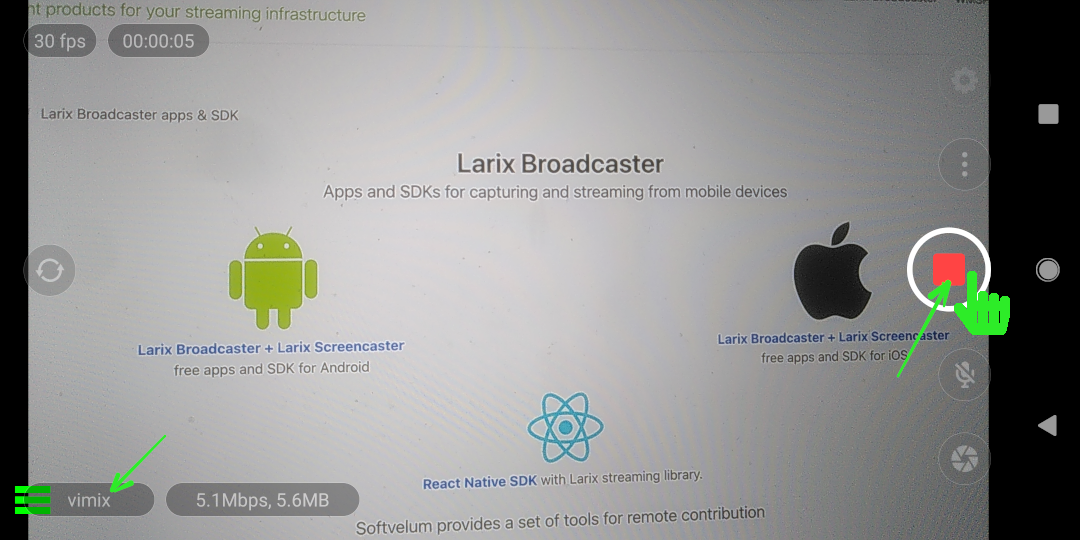
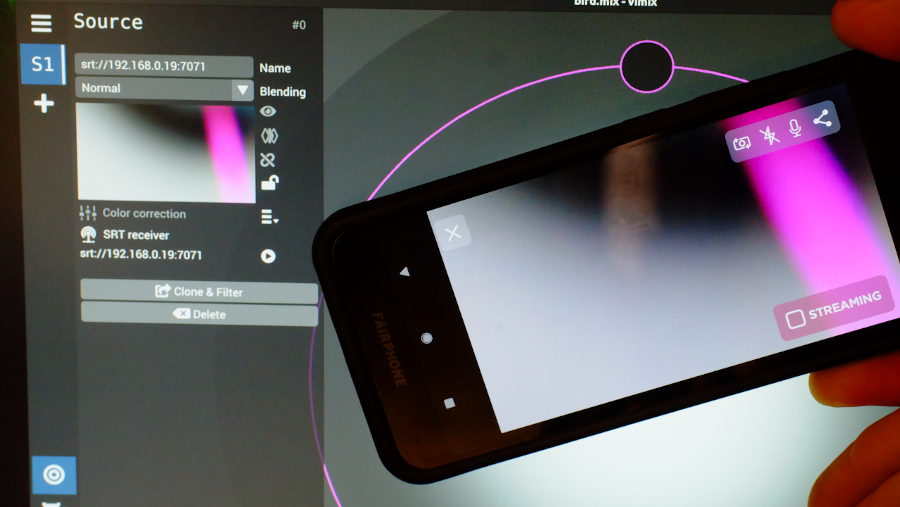
On vimix side, create an SRT receiver source with the IP of the device (e.g., here IP is "192.168.0.19" in local network) and the Port selected in Laryx app (e.g., 7071, see above).
Larix Screencaster by Softvelum
Larix Screencaster streams the image displayed on screen (screen capture).
Setup of Screencaster is identical to the one of the Broadcaster above.
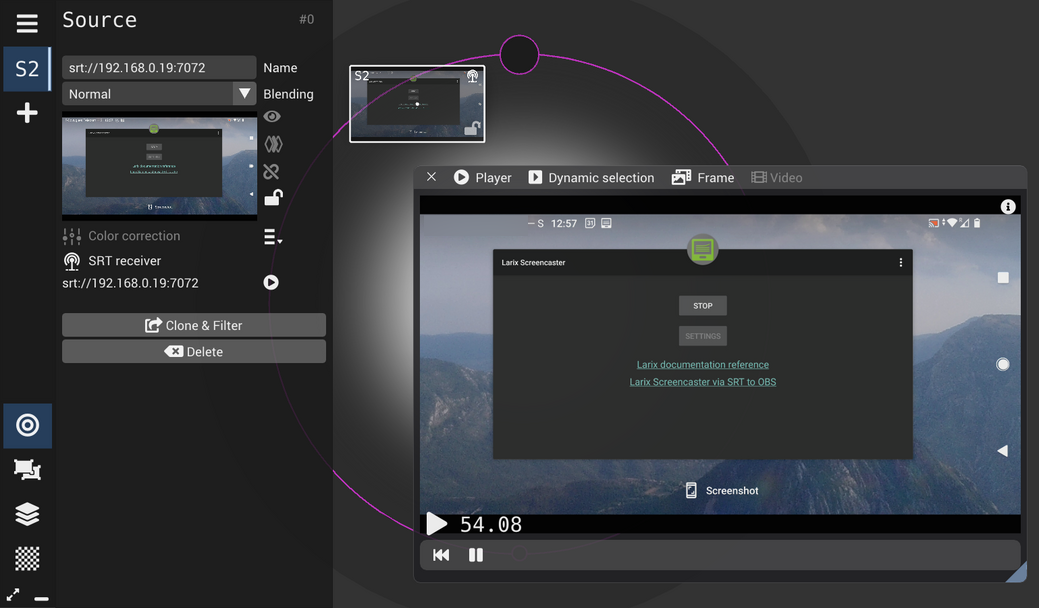
The image on screen (here a phone under Android) can then be an SRT source in vimix.
Be careful; all what you do, including typing pin code, is displayed!
Haivision Play Pro by Haivision
Setting-up streaming with Haivision Play Pro requires the following steps:
-
Configure your Services(from the main menu) Add Services-
Setup a local lineup channel list(choose a name and a logo) -
Add a Channel: with function [STREAM], Protocol [SRT], Mode [Listener] and Port (e.g.,7071).
To then launch streaming, do the following:
-
Go to the Browser(from the main menu) - Select the channel you created
- hit Play > : [PREVIEW] mode switches to [STREAMING]
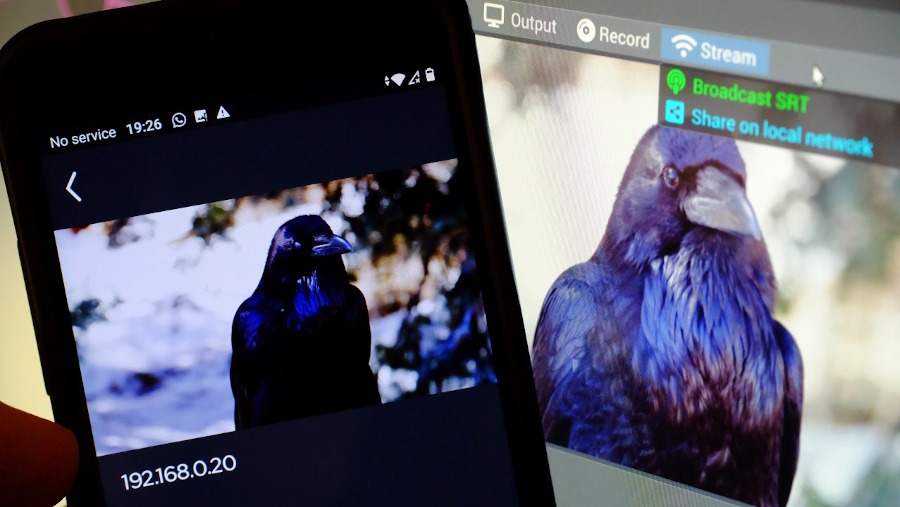
Here are some solutions for receiving the output of vimix on a phone or a tablet (Android or iOS).
To display the output of vimix, first make sure you have enabled SRT Broadcast vimix Output.
Larix Player by Softvelum
Larix Player connects to an SRT stream and displays the video.
Add a stream with +, enter the URL starting with srt://, select Caller SRT Mode and SAVE.
TIP: Choose "Don't set" to let SRT establish the latency in sync with vimix broadcast. Buffering can also be not too long (e.g., 500ms) for live streaming.
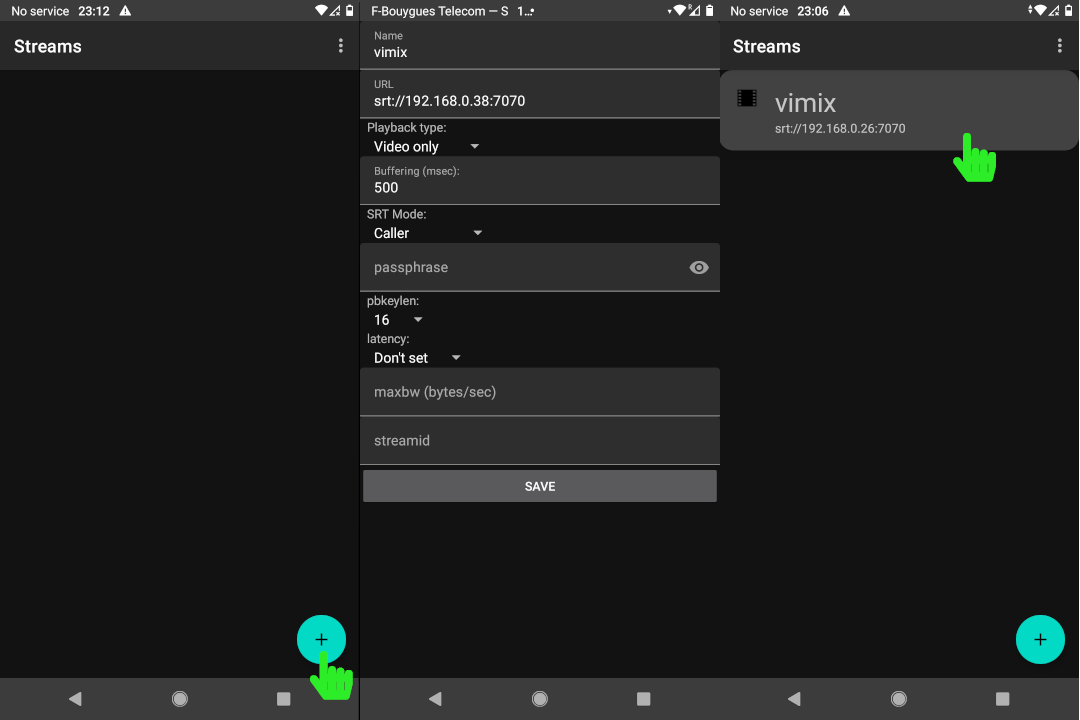
Open the stream you created; it will be displayed full screen on your device:

Haivision Play Pro by Haivision
To play an SRT stream with Haivision Play Pro, follow these steps:
- Select
Play an SRT Streamfrom the main menu - Enter the SRT URL in the address, e.g.,
str://192.168.0.20:7070 - Hit
Play