AngularJS Front End - bradleypeterson/timetracker GitHub Wiki
AngularJS
What is AngularJS
AngularJS is a front end web framework that has sense been deprecated (See Angular Project). AngularJS was made to help ease the creation of responsive single page websites websites, or more often called SPA apps (single page applications). They are single page due to how the angular backend works, explained here. Angular's goal was to remove many of the already out of date tools such as jquery from use in production environments as well as ease the creation of sites by allowing them to be further componentized.
Why are we using it
The AngularJS project is the original frontend used for this project and is the primary user facing portion of the application. We are working on replacing the front end with the more modern Angular project (yes I know confusing), however this requires rewriting much of what is currently existing. However, we have attempted to create a framework of tools and services in the new Angular project that will help get the ball rolling faster.
AngularJS how it works
AngularJS is a front end javascript web framework that replaces components of the index.html page with what are known as html templates generally an html template follows the naming convention of component-name.template.html, however, this is not the case with our application as we have not updated the old code to follow this convention. When angular replaces a portion of the index page with a template it also loads the associated component (generally of the same name as the template) as well, this means that you can use what is known as data binding to bind to variables that are publicly accessible in the controller and display that data in the template.
This data binding allows for easy changes to pages to be made based on data input rather than statically generated pages served from a remote server, as is the case with many tools like ASP.NET. Sense data binding only requires a data to be loaded to the angular service once you have access to the data the application can run entirely offline (that is until you need more data) while a service such as ASP.NET would not be able to do this. Just as well AngularJS being a front end javascript framework is much faster than ASP.NET as it only needs to make data calls to the backend, rather than a call for every page and for every piece of data that the user needs.
AngularJS Screenshots
- Home Page
- Login Incorrect Username/Password
- Register New User
- Register Successful Creation
- View All Users
- Single User View
- Administrator Single Course View
- Student Single Course View
- Group Project - New/Empty Project
- Group Project - Clocked Project
Home Page
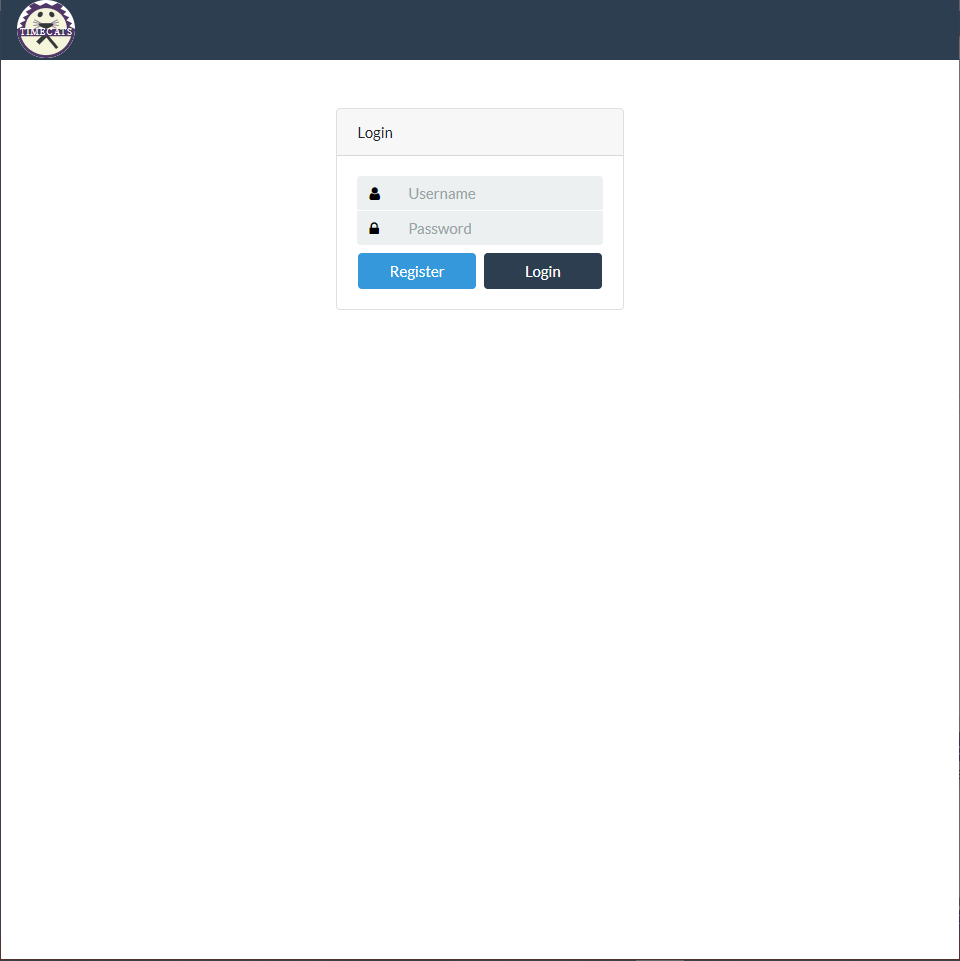
This screenshot shows the home page where a user can log into the system or register as a new user.
Login Incorrect Username/Password
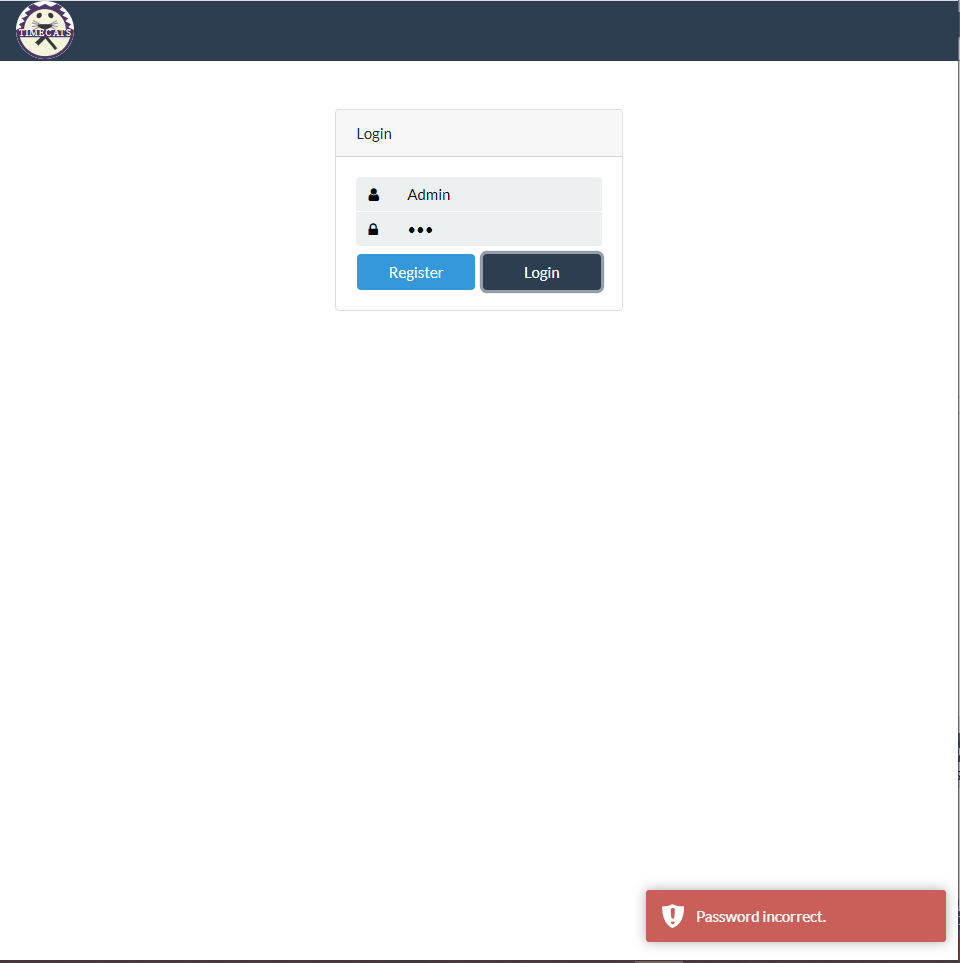
This screenshot shows the home page where a user incorrectly entered their user name or password. The system is setup so the user cannot retrieve or reset their password from this page. They will need to contact the administrator for help doing that.
Register New User
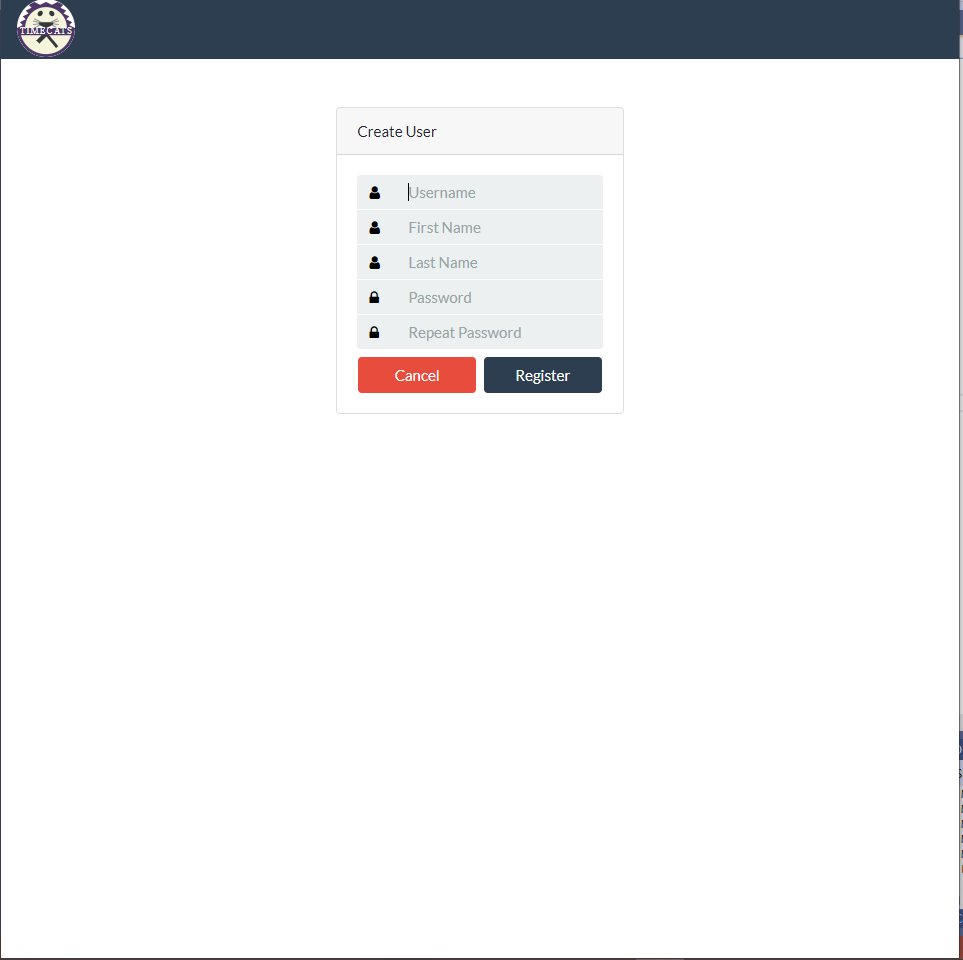
This screenshot shows the information needed to create a new user. All users are created as a student. The account will need to be updated after creation by the administrator if the user is an Admin or an Instructor. The system will not Register without all information entered above the submit button. The user has the opportunity to cancel creating a new account and will be redirected to the login page. Behind the scenes the system is creating salt and will hash the password with the server.
Register Successful Creation
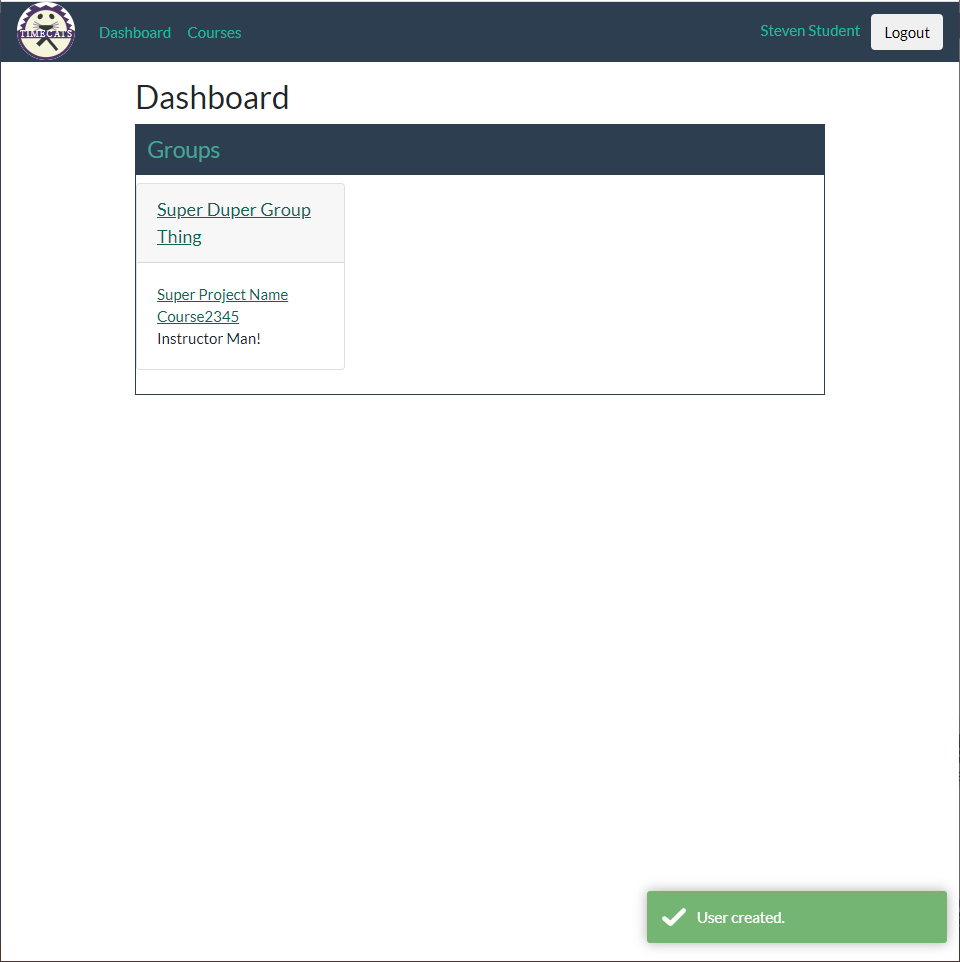
This screenshot shows the Dashboard after the account has been successfully created. This view is the student view that is very restricted. They have the ability to update their own information and can view the courses.
View All Users
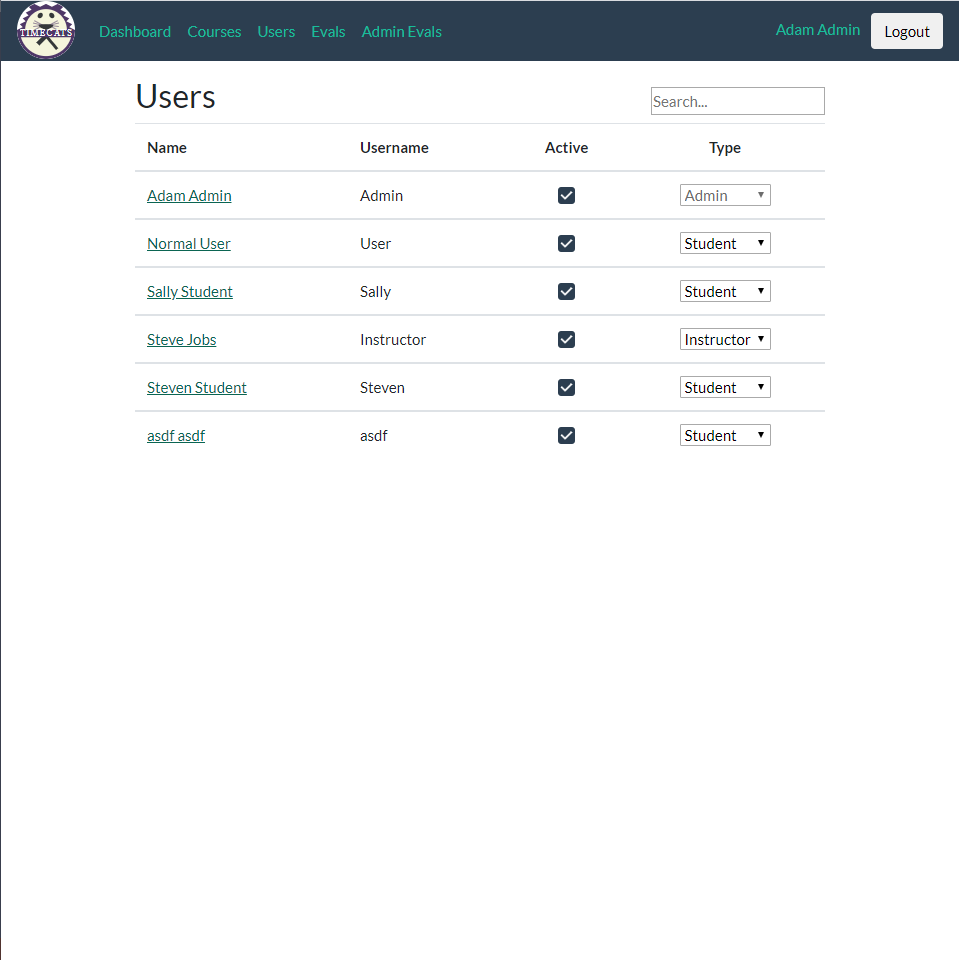
This screenshot shows the administrator view that will list out all users in the system. The active checkbox will only allow active students access to the system. The user type can be modified by the drop down boxes on the right.
Single User View
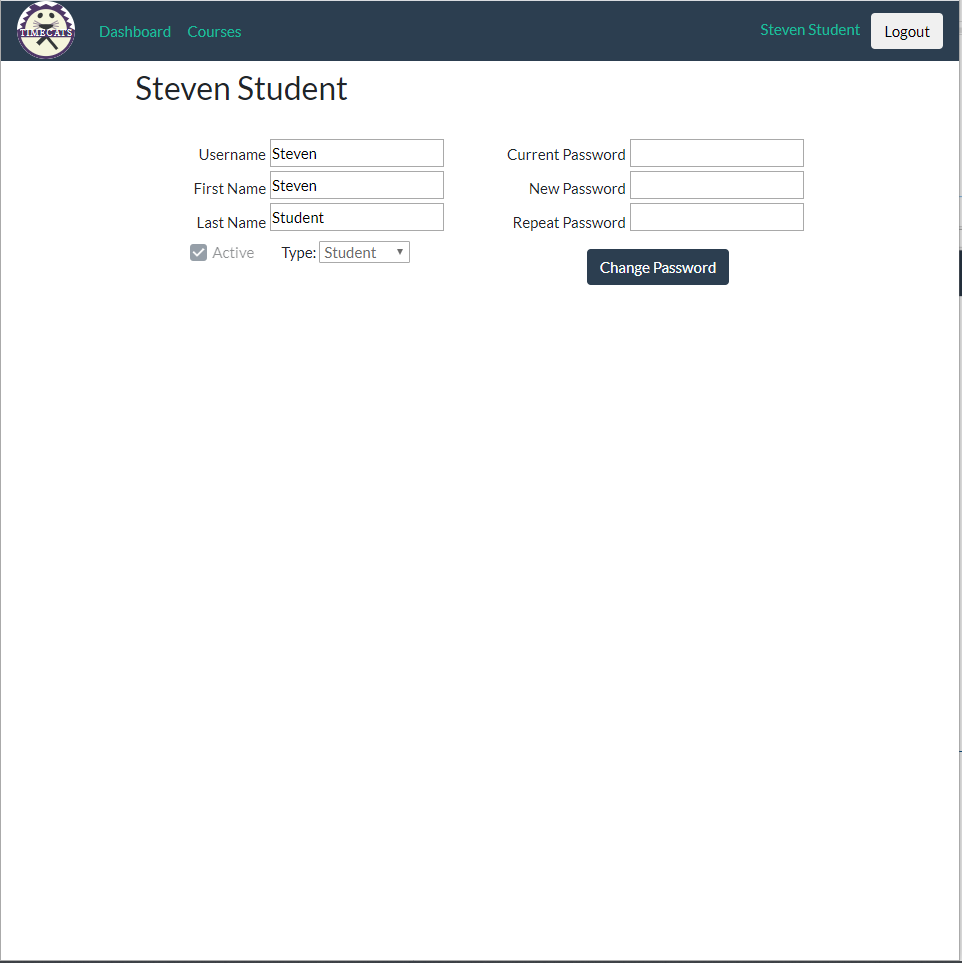
This screenshot shows the in user information in the student view. The user can update their name, username, and password. In student view the user cannot toggle the active checkbox or the user type drop down box. In administrator/instructor view these can be changed.
Administrator Single Course View
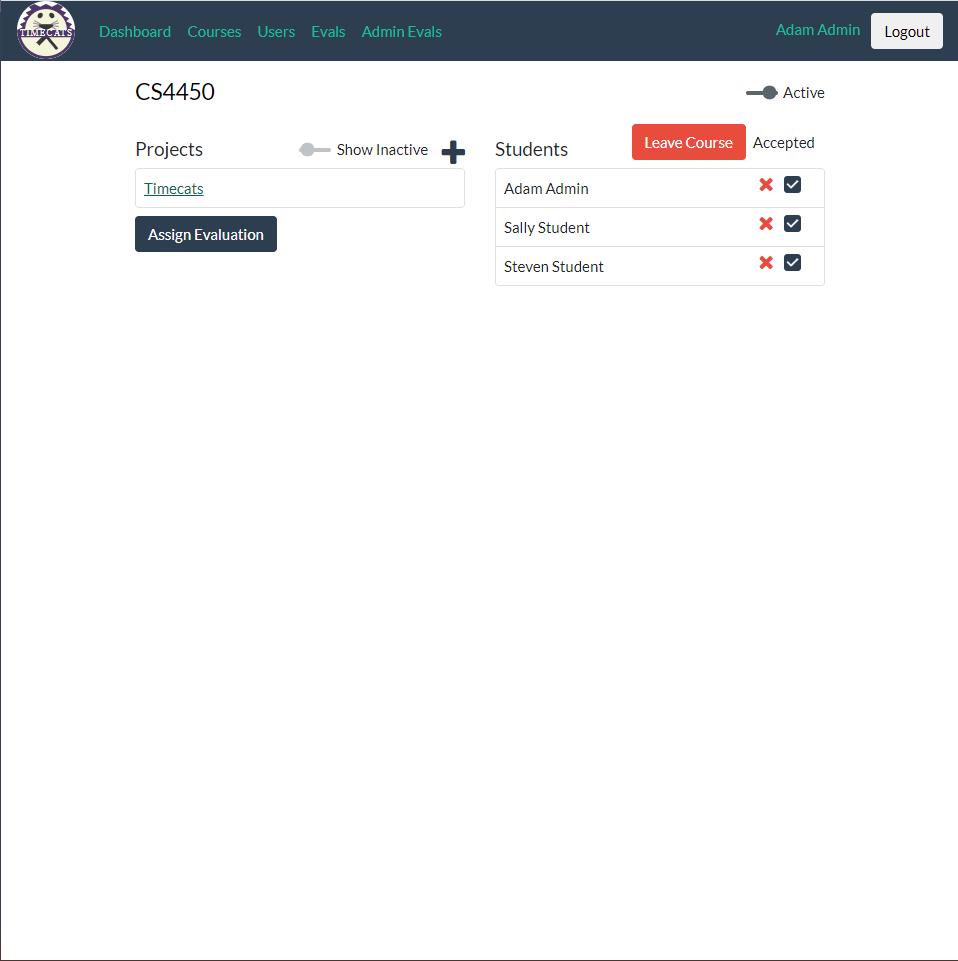
This screenshot shows a single Course Page from the administrators view. On the left all active projects are listed. A toggle will show all inactive projects for the course. On the right all students that have joined the course are listed. In administrator view the instructor/administrator must accept the student into the course to allow access.
Student Single Course View
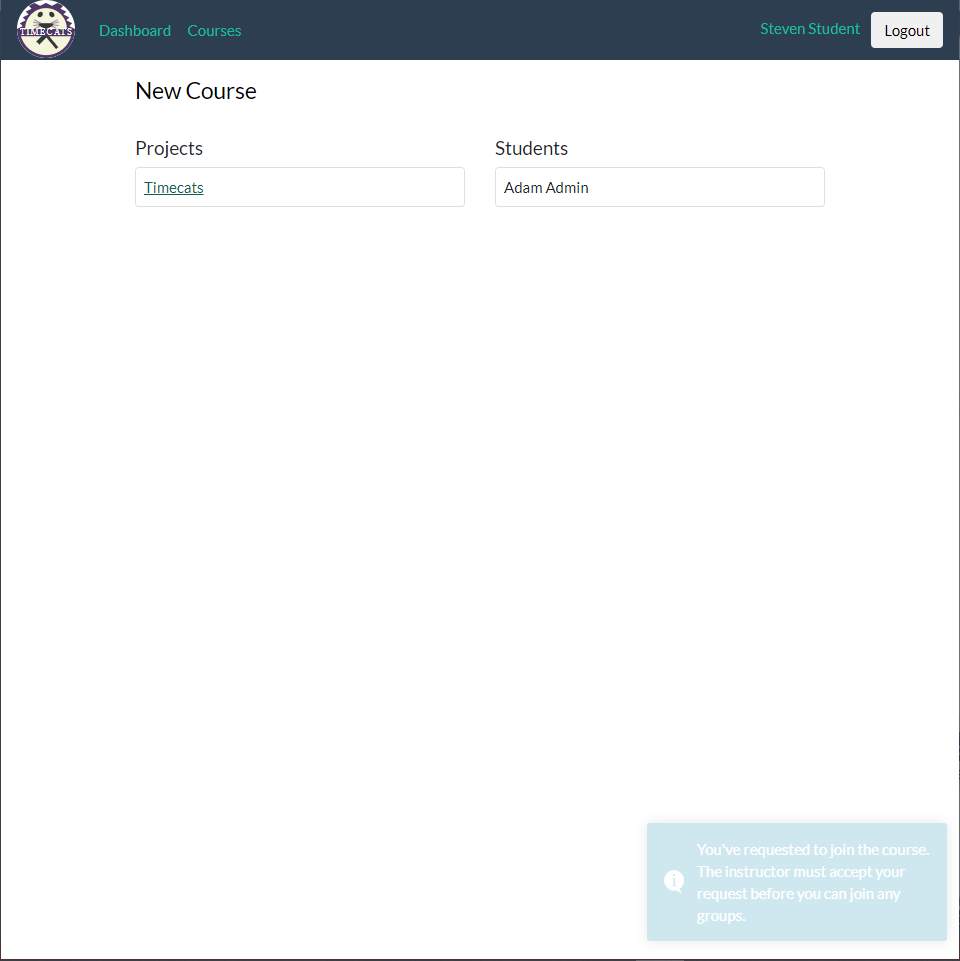
This screenshot shows the student view for a single course. At this time the student cannot see any information about the course as the instructor/administrator needs to approve their join request.
Group Project New/Empty Project
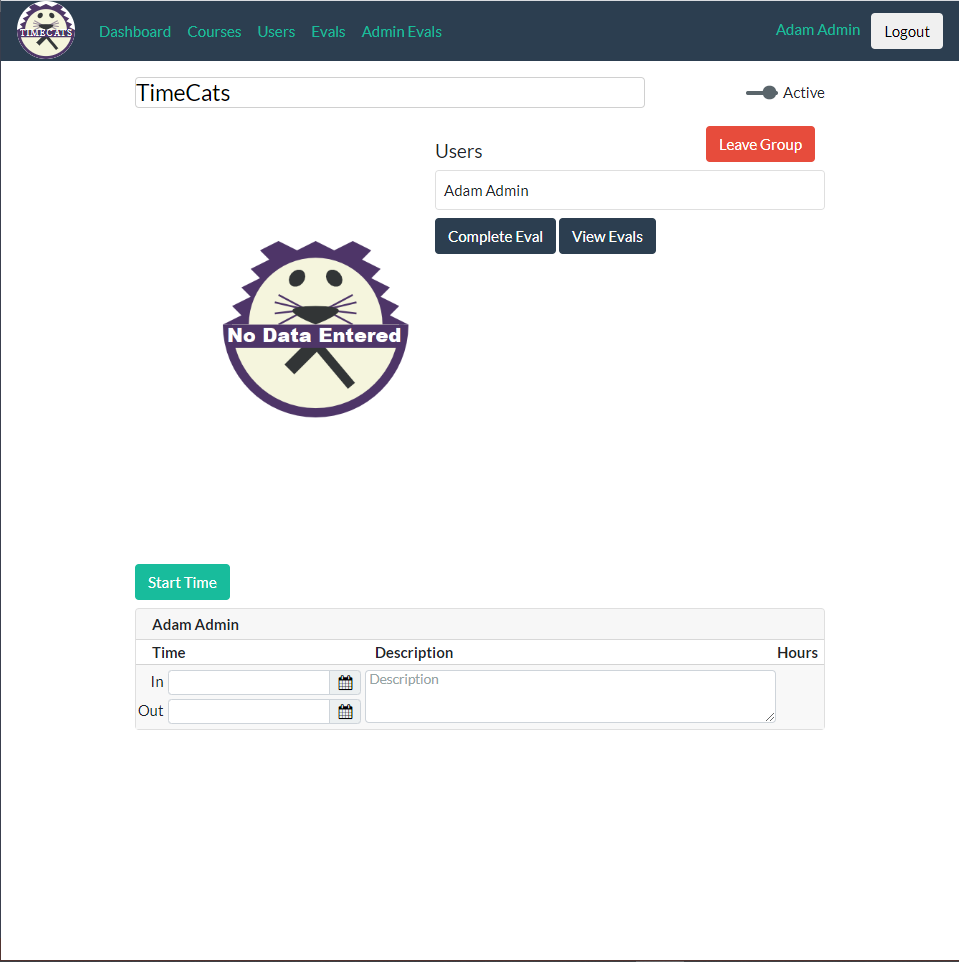
This screenshot shows an empty project. Once a user sets a timestamp with the "Start Time" button a screen will generate comparing all of the time spent on a project. Please see below for the same page with more users with clocked time.
Group Project Clocked Project
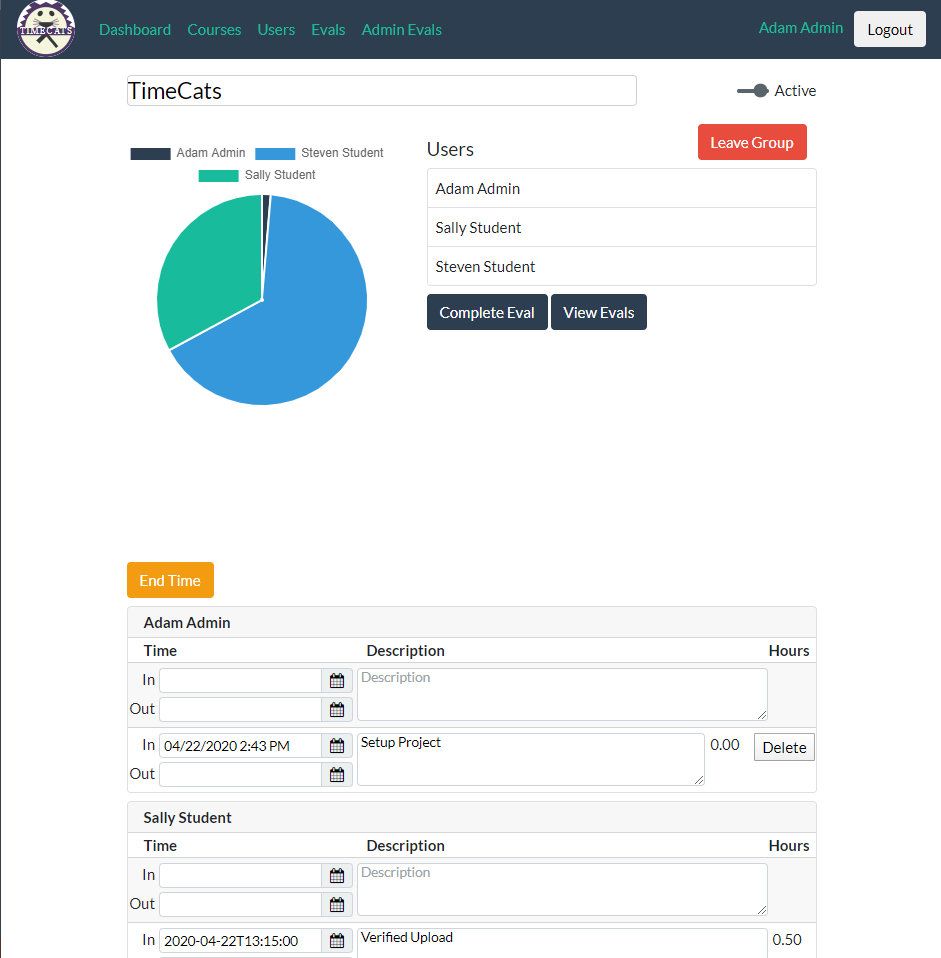
This screenshot shows a project with clocked time. The upper right shows all of the users assigned to the project. It also has a toggle that will show any inactive users for the project. This will be helpful if a project goes past the semester and new users take it over. It will log who worked on the project previously. It also gives an user the ability to leave the group. Buttons have been added for the next leg in the project to add an evaluation feature to the system so students can complete a snap evaluation for their group/project. As of this point the buttons go no where. The circle graph on the left will change accordingly as more time for the group is added to the project.
The bottom half of the screen shows the time information for the project. All time punches are listed alphabetically and are grouped by user. The user only has the ability to delete their own time punches. Time can be edited after the timestamp is created, but it will flag as being edited. Lastly, this screen shows the "End Time" button where the "Start Time" was since the system is waiting for a out timestamp.