ASP.NET Core - antonynelsong/ASP-NET-Core GitHub Wiki
Main method in asp.net core
In an ASP.NET Core project we have a file with name Program.cs. In this file we have a public static void Main() method

Why do we have a Main() method in asp.net core application ?
Asp.net core application initially starts as a console application and the Main() method in Program.cs file is the entry point. When the runtime executes our application it looks for this Main() method and this where the execution starts. This Main() method configures asp.net core , starts it and at that point it becomes an asp.net core web application.
Take a look at the Main() method, it calls CreateHostBuilder() method passing it the command line arguments. As you can see, CreateHostBuilder() method returns an object that implements IHostBuilder.
On this object, Build() method is called which builds a web host that hosts our asp.net core web application. On the web host Run() method is called, which runs the web application and it begins listening for incoming HTTP requests.
CreateDefaultBuilder() method sets up a web host with certain defaults. As part of setting up a web host, Startup class is also configured using the UseStartup() extension method of IHostBuilder class.

Startup class does the following 2 very important things
-
ConfigureServices() method configures services required by the application
-
Configure() method sets up the application's request processing pipeline
ASP.NET Core in process hosting
When an ASP.NET core application is executed, the .NET runtime looks for Main() method which is the entry point for the application. The Main() method then calls CreateDefaultBuilder() static method of the Host class.
This CreateDefaultBuilder() method performs several tasks like
- Setting up the web server
- Loading the host and application configuration from various configuration sources
- Configuring logging
An ASP.NET core application can be hosted InProcess or OutOfProcess.
InProcess hosting in ASP.NET Core
To configure InProcess hosting, add AspNetCoreHostingModel element to the app's project file with a value of InProcess

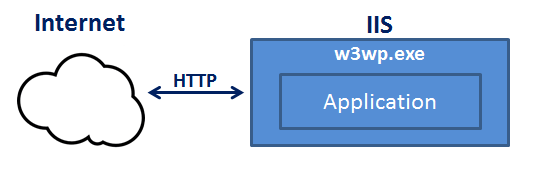
In case of InProcess hosting, CreateDefaultBuilder() method calls UseIIS() method and host the app inside of the IIS worker process (w3wp.exe or iisexpress.exe).
- From a performance standpoint, InProcess hosting delivers significantly higher request throughput than OutOfProcess hosting
- In the case of IIS, the process name that executes the app is w3wp and in the case of IIS Express it is iisexpress
- To get the process name executing the app, use System.Diagnostics.Process.GetCurrentProcess().ProcessName
- When we are run the project from Visual Studio it uses IISExpress by default.
- IIS Express is a lightweight, self-contained version of IIS, optimized for application development. We do not use it for production. In production we use IIS.
- With InProcess hosting, the application is hosted in the IIS worker process (w3wp.exe or iisexpress.exe).
- With InProcess hosting, there is only one web server and that is the IIS server that hosts our application.
What is Kestrel?
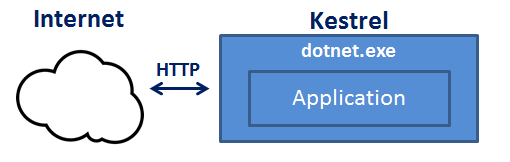
Kestrel is a cross-platform web server for ASP.NET Core. It is supported on all platforms and versions that .NET Core supports. It is included by default as internal server in ASP.NET Core. Kestrel can be used, by itself as an edge server i.e Internet-facing web server that can directly process the incoming HTTP requests from the client. In Kestrel, the process used to host the app is dotnet.exe.
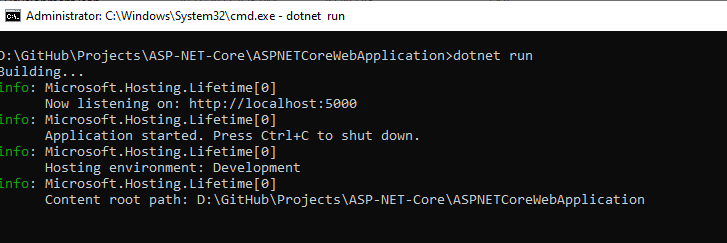
When we run a .NET Core application using the .NET Core CLI (Command-Line Interface), the application uses Kestrel as the web server.
To run our asp.net core application using the .NET Core CLI.
- Fire up Windows Command Prompt
- Change the directory to the folder that contains your asp.net core project and execute dotnet run command
- D:\GitHub\Projects\ASP-NET-Core\ASPNETCoreWebApplication>dotnet run
- After the .NET Core CLI builds and runs the project, it shows the URL using which we can access the application. In my case the application is available at http://localhost:5000
In case of Kestrel, the process used to host and execute the app is dotnet.exe. So when we navigate to http://localhost:5000, we will see the project name ASPNETCoreWebApplication displayed.
ASP.NET Core out of process hosting
There are 2 ways to configure Out of Process hosting
Option 1 : Add AspNetCoreHostingModel element to the app's project file with a value of OutOfProcess
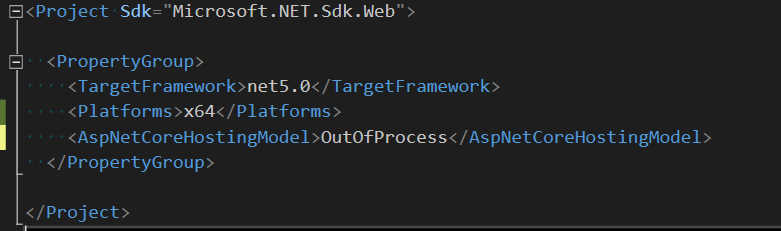
Option 2 : The default is OutOfProcess hosting. So if we remove the AspNetCoreHostingModel element from the project file, OutOfProcess hosting will be used by default.
With out of process hosting
- There are 2 web servers - An internal web server and an external web server.
- The internal web server is Kestrel and the external web server can be IIS, Nginx or Apache.
- With InProcess hosting, there is only one web server i.e the IIS that hosts the asp.net core application.
- So, we do not have the performance penalty of proxying requests between internal and external web server.
Depending on how you are running the asp.net core application, the external web server may or may not be used.
Kestrel is a cross-platform web server that is embedded in your ASP.NET Core application. With Out of Process Hosting model, Kestrel can be used in one of the following 2 ways.
- Kestrel can be used as the internet facing web server that process the incoming HTTP requests directly. In this model we are not using an external web server. Only Kestrel is used and it is this server that faces the internet, to directly handle the incoming HTTP requests. When we run the asp.net core application using the .NET core CLI, Kestrel is the only web server that is used to handle and process the incoming HTTP request.
- Kestrel can also be used in combination with a reverse proxy server, such as IIS, Nginx, or Apache.
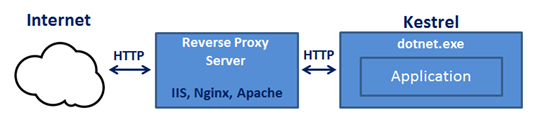
If Kestrel can be used by itself as a web server, why do we need a reverse proxy server.
With Out of Process Hosting, using a reverse proxy server is a good choice as it provides an additional layer of configuration and security. It might integrate better with the existing infrastructure. It can also be used for load balancing.
So, with a reverse proxy server in place, it receives incoming HTTP requests from the network and forwards them to the Kestrel server for processing. Upon processing the request, the Kestrel server sends the response to the reverse proxy server which then ultimately sends the response to the requested client over the network.
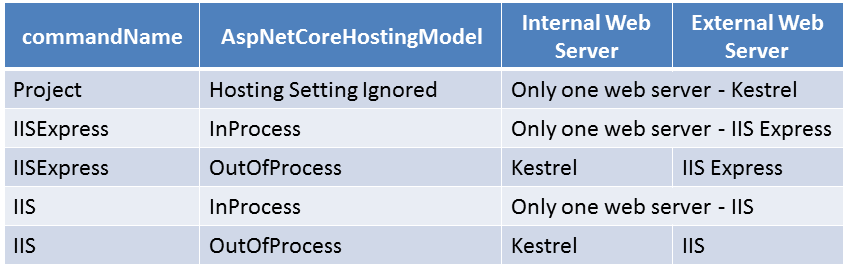
When we run the asp.net core project using the .NET Core CLI, by default it ignores the hosting setting we specified in the csproj file. So the AspNetCoreHostingModel element value in the csproj file is ignored.
Irrespective of the value you specified (InProcess or OutOfProcess), it always uses OutOfProcess hosting and Kestrel is the web server that hosts the application and handle the http requests.
ASP.NET Core launchsettings.json file
- You will find this file in the Properties folder in the project root folder.
- The settings in this file are used when we run this ASP.NET core project either from Visual Studio or by using .NET Core CLI.
- This file is only used on local development machine. We do not need it for publishing our asp.net core application.
- If there are certain settings that you want your asp.net core application to use when you publish and deploy your app, store them in appsettings.json file. We usually store our application configuration settings in this file.
- We can also have environment specific appsettings.json files. For example, appsettings.Staging.json for the staging environment. In ASP.NET Core, in addition to appsettings.json file, we also have other configuration sources like Environment variables, User Secrets, Command Line Arguments and even our own custom configuration source.
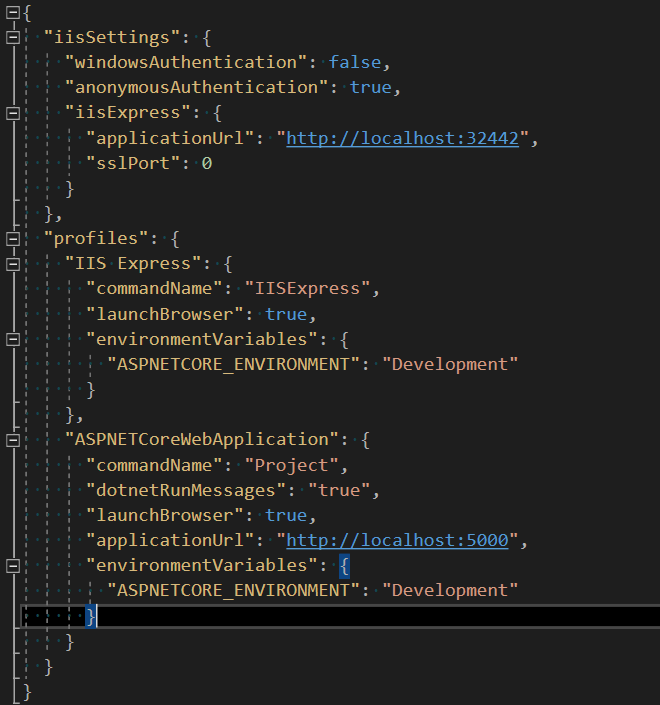
Notice, we have 2 profiles - IIS Express and ASPNETCoreWebApplication
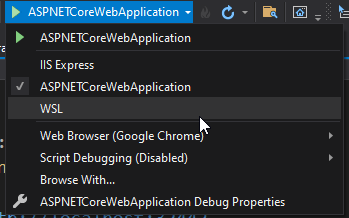
When we run the project from Visual Studio by pressing CTRL + F5 or just F5, by default, the profile with "commandName": "IISExpress" is used. On the other hand, if we run the project using .NET Core CLI (dotnet run), the profile with the "commandName": "Project" is used.
However, we can change which profile to use by clicking on the dropdownlist in Visual Studio
The value of the commandName property can be any one of the following.
- Project
- IISExpress
- IIS
You can change the settings in launchSettings.json file by directly editing the file or we can also change the settings using the Graphical User Interface (GUI) provided by Visual Studio.
To access the GUI
- Right click on the project name in Solution Explorer in Visual Studio and select Properties from the context menu.
- Click on the Debug tab on the project Properties window

Using the GUI we can change the settings in launchSettings.json file. Notice, the Environment Variable ASPNETCORE_ENVIRONMENT is set to Development. We can change this value to Staging or Production depending on whether we are running this project in Staging or Production environment.
We can also add new environment Variables. These environment variables are available throughout our asp.net core application and we can include code that conditionally executes depending on the value of these environment variables.
For example, consider the following code in the Configure() method in Startup.cs file
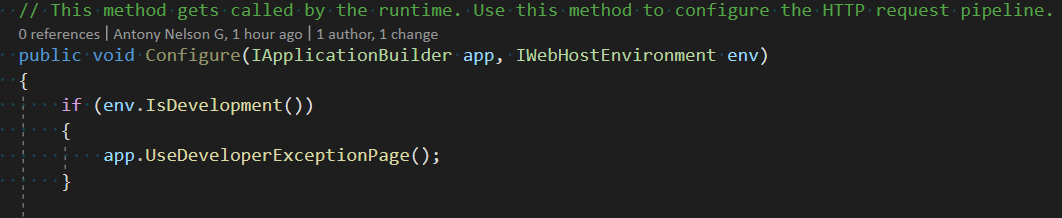
Developer Exception Page is only displayed if the environment is Development.
ASP.NET Core appsettings.json file
Configuration Sources in ASP.NET Core
In previous versions of ASP.NET, we store application configuration settings, like database connection strings for example, in web.config file. In ASP.NET Core application configuration settings can come from the following different configurations sources.
- Files (appsettings.json, appsettings.{Environment}.json, where {Environment} is the app's current hosting environment)
- User secrets
- Environment variables
- Command-line arguments
appsettings.json file : In the asp.net core project that is generated by the Empty project template we already have a file with name appsettings.json. I have modified this file to include a new setting with the key - MyKey.

Accessing configuration information
To access configuration information in the Startup class, inject the IConfiguration service provided by the Framework. Startup class is in Startup.cs file.
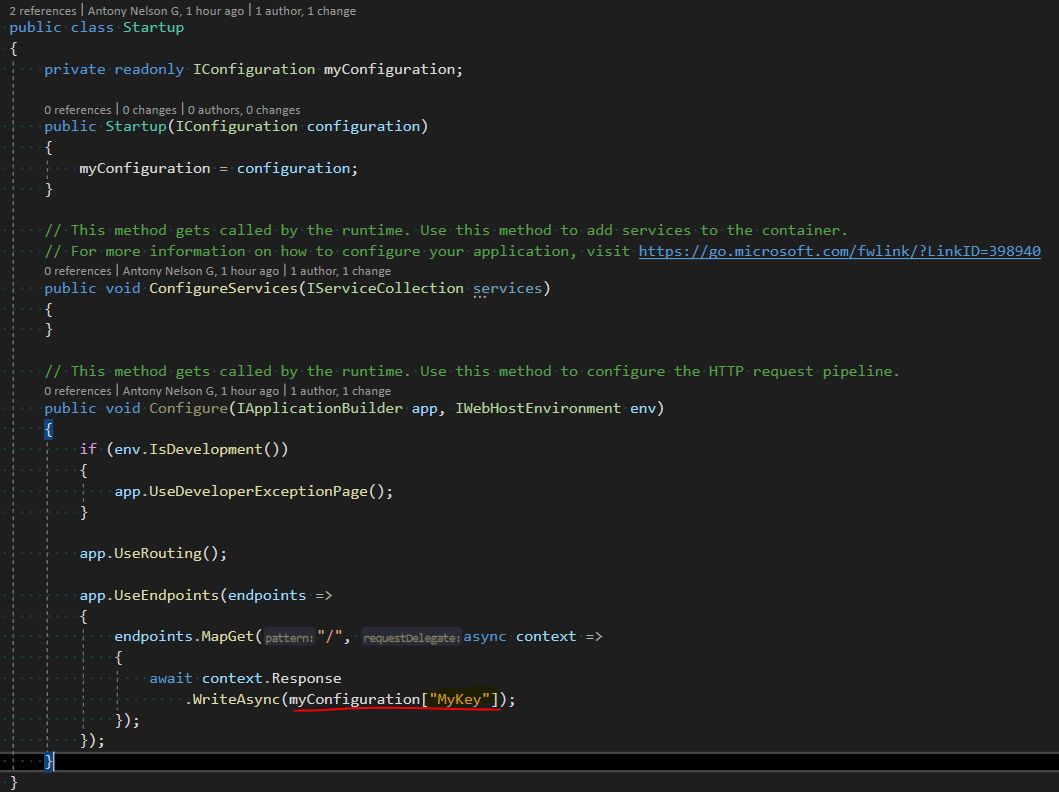
ASP.NET Core IConfiguration service
- IConfiguration service is setup to read configuration information from all the various configuration sources in asp.net core
- If you have a configuration setting with the same key in multiple configuration sources, the later configuration sources override the earlier configuration sources
- CreateDefaultBuilder() method of the Host class which is automatically invoked when the application starts, reads the configuration sources in a specific order.
- To see the order in which the configuration sources are read, please check out ConfigureAppConfiguration() method on the link https://github.com/aspnet/MetaPackages/blob/release/2.2/src/Microsoft.AspNetCore/WebHost.cs
Upon inspecting the file, you will see, the following is the default order in which the various configuration sources are read
- appsettings.json,
- appsettings.{Environment}.json
- User secrets
- Environment variables
- Command-line arguments
You can change this order if you want to or even add your own custom configuration sources in addition to all the existing configuration sources.