How to use BaerCraft on an alternative launcher (MultiMC) - antibang/BaerCraft GitHub Wiki
On this page, I will teach you how you should migrate BaerCraft to another launcher.
It is VERY important you follow EVERY STEP of this guide or things are extremely likely to break or not work as intended.
I feel like the knowledge that the CurseForge application can affect your game's performance regardless of the modpack is growing. No need to worry though! You always have the option of choosing another launcher to play modpacks on, such as my favorite, MultiMC.
Small FAQ:
"How do I update BaerCraft when I switch to MultiMC?"- Well... it's quite simple. I suggest updating BaerCraft on the CurseForge application, then copying and pasting all of the below listed folders and files you need into your MultiMC BaerCraft profile you've created after following this guide!
"But what about my custom settings and waypoints?"- If you've changed any configs or whatever else, you can delete them from the updated BaerCraft profile on CF before transferring everything in order to avoid your settings from being overwritten. As for the waypoints + minimap/worldmap, that is as simple as transferring 2 folders named XaeroWaypoints and XaeroWorldMap to your new profile you've made on MultiMC! You will not lose any pre-existing waypoints or maps if you trasnfer these folders.
First Step:
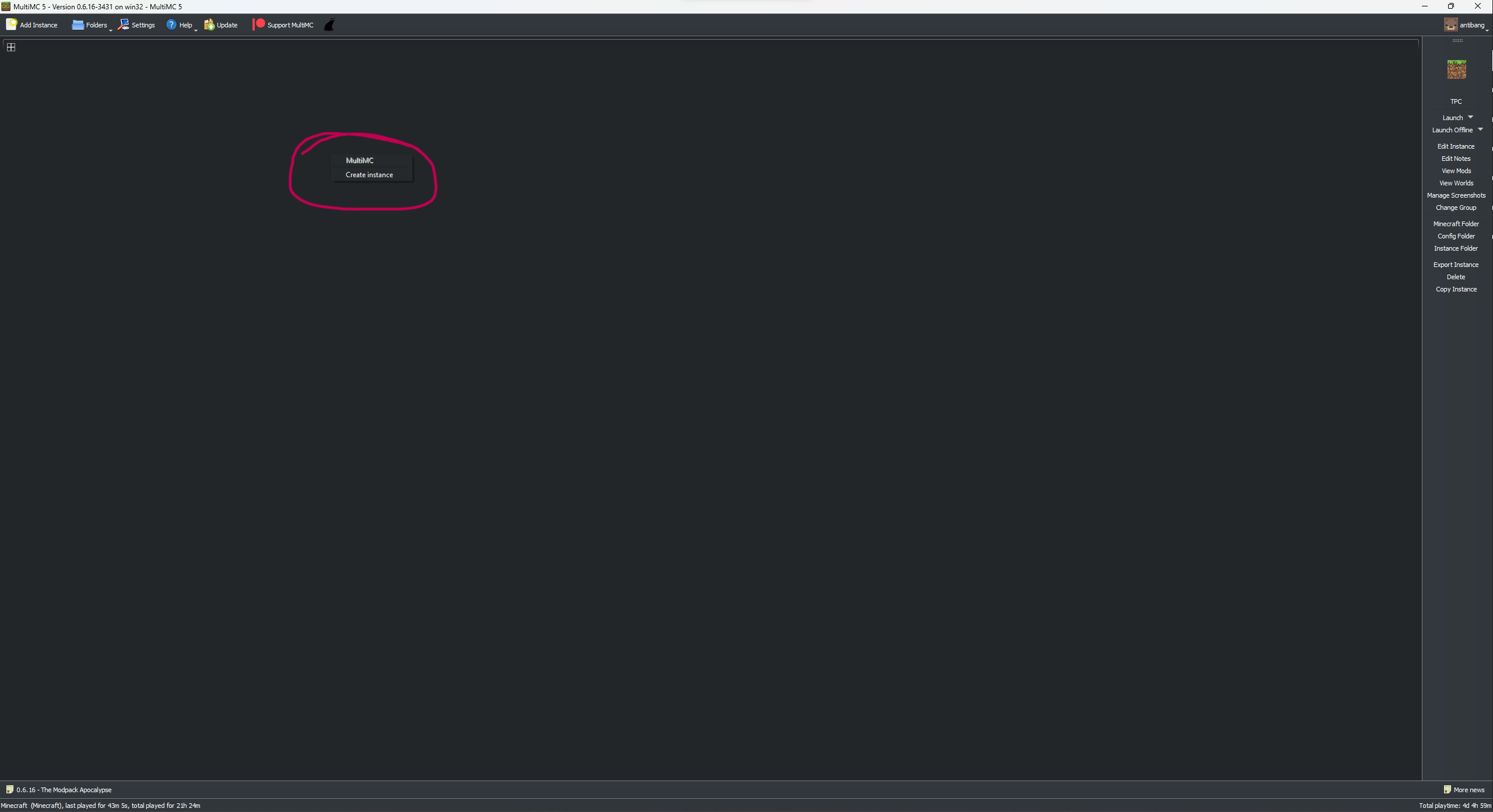
After installing MultiMC, right-click anywhere in the instances area, then select "Create Instance".
Second Step:
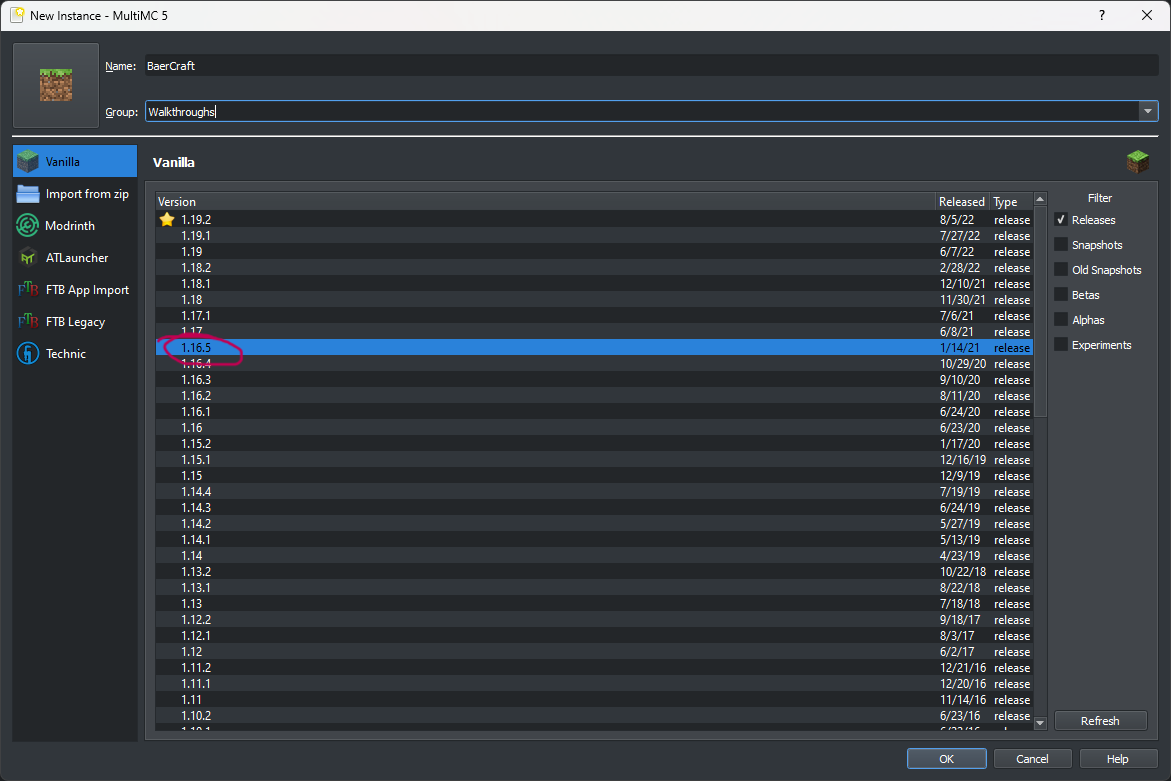
From that menu, you can select your Minecraft version you'd like to run. For BaerCraft, you need 1.16.5. Then, press "OK".
Third Step:
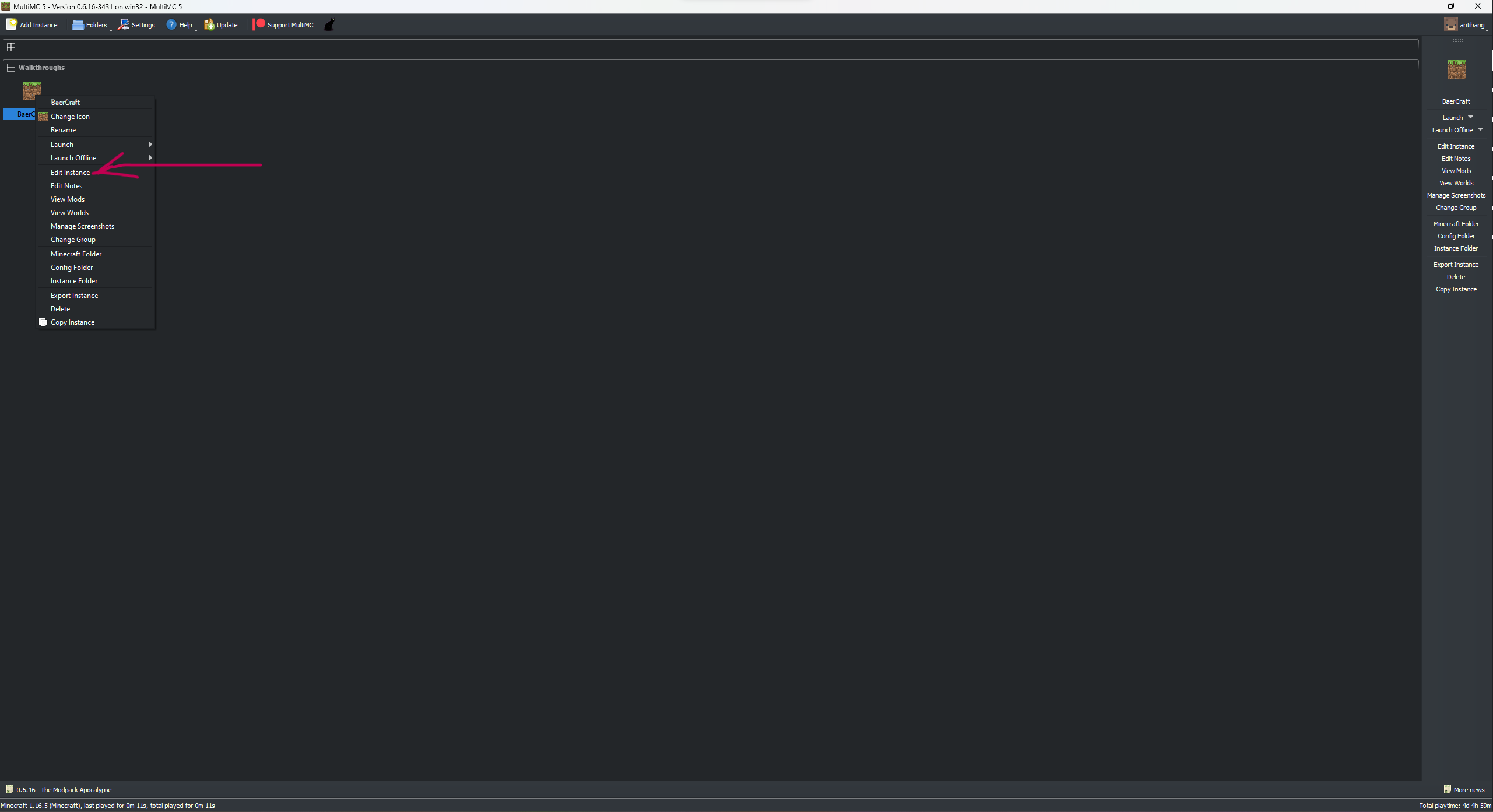
Right-click on that new profile and click on the tab that says "Edit Instance".
Fourth Step:
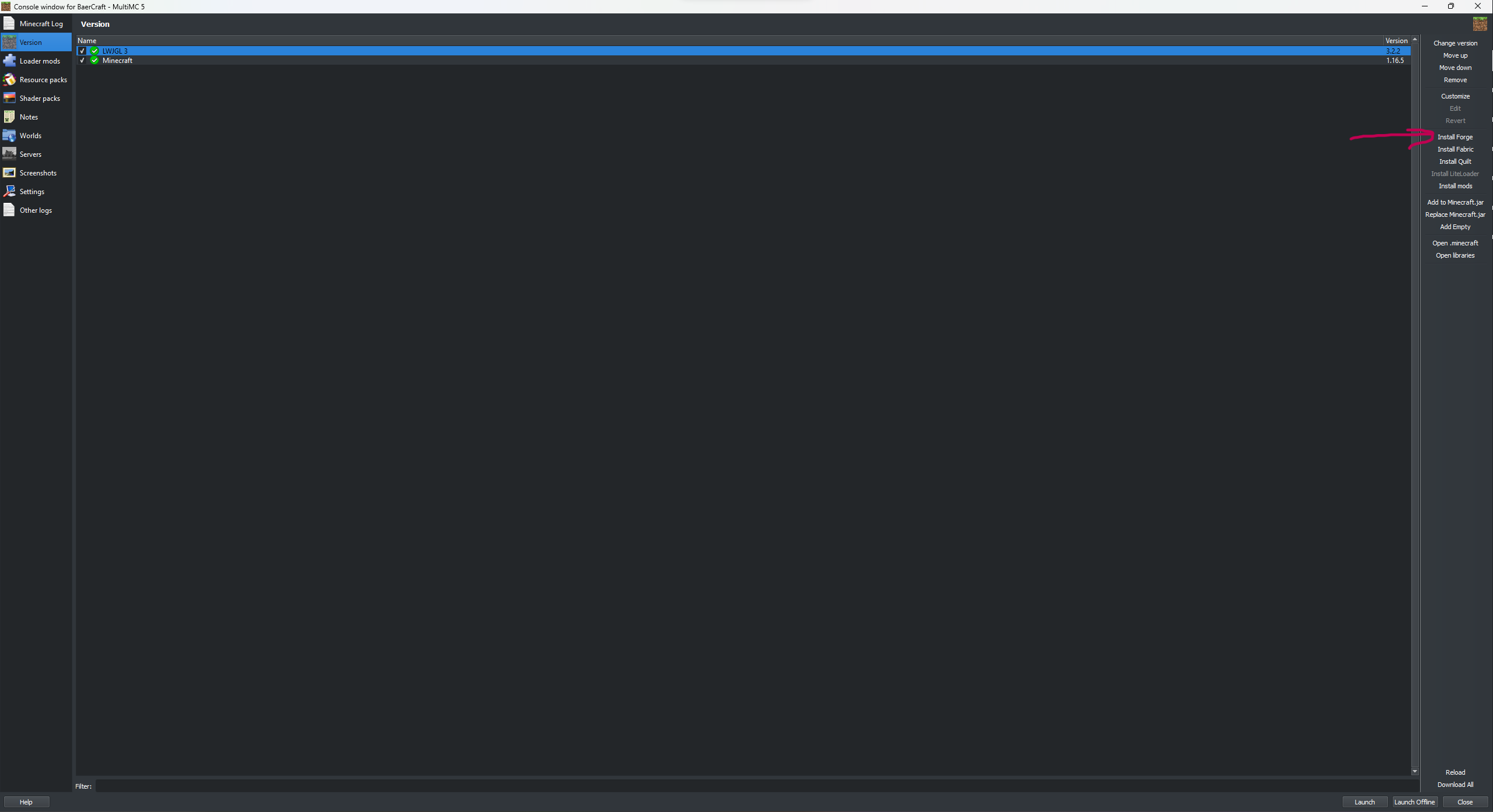
From that menu, on the right side, select the tab that says "Install Forge". You need need Forge 36.2.39 for BaerCraft. Then press "OK".
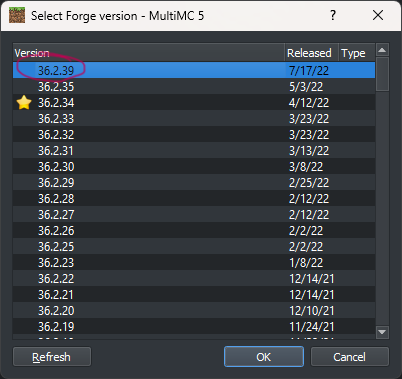
Fifth Step:
An extremely important step is to make sure you locate the button called "Download All" at the bottom of the right-hand side, below where you pressed "Install Forge". This will install Forge. Without it, it will not work. Once done, you may close that menu. I suggest running the instance at least once before moving onto the next step.
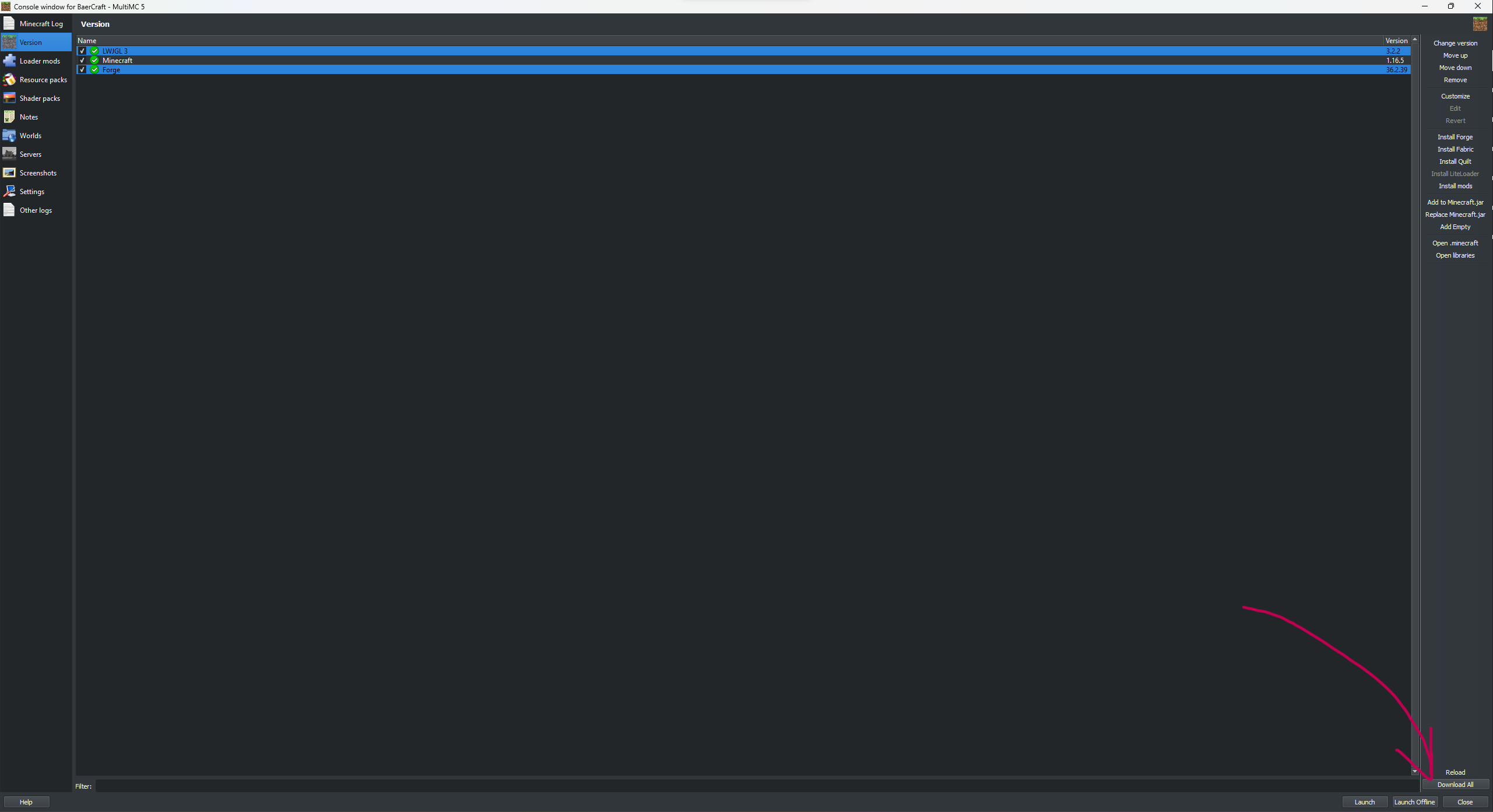
Sixth Step:
Click on the newly created profile and on the right-hand side select "Minecraft Folder". Keep that folder up because that's where you need to transfer all of the files to.
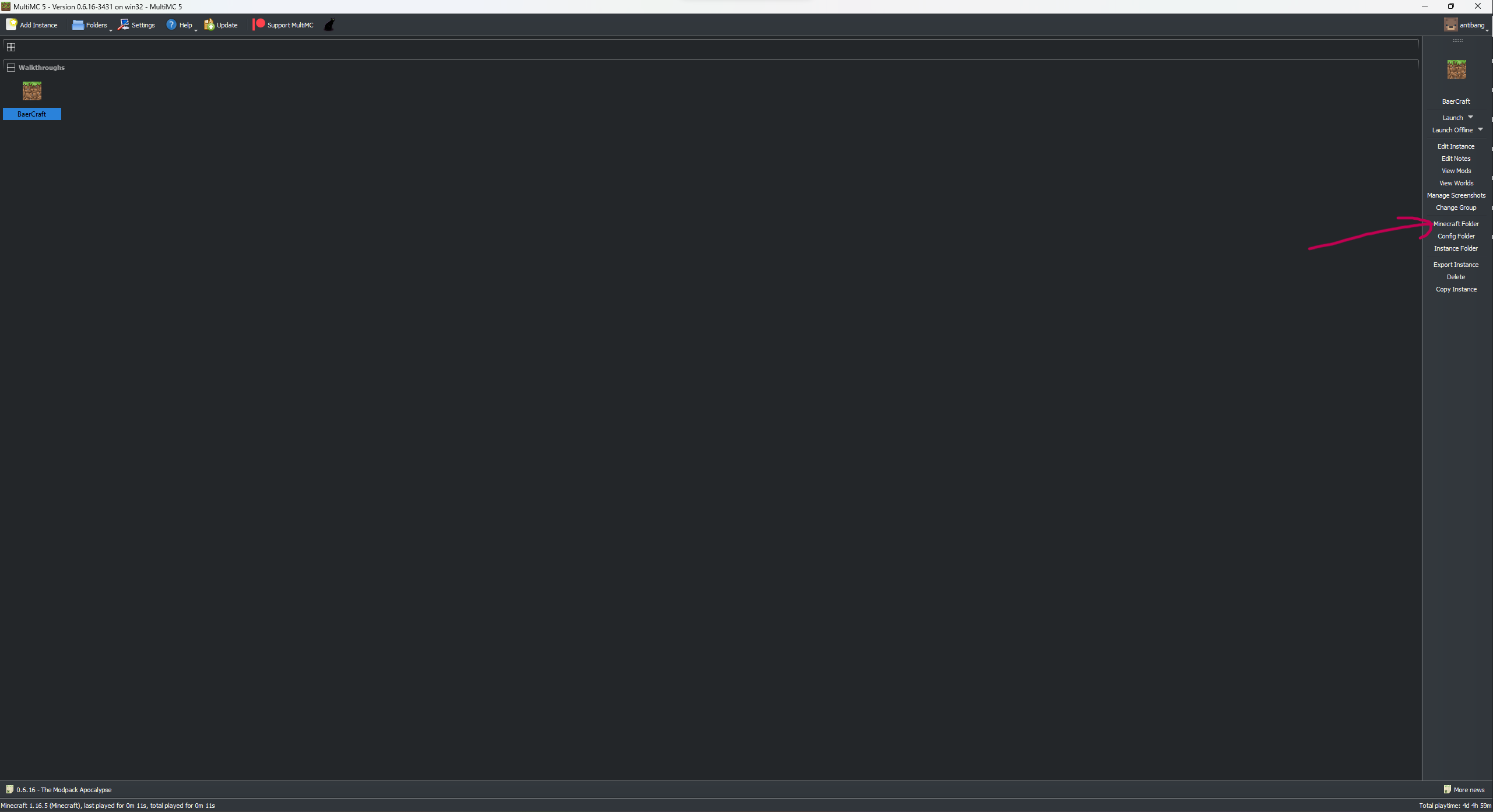
Seventh Step:
Open the CurseForge application (or download it if you do not have it installed), then right-click on the BaerCraft profile. Click on the tab that says "Open Folder".
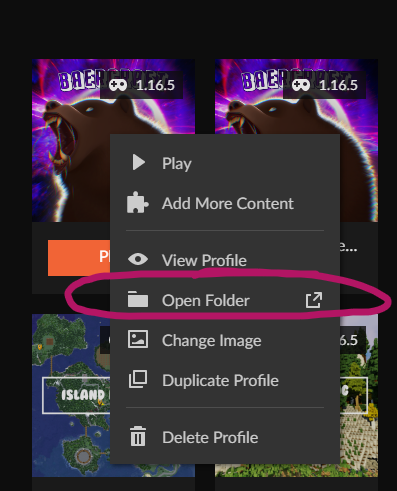
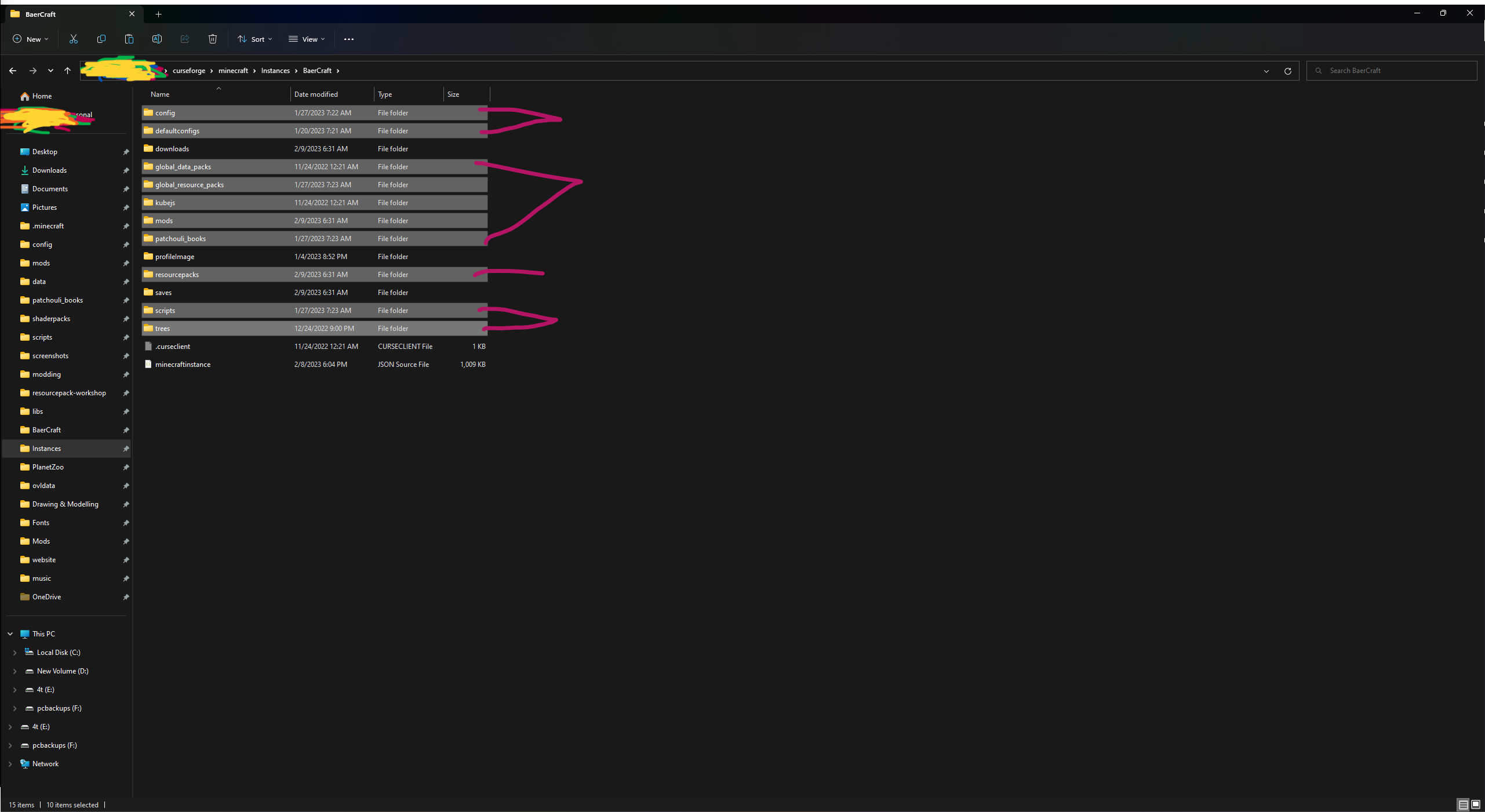
Eighth Step (most important):
DO NOT COPY EVERY SINGLE FILE FROM THE CURSEFORGE PROFILE.
YOU MUST COPY AND PASTE (or just drag over) ALL OF THE LISTED FILES OR ELSE THE MODPACK WILL NOT WORK AS INTENDED AND IS LIKELY TO COMPLETELY STOP WORKING.
You NEED the following folders:
configdefaultconfigsglobal_data_packsglobal_resource_packskubejsmodspatchouli_booksresourcepacksscriptstrees
After you've completed all of those steps, simply double-click the profile and play! However, I do suggesting allocating more RAM before playing, unless you did this upon installing MultiMC. If not, you can go here to find my quick guide on how to allocate RAM per-instance on MultiMC.