Custom Odoo Batch Payments with Open and Write off Option for Customer Invoice - aktivsoftwarecom/Odoo GitHub Wiki
Odoo’s standard flow allows customers to make batch payments directly from the Customer Invoices list view. All you need to do is select multiple invoices of a single customer and register payment as the next step, and you are done.
The only limitation here is, the customer will not be able to select the invoice payment method in Odoo.
Suppose one of your customers wants to make a batch payment for a single/multiple invoices for which the total invoice amount is $10000. The customer wants to make an “Open” payment of $5000 through the bank and another “Open” payment of $5000 through cash.
In such cases, Odoo Batch Payment would not provide any option to let the user choose the payment mode or method.
App Recommendation: Odoo Payment Reminders
## How do the customized Odoo Batch Payments work?
At Aktiv, we have enhanced the batch payment functionality where users can directly go to “multi-payment” and manage multiple payments for a single invoice within a single click along with “Open” and “Write-off” payment options.
### Configuration:
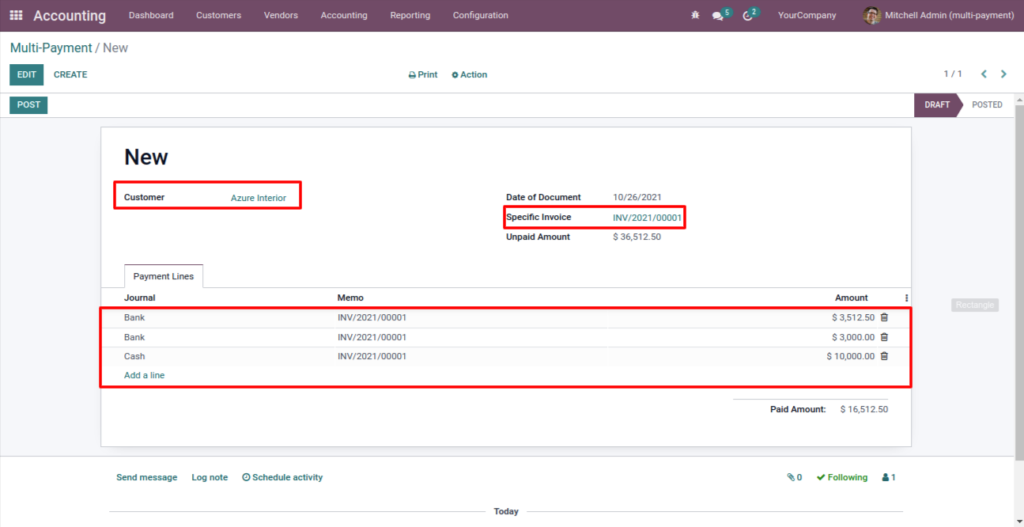
Select invoice and add payment lines for the selected invoice. Accounting >> Customers >> Multiple Payment:
Here, upon selecting customer, the user can see customer-related pending invoices in drop-drown.
Once the user selects the invoice and proceeds with “multi-payment,” it will automatically fetch the whole invoice amount in the first line. Next, it will update the unpaid amount of the selected invoice run-time as the user creates another payment line.
Considering the previous scenario, a payment line of $1000 will automatically appear; if user edits the first payment line and changes the amount to $5000, upon adding another journal line for the remaining amount, the system will automatically update the amount of $5000. Moreover, users can choose the invoice payment method in Odoo Batch Payments as well.
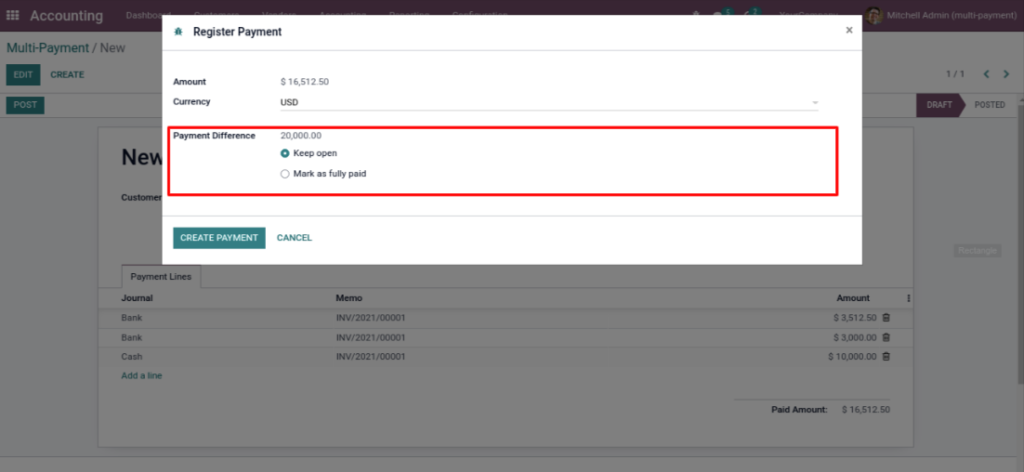
This “Multi-payment” option also provides a multi-currency facility for open or fully paid invoice payment methods. Users can also see a Smart button of Odoo Batch Payments.
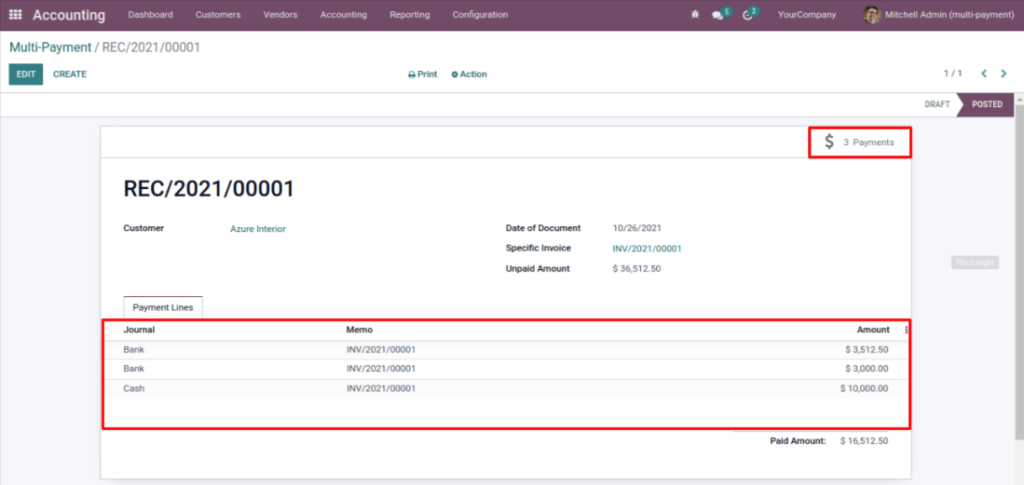
Upon clicking the smart payment button, the user will be redirected to the invoice details. They can view a number of payments, invoice amount, payment modes, and due amount for selected invoices.
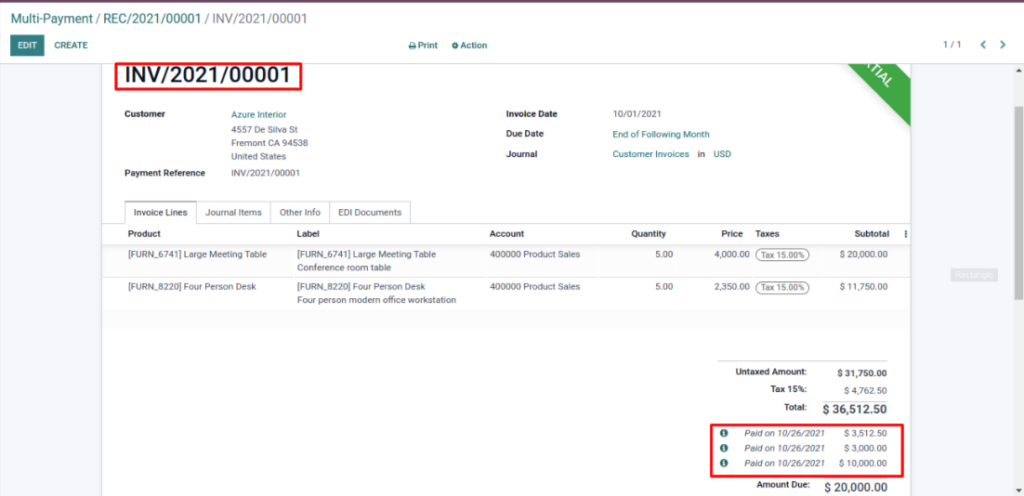
## Reconciliation Enabled for Multiple Invoice Payment Method in Odoo
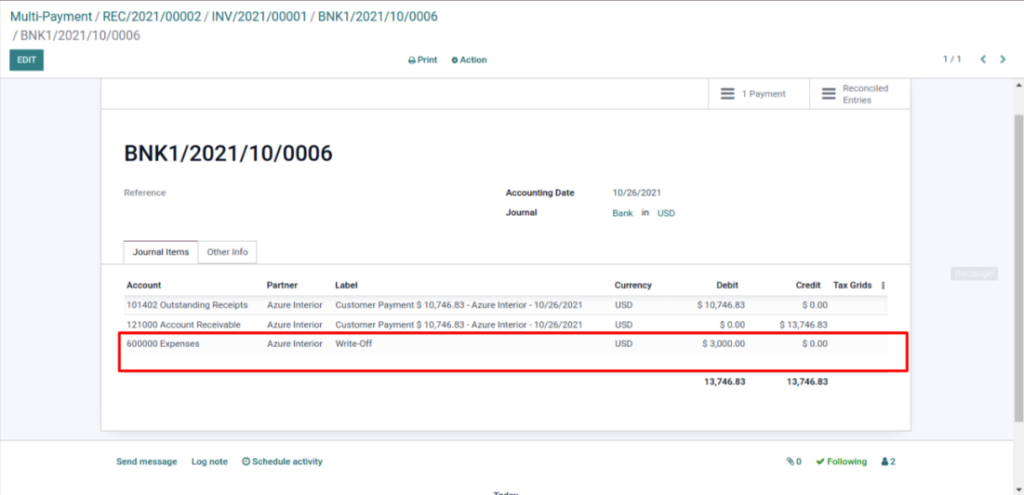
If the user chooses the “Write-off” option for “Multi-payment,” the custom flow will also generate write-off entries as per the default Odoo flow. It will also provide a drop-down to help users select the write-off account wherein the difference will be adjusted of the remaining invoice amount.
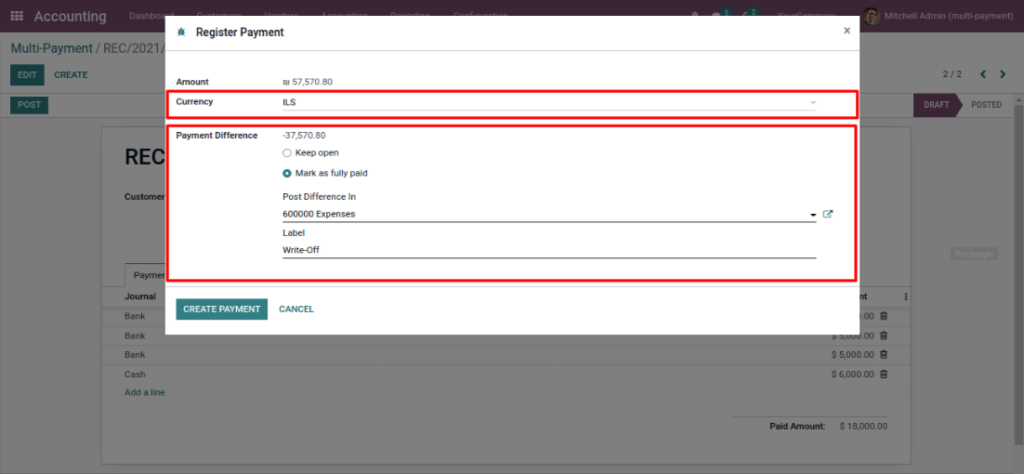
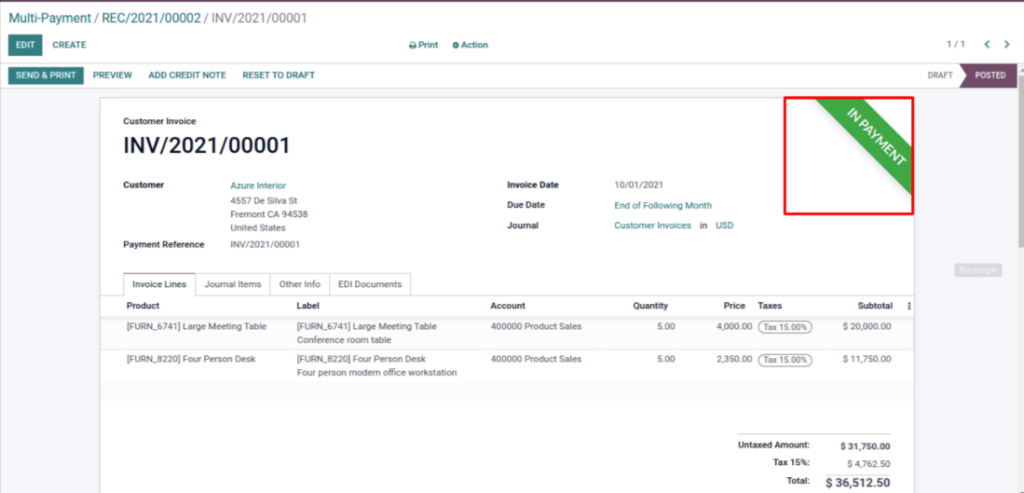
In the payment Invoice as we have selected the fully-paid option:
Write-Off entry in last payment line:
Contact our Odoo accounting experts for more information on how the custom Odoo Batch Payments works or schedule a live demo with them
Check the original version here: https://www.aktivsoftware.com/custom-odoo-batch-payments-with-open-and-write-off-option-for-customer-invoice/