mwb editor section7 display opti - ajtruckle/meeting-schedule-assistant-support GitHub Wiki
Display Options
This topic explains how to control which weeks and worksheet types appear in the Preview Mode views. These options are available in all preview views except Editor.

Figure 1: Expanded Display Options menu, showing controls for selecting weeks and worksheet types.
1. Current Week
Use Current Week when you want the preview to show only the week containing today’s date.
This is especially useful when printing:
- Assignment slips
- Individual worksheets
- Any single‑week output
Toggling the option immediately updates the preview.
2. Weeks to Include
Selecting Weeks to Include… opens a dialog listing all meeting weeks currently in the schedule.
You can:
- Check or uncheck individual weeks
- Use Quick Select to apply a preset (e.g., All, None, This Month, etc.)
- Click OK to update the preview
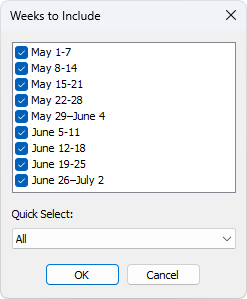
Figure 2: Weeks to Include dialog, used for selecting which meeting weeks appear in the preview.
This allows you to tailor the Workbook or Worksheet views to a specific date range.
3. Worksheets to Include
This section controls which worksheet types appear when using the new worksheet template.
The menu lists all available worksheet categories, such as:
- Midweek Chairman
- Auxiliary Class 1
- Auxiliary Class 2
- Weekend Chairman
- Memorial
You can toggle them individually, or open Selected Worksheets… for a consolidated multi‑select dialog when working with many worksheet types.
Note: These options are only supported by the new worksheet template.