msa database find - ajtruckle/meeting-schedule-assistant-support GitHub Wiki
Finding Entries
Use the Find window to search for information in the currently open database window. Search for text, numbers, or dates to quickly locate the information you need.
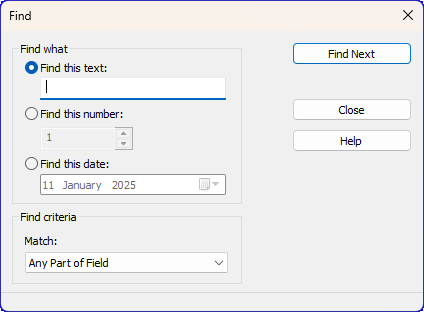
Figure 103. Find window
How to Access
In a database manager, open the Find window by:
- Search → Find
- Press Ctrl+F
Search Criteria
Text
- Find this text – Search all text fields for the specified text.
Enter the text you want to locate.
Number
- Find this number – Search only numeric fields.
Use the spinner or type the number directly.
When enabled, the Match dropdown shows number‑specific match options.
Date
- Find this date – Search only in date fields.
Select a date from the calendar or type it manually.
When enabled, the Match dropdown shows date‑specific match options.
Buttons
- Find Next – Finds the next matching entry.
- Close – Closes the window.
- Help – Opens this help topic.
Match Options
Text Matching
- Whole Field – Matches the entire field.
- Any Part of Field – Matches text anywhere within the field.
- Start of Field – Matches the beginning of the field.
Number Matching
- Must Be – Matches numbers exactly equal to the value.
- Must Not Be – Excludes numbers equal to the value.
- Must Be Less Than – Matches numbers below the value.
- Must Be, or Be Less Than – Matches numbers equal to or below the value.
- Must Be More Than – Matches numbers above the value.
- Must Be, or Be More Than – Matches numbers equal to or above the value.
- Must Be Multiple Of – Matches numbers that are exact multiples of the value.
Date Matching
- Exact Date – Matches the exact date entered.
- Before Date – Matches dates earlier than the entered date.
- After Date – Matches dates later than the entered date.
Performing the Search
- Choose whether to search for text, number, or date.
- Enter the value you want to find.
- Adjust the Match criteria if needed.
- Click Find Next to find the first matching entry.
If the search value is invalid (for example, no value has been entered), a beep sounds and a message is displayed in the status bar.
Related Topics
Navigation
- Parent topic: Database Menu
- Previous topic: Database Options