Activity Lifecycle - agileinfoways/Android-Guidelines GitHub Wiki
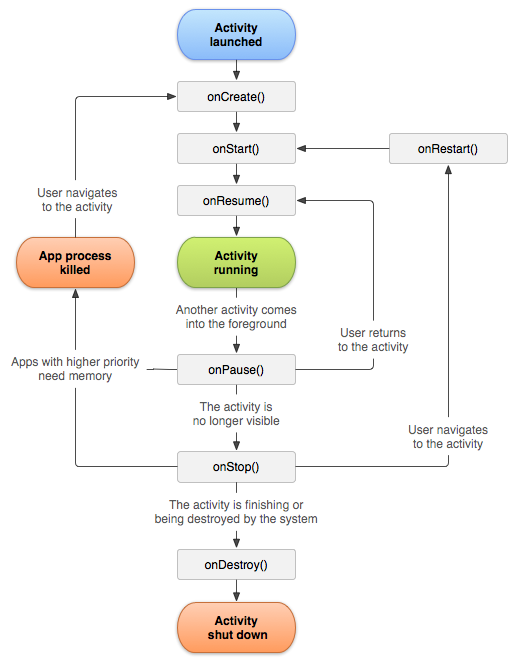
Lifecycle callbacks
onCreate()
You must implement this callback, which fires when the system first creates the activity. On activity creation, the activity enters the Created state. In the onCreate() method, you perform basic application startup logic that should happen only once for the entire life of the activity. For example, your implementation of onCreate() might bind data to lists, initialize background threads, and instantiate some class-scope variables. This method receives the parameter savedInstanceState, which is a Bundle object containing the activity's previously saved state. If the activity has never existed before, the value of the Bundle object is null.
onStart()
When the activity enters the Started state, the system invokes this callback. The onStart() call makes the activity visible to the user, as the app prepares for the activity to enter the foreground and become interactive. For example, this method is where the app initializes the code that maintains the UI. It might also register a BroadcastReceiver that monitors changes that are reflected in the UI.
The onStart() method completes very quickly and, as with the Created state, the activity does not stay resident in the Started state. Once this callback finishes, the activity enters the Resumed state, and the system invokes the onResume() method.
onResume()
When the activity enters the Resumed state, it comes to the foreground, and then the system invokes the onResume() callback. This is the state in which the app interacts with the user. The app stays in this state until something happens to take focus away from the app. Such an event might be, for instance, receiving a phone call, the user’s navigating to another activity, or the device screen’s turning off.
When an interruptive event occurs, the activity enters the Paused state, and the system invokes the onPause() callback.
Be aware that the system calls this method every time your activity comes into the foreground, including when it's created for the first time. As such, you should implement onResume() to initialize components that you release during onPause(), and perform any other initializations that must occur each time the activity enters the Resumed state. For example, you should begin animations and initialize components that the activity only uses when it has user focus.
onPause()
The system calls this method as the first indication that the user is leaving your activity (though it does not always mean the activity is being destroyed). Use the onPause() method to pause operations such animations and music playback that should not continue while the Activity is in the Paused state, and that you expect to resume shortly. There are several reasons why an activity may enter this state. For example:
- Some event interrupts app execution, as described in the onResume() section. This is the most common case.
- In Android 7.0 (API level 24) or higher, multiple apps run in multi-window mode. Because only one of the apps (windows) has focus at any time, the system pauses all of the other apps.
- A new, semi-transparent activity (such as a dialog) opens. As long as the activity is still partially visible but not in focus, it remains paused.
You can use the onPause() method to release system resources, such as broadcast receivers, handles to sensors (like GPS), or any resources that may affect battery life while your activity is paused and the user does not need them.
onPause() execution is very brief, and does not necessarily afford enough time to perform save operations. For this reason, you should not use onPause() to save application or user data, make network calls, or execute database transactions; such work may not complete before the method completes. Instead, you should perform heavy-load shutdown operations during onStop(). For more information about suitable operations to perform during onStop(), see onStop(). For more information about saving data, see Saving and restoring activity state.
Completion of the onPause() method does not mean that the activity leaves the Paused state. Rather, the activity remains in this state until either the activity resumes or becomes completely invisible to the user. If the activity resumes, the system once again invokes the onResume() callback. If the activity returns from the Paused state to the Resumed state, the system keeps the Activity instance resident in memory, recalling that instance when it the system invokes onResume(). In this scenario, you don’t need to re-initialize components that were created during any of the callback methods leading up to the Resumed state. If the activity becomes completely invisible, the system calls onStop(). The next section discusses the onStop() callback.
onStop()
When your activity is no longer visible to the user, it has entered the Stopped state, and the system invokes the onStop() callback. This may occur, for example, when a newly launched activity covers the entire screen. The system may also call onStop() when the activity has finished running, and is about to be terminated.
In the onStop() method, the app should release almost all resources that aren't needed while the user is not using it. For example, if you registered a BroadcastReceiver in onStart() to listen for changes that might affect your UI, you can unregister the broadcast receiver in onStop(), as the user can no longer see the UI. It is also important that you use onStop() to release resources that might leak memory, because it is possible for the system to kill the process hosting your activity without calling the activity's final onDestroy() callback.
You should also use onStop() to perform relatively CPU-intensive shutdown operations. For example, if you can't find a more opportune time to save information to a database, you might do so during onStop().
When your activity enters the Stopped state, the Activity object is kept resident in memory: It maintains all state and member information, but is not attached to the window manager. When the activity resumes, the activity recalls this information. You don’t need to re-initialize components that were created during any of the callback methods leading up to the Resumed state. The system also keeps track of the current state for each View object in the layout, so if the user entered text into an EditText widget, that content is retained so you don't need to save and restore it.
Note: Once your activity is stopped, the system might destroy the process that contains the activity if the system needs to recovery memory. Even if the system destroys the process while the activity is stopped, the system still retains the state of the View objects (such as text in an EditText widget) in a Bundle (a blob of key-value pairs) and restores them if the user navigates back to the activity. For more information about restoring an activity to which a user returns, see Saving and restoring activity state.
From the Stopped state, the activity either comes back to interact with the user, or the activity is finished running and goes away. If the activity comes back, the system invokes onRestart(). If the Activity is finished running, the system calls onDestroy(). The next section explains the onDestroy() callback.
onDestroy()
Called before the activity is destroyed. This is the final call that the activity receives. The system either invokes this callback because the activity is finishing due to someone's calling finish(), or because the system is temporarily destroying the process containing the activity to save space. You can distinguish between these two scenarios with the isFinishing() method. The system may also call this method when an orientation change occurs, and then immediately call onCreate() to recreate the process (and the components that it contains) in the new orientation.
The onDestroy() callback releases all resources that have not yet been released by earlier callbacks such as onStop().