Telegram Wishlist Bot - affiliatesolutionhelp/tutorial GitHub Wiki
1. 📌 Overview of the Telegram Wishlist Bot
The Telegram Wishlist Bot is a powerful tool that helps users track their favorite products and receive personalized deal alerts. 🛍️🔔 With this bot, users can save money by getting notifications when there’s a discount on the items they want. 💰✨
As an affiliate marketer, this bot helps you increase your commission earnings 💸 because users will stay connected with you and buy through your deals. 🎯🚀
🎯 Why Should You Use the Wishlist Bot?
✔️ Personalized Deal Alerts – Users get deals only for the products they have added to their wishlist. 🎯📩
✔️ More Engagement – Your subscribers will stay with you because they find this bot useful and unique. 🤝
✔️ Higher Commission Earnings – Since users receive targeted deals, they are more likely to buy, helping you earn more commissions! 💸🔥
✔️ Saves Users' Money – Instead of searching for discounts, users get automated deal alerts, helping them grab the best prices. 💰🛒
✔️ Smart Wishlist Management – Users can add, delete, or pause notifications for wishlist items anytime! 🔄🔔
✔️ Understand User Needs – When users select "Looking for a better deal," you know what they want and can provide even better offers. 📊🔍
🚀 How Does It Work?
1️⃣ Users add products they are interested in (e.g., "Laptop", "Mobile", "AC"). 📋
2️⃣ When a new deal for that product is available, they get a notification. 🔔
3️⃣ They can choose:
- ✅ "Thank you, I bought it" – The item gets removed from the wishlist. 🛍️
- 🔄 "Looking for a better deal" – They wait for a better offer. 💰
4️⃣ Users can turn off notifications or delete all wishlist items anytime! 🚫📢
🔥 Final Words
✅ This bot helps users track their favorite products and get the best deals automatically. 🏷️
✅ You earn more commission because users buy more often through your deals! 💸
✅ It builds loyalty, as subscribers find this bot useful and stay connected with you. 🤝
🚀 Start using the Wishlist Bot today and boost your affiliate business! 🔥
2. 🛠️ Create a Telegram Bot from BotFather
To set up our Telegram Wishlist Bot, we need to create a bot using BotFather. 🤖
If you don’t have a bot yet, follow these steps to create one:
1️⃣ Open Telegram and search for BotFather (official bot by Telegram).
2️⃣ Start a chat and type /newbot to create a new bot.
3️⃣ Follow the instructions and choose a name and username for your bot.
4️⃣ Once done, BotFather will give you a Bot Token (Keep it safe! 🔑).
5️⃣ Copy this Bot Token, as we will paste it into the "Telegram Wishlist" menu in Affiliate Solution. 📝
✅ Since I have already created my bot, I will use my existing bot. You can also use an existing bot if you already have one! 🎉

3. 🔗 Add Telegram Wishlist Bot Token in Affiliate Solution
Now that we have the Bot Token, let's add it to the Affiliate Solution website. 🌐
Steps to Add Bot Token:
1️⃣ Go to the Affiliate Solution website.
2️⃣ Navigate to the Wishlist menu. 📌
3️⃣ Click on Telegram Wishlist menu. 🤖
4️⃣ Now, click on Wishlist Bot submenu. 🔽
✅ In the next step, we will paste the Bot Token here to complete the setup! 🎉

4. ✏️ Paste Bot Token, Set Welcome Message & Add Chat ID
Now, let's complete the setup by adding the Bot Token, setting a Welcome Message, and adding the Chat ID. 🤖✨
Steps to Follow:
1️⃣ Paste the Bot Token (which you copied from BotFather) into the Bot Token text box. 🔑📋
2️⃣ In the Bot Welcome Message text box, enter a friendly welcome message that users will see when they interact with your Telegram Wishlist Bot. 💬👋
💡 Example Welcome Message:
"Hello! 👋 Welcome to our Wishlist Bot. Add your favorite products here, and we’ll notify you when a great deal is available! 🎉💰"
3️⃣ Add Chat ID:
- To get your Chat ID, go to @get_id_bot on Telegram. 🔍🤖
- Send a "Hi" message to the bot. 💬
- The bot will reply with your Chat ID. 🆔
- Copy the Chat ID and paste it into the Chat ID text box. 📋✅
4️⃣ Click the "Save" button to save the settings. 💾🎯
🚨 Important Note:
- Once you click the "Save" button, you cannot change the Bot Token or Chat ID later. 🚫
- These fields will be disabled after saving. 🔒
- If you need to change them, please contact our Telegram Help Bot at Affiliate Solution Support Bot 📩
✅ Now your Telegram Wishlist Bot is ready to use! 🚀🎉

5. ▶️ Start Your Wishlist Bot
Now that we have added the Bot Token, Welcome Message, and Chat ID, it's time to start the bot! 🚀
Steps to Start the Bot:
1️⃣ Click on the "Start Bot" button. ▶️🤖
2️⃣ Your Wishlist Bot will start instantly and will be ready to use! ✅✨
🎉 Congratulations! Your Telegram Wishlist Bot is now active and ready to help users track their favorite deals. 💰🔥

6. 🛠️ Test Your Wishlist Bot
Now that your Wishlist Bot is active, let’s test it to make sure it’s working properly. ✅
Steps to Test the Bot:
1️⃣ Open the Telegram application. 📱
2️⃣ Search for your Telegram Wishlist Bot (the bot you created earlier). 🔍🤖
3️⃣ Click on the Start button of the bot. ▶️💬
4️⃣ After clicking Start, you will see the Welcome Message that you set earlier. 👋🎉
✅ If you see the welcome message, your bot is working perfectly and ready to be used! 🚀🔥

7. ✨ Add Wishlist Items
Now, let’s add items to your Wishlist Bot. 🛒📋
Steps to Add a Wishlist Item:
1️⃣ Open your Telegram Wishlist Bot. 🤖
2️⃣ Click on the "Add Wishlist" button. ➕📝
3️⃣ Enter the name of the item you want to add. (Important! Read below 👇)
⚠️ Important Note:
- Use short & generic names for wishlist items. ✅
- DO NOT enter long product names like:
❌"Intel i5 processor with 16GB RAM Gaming Laptop"
✅ Instead, enter simple keywords like:"Fan","Laptop","Refrigerator","AC","Mobile", etc. - If you enter long names, they will not work properly in the bot. 🚫
🎯 Example (For Testing):
For our test, I am adding two wishlist items:
✅ Fan
✅ Laptop
4️⃣ To view your added wishlist items, click on the "View Wishlist Items" button. 📜👀
✅ Now your wishlist items are added, and you’re ready to receive deal alerts! 🎉🔥

8. 📢 Post a Deal & Check Wishlist Bot Response
Now, let’s post a deal in the Express Bot and see how the Wishlist Bot responds. 🛒🤖
Steps to Test the Wishlist Bot Response:
1️⃣ Post a deal for "Fan" in the Express Bot. 📢🌀
2️⃣ You will see that the Express Bot processes your message and replies with the converted deal message. ✅

9. 🔍 Check the Wishlist Bot:
3️⃣ Now, go to your Wishlist Bot and check if you have received the deal message. 📩👀
4️⃣ You will see that the Wishlist Bot has sent a message mentioning:
🏷️ "You are receiving this message because it contains the keyword Fan."
🚀 Your users now have 2 options:
1️⃣ "Thank you, I bought it & delete from my wishlist" ✅
- If the user clicks this button, the item will be automatically removed from their wishlist. ❌🛍️
- This helps you track that the user has purchased the item. 🎉💰
2️⃣ "Looking for a better deal" 🔎💰
- If the user selects this option, it means they are still looking for a better deal.
- You can use this feedback to understand their requirement and provide a better offer in the future. 📊📈
🎯 Why This is Helpful?
✅ Makes it easy to track what your users are interested in.
✅ Helps you manage and provide the best deals based on user preferences.
✅ Users can easily buy and remove items from their wishlist with one click.
🎉 Now your Wishlist Bot is fully functional and ready to assist users efficiently! 🚀🔥

10. 🔕 Turn Off Notifications for Wishlist Items
Your users have multiple options to turn off notifications for their wishlist items. 🚫🔔
🛠️ Turn Off Notification for a Specific Wishlist Item
Let's say a user does not want to receive notifications for a particular item, like "Fan". To do this:
1️⃣ Click on the "View Wishlist" button. 📜👀
2️⃣ Find the item (e.g., Fan) and click on it. 🌀✅
3️⃣ Click on the "Turn Off Notifications" button. 🔕🚫
✅ Now, the user will not receive any new deal alerts for the Fan. However, the Fan is still saved in their wishlist. 📌
💡 Why is this useful?
- The user may pause their buying decision for some time. 🛑🛒
- In the future, if they decide to buy the Fan again, they can simply turn on notifications. 🔔✨

*11. 🔕🔕Turn Off Notifications for All Wishlist Items
If a user wants to stop all wishlist notifications, they can unsubscribe from all notifications at once. 🚫📢
Steps to Unsubscribe from All Notifications:
1️⃣ Click on the "Unsubscribe Notifications" button. ❌📩
2️⃣ The Wishlist Bot will ask:
"Are you sure you want to unsubscribe from all wishlist item notifications?" 🤔💬
3️⃣ Click on "Yes" to confirm. ✅
✅ Now, the user will not receive notifications for any wishlist item.
🎯 Key Benefits of This Feature:
✔️ Users can temporarily pause notifications for specific or all items.
✔️ They can enable notifications again whenever they want. 🔄🔔
✔️ Helps in managing wishlist preferences easily. 📊✅
🎉 Now your Wishlist Bot is even more powerful with flexible notification controls! 🚀🔥

12. 🗑️ Delete All Wishlist Items
If a user wants to clear their entire wishlist, they can delete all wishlist items at once. 🚮📋
Steps to Delete All Wishlist Items:
1️⃣ Click on the "Delete All Wishlist Items" button. ❌📜
2️⃣ The Wishlist Bot will ask for confirmation:
"Are you sure you want to delete all wishlist items?" 🤔💬
3️⃣ Click on "Yes" to confirm. ✅
✅ Once confirmed, all wishlist items will be deleted permanently. 🛑❌
🎯 Why is This Useful?
✔️ Users can clear their entire wishlist when they no longer need it. 🧹
✔️ Helps in starting fresh when they want to add new wishlist items. 🔄✨
✔️ Saves time instead of deleting items one by one. ⏳✅
⚠️ Note: This action cannot be undone. Once deleted, all wishlist items will be removed permanently. 🚫🔄

13. 🛠️ Manage User's Wishlist Items from Affiliate Solution Website
Now, you can manage users' wishlist items directly from the Affiliate Solution website. 🌐📋
Steps to Manage Wishlist Items:
1️⃣ Go to the Affiliate Solution website. 🌍
2️⃣ Navigate to the Wishlist Menu. 📌
3️⃣ Click on Telegram Wishlist. 🤖
4️⃣ Open the Subscriber Wishlist submenu. 📜👀
✅ Here, you can view, manage, or remove wishlist items added by your users. 🎯

14.🛠️ Manage Subscriber Wishlist & Send Personalized Deals
Now that you are in the Subscriber Wishlist section, you can view and manage all your subscribers' wishlist items. 📋✨
What You Can Do Here:
✅ View all subscribers' wishlist items 📜👀
✅ Send personalized deal messages 💬🔥
✅ Delete inappropriate wishlist items ❌🗑️
✅ Edit wishlist items if a user entered them incorrectly ✏️🔄
✅ Check the subscriber’s notification status 🔔✅
How to Edit or Delete Wishlist Items:
✏️ To edit a wishlist item – Click on the Edit (🖊️) icon, update the item, and save.
🗑️ To delete a wishlist item – Click on the Trash (🗑️) icon to remove it.
💡 You can also send personalized deal messages to your subscribers based on their wishlist! 🎯🔥

15. 💬 Send Personalized Deal Message to Subscribers
Now, you can send personalized deal messages to your subscribers directly from the Affiliate Solution website. 🔥📩
Steps to Send a Personalized Message:
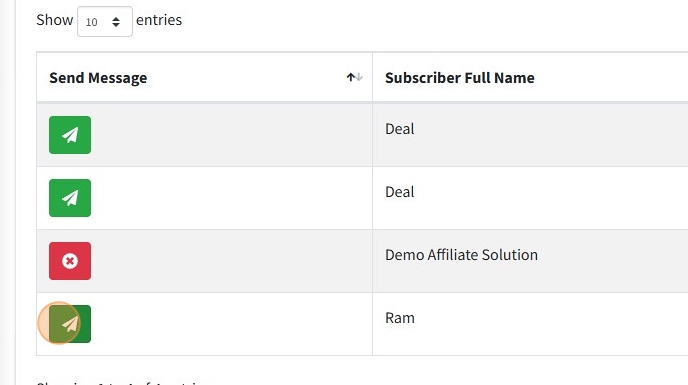
1️⃣ Click on the Green Color Icon 📩💚 next to the subscriber’s wishlist item.
2️⃣ A popup bot will open, where you can enter your deal message along with the product link. 📝🔗
3️⃣ Click Send, and the message will be delivered to your subscriber with your own affiliate link. ✅✨
💡 No need to manually convert links!
🚀 Our system will automatically add your affiliate tag before sending the message. 🔗💰
✅ Now, your subscriber will receive a personalized deal notification based on their wishlist item! 🎯🔥