Facebook Setup - affiliatesolutionhelp/tutorial GitHub Wiki
How to Setup Facebook Page?
This guide provides step-by-step instructions on how to set up a Facebook Page. It covers everything from creating an app to generating access tokens and managing permissions.
1. Login into following URL
https://developers.facebook.com/
Click "My Apps"

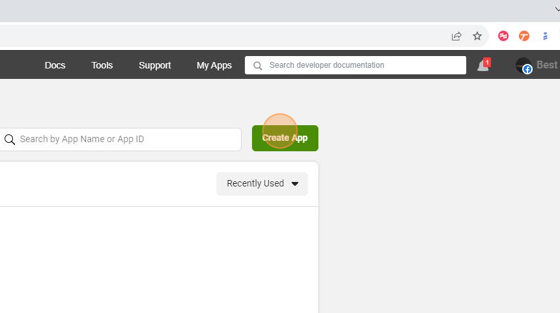
2. Click "Create App"
3. Click "Explore other products and data permissions such as ads management, Instant Games and more. You'll be asked to select an app type and then you can add the permissions and products you need."

4. Click "Next"

5. Click "Create or manage business assets such as Pages, Events, Groups, Ads, Messenger, WhatsApp and Instagram Graph API using the available business permissions, features and products."

6. Click "Next"

7. Enter App name

8. For Example: "Affiliate Solution Demo"

9. Click on "Create app" button

10. Click "Tools -> Graph API Explorer"

11. Select your app from Meta App menu

12. Select your App
For this example we will select "Affiliate Solution Demo"

13. Click "Get Token"

14. Click "Get Page Access Token"

15. Click "Continue as Best Deal"

16. Select Facebook Page in which you want to post deal

17. Click "Continue"

18. Click "Save"

19. Click "Got it"

20. Click here:

21. Click on your page name

22. Click here:

23. Click "pages_manage_engagement"

24. Click "pages_manage_posts"

25. Highlighted green color options need to select

26. Click "Generate Access Token"

27. Click "Continue as Best Deal"

28. Click "Save"

29. Click "Save"

30. Click "Got it"

31. Click "User Token"

32. Select Facebook Page

33. Copy Token Do not again click on Generate Access Token

34. Click "Access token debugger"

35. Click "Enter an access token to debug."

36. Right-click here:

37. Click "Paste Ctrl+V"

38. Click "Debug"

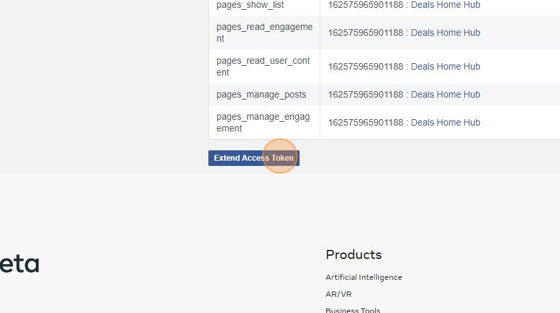
39. Click "Extend Access Token"
Please ensure that you have selected "Page" and not "User"
40. Copy token

41. Go back to Affiliate Solution website Click "Facebook" menu

42. Paste token here and click on "Save"Button

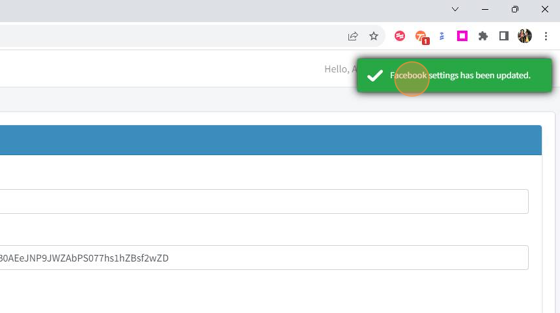
43. Facebook settings has been updated
44. Click on Logout button
45. Click "Sign In"

46. Click "Post Deal"

47. Add your message to post

48. Select Facebook check box and click on Post deal button

49. Your deal has been posted on Facebook page

How to Setup Facebook Group?
This guide provides step-by-step instructions on how to set up a Facebook group for posting deals and using a bot to automate the posting process. It covers creating a Facebook app, generating an access token, and configuring the bot to post on the group. It is a helpful resource for individuals or businesses looking to promote their products or services on Facebook groups.
1. Login into Affiliate Solution website

2. Click "Dashboard"

3. Click "Facebook" Menu

4. Click "Group" Submenu

5. Let's generate Facebook group access token
Go to: https://developers.facebook.com/ & click on My Apps menu

6. Click "Create App"

7. Click "Explore other products and data permissions such as ads management, Instant Games and more. You'll be asked to select an app type and then you can add the permissions and products you need."

8. Click "Next"

9. Click "Create an app with combinations of consumer and business permissions and products."

10. Click "Next"

11. Add any App name. For Example: "Affiliate Solution Group Post Demo"

12. Click "Create app"

13. Click "Tools " and "Select Graph API Explorer" sub menu

14. Click "Meta App"

15. Select App which you have created in above step "Affiliate Solution Group Post"

16. DO NOT MAKE ANY CHANGE IN USER OR PAGE SECTION
Keep Get Token selected
17. Click "Add a Permission"

18. Click here:

19. Type "group"

20. Select "publish_to_groups"

21. Type "group"

22. Select "groups_access_member_info"

23. IMPORTANT Make sure you have selected below two Permissions, if you do not select these tow permissions, you will not able to post on Facebook group

24. Click "Generate Access Token"
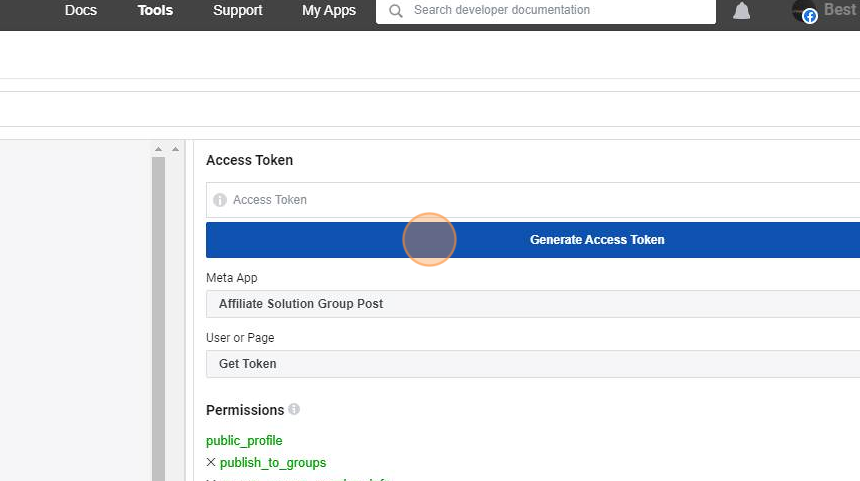
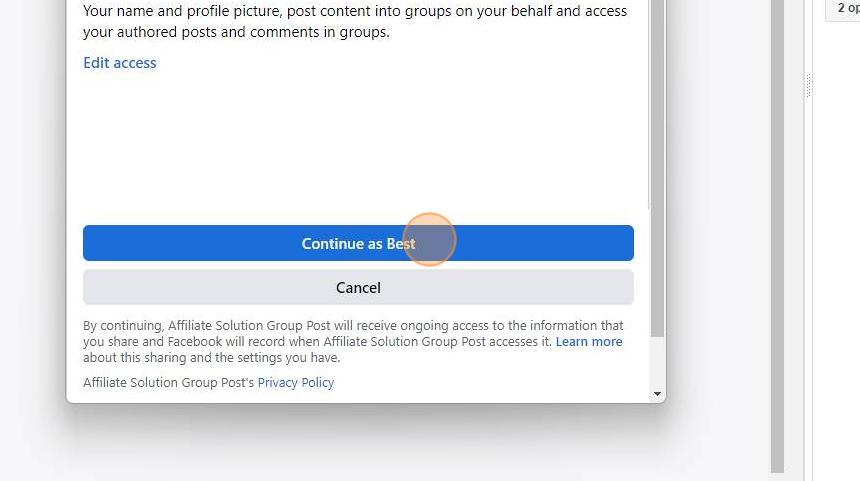
25. Click "Continue as Best"
26. Click "Copy Token"

27. Click "Tools" and click "Access token debugger"

28. Paste token here
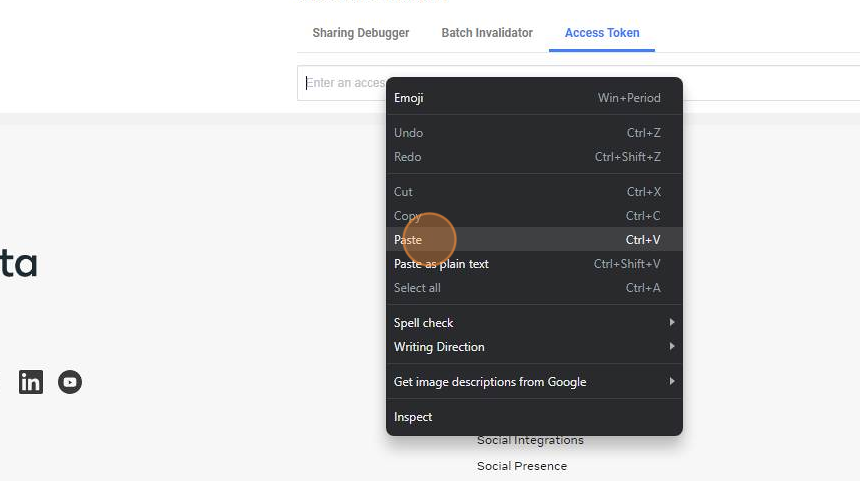
29. Click "Debug"

30. Please make sure you have correct scopes item
It should be "publish_to_groups, groups_access_member_info, public_profile"

31. Click "Extend Access Token"

32. Copy Extend Access Token

33. Right-click here:

34. Click Copy

35. Visit Affiliate Solution website
Click on Facebook Menu and select Group Sub Menu
Click "Add New Group"

36. Click "Access token:"

37. Paste Extend Access token which you copied

38. Visit your Facebook page and copy the URL

39. Paste URL here

40. Like this

41. Select Group ID from from URL as highlighted below and copy it
It should be numbers
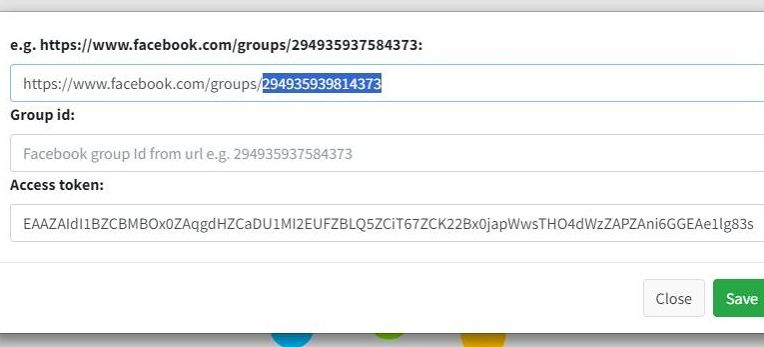
42. Click "Group id:" text box

43. Paste here group Id

44. Click "Save"

45. Enable group to post deal in it

46. Icon should turn into Green

47. Click "Logout" menu to reflect the changes which we have added

48. Login into Affiliate Solution website

49. Click "Post Deal"

50. Add your deal message

51. Select Facebook checkbox

52. Click "Post Deal"

53. Deal has been posted

54. When you visit your Facebook group, you'll find that a deal has been posted there.

55. Let's see how can we post deal on Facebook group from bot
Click "Bot"

56. Click "Post Settings For Bot"

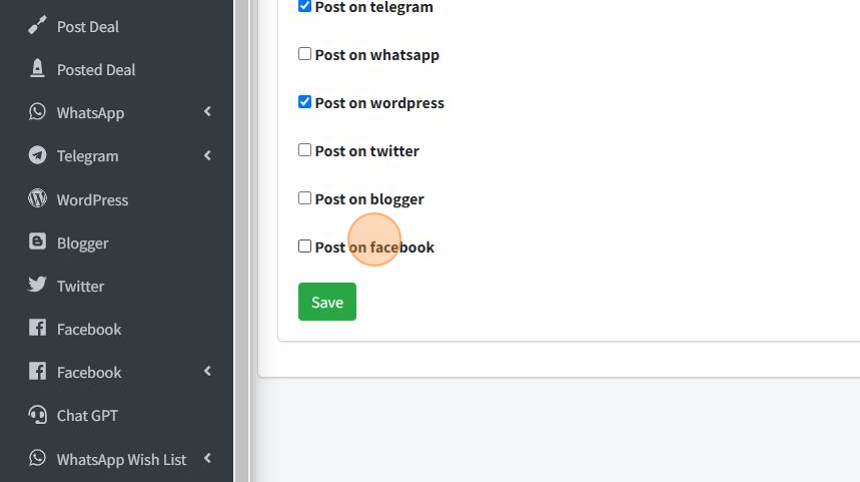
57. Select "Post on Facebook" checkbox
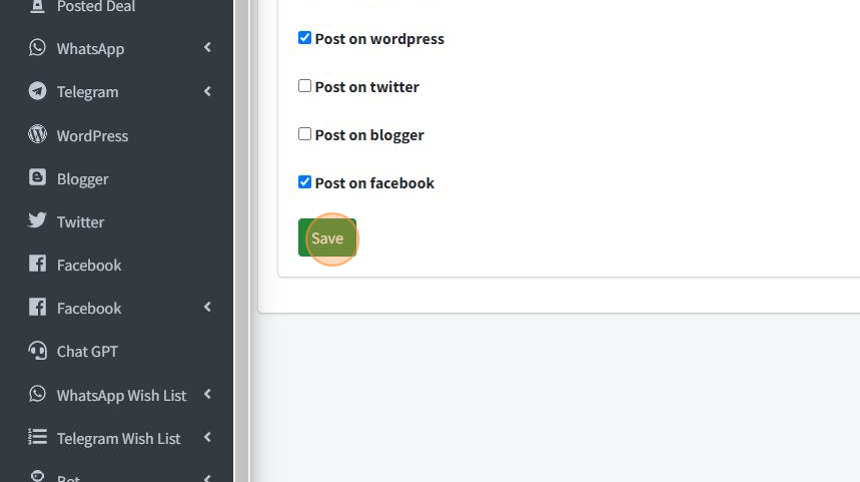
58. Click "Save"
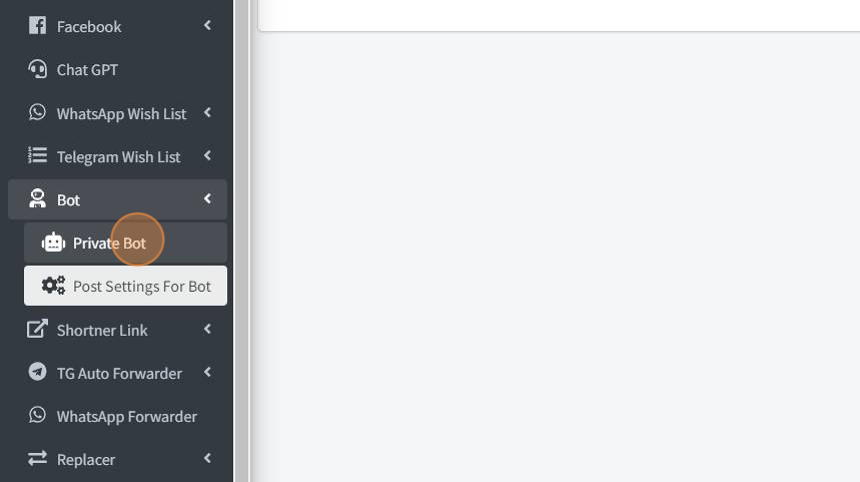
59. Click "Private Bot"
60. Click "Restart Bot"
