Dynamic Image Setup - affiliatesolutionhelp/tutorial GitHub Wiki
How to post dynamic image?
This guide explains how to post dynamic images on Amazon and Flipkart product pages using the Affiliate Solution website and Telegram. It provides step-by-step instructions on integrating the Amazon API, enabling the dynamic image feature, and posting the image on Telegram. The guide also emphasizes that the dynamic image feature is only compatible with Amazon and Flipkart.
1. NOTE: Please be aware that the dynamic image feature is exclusively compatible with the main product pages of Amazon and Flipkart.
2. Login into Affiliate Solution website

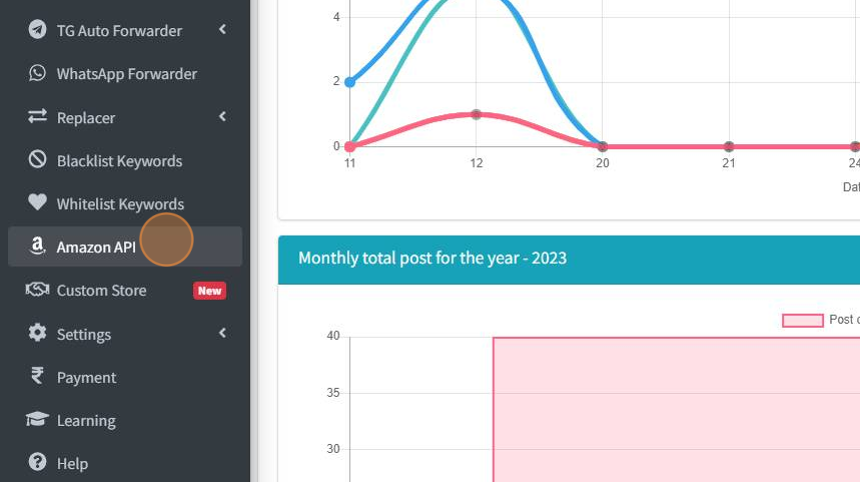
3. Click on Amazon API menu
Integrate the Amazon API, which you can create through your Amazon Associate Account. Keep in mind that once the API key is generated, it might take up to 72 hours for Amazon to activate it. Kindly wait until it's activated by Amazon's system.
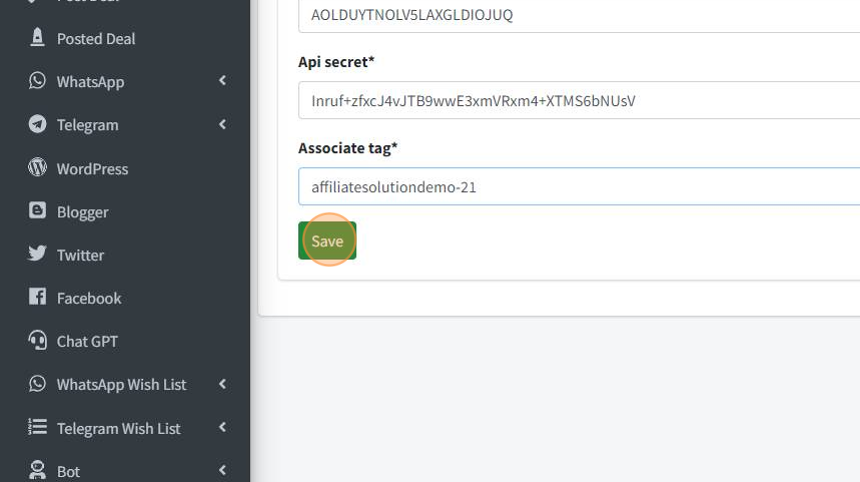
4. Click "Save" button
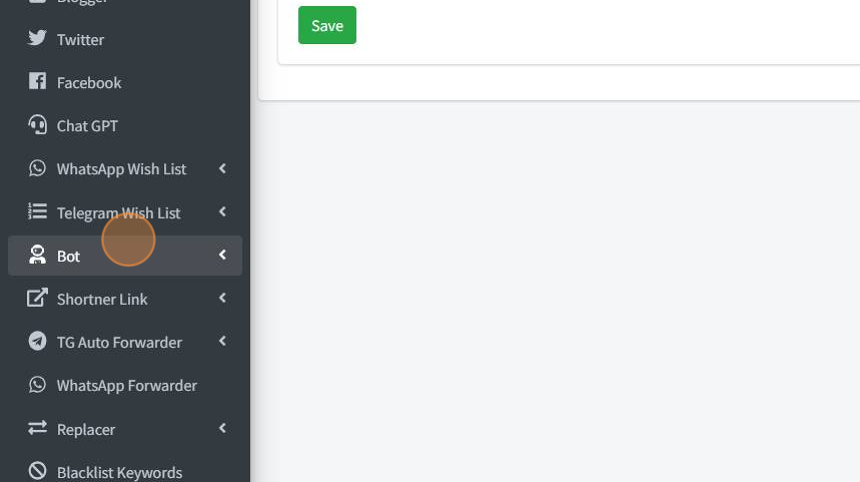
5. Click on Bot Menu
6. Click "Post Settings For Bot" sub menu

7. Choose the "Post" option within WordPress. Please ensure to enable the associated checkbox, as the dynamic image feature relies on this setting. Even if you decide not to publish on WordPress, kindly make sure to select this option to ensure proper functionality.

8. Click "Save" button

9. Click "Settings" menu

10. Click "Post Settings" sub-menu

11. Enable "Send link with image in telegram" check box

12. Optional Step: You have the choice to input your preferred channel name, which will then be displayed on the dynamic image. This step is optional but allows for personalization of the image.

13. For this demo tutorial, I will add Affiliate Solution Demo as channel name

14. Click "Save" button

15. Click "Bot Menu"

16. Click "Private Bot" sub menu

17. Click "Restart"

18. Go to Telegram Application

19. Select your private bot

20. Post message in your private bot (Make sure it is main product page deal or Amazon & Flipkart, not master link)
Other than Amazon & Flipkart Dynamic image will not generated

21. Go to your channel
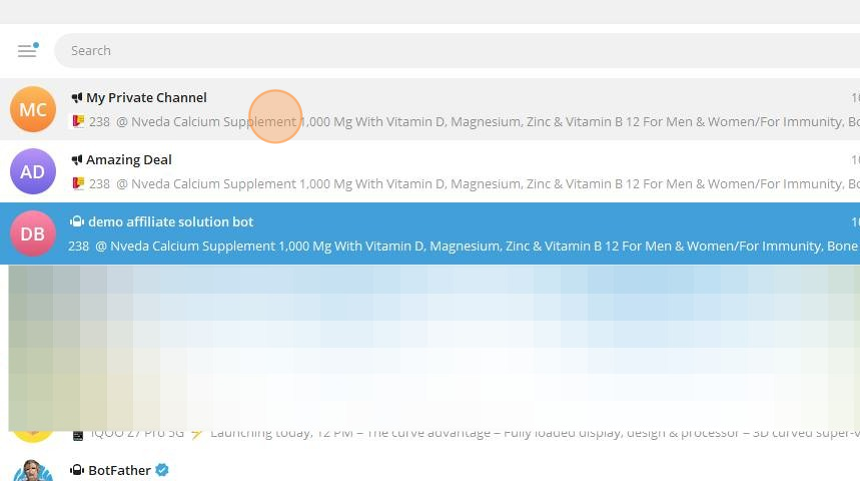
22. The dynamic image, along with the included channel name, has been effectively shared on Telegram.

How to choose dynamic image template?
This guide provides step-by-step instructions on how to choose a dynamic image template for your affiliate solution account. It explains how to navigate the settings menu, select a template, and save your choice. It also provides a demonstration of two different templates and invites viewers to visit their Telegram channel to see the stunningly generated dynamic images in action.
1. Login into affiliate solution account

2. Click "Settings" menu

3. Click "Post Settings" sub menu

4. Scroll down to Dynamic Image section

5. Select your dynamic image template. Let's select "Wow" image template
NOTE: All sample template image is available next to the drop down bot to view sample images

6. Click "Save" Button

7. Go to Telegram Application and select your Private Bot
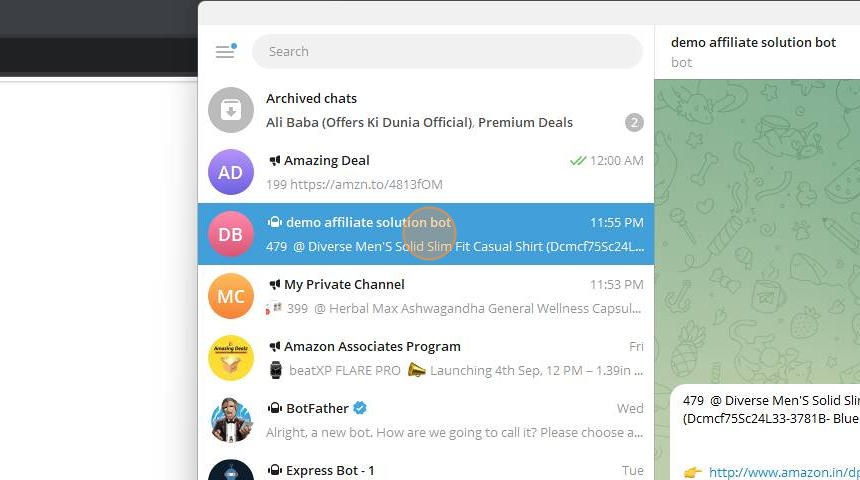
8. Restart Private Bot

9. Type "/restart enter"
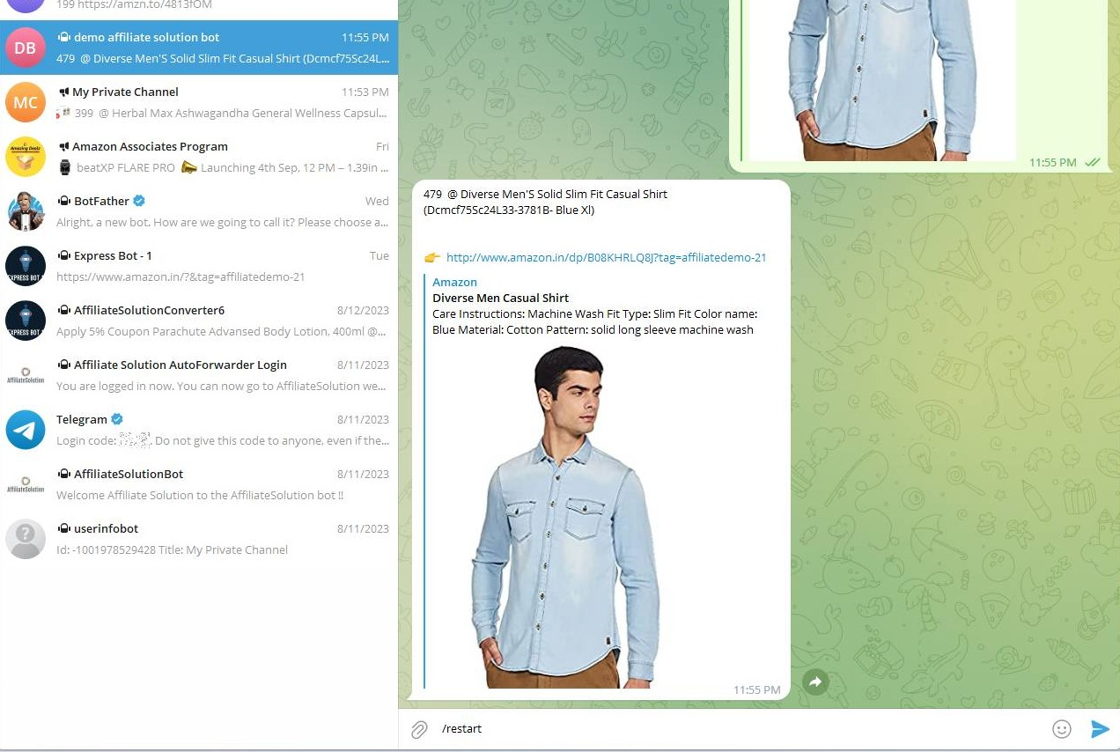
10. Share a deal message within your Private Bot.

11. Please visit our Telegram Channel to witness the stunningly generated Wow Dynamic image.

12. Let's explore another image template by navigating to the "Post Setting" sub-menu.

13. Please click on the "Dropdown" menu and choose the "Modern" image template.

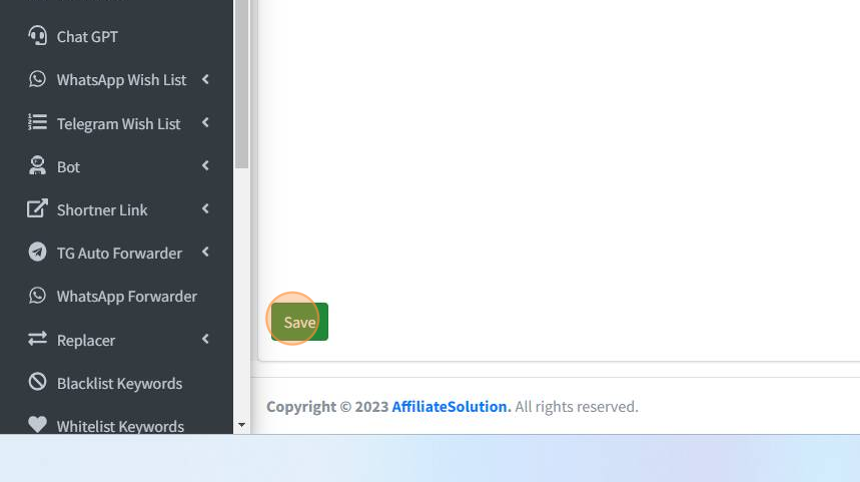
14. Click "Save" button
15. Navigate to the Telegram application and access your Private bot.

16. Restart your Private Bot, simply send the "/restart" command.

17. Please wait for 2 seconds to allow your private bot to restart.

18. Post deal message in your Private Bot

19. Please visit our Telegram Channel to witness the stunningly generated Modern Dynamic image.
