Firebase - YooEunseok/Graduation_Project_GARVIS GitHub Wiki
Save and synchronize your data to a NoSQL cloud database. Data is synchronized in real time across all clients and data is also available when apps are offline. The Firebase real-time database is a cloud hosting database. The data is stored in JSON and synchronized in real time to all connected clients. When cross-platform apps are built with iOS, Android, and JavaScript SDK, all clients share a single real-time database instance and receive the latest data with automatic updates.
Adding Firebase to an Android project
-
Navigate to the Real-Time Database section of the Firebase Console. You are prompted to select an existing Firebase project. Follow the Create Database workflow.
-
Select the starting mode for the Firebase security rule.
- Test mode : This is useful when starting mobile and web client libraries, but allows anyone to read and overwrite data. After completing the test, you must review the Understanding Firebase Real-Time Database Rules section. Select a test mode to launch the Web, iOS, or Android SDK.
- Lock mode : Deny all reads and writes from mobile and web clients. An authenticated application server can still access your database.
-
Select the revision of the database. Depending on the selected edition, the database namespace is
<databaseName>.firebaseio.comor<databaseName>.<region>.firebasedatabase.app. -
Click Finish
Use Firebase Android BoM to declare dependencies of the real-time database Android library in a module (app-level) Gradle file (typically app/build.gradle).
dependencies {

    // Import the BoM for the Firebase platform
    implementation platform('com.google.firebase:firebase-bom:28.0.1')

    // Declare the dependency for the Realtime Database library
    // When using the BoM, you don't specify versions in Firebase library dependencies
    implementation 'com.google.firebase:firebase-database'
}
Can define the structure of data, how it is indexed, and the conditions under which data can be read and written in the declarative rule language provided by real-time databases.
- Install or update the Android studio to the latest version.
- Verify that your project meets the following requirements:
- API level 16 (Jelly Bean) or higher targeting
- Using Gradle 4.1 or later
- Using Jetpack (AndroidX) that meets the following version requirements
-
com.android.tools.build:gradlev3.2.1 or later -
compileSdkVersion28 or later
-
- Set up a physical instrument or run the app using an emulator. To use the Firebase SDK with dependencies for the Google Play service, you must have the Google Play service installed on your device or emulator.
- Log in to Firebase using your Google account.
To add Firebase to an app, you must perform operations in both the Firebase Console and open Android projects. For example, you need to download the Firebase configuration file from the console and move it to an Android project.
To add Firebase to the Android app, first create a Firebase project to connect to the Android app.
-
Navigate to the Firebase Console. https://console.firebase.google.com/
-
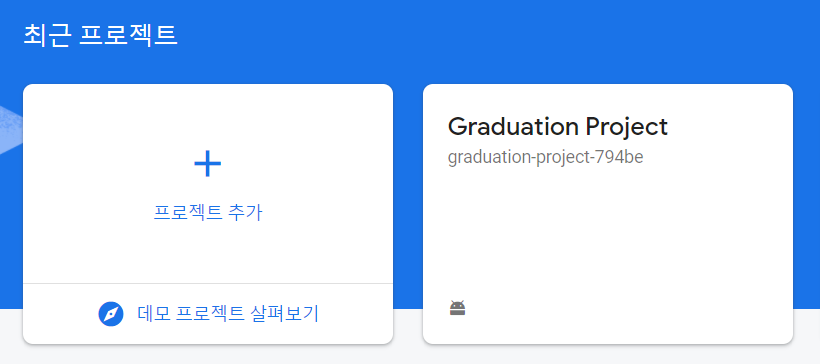
Click 'Add project' and then enter project name
-
(Optional) If you create a new project, you can modify the project ID.
-
Click Continue.
-
(Optional) Set up Google Analytics in your project so that you can optimize your environment using the following Firebase products.
-
Click Create Project. If you are using an existing Google Cloud project, click Add Firebase.
To use Firebase with an Android app, you must register the app with the Firebase project. App registration usually means adding an app to a project.
-
Navigate to the Firebase Console. https://console.firebase.google.com/
-
Click the Android icon or Add App at the center of the Project Overview page to start the setup workflow.

- In the Android Package Name field, enter a package name for the app. (Optional) Enter other app information (App Nickname and Debug Signature Certificate SHA-1).
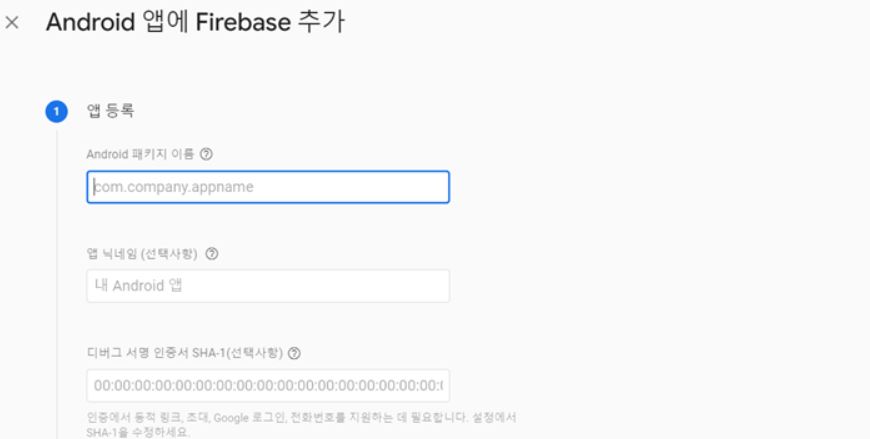
- Click 'Register App'.
- Add the Firebase Android configuration file to the app.
- Click Download Google-services.json to import the Firebase Android configuration file
google-services.json. - Move the configuration file to the module (app-level) directory of the app.
- Add the Google-services plug-in to the Gradle file so that the app can use the Firebase product.
- In the root-level (project-level) Gradle file (
build.gradle), add a rule that includes the Google Service Gradle plugin. Make sure you also have Google's Maven repository.
'''
buildscript {

    repositories {
        // Check that you have the following line (if not, add it):
        google()  // Google's Maven repository
    }

    dependencies {

        // ...
        // Add the following line:
        classpath 'com.google.gms:google-services:4.3.8'  // Google Services plugin
    }
}

allprojects {
    // ...
    repositories {
        // Check that you have the following line (if not, add it):
        google()  // Google's Maven repository
        // ...
    }
}
'''
- Apply the Google Service Gradle plug-in in the module (app-level) Gradle file (typically
app/build.gradle).
'''
apply plugin: 'com.android.application'
// Add the following line:
apply plugin: 'com.google.gms.google-services' // Google Services plugin

android {
    // ...
}
'''
- Use Firebase Android BoM to declare the dependency of the Firebase product you want the app to use. The module (app-level) Gradle file (typically
app/build.gradle) declares the dependent entry.
dependencies {
      // ...

      // Import the Firebase BoM
      implementation platform('com.google.firebase:firebase=bom:28.0.1')

      // When using the BoM, you don't specify versions in Firebase library dependencies

      // Declare the dependency for the Firebase SDK for Google Analytics
      implementation 'com.google.firebase:firebase-analytics'

      // Declare the dependencies for any other desired Firebase products
      // For example, declare the dependencies for Firebase Authentication and Cloud Firestore
      implementation 'com.google.firebase:firebase-auth'
      implementation 'com.google.firebase:firebase-firestore'
    }
- Synchronize apps to see if all dependent items have the required version.
Run the firebase instructions described above sequentially.
Click Tools -> Firebase in Android Studio.
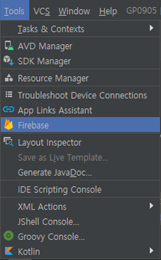
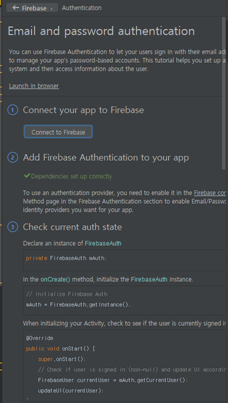
Click 'Authentication' for users to log in to Google, 'Realtime Database' for database connections, and 'Cloud Functions for Firestore' for dialogflow.
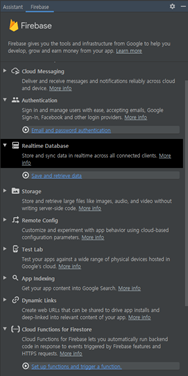
Proceed 'connect to firebase' for the above mentioned three items.