Business, Restaurant or Person export template from Google Sheets to JSON - Waiviogit/waivio GitHub Wiki
This information explains how to create a JSON file to export a Business, Restaurant or Person object types from Google Sheets for importing into Waivio.
- Create or open a table in Google Sheets by visiting Google Drive.
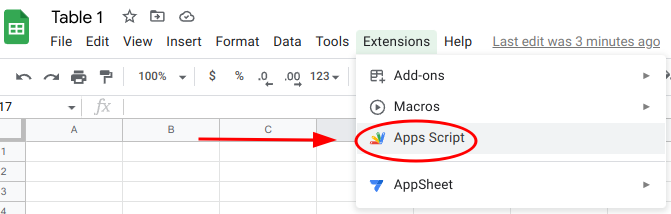
- In the top menu, click on the Extensions tab.

- Select Apps Script.
- Give your project a name (e.g., "Export JSON").

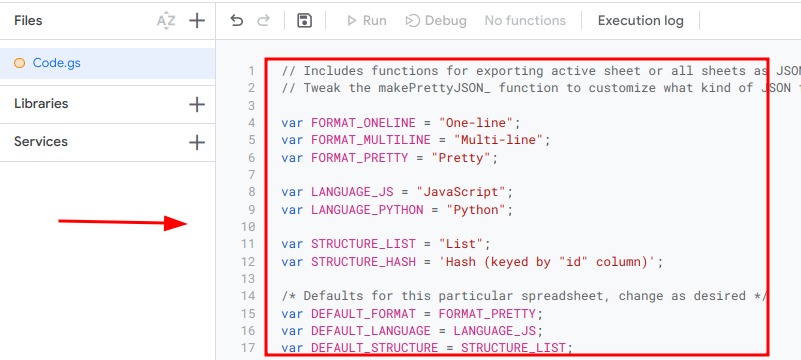
- Delete any existing code in the script editor.

- Copy the script code from here.

- Paste the code into the script editor.
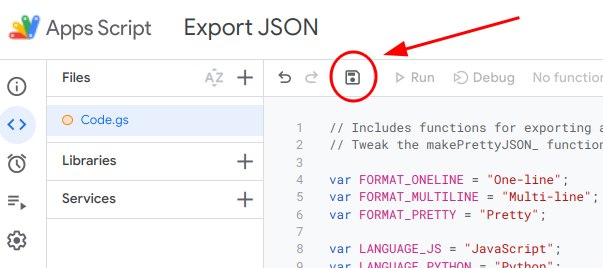
- Click the Save project button.
-
Return to your table and refresh the page.
-
You should now see a new tab in the top menu.

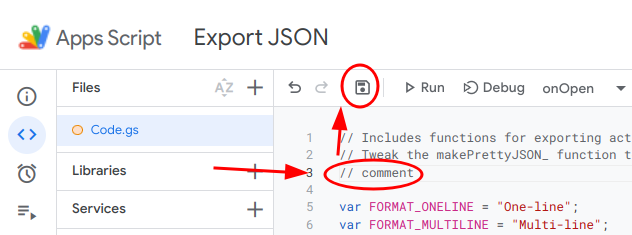
If the new tab does not appear, refresh the page once more. Alternatively, you can return to the script, add a comment (e.g., // comment), save it, then return to the table and refresh the page. Typically, the new tab will appear after the page loads.
-
Open the Google template containing the fields, and copy them to your table.
-
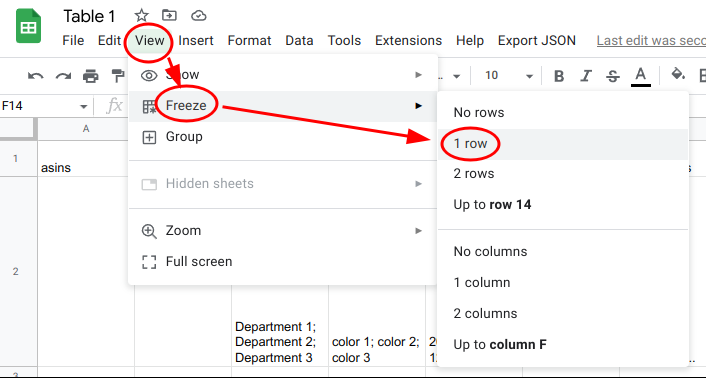
Freeze the first row by going to View -> Freeze -> 1 row. This is important because the first row contains the field names that will be exported.
The first time you click "Export JSON for this sheet," you'll need to grant permission for the script to run.
- Click Export JSON.
- Select Export JSON for this sheet.

- An "Authorization Required" modal window will appear.

- Click Continue.
- Complete the authorization process and grant the necessary permissions.
- Click Export JSON again.
- You should see a notification indicating that the script is running, followed by a modal window displaying the JSON.


The "Exported JSON" modal window contains:
- A direct link to download the file from your Google Drive.
- The JSON data generated by the script.
Each time the script runs, a new file is created in your Google Drive. Even if you edit the same table, a new file will be generated. Be sure to delete unnecessary files from your Google Drive periodically to manage your storage.

The first row of the table contains the field names. Each subsequent row represents a separate object:
- The 2nd row corresponds to Object #1.
- The 3rd row corresponds to Object #2.
- The 4th row corresponds to Object #3. and so on.

Below is a table of all fields from the template.
Quick summary, pay attention to fields:
-
imageURLs: Multiple image URLs should be separated by a semicolon (";").
Example:https://example.com/image1.jpg; https://example.com/image2.jpg. -
websites: Different website URLs should be separated by a semicolon (";").
Example:https://example1.com; https://example2.com. -
companyIds: The format for recording company tags is as follows:
companyId: ID; companyIdType: IDType* companyId: ID2; companyIdType: IDType2. The ID and its type must be separated by a semicolon (";"). Each company ID must be separated by an asterisk ("*").
Example:companyId: 123; companyIdType: ABC* companyId: 456; companyIdType: XYZ. -
waivio_tags: The format for recording tags is:
key: Tag category; value: Tag*. The key and value must be separated by a semicolon (";"), and each tag must be separated by an asterisk ("*").
Example:key: Cuisine; value: Italian* key: Service; value: Delivery. -
socialLinks: Each social link field must be separated by a semicolon (";").
Example:linkFacebook: facebook-link; linkTwitter: user-test; linkYouTube: permalink; linkInstagram: username.
| Field Name | Example Value | Description |
|---|---|---|
address |
 |
The full address text. Field type: string. |
city |
 |
The city name (as part of the address details). Field type: string. |
companyIds |
 |
A list of company IDs with value associated with this business / restaurant. Format for recording tags: companyId: TestID; companyIdType: TestIDType*ID from type must be separated by ";". Each company ID must be separated by "*". Field type: nested. |
country |
 |
The country name (as part of the address details). Field type: string. |
| descriptions |  |
The description for this object. Field type: nested. |
emails |
 |
The email for this object. Field type: array. |
imageURLs |
 |
A list of image URLs (gallery items) for this link. Each image URLs must be separated by ";". There is no need to put a ";" after the last URL. Field type: array. |
latitude |
 |
The value of latitude for the map field (both latitude and longitude are required to add a map update for the object). Field type: string. |
longitude |
 |
The value of longitude for the map field (both latitude and longitude are required to add a map update for the object). Field type: string. |
name |
 |
The object's name. Field type: string. |
phone |
 |
The phone number. Field type: string. |
postalCode |
 |
The postal code (as part of the address details). Field type: string. |
primaryImageURLs |
 |
The object's avatar. Field type: array. |
province |
 |
The province (as part of the address details). Field type: string. |
socialLinks |
 |
The social link identifiers for platforms like Facebook (linkFacebook), X (linkTwitter), YouTube (linkYouTube), Instagram (linkInstagram), GitHub (linkGitHub). In this field, you should only enter the unique identifier for these profiles, such as a permalink or username. There is no need to enter the full URL, only the unique part. Format: linkFacebook: facebook-link; linkTwitter: user-test; linkYouTube: permalink; linkInstagram: username. |
waivio_tags |
 |
A list of tags with tag categories associated with this object. Format for recording tags: key: Category Tag Name; value: Tag*Key from value must be separated by ";". Each tag must be separated by "*". Value can have only one option. Therefore, in order to add several tags to one category tag, they need to be recorded separately. Field type: nested |
websites |
 |
A list of websites for this object. Each website must be separated by ";". There is no need to put a ";" after the last URL. Field type: array. |
workingHours |
 |
The information regarding working hours. Field type: string. |
listAssociations |
 |
Permlinks of lists where the user wants to add the imported object. A permlink is a unique part of the list URL, typically found between /object and the page part of the URL. For example, in the URL https://www.waivio.com/object/34mfdx-essentials/list, the permalink is 34mfdx-essentials). Each permlink must be separated by ";". There is no need to put a ";" after the last URL. Field type: array. |
- Use a Google account when you don't have important files stored there. Each time the script runs, it creates a file on your Google Drive, so you'll need to clear space periodically (the script runs after you click "Export JSON for this sheet").
- Do not change the field names in the first row, as they are already correct.
- Do not change the field order or delete columns, as the script relies on the location index.
- It is not necessary to fill in all cells. Empty cells will be skipped.