00 Prep: Git Practice - VascoLucas01/cybersecurity-reading-notes GitHub Wiki
Git is a version control system that allows developers to manage changes to their source code over time. Due to its importance I decided to practice some of the Git commands with further explanation of each one to serve as good documentation.
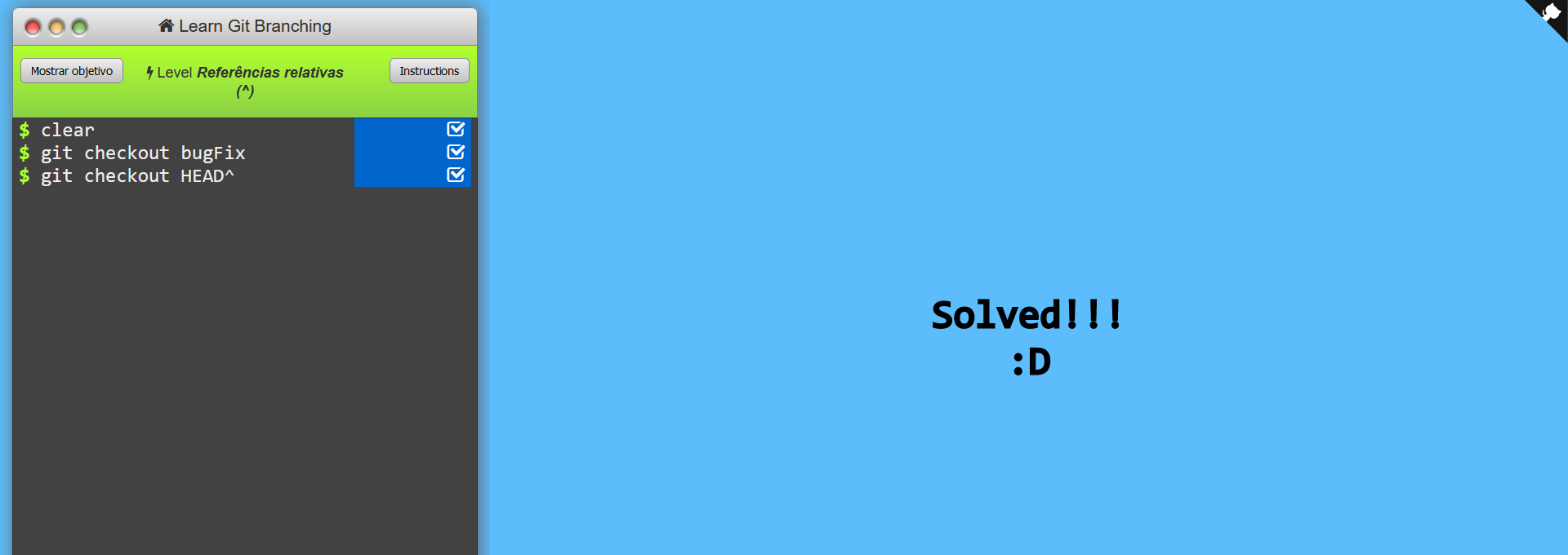
A commit in a Git repository records a snapshot of all the files in your directory. It's like a big copy & paste, but even better!
Git aims to keep commits as lightweight as possible, so it doesn't blindly copy the entire directory every time you commit. It can (when possible) compress a commit as a set of changes (or a "delta") between one version of your repository and the next.
Git also keeps a record of when each commit occurred. Maintaining the history is great for everyone working on the project!
LEVEL: Introduction To Git Commits
In Git, a branch is a lightweight movable pointer to a commit. It is essentially a named reference to a specific commit in the Git repository's commit history. Branches allow you to work on multiple features or bug fixes at the same time without interfering with each other.
When you create a new branch, it starts from the current commit you are on and all new commits are made on this branch until you merge it back into the main branch (usually the master branch). You can switch between branches at any time, and each branch can have its own set of commits, changes, and history.
Branching is a powerful feature of Git, as it allows you to experiment with different features or solutions without affecting the main codebase. It also makes it easier to collaborate with others on the same codebase, as multiple developers can work on different branches and then merge their changes back into the main branch.
In addition to creating new branches, you can also delete or rename existing branches. Git also provides tools for visualizing branch history and managing branches, making it easy to keep track of changes and collaborate effectively.
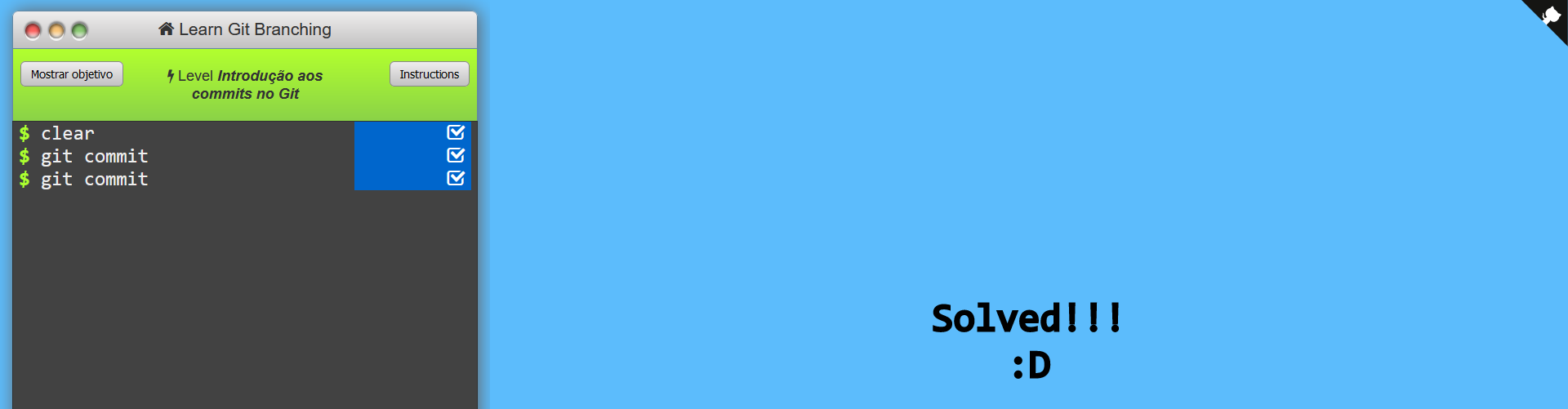
LEVEL: Git Branch

Branching and merging are two important concepts in Git, and they are closely related.
Branching allows you to create a separate line of development for a feature, bug fix, or any other change you want to make. You can create a new branch using the git branch command and give it a descriptive name. This will create a new branch pointer that refers to the same commit as the current branch. You can then switch to the new branch using the git checkout command and start making changes.
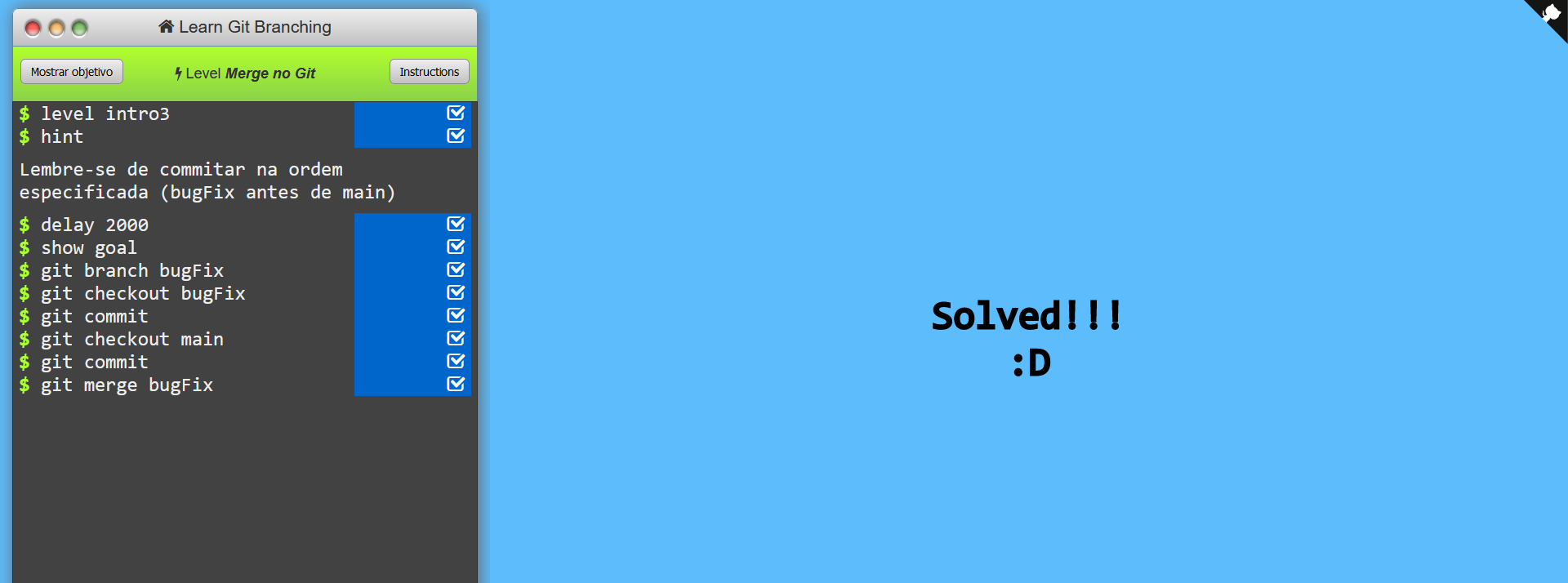
Merging is the process of combining two or more branches into one. When you merge a branch, Git takes the changes made in the other branch and applies them to the current branch. If there are any conflicts (i.e., if the same file or lines were changed in both branches), Git will prompt you to resolve them manually.
There are two main types of merges in Git: fast-forward merges and three-way merges. A fast-forward merge occurs when the branch being merged has all of its commits contained within the current branch. In this case, Git simply moves the current branch pointer forward to the latest commit on the other branch. A three-way merge occurs when the branches being merged have diverged and have changes that conflict with each other.
Branching and merging allow you to work on multiple features or changes simultaneously without affecting each other. They also make it easier to collaborate with others on the same codebase, as multiple developers can work on different branches and merge their changes back into the main branch when they are ready.
In summary, branching and merging are powerful concepts in Git that enable you to manage changes and collaborate effectively on software development projects.
LEVEL: Branches and Merge
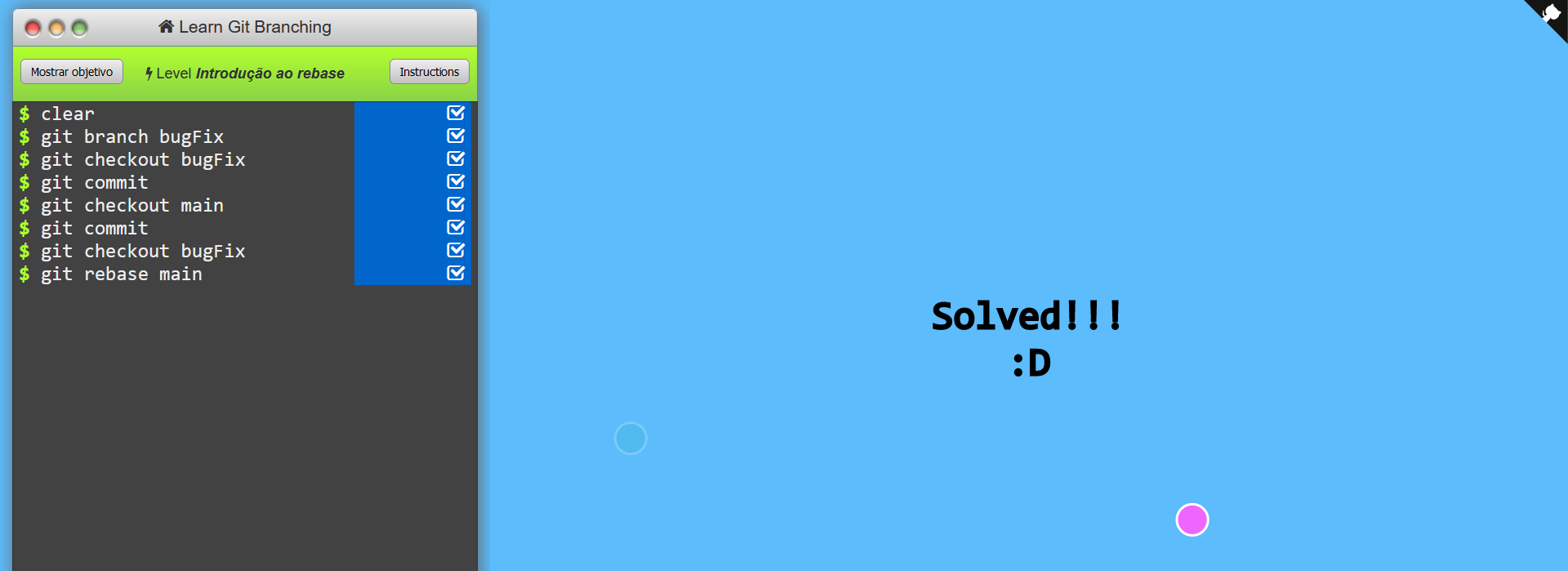
Git rebase is a command that allows you to modify the history of a branch by applying a series of commits from another branch. It essentially "replays" the commits from one branch onto another, giving the appearance that they were made sequentially.
LEVEL: Introduction to Git Rebase
In Git, "HEAD" is a reference to the current commit on the current branch. It's essentially a pointer that tells Git where you are in the history of the repository.
HEAD is a very important concept in Git, as it's used to keep track of the current state of your repository and make changes to it. When you make a commit, HEAD is updated to point to the new commit.
Here are some common uses of HEAD in Git:
- git status. Shows the status of the working directory relative to the current branch (i.e., the branch that HEAD points to)
- git checkout HEAD. Resets the working directory to the last committed state on the current branch (i.e., the commit that HEAD points to)
- git log HEAD. Shows the commit history of the current branch, starting with the commit that HEAD points to
Overall, understanding how HEAD works is crucial to working with Git and keeping track of the current state of your repository.
LEVEL: About HEAD
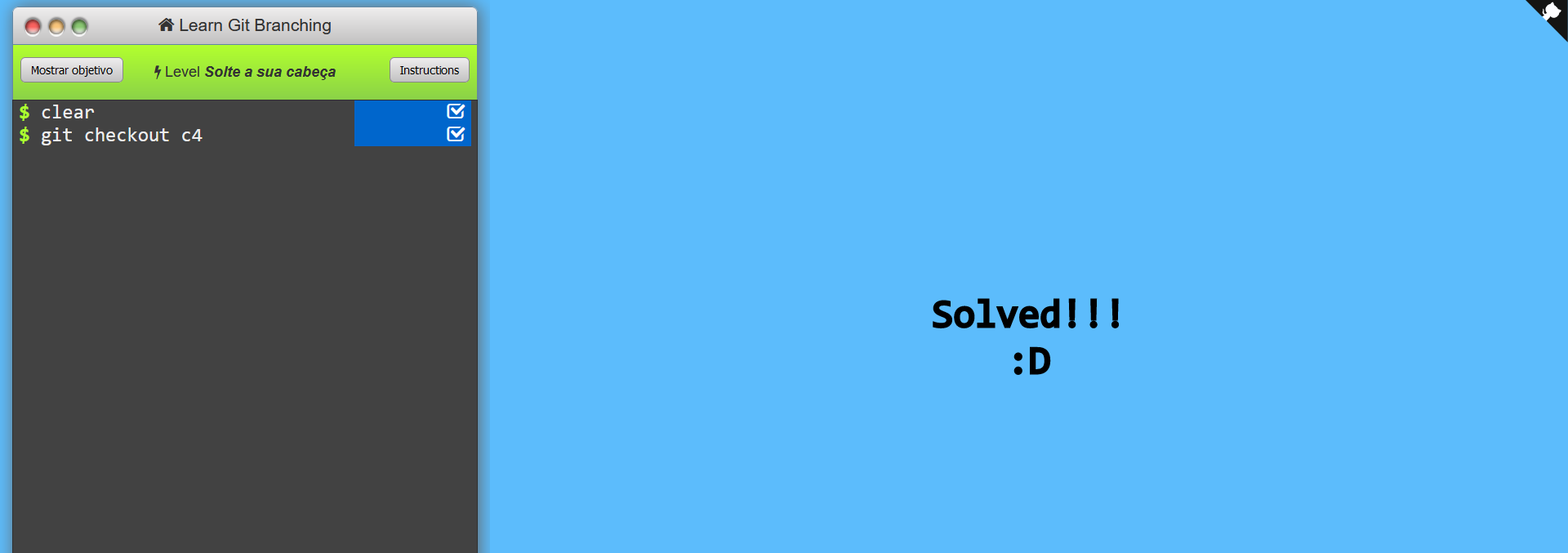
In Git, relative references are a way to refer to commits relative to the current commit or branch. They allow you to specify a commit by its position relative to the current commit, rather than by its SHA-1 hash.
There are several types of relative references in Git:
-
^ - specifies the parent commit of the current commit. For example, HEAD^ refers to the parent of the current commit, and HEAD^^ refers to the grandparent of the current commit.
-
~ - specifies the nth grandparent of the current commit. For example, HEAD~2 refers to the grandparent of the parent of the current commit.
-
^ - specifies the parent commit of the last commit on the specified branch. For example, my-branch^ refers to the parent commit of the last commit on the my-branch branch.
-
~ - specifies the nth grandparent of the last commit on the specified branch. For example, my-branch~2 refers to the grandparent of the parent of the last commit on the my-branch branch.
LEVEL: About relative references