Chat and OBS - TechDaddyKB/tdsblive GitHub Wiki
Chat and OBS: your first visible result
A connection indicator is useful, but seeing a new message is a stronger check. First get chat working in your browser, then add it to OBS.
1. Check combined chat in the editor
Open TDSBLive's chat settings after First setup. Enable the sources you want, then save. Send an ordinary new message through a connected channel or ask a trusted helper to send one.
You should see that new message in combined chat. If it does not arrive, check the service connection before changing OBS.
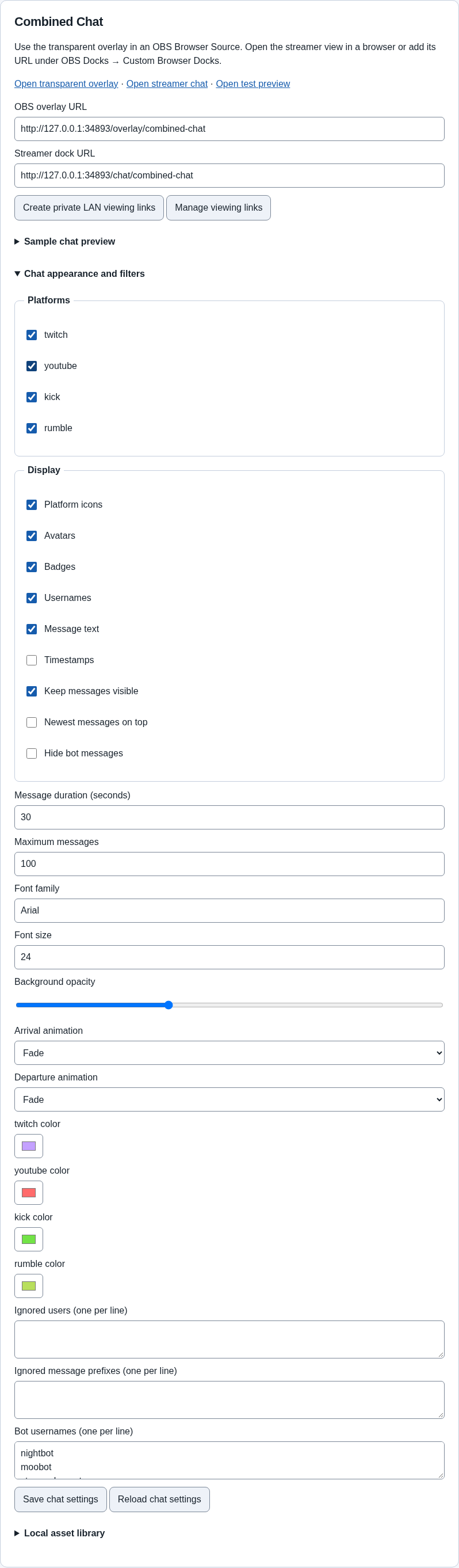
The example shows chat controls. Choose your own sources and appearance. Avoid sharing screenshots that contain private URLs or credentials.
2. Choose a viewer overlay or a private reading page
The chat overlay is the page OBS shows in your video. The default combined-chat overlay address is http://127.0.0.1:17474/overlay/combined-chat.
The streamer chat page is for you to read. The default address is http://127.0.0.1:17474/chat/combined-chat. Adding it as an OBS dock makes it convenient to read without putting that dock on the broadcast.
Use the copy-link controls in your own editor, especially if you changed the port. These two pages have different purposes; copying the wrong link can produce the wrong appearance.
3. Add chat to the broadcast
- Open OBS and choose the scene where you want chat to appear.
- In Sources, choose +, then Browser.
- Give the source a clear name such as
TDSBLive chatand confirm. - Leave Local file off. Paste the copied overlay address into URL.
- Set width and height to the space your chat layout needs. These are the size of the web page OBS will draw, not a command to start a broadcast.
- Confirm, then position and resize the source in the OBS preview.
- Send a new message and check that it appears in the actual OBS preview.
Keep TDSBLive running. A Browser Source is looking at a page supplied by the application; it cannot keep receiving chat if the application quits.
On Linux, use the same local address in native OBS. If Browser is missing from Sources, your OBS installation may need its distribution's browser component. Installing a different TDSBLive runner does not supply that OBS component.
4. Add a private chat dock
In OBS, open Docks, then Custom Browser Docks. Add a name such as TDSBLive reading chat and paste the streamer-chat page address. Apply the change and arrange the dock where you can read it.
Do not add the reading page as a video source unless you actually want that page to appear on stream. A dock is your workspace panel; a source is part of the video scene.
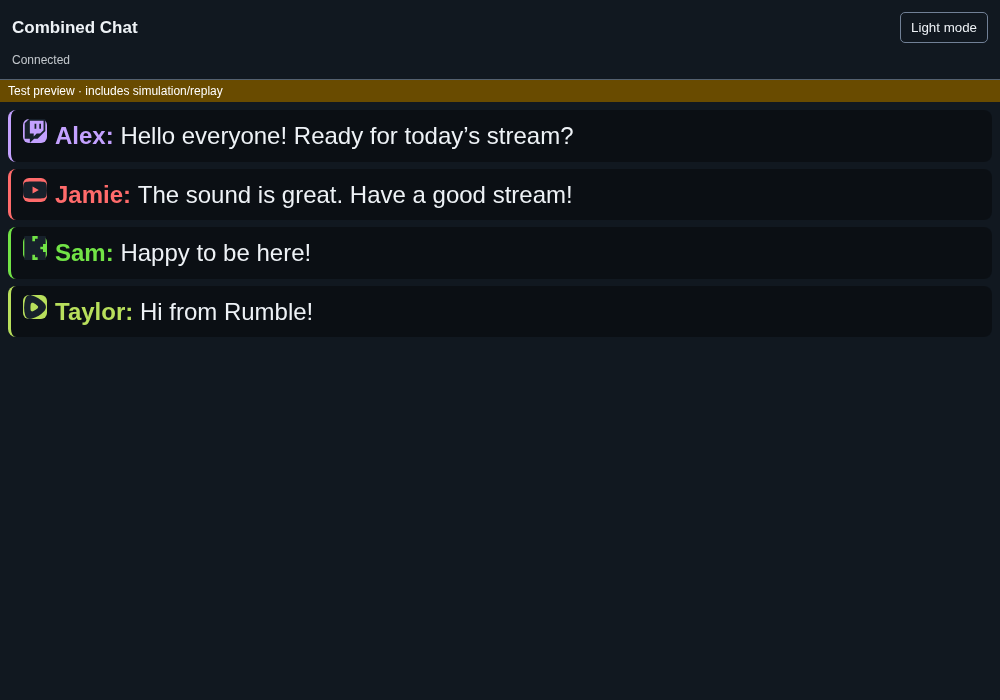
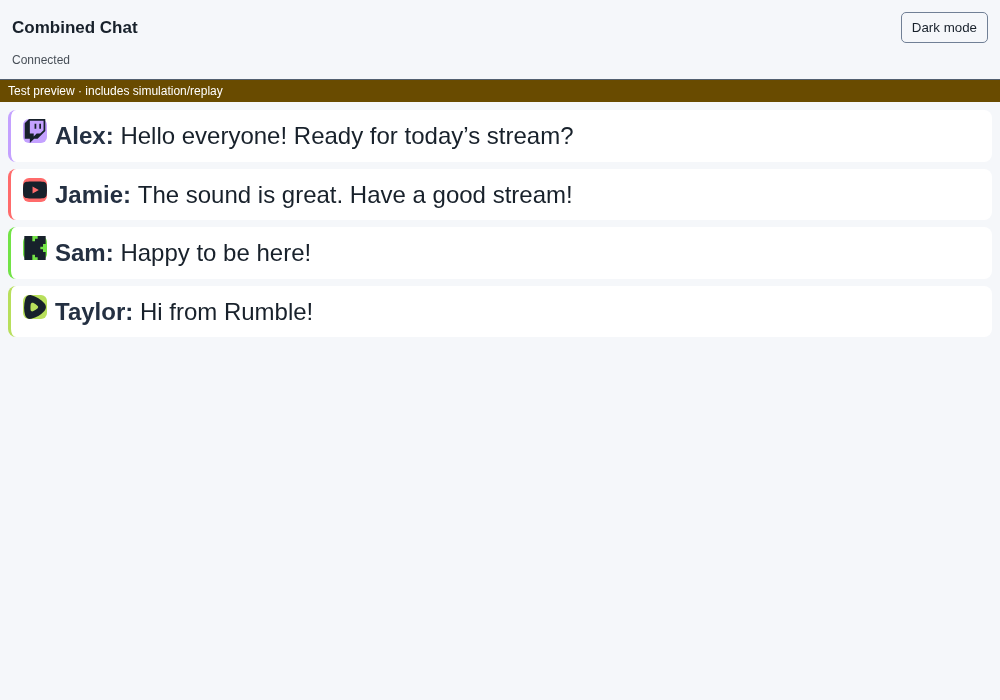
The reading page has its own appearance choices. Changing your reading theme does not require changing the audience overlay.
5. Make the final check
Check the active scene, source visibility and whether the source is behind another source. Send a fresh message. Read it in both the browser page and OBS. You do not need to start a public broadcast to perform this local check.
For another computer, 127.0.0.1 means that other computer, not your TDSBLive computer. Use LAN access only after the local setup works.
Next: Overlays and alerts, or Everyday use.