Adaptive Editor and Guided Alerts - TechDaddyKB/tdsblive GitHub Wiki
Adaptive editor and guided alerts
These instructions apply to the TDSBLive 1.0.1 adaptive interface shown below. Older builds show settings together on one page. Your saved overlay addresses continue to work.
Find your task
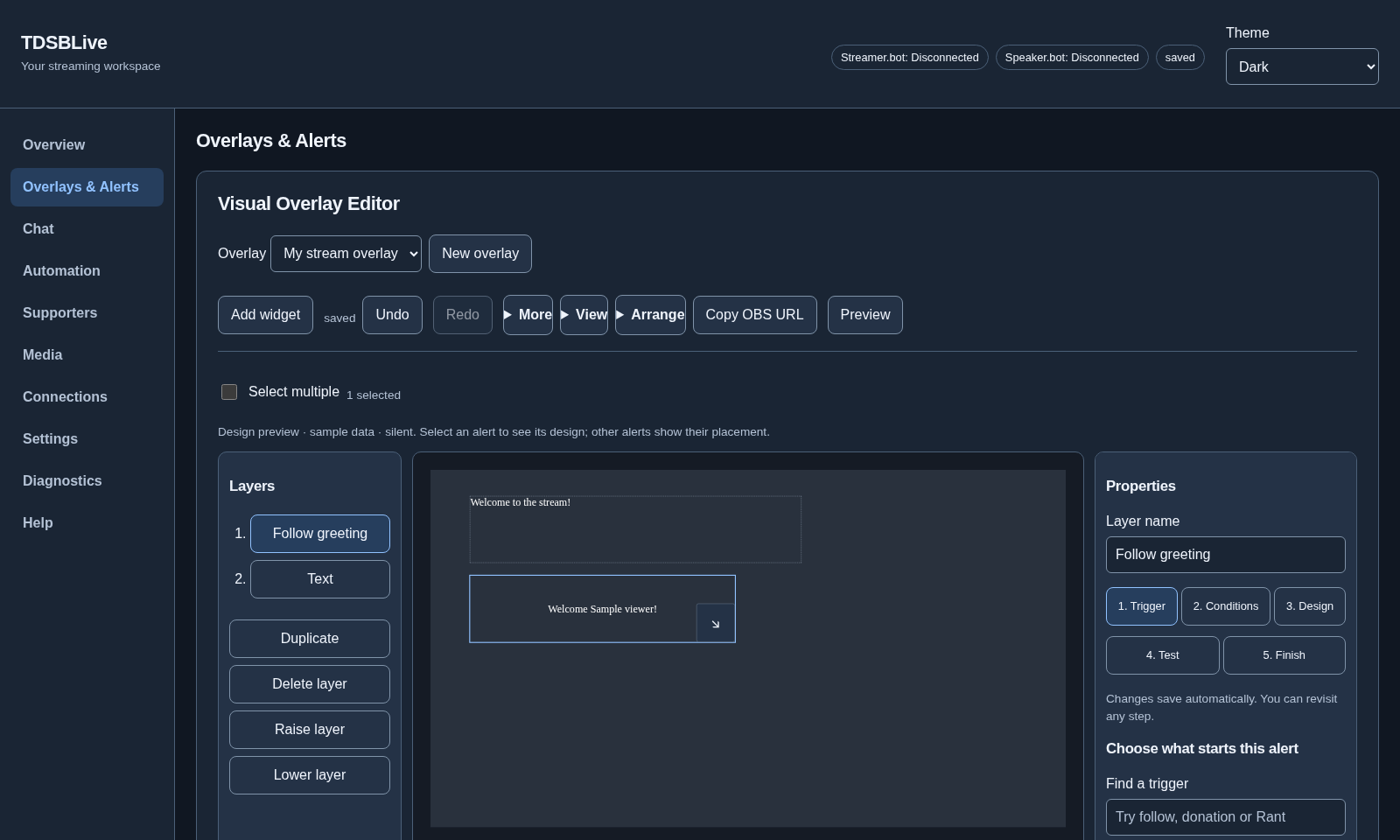
The editor separates Overview, Overlays & Alerts, Chat, Automation, Supporters, Media, Connections, Settings, Diagnostics, and Help. Overview contains guided setup. Connection and overlay save status appear above the workspace. Choose Use system theme, Light, or Dark; this changes the editor's appearance without recoloring your overlay.
On a narrow window, use Menu to find another page. Unfinished forms stay in their workspace when you switch pages. Overlay changes save before navigation; if saving conflicts, the editor retains your draft and asks you to resolve it. Reload saved version discards the conflicting draft in favor of the saved version. Copy anything you need to keep before reloading it.
Create and arrange a design
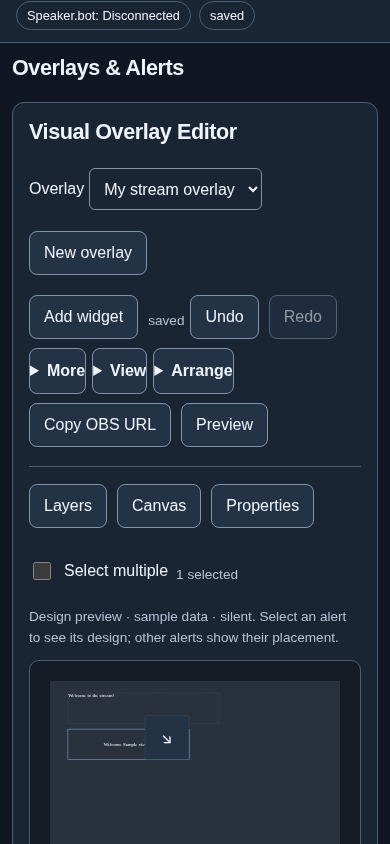
- Open Overlays & Alerts, then New overlay.
- Name it and choose landscape, portrait, 4K or a custom pixel size. Its address is generated from the name; Advanced lets you change that address.
- Choose Add widget, search for the kind you want, and add it.
- Select it on the canvas or in Layers. Edit Content, Appearance, or Placement in Properties. Existing custom code, permissions, grouping, alignment, distribution, transforms and shortcuts remain available.
- Use Arrange for group/alignment/order controls and View for fitting, grid, pan and zoom. Select multiple works without keyboard modifier keys.
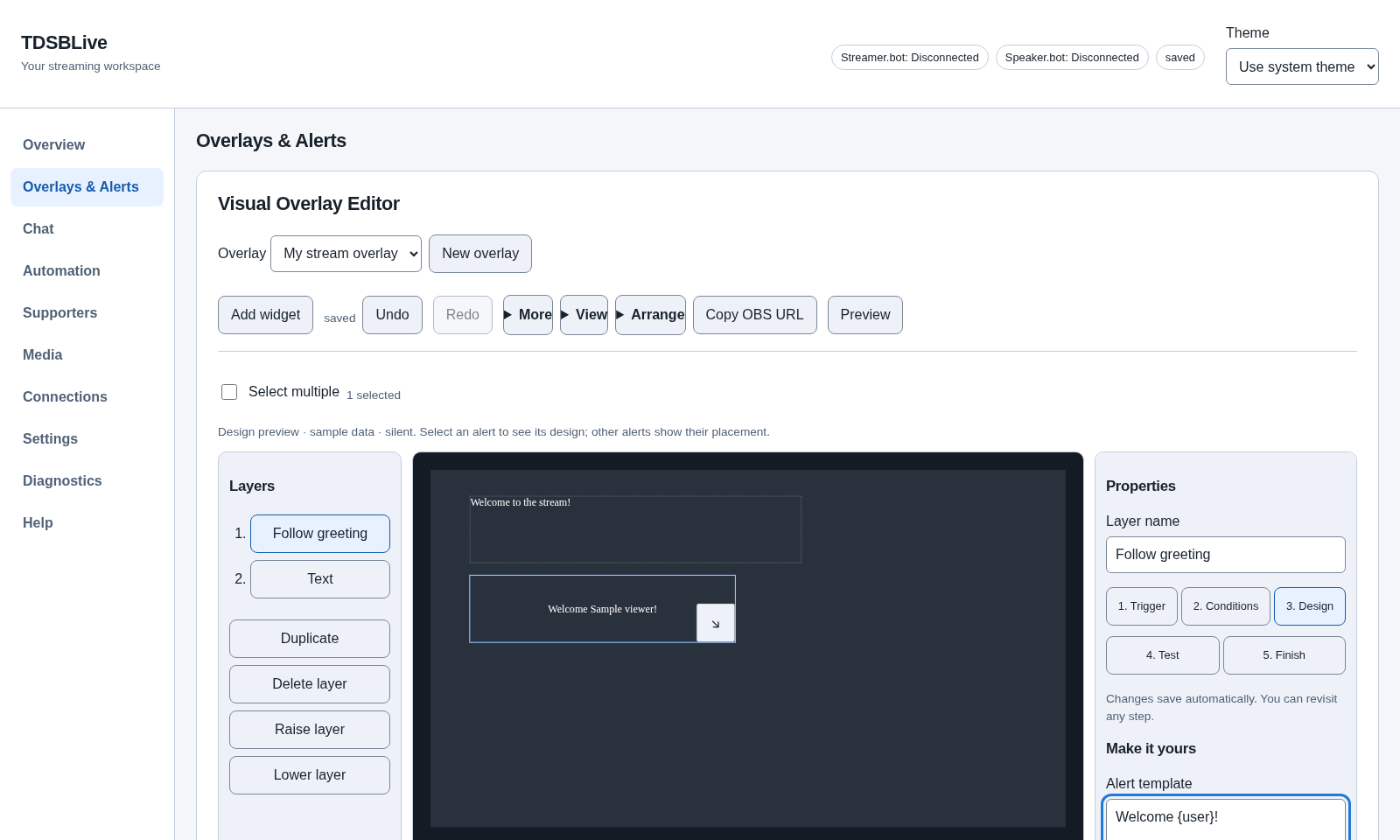
At wide workspace sizes, layers, canvas and properties appear together. Smaller workspaces offer Layers / Canvas / Properties buttons. On phones, a panel opens over the canvas; choose Canvas to return to your design. Numeric placement/size controls and arrange buttons provide alternatives to dragging. Fit canvas to window follows resizing. Moving the Zoom slider keeps that manual zoom until you choose Fit again. Window resizing does not change saved widget coordinates or the overlay's pixel dimensions.
Give different events different designs
Add an Alert Box for each design, and follow its five steps:
- Trigger: search for a named incoming trigger, such as Twitch Follow, Ko-fi Donation, a new subscription, or a renewed subscription. Maintained, discovered and observed choices describe incoming events. Discovery does not prove paid-platform delivery. Outgoing Streamer.bot actions and code triggers are configured separately in Automation.
- Conditions: choose every matching event, exactly, at least, a range or
every multiple. Quantity covers items such as Bits or gifts. Reported money
uses the event's own currency. Enter an ordinary amount, such as
5.00. Currency suggestions choose decimal places automatically; Advanced retains manual scale controls for unusual integrations. Missing, unverified or incompatible support facts never satisfy a condition. - Design: change the wording, color and media. Insert a placeholder with a button instead of memorizing its spelling. Media choices show filenames.
- Test: enter a sample quantity or ordinary amount and test the current draft. The chosen incoming identity is filled automatically. Results explain which designs match, including ordered donation tiers. Test events below the canvas also compares other triggers/currencies in the saved preview.
- Finish: review the summary and copy your OBS URL after saving.
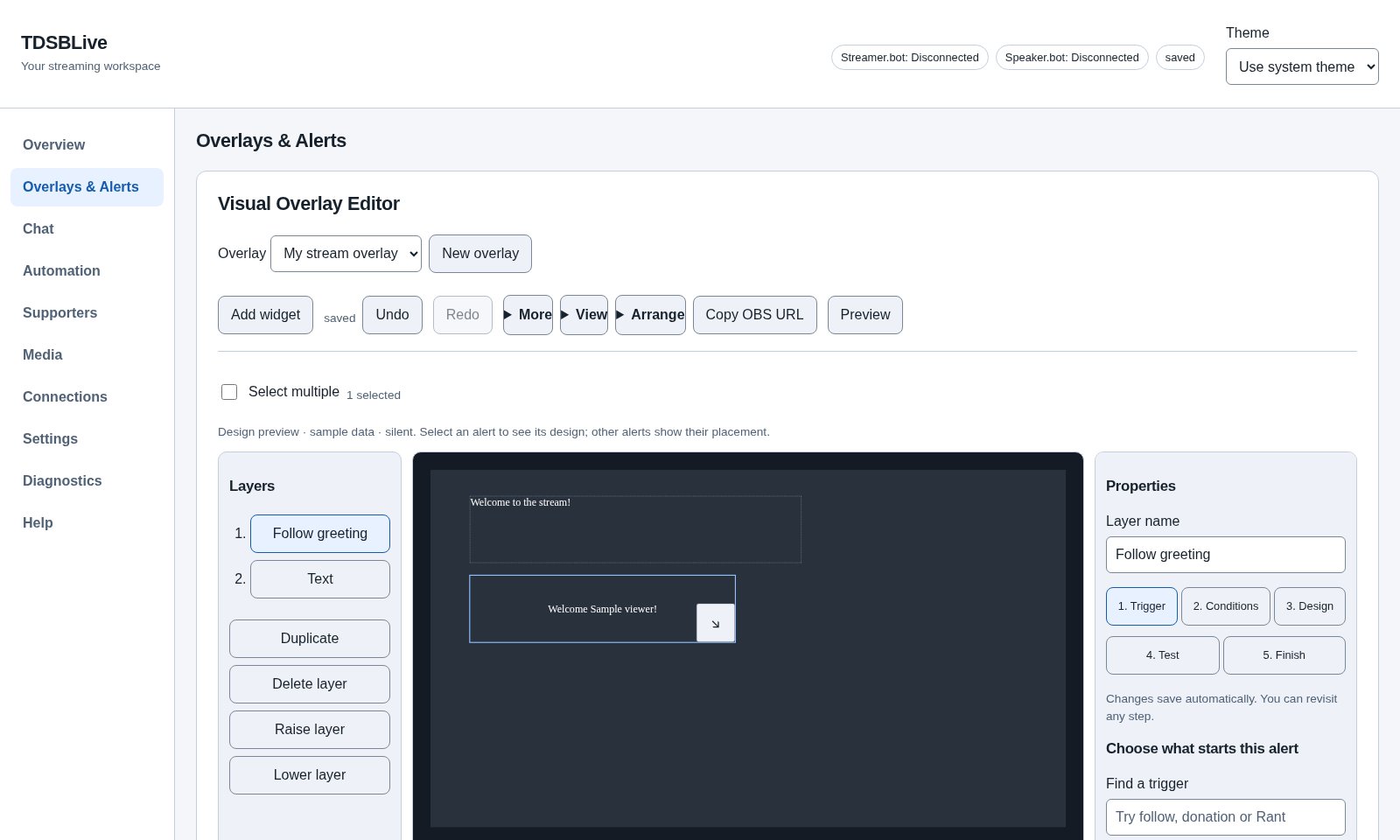
The canvas renders the current draft immediately. Selecting an alert shows its design; other alerts show their placement outlines. Chat and supporter widgets use labeled sample data. The saved test preview is separate from your live OBS page. Preview audio starts off and is disabled when you leave the workspace. Custom drafts run inside the existing sandbox, use memory-only storage and block network access; failures are shown in the preview. Saved preview/live custom permissions remain explicit.
Choose one donation tier
Make a Donation thanks design for every Ko-fi donation, and a Big donation design with At least → Reported money amount → USD → 10.00.
Open Choose between alert designs, name an alert set, and add its designs.
Move Big donation above Donation thanks and choose First matching
design. Test 5.00 and 10.00 in Test events. The results explain matches,
nonmatches and when an earlier design won. All matching designs lets every
matching design in that set play instead.
Set order selects a design before it enters its playback queue. A winner that is cooling down or whose queue is full does not fall through to a later design. Queue groups still control timing, concurrency, priority and interruption. Alerts outside sets retain their existing independent matching behavior.
Custom events, media and recovery
Owned custom broadcasts can declare tdsbliveAlertTrigger as an incoming
identity. Only reliably observed identities become individual choices.
Ambiguous custom messages remain generic custom events. Existing unknown
identifiers stay visible and editable under Advanced; loading them does not
replace them.
Use Media to search uploads, see thumbnails, check metadata/licensing and deliberately preview a sound. Use Settings for backup/restore, configuration transfer, startup, application controls and optional HTTP LAN access. Use Diagnostics for readable health status or a sanitized diagnostic download.
Revision history, undo/redo, autosave and conflict handling remain available. Portable exports containing conditional designs or alert sets use format v2; older applications reject v2. Legacy-compatible content exports as v1, and this build imports both formats. Imports give widgets and sets fresh identities and keep custom permissions disabled until you review them.
What OBS receives
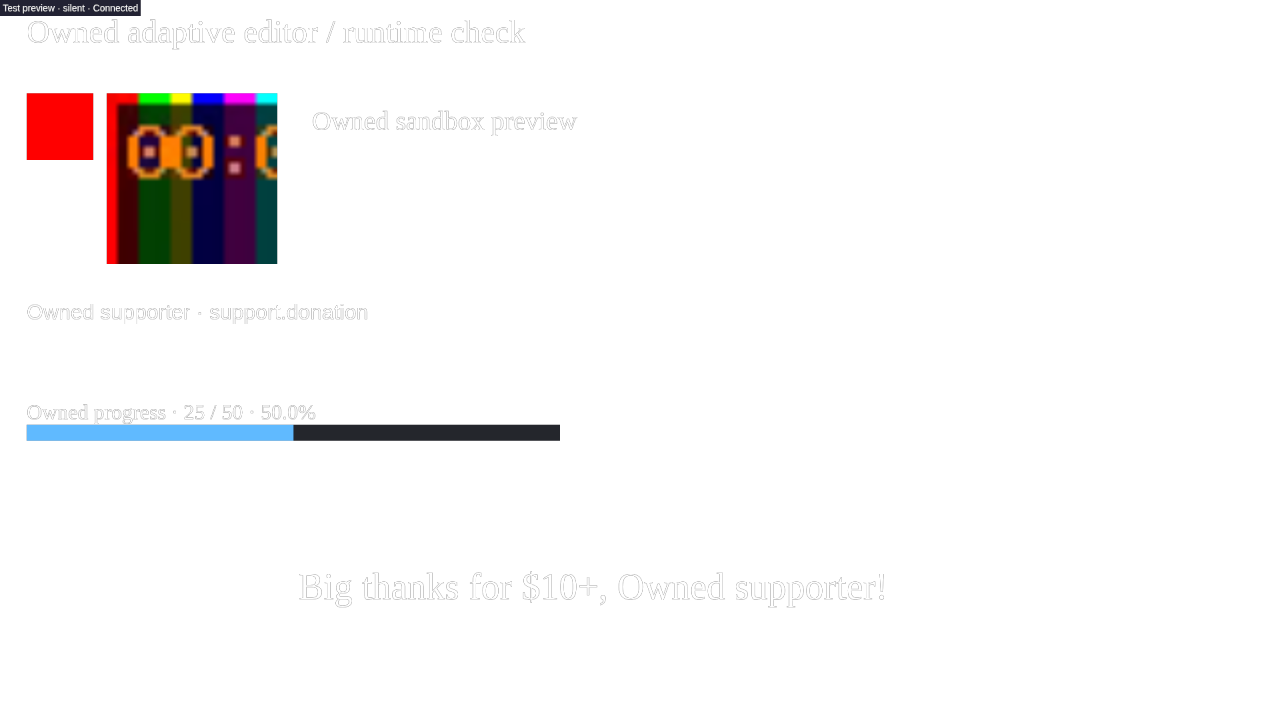
The copied address shows your saved design on a transparent browser source. Below is an isolated example with a donation tier, chat, local image/video, custom text, event list and progress bar. The example uses sample events.