VibeCheck App Setup - SutekhVRC/VibeCheck GitHub Wiki
VibeCheck App Setup
A quick tour
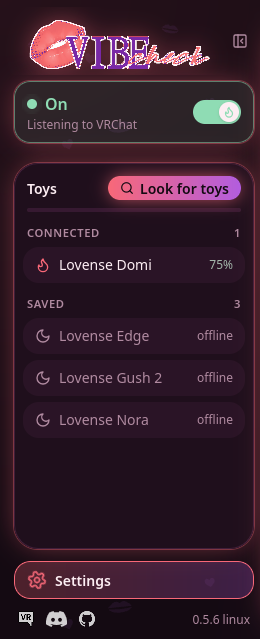
The app has two parts: the sidebar on the left and the main panel on the right.
Sidebar
From top to bottom:
- Logo
- On/Off card: the switch that turns VibeCheck on or off, with a status line underneath ("Turn on to connect to VRChat", "Listening to VRChat", or the scanning message).
- Stop all toys: the Panic Stop. Stops every toy at once (also Ctrl + Alt + P). It turns into an All toys stopped banner with a Resume button until you're ready to carry on.
- Toys: the button to look for toys, then your toys in two groups:
- Connected: toys that are online right now, with their battery level.
- Saved: toys VibeCheck has seen before that are not connected. You can still change their settings.
- Settings: opens the Settings page. A small green Update label appears here when a new version is available.
- Links and version: the VRChat group, Discord and GitHub, plus the app version.
The button next to the logo collapses the sidebar into a narrow bar of icons. Hover any icon to see what it is. Click the logo tile at the top of the collapsed bar to expand it again. VibeCheck remembers which you prefer.
Main panel
- With no toys online, it shows a getting-started checklist (below).
- Click a toy in the sidebar to open its settings. See the Toy Options List.
- Click Settings to open the Settings page.
First-time setup
When no toys are online, the main panel walks you through the first steps and ticks them off as you go:

- Run VibeCheck.
- Ports: nothing to do. VibeCheck connects to VRChat automatically over OSCQuery on its own port, so it works alongside other OSC apps. If you'd rather set the ports yourself, switch Settings > Connection to Manual (see Settings).
- Turn VibeCheck on with the On/Off switch (in the sidebar, or step 1 of the checklist).
- Find your toys. Set up your Bluetooth connection, turn your toy on, and press Look for toys (in the sidebar's Toys section, or step 2 of the checklist). Scans last 10 seconds.
- VibeCheck needs to be on before it can scan. To have the scan button turn the app on for you, switch on Turn on when scanning in Settings.
- Configure your toy. Click it in the sidebar, pick a feature (for example Vibrator 1), and add the avatar parameters it should listen to under Input > Parameters (float and boolean parameters work). Use Test in the feature's header to check the motor. All of this is explained in the Toy Options List.
- Enable OSC in VRChat from the Action Menu. If you have used OSC with your avatar before, or added new parameters, VRChat needs to refresh its saved OSC config for that avatar: go to Settings > Troubleshooting, press Reset next to Reset VRChat OSC configs (press again to confirm), then reload your avatar.
- You should be all set now. Enjoyyyyyy ;}
Settings save automatically as you change them. There is no Save button.
Tips
- Typing exact values: every slider has its value shown next to it. Click the number to type an exact value, then press Enter. This is much easier than dragging a slider with a VR pointer.
- Help on any setting: hover a setting's name for a short explanation. Settings with a full guide have a small book icon next to their name that opens the matching wiki section.
- Changing the look: pick a theme in Settings > Theme. See Themes.