Setup Guide - StevensUneven/thronin-bot GitHub Wiki
⚠️ Before proceeding, ensure you’ve followed the 🔗Installation Guide.
Prerequisites
Disable Overlays & Post Processing
⚠️ Turn off any overlays or post-processing effects (e.g., Nvidia RTX Dynamic Vibrance, AMD Radeon Enhancements).
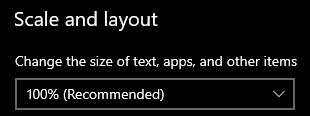
Set Windows Desktop Scale & Layout to 100%
-
Right-click on an empty area of your desktop.
-
Select Display settings.
-
Under Scale and layout, set it to 100%.
Throne and Liberty Settings
Set Default Settings
-
Inside Throne and Liberty, navigate to Options and select Reset All. This is critical as Thronin is designed to work with default key bindings.

Reset the HUD
-
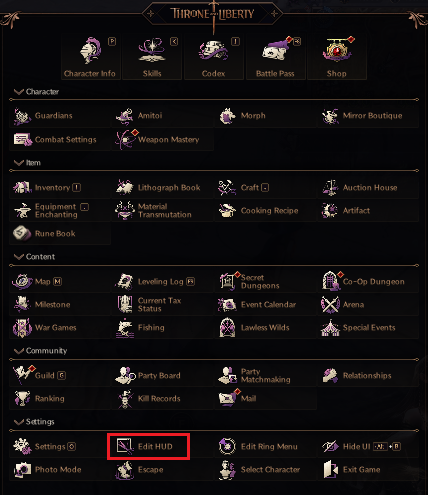
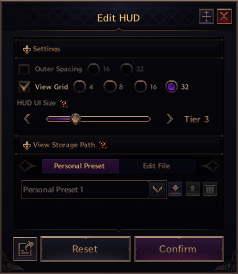
Inside Throne and Liberty, navigate to Main Menu (F11) and select Edit HUD. From there select the Reset button twice. It's also good practice to restart Throne and Liberty after this. This is critical as Thronin is designed to work with the default HUD.
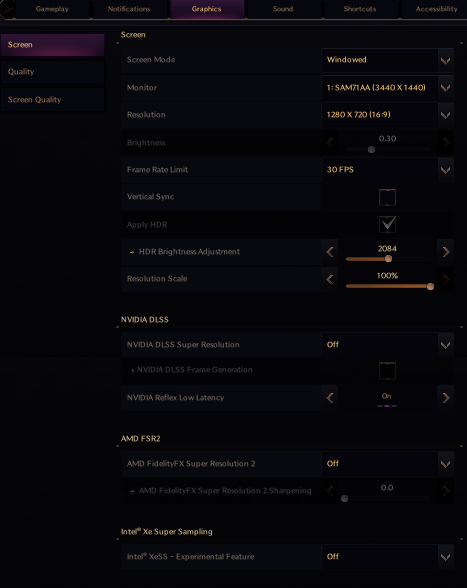
Graphics Tab – Screen
💡 1920 x 1080 only supported monitors larger than 1080, for example 2K
♿ If using 1920 x 1080, change Tier size to 1.
⚠️ Do not use HDR
-
Screen Mode: Windowed
-
Resolution: 1280 x 720
-
Frame Rate Limit: 30 FPS
-
Brightness: 0.3 (Uncheck Apply HDR!)
-
Resolution Scale: 100%
-
Disable all Nvidia, AMD, Super Resolution, and Enhancements
Graphics Tab – Quality
♿ (Optional: Increase View Distance & Character Count for better visuals, but not required.)
-
Quality: Low
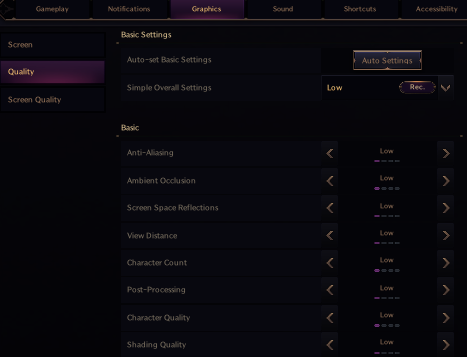
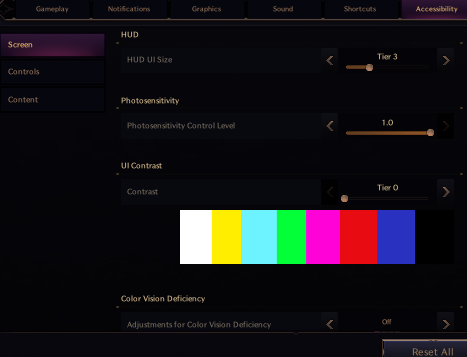
Accessibility Tab – Screen
♿ If using 1920 x 1080, change Tier size to 1.
-
HUD UI Size: Tier 3
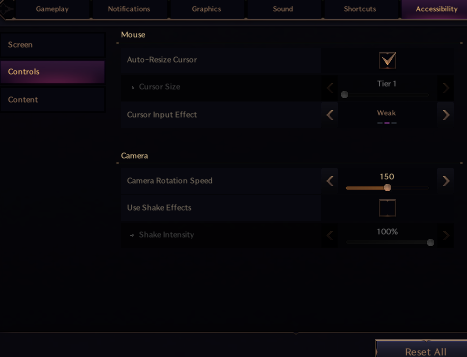
Accessibility Tab – Controls
-
Disable Use Shake Effects
Gameplay Tab – Controls
-
Switch Control Mode to "Classic"
-
Disable Queue Skills
-
Enable Auto-Move within Range to Attack Target
-
Enable Auto-Move within Range to Use Beneficial Skills
-
Enable Aimed Skills Lock-on Current Target
-
Enable Snap-On Targeting for Ground / Directional Skills

Gameplay Tab – Character
⚠️ Leave everything else as default.
-
Disable Show My Detailed Health and Mana Info

Gameplay Tab – Target
-
Target Selection Method: Search by Order of Priority 1
-
Auto Target Nearest Enemy when Attacking without a Target: Enabled

💡 For optimal bot functionality, use the following settings:
- ✔️ Priority 1: Attacking Players
- ✔️ Priority 2: Attacking Monsters
- ❌ Priority 3: Feud Players
- ❌ Priority 4: Hostile Players
- ✔️ Priority 5: Elite & Boss Monsters
- ✔️ Priority 6: Resistance Contract Monsters
- ✔️ Priority 7: Guild Contract Monsters
- ❌ Priority 8: Aggressive Monsters
- ❌ Priority 9: Non-Aggressive Monsters
- ❌ Priority 10: Nearby Monsters & Objects
Your targeting preferences may vary.
Gameplay Tab – Content
⚠️ Leave everything else as default.
-
Uncheck “Fix Camera while Fishing”

Shortcuts Tab
⚠️ Leave everything else as default.
-
Remove Swap Weapon (Y). (Prevents menu interference.)

Verifying Thronin is Configured Correctly
- Reset Thronin settings to default OR delete the cache folder for a fresh start.
- Launch Throne and Liberty and ensure your character is in a safe zone.
- Start Thronin and allow it some time to initialize.
- Monitor the overlay in the bottom left of the game window:
- It should update multiple times.
- Eventually, it should detect the safe zone.
- If everything checks out, you’re good to go! 🎮