Building and inventory - Starbugstone/Rivet-Reach GitHub Wiki
Building and inventory shortcuts
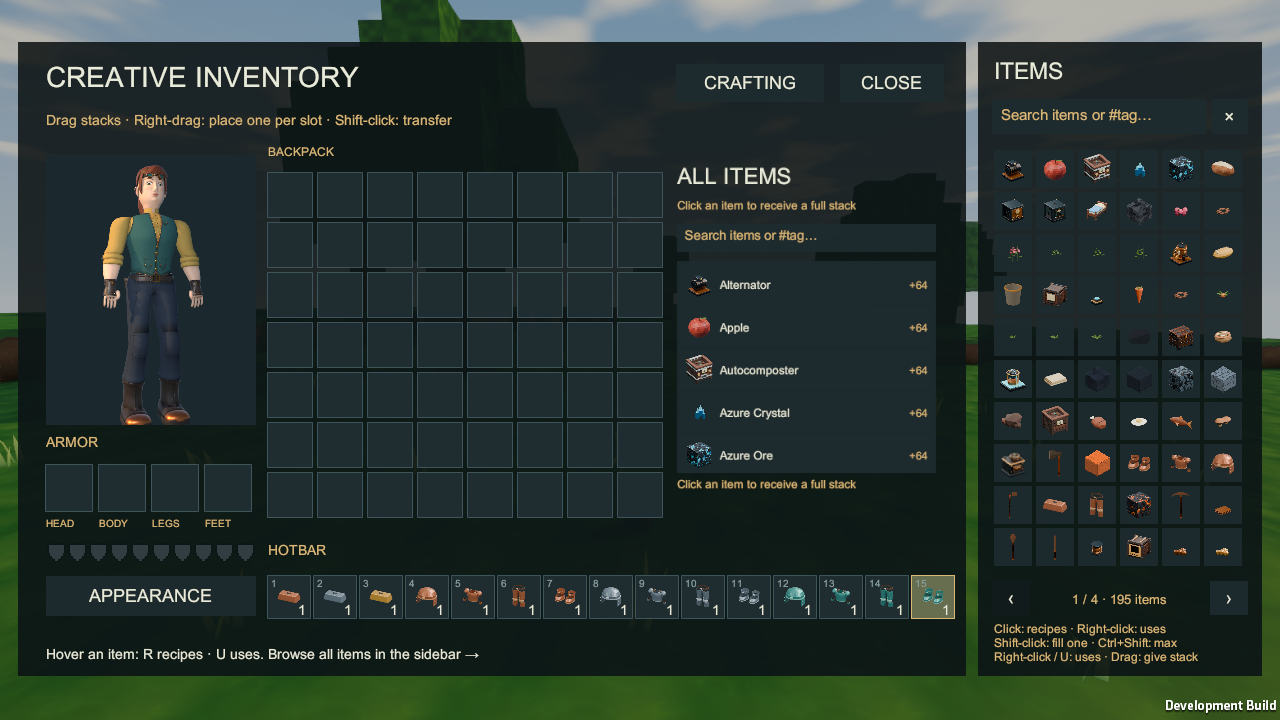
Familiar inventory controls
The default inventory key is Tab, with E for Interact. For an E-to-open inventory layout, choose Escape → Controls → E inventory preset. It assigns E to inventory and F to Interact, keeps mouse Use and the 15-slot hotbar, and leaves your other controls alone. If a different custom action already uses E or F, the preset explains the conflict and changes nothing until you rebind that action.
Click or drag to move a stack. Right-click takes the rounded-up half of a stack, or places one held item. Hold right-click and drag across compatible inventory, crafting, chest, crate or machine-input slots to place one per visited slot. Full or incompatible slots are skipped; moving back across a slot does not deposit twice. Machine result slots are excluded from painting.
Shift-click transfers between containers. In your personal inventory, armor equips when its matching equipment slot is empty. Spare armor moves between backpack and hotbar when that equipment slot is occupied; it never replaces your worn armor automatically.

Actual standalone capture, September 20, 2026. Native pointer checks cover right-drag placement, spare-armor transfers and selecting the preset button. The older screenshots elsewhere on this page retain their original capture dates.
Find recipes and furnace fuel
In the item sidebar, click an item to see how to make it, or right-click to see its uses. You can also hover an item and press R for recipes or U for uses. Follow ingredient, result or station icons to explore related recipes; Back restores the previous item and recipe page.
At an open furnace, select Recipes & Fuel to start with a recipe the furnace processes and its fuel choices. The fuel icons are alternatives: choose one. The page arrows still reach every furnace usage, including upgrade recipes that consume a furnace. Right-clicking Furnace in the sidebar keeps the complete ordinary Uses order. Browsing does not move items or craft anything.

Actual Windows player capture, September 20, 2026. The highlighted log is the consumed ingredient; the row below shows alternative fuels.
Pick the block you are looking at
Middle-click a world block to select it for building. In Survival, an owned hotbar stack is selected first. If the item is in your backpack, it swaps into the selected hotbar slot. If you do not own it, nothing is created. Creative can supply a usable stack.

Plants and torches use their smaller selection shapes. Looking through empty space beside them can target the block behind. Mining, using, harvesting and picking share that selection.
Organise a container
Middle-click a slot in your hotbar, backpack or an open chest. Compatible partial stacks consolidate, then that section sorts consistently. The hotbar and backpack are organised separately. Individually carried batteries and tanks retain their contents.

Crafting grids and machine input/output slots keep their positional meaning. Finish moving the stack attached to your pointer before organising.
Harvest planted crops
Right-click a ripe crop on tilled farmland to harvest its ordinary drops. With a hoe selected, the harvest goes directly into your inventory, with any overflow dropped safely. If your resulting inventory contains the crop's planting item, one is consumed to replant at the initial stage.

A full backpack can leave the planting items on the ground, so it cannot guarantee replanting. Wild crops and unripe crops do not use this convenience interaction.
Player appearance
Both explorers wear machinist workwear in the same steel, copper and brass style as the machines:
- a riveted waistcoat with copper piping
- rolled canvas sleeves
- fingerless leather work gloves with a riveted knuckle guard and buckled wrist strap
- a tool belt with pouches
- laced boots with copper toe caps
- brass goggles pushed up on the forehead
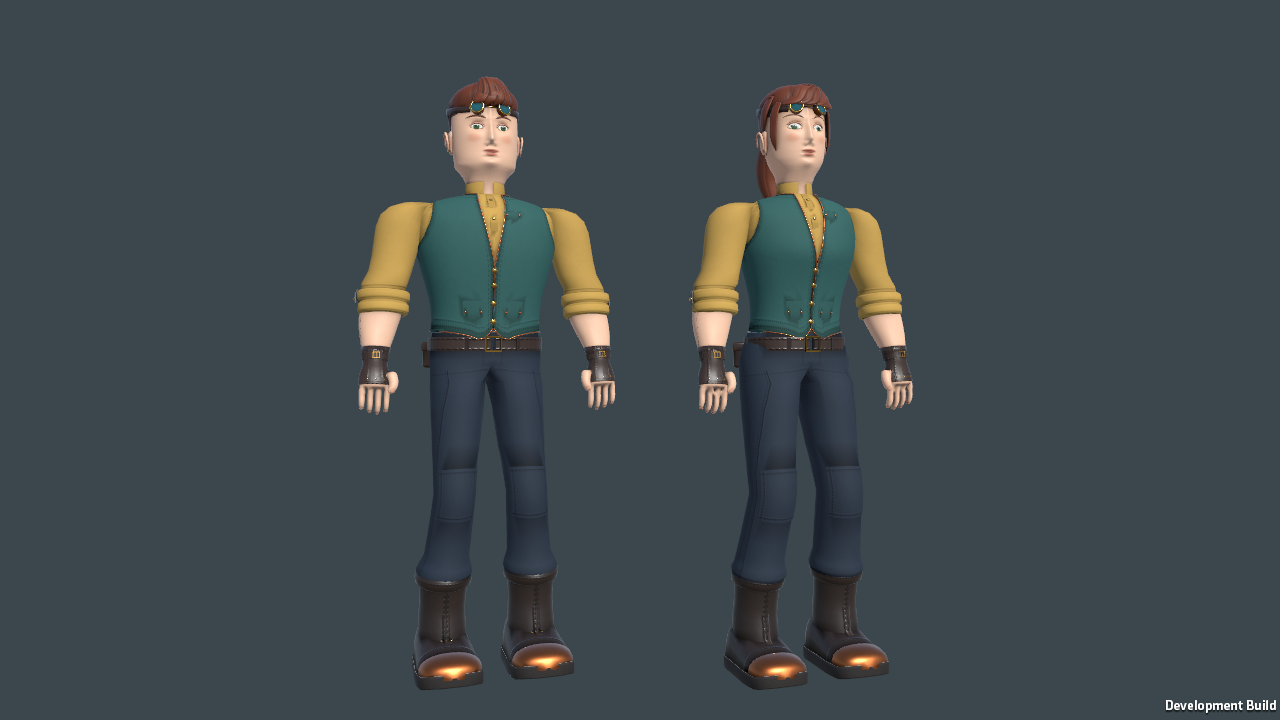
Open the inventory and choose Appearance to pick the male or female explorer and one of two colour schemes. Your choice changes the inventory portrait and your first-person arms immediately, and is remembered.
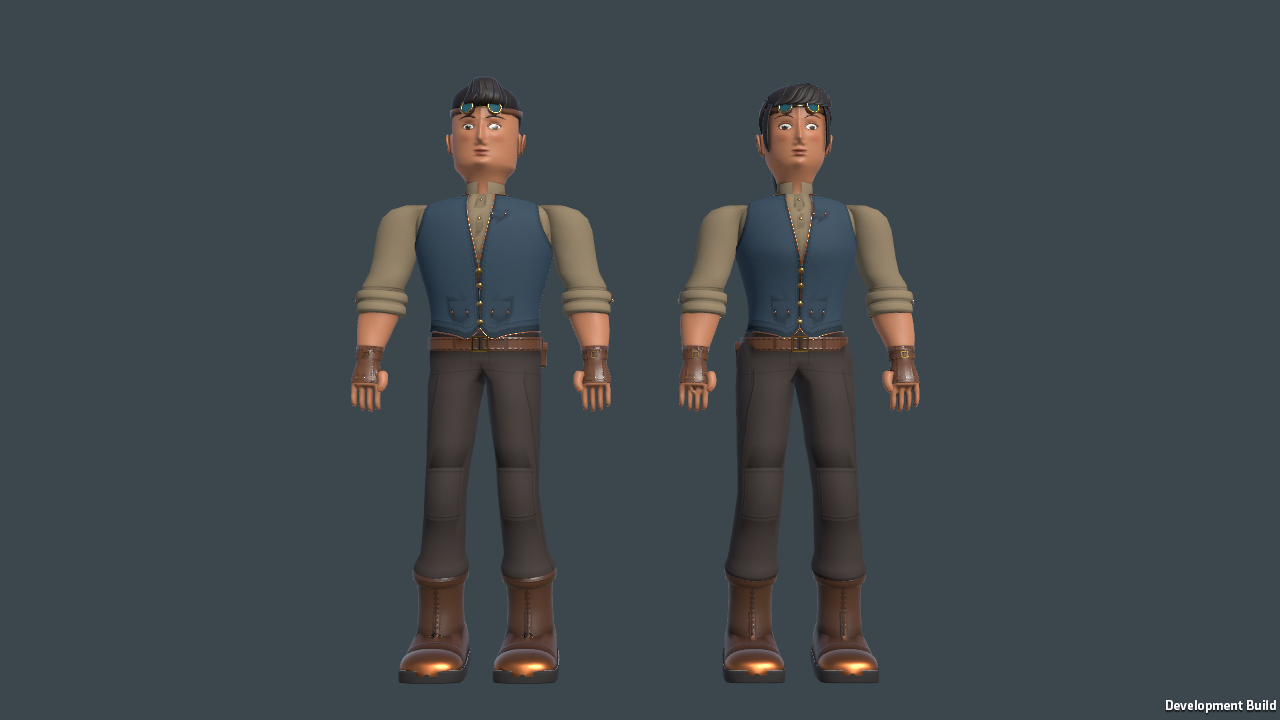
Foundry / Steel uses a steel-blue waistcoat, canvas shirt and dark trousers. Verdigris / Ochre changes skin tone, hair, eye colour and every clothing colour.
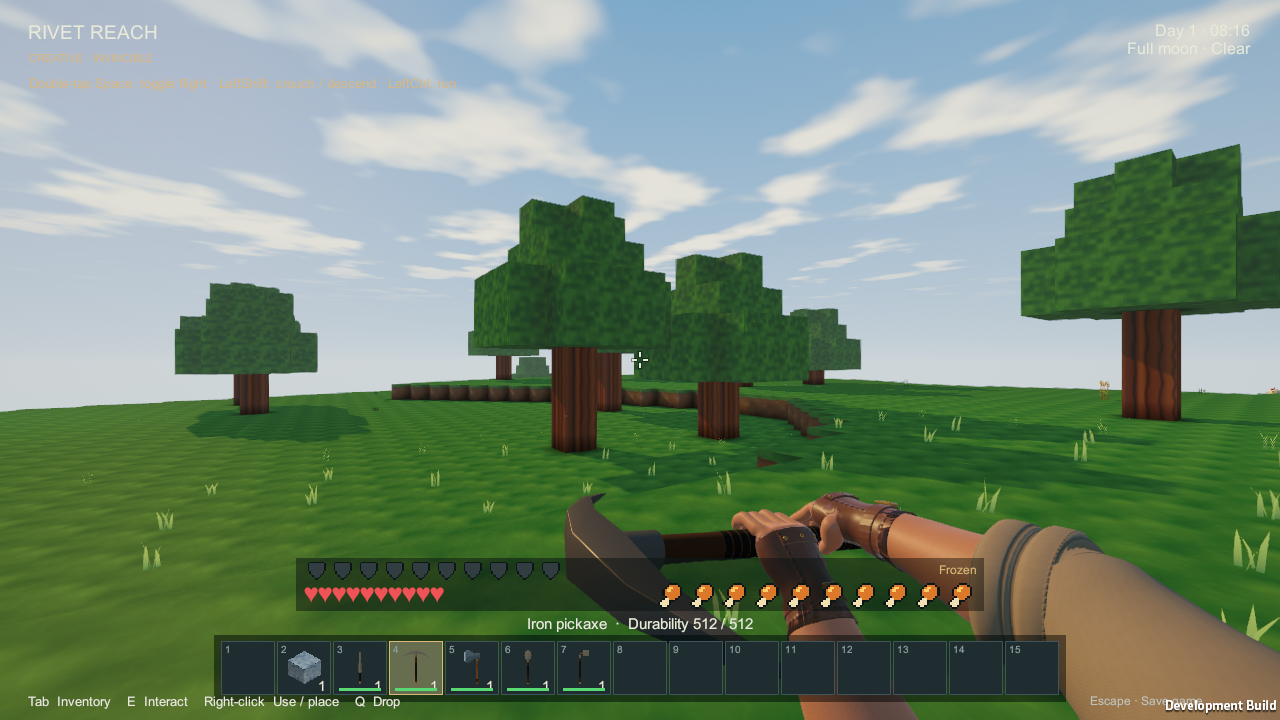
In first person you see your sleeves, forearms and gloves holding the selected item.
Armor is worn over the outfit. A helmet covers the goggles and the hair on top of the head; lower hair, such as the female explorer's ponytail and side locks, stays visible.
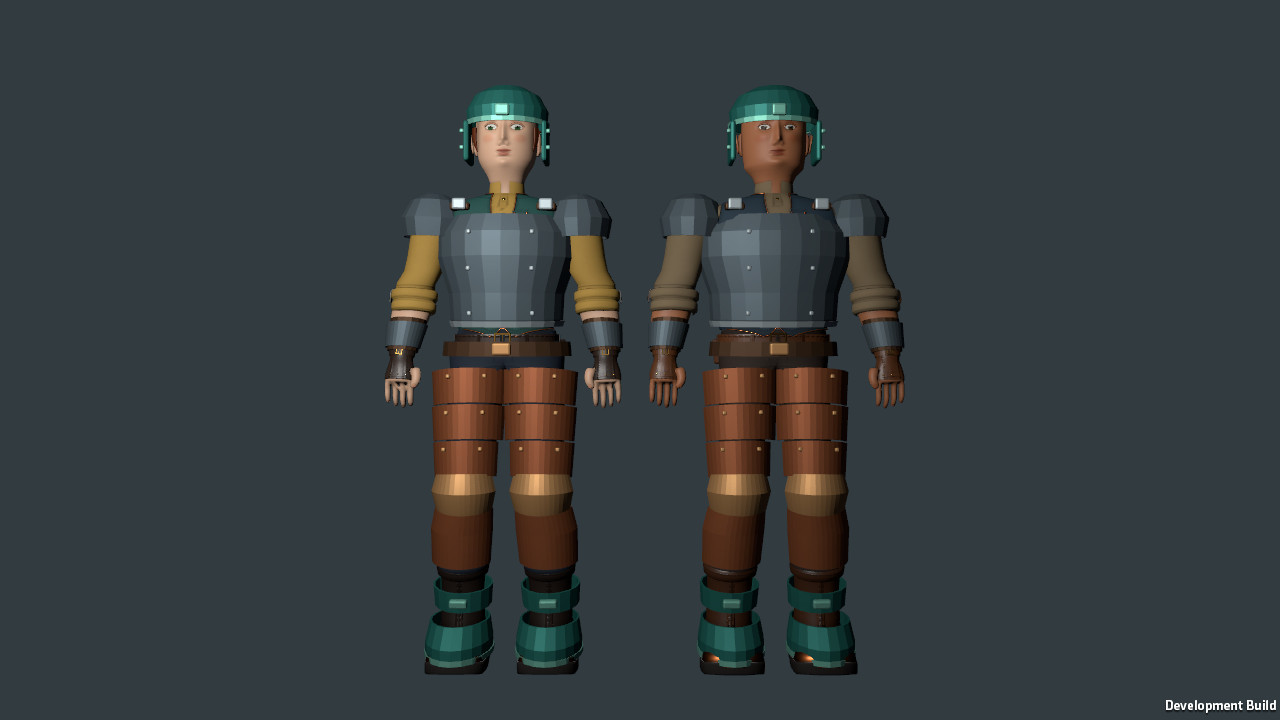
In-game captures from the October 2, 2026 explorer review build. Appearance never changes your size, reach, movement or abilities.
Movement and hunger
Hold Jump to jump again after each landing. It never supplies an additional jump in mid-air. Ordinary activity and passive hunger expenditure are 25% lower than the initial Alpha 0.0.2 values; healing retains its existing food cost.
Growing and cooking · All items · Home
For half-height construction and joined windows, see Slabs and connected glass. The exploration guide explains the new depth, Home and Last death HUD cues.