Raspberry Pi - SergeGit/rc-tank-platform GitHub Wiki
Introduction
For the Rpi the following steps will be done.
- Install Raspbian
- SSH into Pi3
- Remote tunnel via VS code
- Install UV-Python
- Set up PS3 controller
- I2C communication to Arduino
Raspbian (OS) installation
OS installation via SD card
Set up the the SD card of the raspberry pi with an OS using the Raspberry Pi Imager software.
The settings that can be put in are:
- Hostname
- Username & password
- Wireless settings
SSH to Raspberry Pi (via Wi-Fi)
The Raspbery Pi 3 does not allow for the direct USB connection as for the Raspberry Pi zero and zero W. Connecting can best be done via Wifi via the command:
$ ssh [email protected]
$ ssh [email protected]
Remote tunnel VS code
Tunneling via VS code is very straightforward. This is just like a normal SSH connect and on the Pi3, the code folder is set up in the explorer.
Set up Python
Installation virtual environment venv
On the Raspberry Pi, the picamera2 package does not install using uv or pip. The picamera2 package is already pre-installed in all Raspberry Pi OS images, such that installing a virtual environment with system packages, will have the system wide (already installed) version of the picamera2.
| Step | Script |
|---|---|
Create virtual environment venv |
$ python3 -m venv venv/ |
Activate environment venv |
$ source venv/bin/activate |
Deactivate environment venv |
(venv) $ deactivate |
| Install packages | (venv) $ python -m pip install <package-name> |
Remove environment venv |
$ rm -R /venv |
Install the packages:
opencv-contrib-python
pygame
Installation uv python
Enable Snap store
We can install uv from the snapstore on Raspbian.
First we have to enable SNAPD
sudo apt update
sudo apt install snapd
sudo reboot
sudo snap install snap
Install uv
After which we install uv using the command:
sudo snap install astral-uv --classic
Set up Python project
To install the latest Python version in project:
uv init RC-tank
cd RC-tank
The following structure is created in RC-tank:
.
├── .python-version
├── README.md
├── main.py
└── pyproject.toml
Run with uv run:
uv run main.py
Set up PS3 controller
The setting up of the PS3 controller through bluetooth is via these link1, link2.
Preparing PS3 controller to connect to the Raspberry Pi
An update of the OS results in a PIN asked for connecting a Bluetooth connection of the controller. This is not possible for the gamepads and a workaround is necessary.
- Open the file
/etc/bluetooth/input.conf, set partClassicBondedOnly=falseand save - Run:
systemctl restart bluetooth# orreboot
Update the Raspberry Pi.
sudo apt update
sudo apt upgrade
Install USB library that will be compiled in the sixpair software. The package libusb-dev is for programs to interact with USB devices.
sudo apt install libusb-dev
Download the sixpair code and make a folder for it.
$ mkdir ~/sixpair
$ cd ~/sixpair
$ wget http://www.pabr.org/sixlinux/sixpair.c
Compile the downloaded sixpair.c code, using the command:
$ gcc -o sixpair sixpair.c -lusb
Execute the compiled sixpair with the PS3 Controller plugged into a USB port.
$ sudo ~/sixpair/sixpair
Current Bluetooth master: b8:27:eb:af:bf:30
Setting master bd_addr to b8:27:eb:af:bf:30
Using bluetoothctl to connect PS3 controller
Disconnect the PS3 controller from the USB and start up the Bluetooth configuration tool
$ sudo bluetoothctl
Agent registered
[bluetooth]#
Enable and configure the agent
[bluetooth]# agent on
[bluetooth]# default-agent
[bluetooth]# power on
[bluetooth]# discoverable on
[bluetooth]# pairable on
Scan for bluetooth devices
[bluetooth]# scan on
[CHG] Controller B8:27:EB:AF:BF:30 Discovering: yes
[CHG] Device 00:06:F7:4F:F2:B1 Connected: yes
Any Bluetooth device in the area will start showing up in your command line. Only look for the PS3 controller which shows up when pressing the PS button. If a PIN is requested, try 0000.
With the MAC adress known, it is necessary to connect and trust the PS3 controller as a Bluetooth device. After a succesful connection and trust procedure, quit the Bluetooth controller and reboot the RPi.
[bluetooth]# connect 00:06:F7:4F:F2:B1
Attempting to connect to 00:06:F7:4F:F2:B1
[CHG] Device 00:06:F7:4F:F2:B1 Connected: yes
[Sony PLAYSTATION(R)3 Controller]# trust 00:06:F7:4F:F2:B1
Changing 00:06:F7:4F:F2:B1 trust succeeded
[Sony PLAYSTATION(R)3 Controller]# quit
$ sudo reboot
With the Raspberry Pi now restarted, press the PS button on your controller to test the connection between it and the Raspberry Pi.
The LED’s on the controller should briefly flash as it connects, afterward however if everything has worked correctly only one LED should remain lit on the controller.
Access Controller Inputs in Python
To access the inputs of the paired bluetooth connected controller the libraries of python3-pygame or evdev can be used.
The evdevallows for low-level acces of the controller.
Install the packages
sudo apt install joystick  python3-evdev
sudo apt install python3-pygame
Find the correct device /dev/input/js0, run:
$ ls /dev/input/
by-path/ event0   event1   event2   event3   js0      mice
Raspberry pi zero W
Set usb connection
Connect either via USB or via Wifi:
$ ssh piTank2.local
$ ssh [email protected]
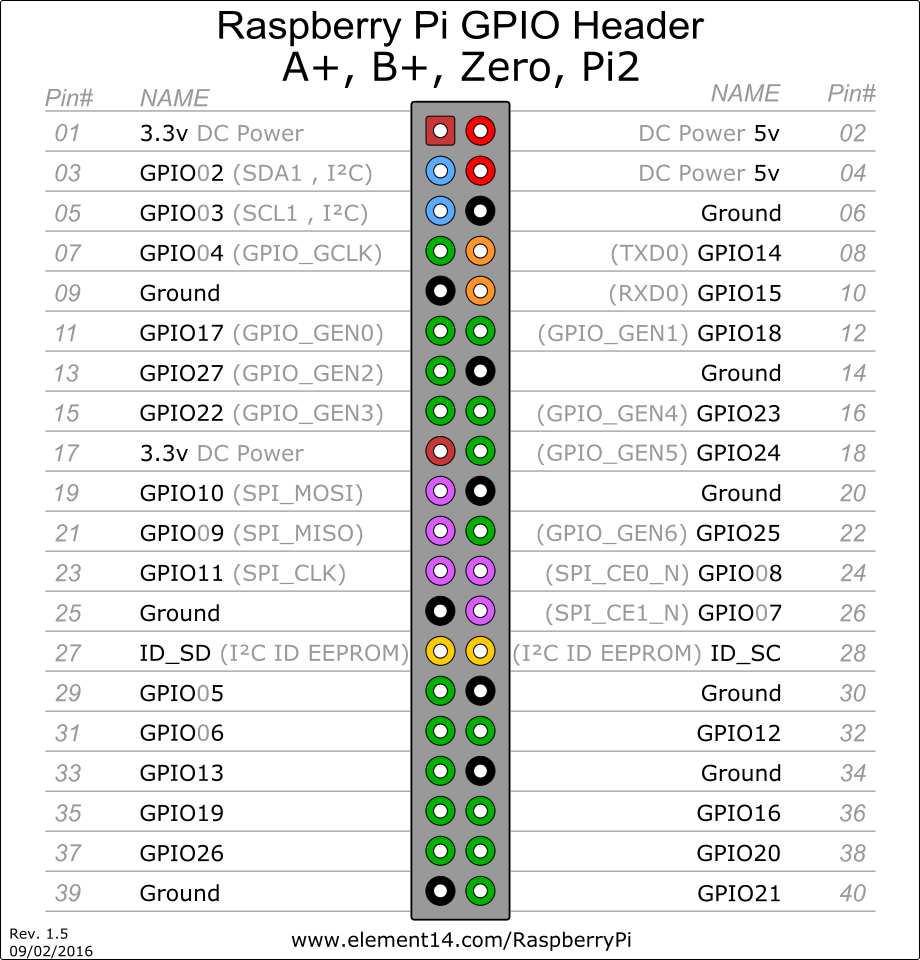
Pinout