Home - SemlerPDX/OpenAI-VoiceAttack-Plugin GitHub Wiki
The OpenAI VoiceAttack Plugin provides a powerful interface between VoiceAttack and the OpenAI API, allowing us to seamlessly incorporate state-of-the-art artificial intelligence capabilities into our VoiceAttack profiles and commands.

We can use raw text input, dictation text, or captured audio from VoiceAttack as input prompts for ChatGPT, and we can receive responses as a text variable to use as we wish, or set it to be spoken directly and specifically tailored for text-to-speech in VoiceAttack. We can also perform completion tasks on provided input with options for selecting the GPT model (and more), processing audio via transcription or translation into (English) text using OpenAI Whisper, and generate or work with images using OpenAI Dall-E.
This plugin also features OpenAI Moderation to review provided input and return a list of any flagged categories. Lastly, we can use the plugin to upload, list, or delete files for fine-tuning the OpenAI GPT models, or make use of OpenAI Embedding, which returns a string of metadata that can be parsed and used as desired. With this plugin, we can access a wide range of OpenAI functionality with ease, directly from within VoiceAttack.
The OpenAI API Plugin for VoiceAttack is powered by OpenAI Technologies through the OpenAI API. This plugin is not endorsed by or affiliated with OpenAI. This plugin requires the VoiceAttack application to operate, and this plugin is likewise not endorsed by or affiliated with VoiceAttack - I'm just a huge fan, and long time freeware developer of public profiles for VoiceAttack. -SemlerPDX
- Getting Started
- Using the Plugin
- Creating Profiles using OpenAI Plugin
- Troubleshooting
- All VoiceAttack Variables
- OpenAI Models List
- Plugin Context
- Plugin Context Flow Charts
The OpenAI API Plugin for VoiceAttack will require any profile using it to have at least two special commands which the plugin uses for playing sounds or speaking phrases using text-to-speech. An exception to this would be a profile which DOES NOT use the ChatGPT context (with ChatGPT.Raw being the only exception). The ChatGPT context will require a Speech command, and if supplied with sound files to play in place of certain text-to-speech (TTS) text variables, a Sound command. The name of these commands expected by the plugin are ((OpenAI Speech)) and ((OpenAI Sound)), and these can be changed so long as the OpenAI_Command_Speech and/or OpenAI_Command_Sound text variables are set to the custom name of these commands, and read by VoiceAttack prior to a ChatGPT context plugin call. The required actions of these commands are demonstrated within the included OpenAI Plugin Sample Profile for VoiceAttack, and must include logic as written - it is NOT recommended to change any of the actions in either of these commands, and merely include, copy, or import them as-is into any profile you create for public distribution or personal use which may rely upon the ChatGPT context.
Plugin Profile Package - VoiceAttack Import Method: OpenAI_API_Plugin_for_VoiceAttack.zip
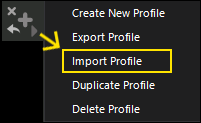

Extract the contents of the .zip file and import the .vax Profile Package inside
================================================
Checksum Date/Time: 5/8/2023 11:21:35 AM
Package Version: 1.1.0.0
Package Name: OpenAI_API_Plugin_for_VoiceAttack.zip
Package Size: 6982143 (bytes) (6.66 MB)

MD5:    f8b2e5a4b08f258bd5bb434c51e0407d
SHA1:   0ed4f218bfbbef332c309cb881cd7147374023e5
SHA256: c138044b106e26078f3931e5995befca8a74d5bce78727090530a17dabcad40d
SHA384: 57bab3c0dbba93b51f8886e86630da9b526508b74d3b5bc110de07aa8dbd544df48ab775f4e867afc964a01ff4ff8a7e
SHA512: 83597651b03c35e64c1d350504cfc6eed11e6e560db469e460057115ee348f15714eede42eb13db92a054ab3ecd22608905a7cc0bf7f28db54db8f90bfa88820
================================================

================================================
Checksum Date/Time: 5/8/2023 11:22:53 AM
Package Version: 1.1.0.0
Package Name: OpenAI_API_Plugin_for_VoiceAttack.vax
Package Size: 6980025 (bytes) (6.66 MB)

MD5:    92f9ad2bb82f6b336b7930e18d350a38
SHA1:   8a76cffaa94c8120817ed50d2180db8049ba2364
SHA256: 94affe809fdd6b84946a9c5eeb33996b2e1c2c4fbf936554e8f8087faa754da1
SHA384: 0dd1e2059e19d6e225de3856232e172a609330289a0e8566d363147c848311cffe92578c6c306639d99b6c312f2b423e
SHA512: 889d4dad58e7b018e24b18ea3267d217a6ccd9fcd6742cfb7185f1a5a7c120ce6439f877daa0e48d960cc43dfcfe6ba2469d381f3b4ec4436debdb363fdf8ede
================================================


VoiceAttack must have Plugin Support DISABLED and 'Run as Admin' ENABLED to install
Start by extracting the contents of the "OpenAI_API_Plugin_for_VoiceAttack.zip" download package
Import the VoiceAttack Plugin Profile Package
- Set VoiceAttack to Run as Admin and Disable Plugin Support (only required for import)
- Re-Start VoiceAttack (only if you had to perform either task above, to apply changes)
-
Press the Import Profile button, select this profile package (
OpenAI_API_Plugin_for_VoiceAttack.vax) and import- Before re-enabling Plugin Support, you can import profiles which use this plugin now, such as AVCS CHAT
- When done importing, Re-enable Plugin Support in VoiceAttack Options
- Re-Start VoiceAttack
-
The OpenAI Plugin will finish installing files, telling you to Restart one last time (step 7 below)
- Before restarting to complete installation, you can now turn off Run as Admin (if desired)
-
Re-Start VoiceAttack (final step - OpenAI Plugin pop-up will tell you to)
NOTE: On first time use, Windows Defender will scan the OpenAI_NET application belonging to the OpenAI Plugin for VoiceAttack. This is a companion app which handles Whisper and Dall-E requests to the OpenAI API through interprocess communication with this plugin. Simply put, they send text back and forth very fast, basically operating as one - the plugin sends our input request to the app, the app contacts the API with the request, and then returns the response to the plugin, all using a .NET CORE library unavailable to the .NET Framework plugin for VoiceAttack. It has no window, and cannot do anything unless the plugin asks. This tiny app sits in the background sleeping, bored, and waiting desperately for something fun to do.
Luckily, the update method is the same as the installation methods - files will be overwritten, a new version of OpenAI Plugin Sample Profile will be imported, so you can delete the old Sample Profile if you want - else a new Sample Profile will have a number in the name. For good reason, I did not build an auto-updater into this plugin. This is not a plugin which will need to be updated frequently, beyond any potentially discovered bugs, or possible additions to the OpenAI API - development is complete and the plugin is well tested, there is nothing more to add and nothing left to take away. The direct download link to the Plugin Profile Package above will always be the latest version. Overwriting the latest version with another copy of the latest version will cause no issues at all.

Text-to-speech and Event Log notifies us when VoiceAttack loads this OpenAI Plugin and an update has been found.
| (table of contents) | (back to top) |
In order for the OpenAI Plugin to function, as well as the example commands in the included OpenAI Plugin Sample Profile for VoiceAttack, you will need to enable Plugin Support. It may be required to disable plugin support in order to install this plugin, or profiles which use it, so it is important to remember to re-enable Plugin Support in the main VoiceAttack Options Menu. After this is done, VoiceAttack will need to be restarted in order to load the list of any plugins. Once VoiceAttack has opened again, return to the VoiceAttack Options Menu and click on the button labeled Plugin Manager, and make sure the box is checked next to the OpenAI API Plugin for VoiceAttack. If it wasn't already checked, you'll need to restart VoiceAttack again.


In order for the OpenAI Plugin to function, as well as the example commands in the included OpenAI Plugin Sample Profile for VoiceAttack, you will need to provide your own OpenAI account API key. This enables OpenAI to charge your account for OpenAI API usage, which is not free. New users may be able to access a trial period of 3 months with a $5 (USD) credit. In the extensive testing and development of this plugin, involving hundreds of calls to the OpenAI API, charges on my account did not rise over $1 (USD). That being said, my testing involved conversational completions which are much shorter than other ways ChatGPT and other features can be used.

Dall-E images at the time of writing are between $0.016 and $0.02 (USD) per image, and could add up fast with careless use. Monitor your usage frequently on your account, until you get an idea of what your regular use may cost on average. Please see notes below for Public Profile Developers who want their profiles to use OpenAI, and make sure your profile systems which may use AI for data or other purposes do not excessively call the API without informing your profile users of what sorts of calls they make and what sort of usage charges they may expect if using one or all of your AI powered profile systems.
Get your OpenAI API Key for your Account here: https://platform.openai.com/settings/organization/api-keys
Learn more about Pricing and Costs here: https://platform.openai.com/docs/pricing
To uninstall the OpenAI API Plugin for VoiceAttack, first open VoiceAttack, then open the main VoiceAttack Options Menu, and if the OpenAI Plugin Sample Profile is set as a profile to load when VoiceAttack starts, or is set as a Global Profile, remove it from these lists. If you have any VoiceAttack profiles which inlude commands from the OpenAI Plugin Sample Profile, switch to them and remove these inclusions from the Profile Options for that profile. Next, delete the OpenAI Plugin Sample Profile. Finally, close VoiceAttack, and navigate to the VoiceAttack program folder - we will be removing folders from the Apps folder and the Sounds folder.
-
Website Version VoiceAttack Program Default Location:
%ProgramFiles(x86)%\VoiceAttack -
Steam Version VoiceAttack Program Default Location:
%ProgramFiles(x86)%\Steam\steamapps\common\VoiceAttack

Open the Apps folder (above), and delete the folder inside called OpenAI_Plugin. Do the same for the Sounds folder:
If you do not plan to reinstall, you can now nagivate to the configuration folder for this plugin and delete that, too:


This OpenAI Plugin Configuration folder is located in %AppData%\OpenAI_VoiceAttack_Plugin, and is also where your OpenAI API Key is stored. If you have not backed up your key somewhere else, do it now - revisiting the OpenAI API keys page for our accounts will never reveal the contents of the key again (unless my browser is blocking an element on that webpage and I have been mistaken this whole time). If lost, we have to create a new key (which is allowed without issue). Delete the configuration folder if you want, and the OpenAI plugin will have successfully been deleted in full.
| (table of contents) | (back to top) |
The OpenAI Plugin for VoiceAttack operates much like any Plugin - set the Plugin Context field to the keyword of the action you want it to perform. Each OpenAI API function has different options, parameters, and a way to return a value of some kind. The KeyForm context brings up the key menu (pictured above). We can use these Plugin Context keywords written directly into the Plugin Action in VoiceAttack commands, or we can set a text variable to the value of a plugin context, and use it in a token such as {TXT:OpenAI_Context} in the Plugin Action's Context field, and/or any combination of tokens in that field as well. Full details are on the Plugin Context page. Using any context with a blank API key will pop-up the API Key Menu.
On first time use only, the OpenAI Plugin for VoiceAttack will present this pop-up, if you missed it, here it is:

Every time we switch to the OpenAI Plugin Sample Profile for VoiceAttack, this pop-up says pretty much what needs to be said:

Copy or Import any/all commands to another profile, use that profile to customize the optional commands, actions, functions, and profile name to your liking. The OpenAI Plugin Sample Profile is designed as a guide, and when combined with the information in this Wiki, profile developers should have all the tools they need to make great profiles and commands which use the OpenAI API though this plugin. You will find a copy of this profile in the VoiceAttack\Apps\OpenAI_Plugin\profile folder. If you create a new profile, open it and select Import Commands along the bottom - navigate to this folder, and the OpenAI Sample Profile, and include any/all commands you need. Alter them as needed for your personal or public profile creations, and if something goes haywire, you can always try again.
Each command that does not say otherwise can be altered in most any way that respects the core functionality of that command example, including inputs, parameters, and how to handle the return. Most commands have extensive commenting by me describing options for doing things differently, and also what is required or what can be changed. Again, you should NOT work directly inside the OpenAI Sample Profile to create your own new systems, but to tinker and test. Copy any/all of the commands to a NEW profile you have created where you can always start over from scratch if you need to using the Sample Profile as a template.
Commands which are greyed out, and which have the When I say checkbox unchecked, are "function" commands that are not called by voice, but by other commands or the plugin itself. It is not required to have the When I say checkbox checked for these commands to work as designed. This is a way to include a separate command other than the voice commands we call by speech to handle all of the actions which should take place, or as a central location for a common set of actions which several other commands may want to use by executing that command rather than the same actions inside their own command actions list.

In order for the ChatGPT plugin context to function properly, the structure of the ((OpenAI Speech)) and ((OpenAI Sound)) command actions must be preserved. While the command names can be changed, the logic and actions within these commands are crucial to the plugin's operation as written. This allows users to customize the options of the Say Something with Text-To-Speech action, and also enables the handling of out-of-plugin decisions when a text-to-speech (TTS) variable provided to it is actually a path to a sound file to play instead. These both must be in profiles, with exceptions listed below.
The OpenAI Plugin Sample Profile relies heavily on the Speech command throughout many of its actions, but all commands are executed (by name) in VoiceAttack actions, meaning you can copy any command to another profile without issue. However, if a command being called is not present, a message will be logged in the VoiceAttack Event Log indicating the failure.
The commands ((Image Browser)) and ((Completion Notepad)) provide a means for dealing with Dall-E Image Request results, and also for sending Completion results to a notepad. These are working examples, but are only recommended and profile developers should feel free to make their own systems however they wish to accomplish the same goals, or simply include these commands in their personal or public profiles. The "Open the Key Menu" command is not required, but is a way to access this menu, and it's recommended to provide some way to pull this up for convenience - unless you devise your own system to set the end user's API key for the plugin and your profile use, perhaps a better GUI than the one I tossed together in 5 minutes.
The "What time is it?" command has nothing to do with the OpenAI Plugin, and that is exactly the point. Call this command to hear a text-to-speech readout of the time. If you say say "Stop all commands" when this speech is active, it will end abruptly. The included example command to stop any text-to-speech will have the same effect, without stopping any other active commands - say "Stop Speaking" when the time is being said, and it will end. This works when the ((OpenAI Speech)) command is running, such as when speaking a ChatGPT response to a question, and is a good idea to include with any public (or personal) profile you create. Finally, by providing your end users with the voice commands to open the OpenAI webpages, as well as this plugin GitHub Wiki, you can allow profile users to easily access source information, or even standard website applications like ChatGPT itself.
The ((OpenAI Initialize)) command is an example of how you can set certain variables each time your profile loads, and it is NEVER called by the plugin or required by any profile using OpenAI Plugin for VoiceAttack. The ((OpenAI DictationStart)) and ((OpenAI DictationStop)) commands allow you to create your own systems to handle these phases of a ChatGPT context plugin call, which also allows for an ((OpenAI ExternalResponder)) command which can be executed directly after OpenAI API responds and before re-entering a WaitForProfile phase (or the end of the plugin call, if not using a .Session context modifier). See more details in the Building Public Profiles section below, including why these commands need their 'When I say' phrases edited if they will be used.
| (table of contents) | (back to top) |
Start by creating a new profile. Open the profile editor for this new profile, and select Import Commands along the bottom - navigate to (Your programs folder)\VoiceAttack\Apps\OpenAI_Plugin\profile and you will find the OpenAI Plugin Sample Profile.vap file. Select this, and import AT LEAST the ((OpenAI Speech)) and ((OpenAI Sound)) command, followed by any other commands you will want in your profile. You can always import the rest later. Every command can be edited completely to your liking so long as they follow the basic rules of the functions they perform. All the comments in grey text can (and should) be deleted as needed, replaced if desired with your own or not. If your profile only ever uses ChatGPT.Raw (including the .Session modifier) and NEVER uses the main ChatGPT context (with or without its modifiers), you can skip importing the sound and speech commands.
If you want to handle on your own the GetInput phase of ChatGPT context calls, the ((OpenAI DictationStart)) and/or ((OpenAI DictationStop)) portions of ChatGPT context flow, these commands would need to be renamed. By default, the plugin has an internal method essentially the same as each of these commands, but also watches for any existing commands with those names, and so they have the "(disabled - see documentation!!)" label added in the 'When I say' phrase to keep it from "seeing" these commands. When the plugin can see that these commands exist with those default names above (or through custom names containined in the OpenAI_Command_DictationStart and OpenAI_Command_DictationStop text variables), it will execute those instead of its own interal processes for the same function.
There are some developer commands I've included which I use for most profiles I build. First, plugin has an event handler tied to the OpenAI_Debugging# boolean variable, if we change it to anything on our end, it changes an internal variable watched inside the plugin to keep them in sync. This enables information printing to the VoiceAttack Event Log when something is not right, and also messages every 5 seconds in the 'GetInput' or 'WaitForProfile' phase of a ChatGPT context plugin call. Second, you can say, "Check a variable value" when using the command from the OpenAI Sample Profile, and this will allow you to choose the type and enter the name of any VoiceAttack variable to see its value written in the VoiceAttack Event Log. There is even a similar command to "Set" variable values, but should be used with caution, especially for .Session plugin context calls which are persistent and not over shortly after they begin like most plugin context calls.
Finally, refer to the Plugin Context section of this Wiki to be sure you understand all of the variables that are used by that plugin context, and read about the individual variables themselves if their purpose is not apparent in the very descriptive names I use. If you need help, check out the Troubleshooting and also the Additional Help sections below.
| (table of contents) | (back to top) |
When a profile is for personal use, you can pretty much do anything you want. It's your PC, it's your VoiceAttack installation, and you don't have to worry so much about how everything works. In fact, you could include the OpenAI Plugin Sample Profile commands through the Profile Options of another profile, OR set it as a Global Profile, and then make a command with the 'When I say' phrase of "Let's make an image" and the only action to execute an existing command (by name) of Image Generate (from the included/Global Sample Profile). Eazy peazy.
Want to start a chat session? Make two commands with any phrases, one with the action to execute the Start Chatting command (by name) and the other one with the action to execute the Stop Chatting command, also (by name). Maybe, "Hey VoiceAttack" to start, and "Goodbye VoiceAttack" to stop chatting. If you set the OpenAI_ExternalContinue boolean variable to True, it will just enter the 'WaitForProfile' sleep mode until you start chatting again - where it will remember your last inputs and the responses to them.
The above ideas are just an example, it's truly best to create your own profile but you don't HAVE to for personal use. It is NEVER recommended to edit the OpenAI Sample Profile directly, regardless, because if you update the OpenAI Plugin for VoiceAttack to keep up with the latest version (which everyone should), the OpenAI Sample Profile WILL be overwritten with the latest version of that profile.
Create a new profile, create a voice command (for example, "Let's make an image"), and add the action to execute the OpenAI Plugin for VoiceAttack with the context of DallE.Generate - check the box to wait until the plugin completes, and then check the OpenAI_Response text variable for the response once the plugin completes. It's just that simple for ANY of the context - if you don't set any of the options or parameter variables, defaults will be used. You just want to understand that context, and how the return may be used - in this case, it would be a single URL since we did not change the image count - if it's more than one, it will be URLs separated by a ";" (semicolon) for easy presentation in as the available choices in a Get Choice action in a VoiceAttack command.
You could equally just import commands from the Sample Profile - say you only wanted Dall-E commands - just import those. And the example ((Image Browser)) command. Tailor as needed, and they will work. Same with any of the plugin context examples. You can craft your own commands, too, and execute any plugin context you want, or use the ones I have provided.

You can set the OpenAI Plugin Sample Profile as a Global Profile so that ANY profile you use can access its function commands and voice commands. Another way to use this, as described above, would be as merely functions that other commands in your other profiles call rather than the wooden phrases I wrote into that Sample profile which itself should not be edited (much).
When this is your use case, it might be smart to open that Sample Profile, and UNCHECK the boxes next to every voice command that is not already disabled. I know this sounds odd, but it can stop these from being executed UNLESS you make your own commands which execute a command (by name) which is part of this global profile - using much more natural phrases than my utilitarian 'When I say' examples. Again, this profile gets overwritten by plugin updates, it is merely a working template example you can use if you're not big into building profiles, or still waiting for full featured public profiles which make use of the OpenAI API Plugin for VoiceAttack.

If you prefer, you can optionally include the commands of the OpenAI Plugin Sample Profile into your personal profile through its Profile Options Menu. If the plugin updates, this profile will have been overwritten, and so functionality will be immediatly available to any commands in your personal profile which execute commands (by name) from this included profile. Again, as stated above, it might be smart to make your own profile commands with better command phrases, and their only action to execute another command (by name) to perform the action and handle the results.
| (table of contents) | (back to top) |
- ALWAYS Create a NEW profile, or import commands into your own existing public profile(s) to add true AI to them
- ALWAYS Import Commands from the OpenAI Plugin Sample Profile - at least Speech and Sound (if
ChatGPTis used) - Edit those commands however you see fit, in the manners this Wiki and comments describe or imply is allowable
- Read the text variable
OpenAI_Plugin_Versionto ensure users have this OpenAI Plugin, and the latest version - Link users to the download section above for those without OpenAI Plugin, in release posts or documentation
- Refer to this Wiki and the Sample Profile for instructions, most EVERY detail is covered or cross-linked
- Refer to the VoiceAttack Manual for anything else related to profile development
- DO NOT edit the OpenAI Plugin Sample Profile itself, then change the name, and re-release it - things will catch fire
- DO NOT allow unrestricted looping plugin calls to the OpenAI API over and over with no way to stop or break
- DO NOT provide an API key for public users of your profile, it will not be secure
- DO NOT allow commands in your public profiles to violate terms of the OpenAI Account of your profile users
- DO NOT feel the need to give me attribution for Sample commands you import and edit, cannibalize as you wish
Inline with the spirit and goals of VoiceAttack itself, I would humbly ask you all to please be respectful as you develop public profiles. Please do not design systems for public users which may compromise them in any way, including any actions which may be violative of the terms of any game or service that your public VoiceAttack profiles using this OpenAI Plugin interact with, as well as the OpenAI Account of your end users, too. Be aware that some of your users may use your profiles during live streams, and so you should play nice and make sure users are notified if your profile can say or do anything which may make their OpenAI API key on file visible, or run AI powered functions or macros in games that can result in users being banned, or play sounds or music files which may not be wise in a gaming live stream, just to name a few obvious examples.
Simple rule: DON'T DO IT! It is far more wise to separate the concerns of ensuring your profile users have your latest profile and the latest OpenAI Plugin for VoiceAttack than you being forced to update your profile package to keep an embedded version of this plugin in sync with the latest version. Let me deal with that burdon. A pop-up will appear whenever the plugin is loaded and it's version is outdated, offering users the ability to download and update their OpenAI Plugin for VoiceAttack on their own, and using whatever method they prefer - or even cloning this codebase and compiling it for themselves.
As stated above in the Update Installation section, for good reason, I did not build an auto-updater into this plugin. Therefore, you profile developers building public profiles which use the OpenAI Plugin for VoiceAttack should consider that the best way to ensure users always have OpenAI Plugin or the latest plugin version is to not physically include this plugin with your own profile download package, but have your profile check for the version text variable (below) and if not present or below the version you built for, direct users to come here and download it themselves in your profile or its documentation. The direct download links to the Plugin Profile Packages above will always be the latest version. Overwriting the latest version with another copy of the latest version will cause no issues at all.
The current version inside the plugin can be read from the text variable: OpenAI_Plugin_Version
The current published version of this plugin can be scraped from the following page:
https://veterans-gaming.com/semlerpdx/vglabs/downloads/voiceattack-plugin-openai/version.html
| (table of contents) | (back to top) |
Every function has been thoroughly tested, and most any exceptions or errors have been discovered and accounted for, with a plugin call gracefully ending and informing us of the error(s). If something goes wrong, the OpenAI_Errors boolean variable will become True, and an error message will be written to the errors log located in the Plugin Configuration Folder at %AppData%\OpenAI_VoiceAttack_Plugin\openai_errors.log. When the OpenAI_Debugging# boolean variable has been set to True, errors will also be written to the VoiceAttack Event Log. To toggle this on or off, I have included a simple command "Toggle Chat Debugging". You will then see a message print out every 5 seconds when a ChatGPT context plugin call is in a GetInput phase, or in a WaitForProfile phase. This can be useful for testing situations which can end or not end one of these states, such as the options for the WaitForProfile phase to respect or not respect the Stop All Commands button in VoiceAttack, or the command action which does the same. I have included a utility voice command just for this, to end any running commands including any plugin calls currently active which are at a stoppable stage, just say "Stop all commands".
When all else fails, just restart VoiceAttack. This will reset any Global VoiceAttack Variables used by the plugin, and of course any internal variables the plugin has set from those values. I have included a utility command I've used for a long time which can be helpful to check the current value of any VoiceAttack variable and print it out to the Event Log. Say, "Check a Variable Value" to open a Get Choice window which will let you select a variable type to check, and then another to enter the name of the variable. Refer to the All VoiceAttack Variables page of this Wiki, and just copy/paste whatever you need to look up. You may also say the variable type in this utility command name such as, "Check an Integer Variable Value". To easily set a value to a variable while you are building profiles using OpenAI Plugin or testing how it works, you can also say, "Change a Variable Value", to access a similar menu to set a value to a variable - or including the variable type to set in the phrase. Use caution, but truly if something goes wrong, you can always just restart your profile (if you imported all the OpenAI Plugin Sample Profile commands), and things should return to normal. If not, create a new profile and import the commands, and copy parts of your defunct profile bit by bit until you discover what when wrong.
The best way to troubleshoot is to enable debugging, and call the command you have issues with. If you do not see an error, make sure you have set all of your parameter variables used by the particular Plugin Context you are working with, even if you don't want to use them (such as clearing them to Not set). Each possible Plugin Context is listed in this Wiki, and below it, every possible VoiceAttack variable that can be used by that plugin context call, which link to the description for that variable - hold Control and left click to open in a new tab, or press the Back button to come back after reading the variable description. There are many, but they are grouped, with similar functions similarly named, and their names are fairly descriptive, too.
The VoiceAttack Manual is the best place for information about creating profiles, commands, and using actions and deploying profile packages for public distribution. If you have any issues as you go which are more VoiceAttack related, the information is likely somewhere in that manual. There are also helpful tips on the How To page. If your OpenAI Plugin Sample Profile has stopped working correctly, you can delete it and re-import it from the VoiceAttack\Apps\OpenAI_Plugin\profile folder.
Log Path: %AppData%\OpenAI_VoiceAttack_Plugin\openai_errors.log
Each error will be preceded by a timestamp and end with a line. There may be some complex plugin error data, or plain and simple messages describing what went wrong. When this is the case, it may be possible to refer to the documentation for that Plugin Context or for variables used by it when the error occurred. By enabling debugging, a larger amount of data will be printed to the VoiceAttack Event Log, which will be the same as what is printed in the errors log file. If it is not apparent what went wrong, you can always contact me and I'll do my best to help out.
I am happy to support this plugin and profile builders using it, contact me wherever is most convenient! I have a support channel at VG Discord, and you can also message me on the Veterans-Gaming website, the VoiceAttack forums, or anywhere you see me lurking. If I'm not super busy, I'll work with you to help or point you in the right direction at the very least.


