Self Registration Workflow - SchneiderInfosystems/FB4D GitHub Wiki
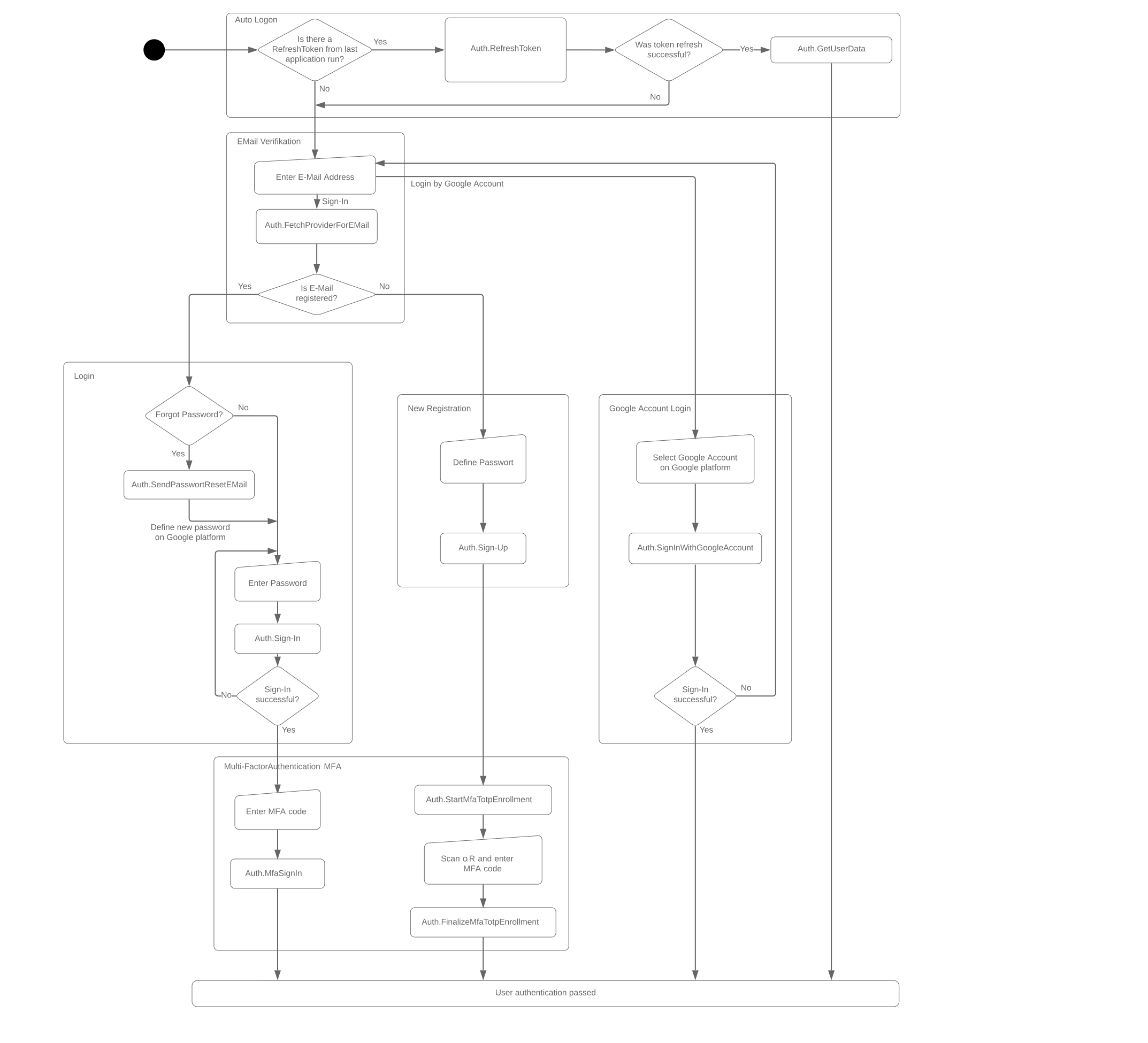
Often, a self-registration workflow is used for e-mail/password authorization, in which users register themselves. For this purpose, the FB4D offers a ready-to-use framework by using a prepared frame that checks in the first step whether an e-mail address has already been registered. If the email is known, the password must be entered and checked. The user can reset his password. He receives mail directly from the Firebase Authentication Server and sets his password outside the application. If the e-mail is unknown, ie when logging in for the first time, a new user is registered and an initial password must be entered. In addition, the frame also supports automatic sign-in by using the last saved refresh token, as well as optional sign-in via a Google Account (OAuth2) and optional Multi-Factor Authentication (MFA) using a TOTP authenticator app.
This whole workflow is implemented in unit FB4D.SelfRegistrationFra for both frameworks (FMX and VCL) and can be easily integrated into your application. For this purpose just add this unit GUIPatterns\FMX\FB4D.SelfRegistrationFra.pas or GUIPatterns\VCL\FB4D.SelfRegistrationFra.pas depending on your used framework, and add submodules\DelphiZXingQRCode\source to your project's unit search path (used for rendering TOTP QR codes when Multi-Factor Authentication is enabled).
 🔎
There are two start methods available:
procedure TFraSelfRegistration.Initialize(Auth: IFirebaseAuthentication;
   OnUserLogin: TOnUserResponse; const LastRefreshToken, LastEMail: string = '';
   AllowSelfRegistration: boolean = true;
   RequireVerificatedEMail: boolean = false;
   RegisterDisplayName: boolean = false;
   AutoCheckEMail: boolean = true;
   SupportGoogleAccount: boolean = false;
   RequireMFA: boolean = false;
   const MfaIssuerName: string = '');
Or in cases where the Authentification object shall be initialized not before first use, the following method can be used:
procedure TFraSelfRegistration.InitializeAuthOnDemand(OnGetAuth: TOnGetAuth;
  OnUserLogin: TOnUserResponse; const LastRefreshToken, LastEMail: string = '';
  AllowSelfRegistration: boolean = true;
  RequireVerificatedEMail: boolean = false;
  RegisterDisplayName: boolean = false;
  AutoCheckEMail: boolean = true;
  SupportGoogleAccount: boolean = false;
  RequireMFA: boolean = false;
  const MfaIssuerName: string = '');
The parameters LastRefreshToken, LastEMail, AllowSelfRegistration, RequireVerificatedEMail, RegisterDisplayName, AutoCheckEMail, SupportGoogleAccount, RequireMFA, and MfaIssuerName are optional. If automatic login is not to be used, the LastRefreshToken should be empty. If you do not want to enable the self-registration part, you must set AllowSelfRegistration to false. If you want to ensure that only users with a verified email address can be signed-in, you must set RequireVerificatedEMail to true. If your application requires a display name for the user in addition to the email address, you can enable the RegisterDisplayName flag. This will request and store a display name when a new user registers for the first time. Beware the authorization service does not ensure that the display name remains unique.
If SupportGoogleAccount is set to true (after configuring the Google OAuth2 Client ID and Client Secret via Auth.SetGoogleAuth2), an additional Login by Google Account button is offered. If an email address is already registered exclusively with the google.com provider, checking the email address automatically initiates the Google OAuth2 login. If a user signs in with a Google account for an email address that was previously registered with a password (EMAIL_EXISTS), the workflow prompts the user to enter their password once and then automatically links the Google account (LinkWithGoogleAccount) so future logins work with either method. Note that when RequireVerificatedEMail and SupportGoogleAccount are both enabled, Firebase only sends verification emails for email/password registrations, because Google OAuth accounts are already verified by Google (IsEMailVerified = tsbTrue).
If RequireMFA is set to true, Multi-Factor Authentication (TOTP) is enforced for email/password accounts. Enabling RequireMFA automatically activates RequireVerificatedEMail as well, because Firebase requires a verified email address before enrolling a second factor. If an email/password user already has TOTP MFA enrolled (User.IsMfaEnrolled), signing in prompts the user to enter the 6-digit OTP code from their Authenticator app (SignInWithEmailAndPasswordWithMFA and MfaSignIn). If the user is not yet enrolled in MFA, the workflow automatically starts TOTP enrollment (StartMfaTotpEnrollment), renders a QR code for the Authenticator app using MfaIssuerName (which defaults to 'FB4D' when left empty), and verifies the initial 6-digit OTP code (FinalizeMfaTotpEnrollment). Accounts signed in via a Google Account (SupportGoogleAccount) skip this step because two-factor authentication is managed directly by the Google platform.
If you have passed a valid email address from the last login and the AutoCheckEMail is true, it will check whether this email address is active. If it is, the next step with the password entry is activated immediately. If another user wants to log in, he can still switch to the still visible edit box for the email and change to his email address.
Since version 1.6.2 there is an eye button that allows you to make the entered password visible for a short time. If you do not want to offer this function, this button can simply be made invisible on the target form. Then you should set for the edtPassword component the right margin and right padding value to 0 and adjust the width of the box by adding 30 pixels.
Once a user is validly logged in, the application is notified via the OnUserResponse callback method:
TOnUserResponse = procedure(const Info: string; User: IFirebaseUser) of object;
The Firebase Authentication Service has introduced a new security check that prevents it from correctly checking whether an email address is already registered. This feature is used in the workflow to decide in the first step whether an email address is new or existing. For all newly created Firebase projects, this security check is enabled by default. For older Firebase projects, this check is still disabled. Disable this security check in the Firebase Console under Authentication>UserActions>EMail enumeration protection for all newly created Firebase projects when using this frame in your project:

In addition to the display name, this framework is also able to upload an optional profile image to the storage for a newly created user and link its URL as PhotoURL to the newly created user. For this purpose, the self-registration framework needs access to its own folder in memory, where a square JPG is stored for all users. The download link to this JPG image is automatically assigned as a photo URL to a newly created user. For this, you have to provide a callback method that returns the storage by using the following method. Furthermore, you can define the storage path that contains all profile images under the address .JPG. Also, the square size of the profile image can still be defined.
procedure RequestProfileImg(OnGetStorage: TOnGetStorage;
  const StoragePath: string = cDefaultStoragePathForProfileImg;
  ProfileImgSize: integer = cDefaultProfileImgSize);
Ensure before you can storage the first profile image that the access rules for the storage path are set properly. The following rule must be set for the default path userProfiles:
rules_version = '2';
service firebase.storage {
  match /b/{bucket}/o {
    match /userProfiles/{userID} {
      allow read: if request.auth != null;
      allow write: if request.auth.uid == userID;
    }
  }
}
Often there is a waiting period after the user login, where the application remains on the login screen. For example, the sample application FSSimpleChat has to wait for the storage cache to load before the chat list can be displayed. For this purpose the following two methods are available:
procedure InformDelayedStart(const Msg: string);
procedure StopDelayedStart;
For a quick introduction to this complex topic, both an FMX demo application (Samples\AuthSelfReg\Auth_SelfReg.dproj) and a VCL demo application (Samples\AuthSelfReg_VCL\Auth_SelfReg_VCL.dproj) are available, which make it possible to try out all workflow options interactively.
 🔎