All features - SandTechStuff/Stuff GitHub Wiki
This document describes all the options currently provided by ExplorerPatcher.
Valid for version 22621.4317.67.1.
Although I strive to keep this up to date, some things might change slightly in the future. If you notice any inconsistencies, feel free to mention them for fixing in the Discussions section.
Taskbar
Taskbar style:
This changes the taskbar implementation.
-
Windows 10 (Default before 24H2)
Enables the familiar Windows 10 taskbar. It supports all the familiar features, like enabling button labels (never combine), separate network/volume/battery indicators, docking to the top/bottom/right/left side of the screen, plus customizable options via ExplorerPatcher.
 Windows 10 taskbar
 -
Windows 11 (Default after 24H2)
Enables the Windows 11 taskbar. The network/volume/battery indicators are grouped in a single button that opens the "Control Center".
 Windows 11 taskbar
ExplorerPatcher enhances it by providing an enhanced context menu that displays proper options, as the legacy taskbar did, including Task Manager:

There are also a number of fixes ExplorerPatcher applies to this new taskbar:
- As shipped by Microsoft, a taskbar displayed on a secondary monitor does not react when the mouse is over it and auto hide is on; fixed this (#589)
- As shipped by Microsoft, under certain circumstances, the main taskbar does not show its system tray when
explorerstarts up and auto hide is on; fixed this - As shipped by Microsoft, a taskbar displayed on a secondary monitor might display a wrong contextual menu when auto hide is on; fixed this
-
Windows 10 (ExplorerPatcher)
Enables the new, reverse engineered version of the Windows 10 taskbar. It's main purpose is to combat the Windows 10 taskbar nukes the 24H2 update brings, and it fully functions on 24H2. It also comes with a few perks not available with the standard Windows 10 taskbar. Read more about it here: ExplorerPatcher's Taskbar Implementation.
 ExplorerPatcher taskbar with it's perks, including Windows 11 icons and centering.
Primary/secondary taskbar location on screen:
This allows you to set the location of the taskbar on the screen.
When using the Windows 10 taskbar, the following locations are supported:
- Bottom (default)
- Left
- Right
- Top
A much more convenient way to move the taskbar is to drag it to your desired location on screen. Make sure that the taskbar is unlocked by unticking Lock the taskbar or Lock all taskbars in the taskbar right click menu.
You can also move it to other monitors - this allows you to move the main taskbar (the one that contains the system tray) to a secondary monitor. This was actually a bug in Windows 10 that was fixed in Windows 11, but ExplorerPatcher restored this functionality due to popular demand.
Don't see additional taskbars on a multi-monitor configuration? Maybe you need to enable that: right click the main taskbar, choose "Taskbar settings", expand "Taskbar behaviors" and check "Show my taskbar on all displays".
Search:
-
Hidden
Hides the search icon/box on the taskbar.
-
Show search icon
Displays an icon that opens Windows Search (
Win+Q) when clicked. Appearance of the Search button on the Windows 10 taskbar
 -
Show search box
Displays a box that when clicked, opens search. It is currently buggy on Windows 11 and disappears temporarily when search is opened.
 Appearance of the Search box on the Windows 10 taskbar
Show Task View button:
Displays an icon that opens Task View (Win+Tab) when clicked.
Appearance of the Task View button on the Windows 10 taskbar
Automatically hide the taskbar:
This can be used to have the taskbar automatically hide away when the mouse is not hovering over it or when it doesn't have the focus anymore.
Start button style:
Allows easy customization of the icon that is displayed when using the Windows 10 taskbar. Current options are:
-
Windows 10 (default)

-
Windows 11
 With standard Windows 10 taskbar
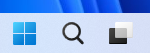 With Windows 10 (ExplorerPatcher) taskbar
Primary/secondary taskbar alignment:
Allows you to center the taskbar buttons on the Windows 10 taskbar in multiple ways.
-
At screen edge (default)
Left aligned program and system buttons.
-
Centered
Centered program buttons, but system buttons (Start, Search, and Task View) are still on the left.

-
Centered, at screen edge when full
Same as centered, but left aligns the buttons when the taskbar fills up.
-
Centered with Start button
Centered program and system buttons (Start, Search, and Task View).

-
Centered with Start button, at screen edge when full
Same as centered with Start button, but left aligns the buttons when the taskbar fills up.
Combine taskbar icons on primary/secondary taskbar(s):
This allows you to choose the behavior of the Windows taskbar in regards to how the icons of the running programs act:
-
Never combine
Each window has its own button on the taskbar, and the title of the window is displayed near the icon, in its taskbar button.

-
Always combine, hide labels (default)
Windows belonging to the same application instance receive a single taskbar button; the program name is not displayed, only its icon. This behavior is similar to what the Windows 11 taskbar offers.

-
Combine when taskbar is full
This is basically "never combine" until the taskbar becomes too cluttered with applications, at which point it switches to "always combine, hide labels".
Taskbar icon size:
-
Large (default)
In this mode, the clock displays two lines of text (the time and the date).

-
Small
In this mode, the clock only displays a single line of text (the time).

System tray
Skin taskbar and tray pop-up menus:
This allows you to enable/disable the custom skinning of pop-up menus displayed by the taskbar: its context menu, and also the context menus for the network, volume, battery, Bluetooth and "Safe to Remove Hardware" icons.
Context menu with skin

Context menu without skin

Center tray icon pop-up menus:
This will have the context menus for the network, volume, battery, Bluetooth and "Safe to Remove Hardware" icons display centrally with respect to the icon position, if possible.
Flyout behavior for tray icon pop-up menus:
This makes the context menus for the network, volume, battery, Bluetooth and "Safe to Remove Hardware" icons toggle when the icon is right clicked (or clicked, depending on the icon): the first click shows the menu, the second click dismisses it, the third click shows the menu, the fourth click dismisses it and so on.
Show touch keyboard button:
Touch keyboard button on the Windows 10 taskbar

Show seconds in the clock:
This works only with the Windows 10 taskbar. It allows displays seconds in the clock, besides the hours and minutes.

Hide Control Center button:
This allows hiding the control center icon when using the Windows 10 taskbar.

The control center icon opens the following flyout (Win+A):

Show Desktop button:
This can be used to hide the "Show Desktop" icon located at the far right of the taskbar.
Appearance of the Show Desktop button on the Windows 10 taskbar

Hidden icons popup style:
[!Note] This setting is only available when using the Windows 10 (ExplorerPatcher) taskbar.
This allows changing the style of the taskbar tray overflow.
-
Windows 10
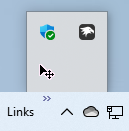
Windows 10 style for the tray overflow
-
Windows 11
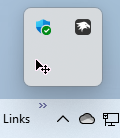
Windows 11 21H2-early 22H2 style for the tray overflow
Choosing "Open Network & Internet settings" when right clicking the network icon should open:
- Network section in the Settings app (default)
- Network and Sharing Center in Control Panel
- Network Connections in Control Panel
This allows you to decide what clicking on this item in the context menu of the network icon should do.

When clicking a system icon in the Windows 10 taskbar system tray, open:
-
Network
-
Control Center
-
Windows 11 WiFi flyout

-
Windows 10 flyout (default)

-
Windows 8 flyout
⚠️ Warning: This option does not work since Windows 11 24h2 because the Windows 8 flyout was removed.

-
Network section in the Settings app
-
Network and Sharing Center in Control Panel
-
Network Connections in Control Panel
-
-
Sound
- Windows 10 flyout (default)

- Windows 7 flyout

- Windows 10 flyout (default)
-
Clock
- Windows 11 flyout

- Windows 10 flyout
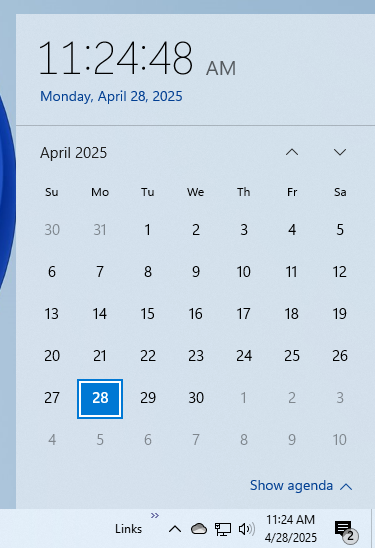
- Windows 7 flyout

- Windows 11 flyout
-
Battery
-
Windows 10 flyout
⚠️ Warning: This option does not work since Windows 11 24h2. Microsoft changed the quick actions design on 25951+ which causes the battery flyout to crash/not open. The only alternative solution currently is to use the Windows 7 battery flyout instead.

-
Windows 7 flyout (not recommended); instead, use Battery Mode

-
-
Language switcher
- Windows 11 (default)

- Windows 10 (with link to "Language Preferences")

- Windows 10

- Windows 11 (default)
File Explorer
Register as shell extension:
Not recommended for most use cases. This option is extensively documented here.
Disable the Windows 11 context menu:
[!NOTE] This option toggles a know registry trick which doesn't involve ExplorerPatcher, so it doesn't revert itself after uninstalling ExplorerPatcher.
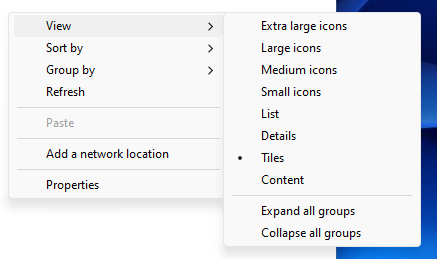
This allows disabling the new context menu when right clicking on stuff in File Explorer:

Instead, the proper, legacy menu that is displayed by clicking "Show more options" in that menu is displayed directly:

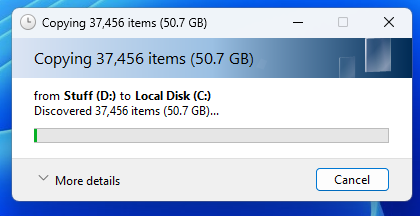
Always use legacy file transfer dialog:
This allows you to use the file transfer dialog from Windows 7.
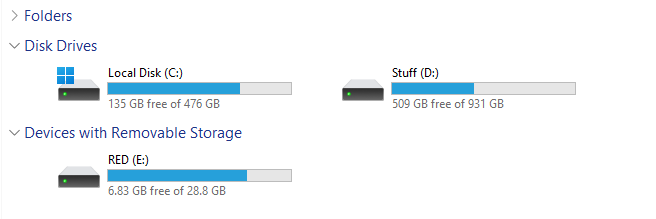
Use classic drive groupings in This PC:
This allows you to use the This PC drive grouping from Windows 7. Hard disks and removable drives are separated.
Control Interface:
-
Windows 11 Command Bar (default)
Use the normal command bar present in the Windows 11 file explorer.

-
Windows 11 Command Bar (classic Address Bar)
Use the Windows 11 command bar, but with the address bar from Windows 10. Disfunctional on newer Windows 11 builds.
-
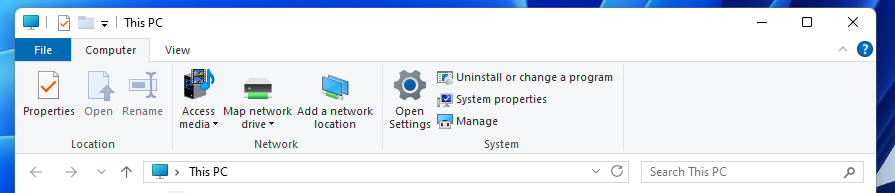
Windows 10 Ribbon
Use the RibbonUI toolbar from Windows 10 instead of the command bar.
-
Windows 7 Command Bar
Use the legacy command bar present in Windows 7 instead of the Windows 11 command bar.

Use immersive menus when displaying Windows 10 context menus:
When disabled, makes immersive context menus fallback to their legacy counterparts.
Disable the navigation bar:
Completely removes the navigation bar from File Explorer windows.

Disable modern search bar:
This can disable the new search bar that shows results in a pop-up window as you type and instead use the legacy one (from Windows 10 builds prior to 1903) that displayed the results in the File Explorer window directly.
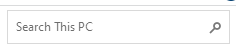
Shrink address bar height:
This can be used to shrink the address bar to it's height in older Windows 10 builds and prior versions.

Hide search bar completely:
Allows you to hide the search bar in File Explorer windows completely.

Apply Mica effect to the navigation bar of Windows 7 Explorer windows:
This allows you to apply the Windows 11 Mica material to the navigation bar of Explorer windows with the Windows 7 command bar. This option is only available on Windows 11.

Start menu
Start menu style:
-
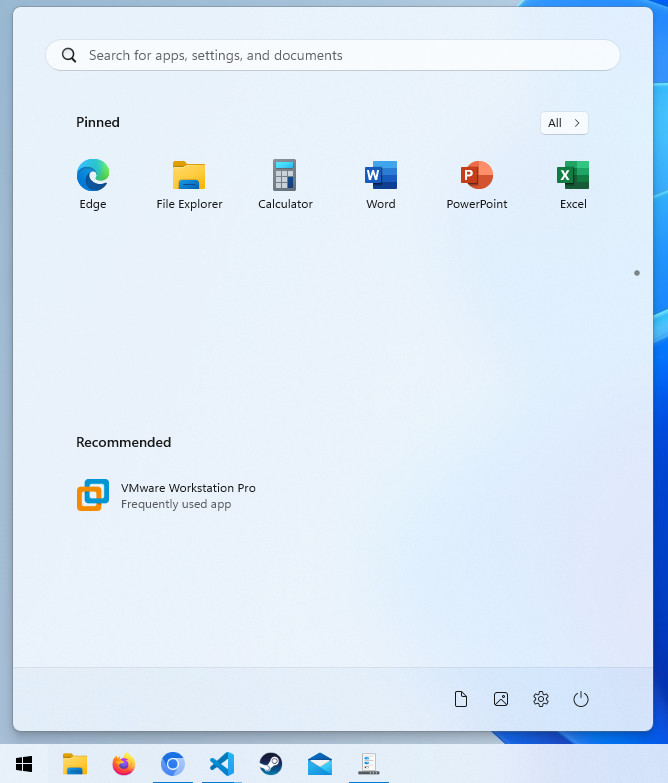
Windows 11
Use the Windows 11 Start menu. Only available on Windows 11.
-
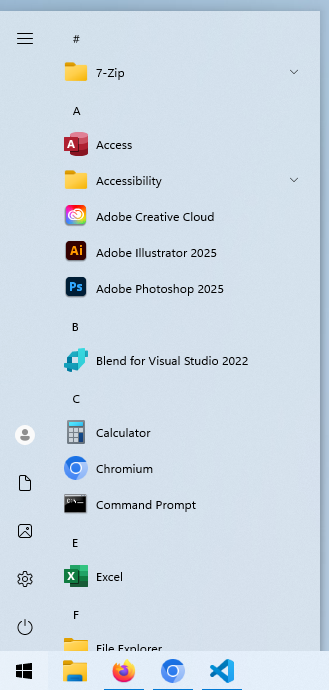
Windows 10
Use the Windows 10 Start menu.
[!NOTE] ExplorerPatcher provides different features depending on if you use the Windows 11 or 10 start menu.
Features with the
(10)prefix are only available when using the Windows 10 Start menu. Features with the(11)prefix are only available when using the Windows 11 Start menu. Features without a prefix work regardless of your start menu choice.
Position on screen:
Determines where the Start menu will display on the screen, when invoked:
- Left
- Center (default)
Maximum number of frequent apps to show
This allows you to adjust how many applications to show in the "Most used" list that's displayed at the beginning of the "All apps" list in the Start menu. To have it display an entire screen, use value "11".
If you do not see this list, go to Settings > Personalization > Start and enable "Show most used apps".
When using multiple displays, open Start on this monitor when invoked using the keyboard:
Allows you to choose which monitor the Start menu will open when the Windows key is pressed. Also allows you to open the Start menu on the monitor where the cursor is at.
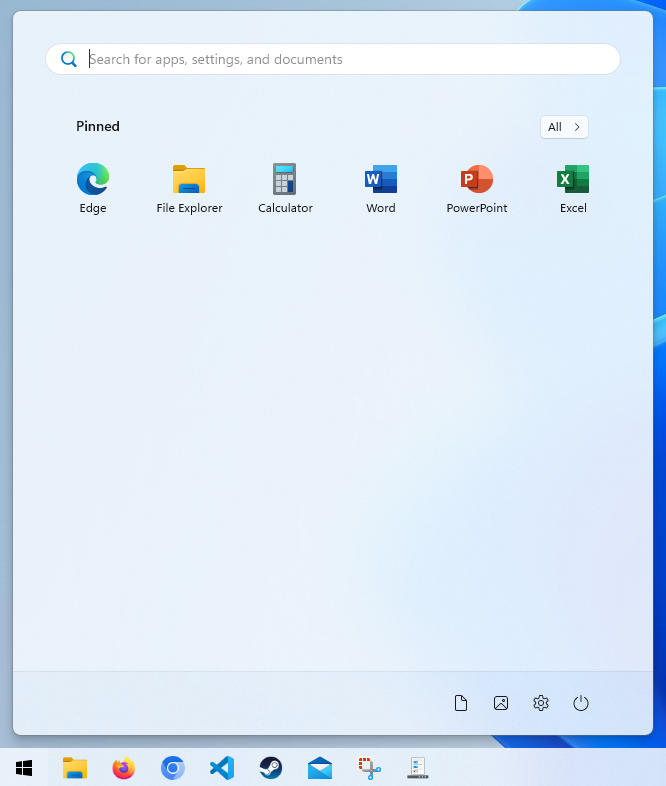
(11) Disable the "Recommended" section:
Allows you to disable the "Recommended" section of the Start menu, which displays frequently opened programs and files as well as occasional advertisements.
(11) Open Start in All apps by default
Directly opens the "All apps" list when you open the Start menu.
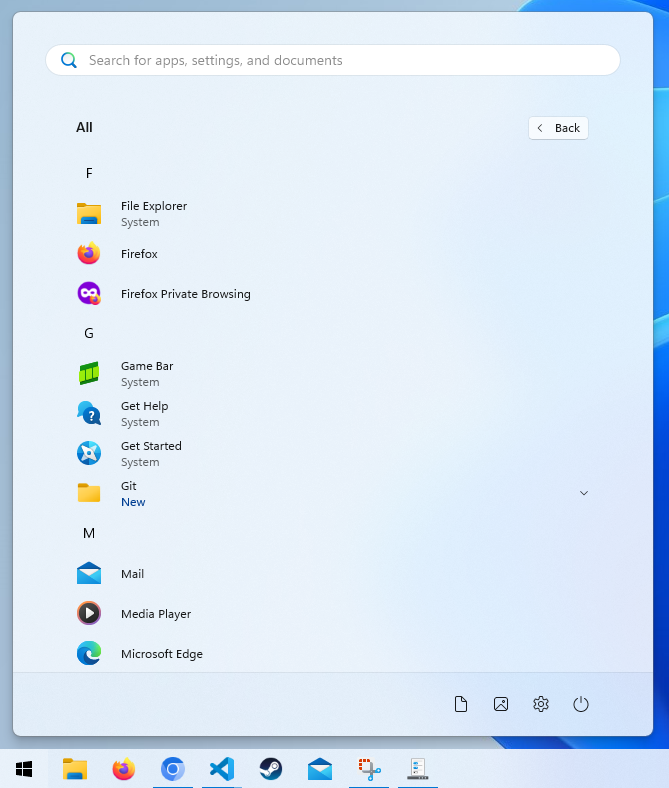
(10) Show more tiles:
Allows four tiles to be displayed in a row instead of three.
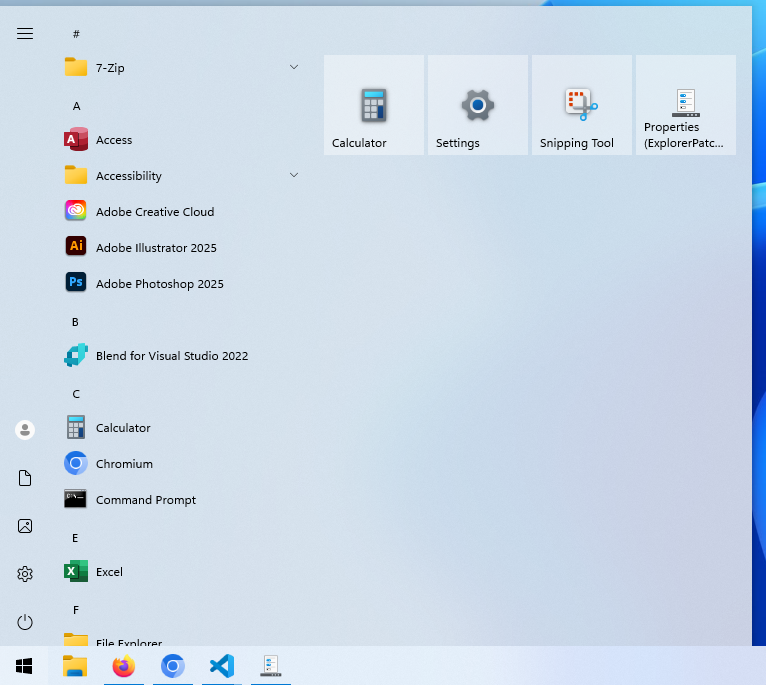
(10) Corner preference:
-
Rounded corners, floating menu
Makes the start menu background and tiles rounded. Also makes the start menu float above the taskbar.
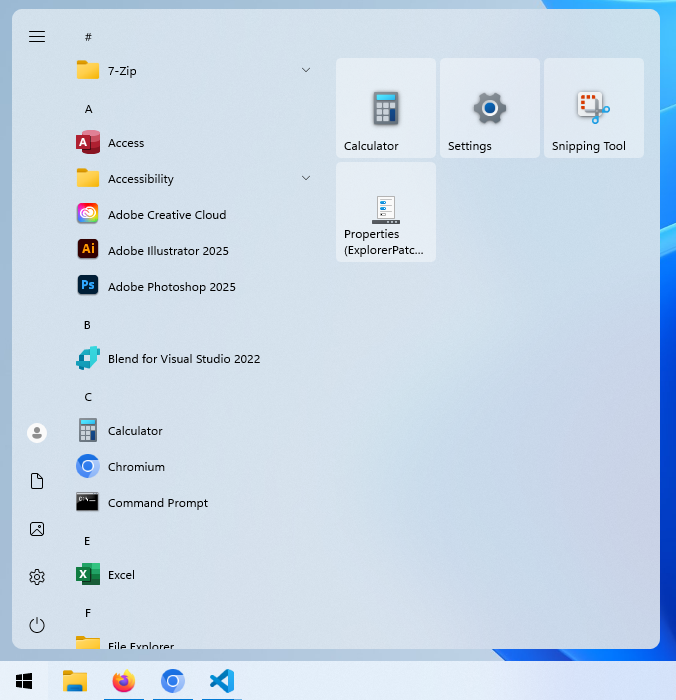
-
Rounded corners, docked menu
Makes the start menu background and tiles rounded.
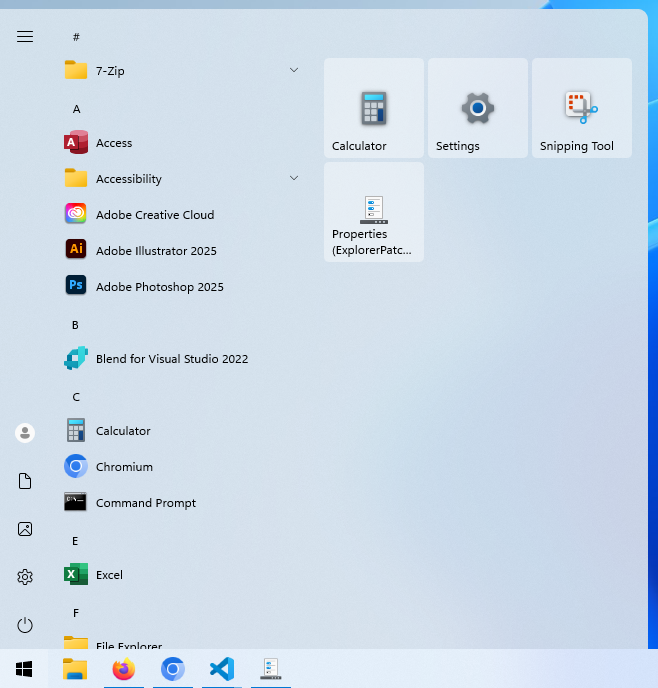
-
Not rounded
Use the default Windows 10 start menu sharp corners.
(10) Display mode:
-
Default
Do not specify a display mode.
-
Start menu
Use the standard Windows 10 Start menu.
-
Full screen Start menu
Use the Windows 10 Start in full screen mode.
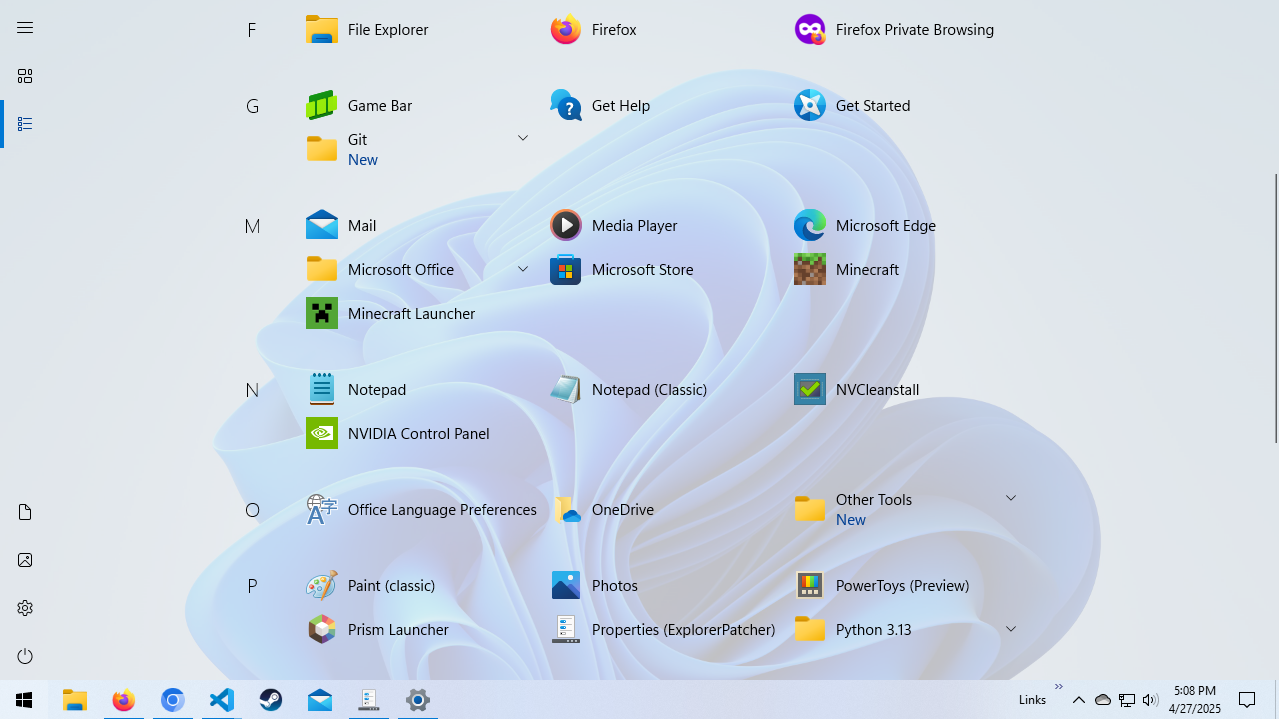
(10) App list:
-
Display
Show the app list in the Start menu. -
Hide
Hide the app list in the Start menu and only display tiles. Add an "All Apps" button to the top.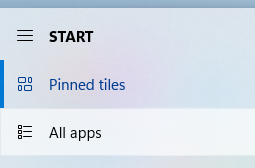
-
Disable
Hide the app list in the Start menu and only display tiles.
Window switcher
Window switcher (Alt-Tab) style:
-
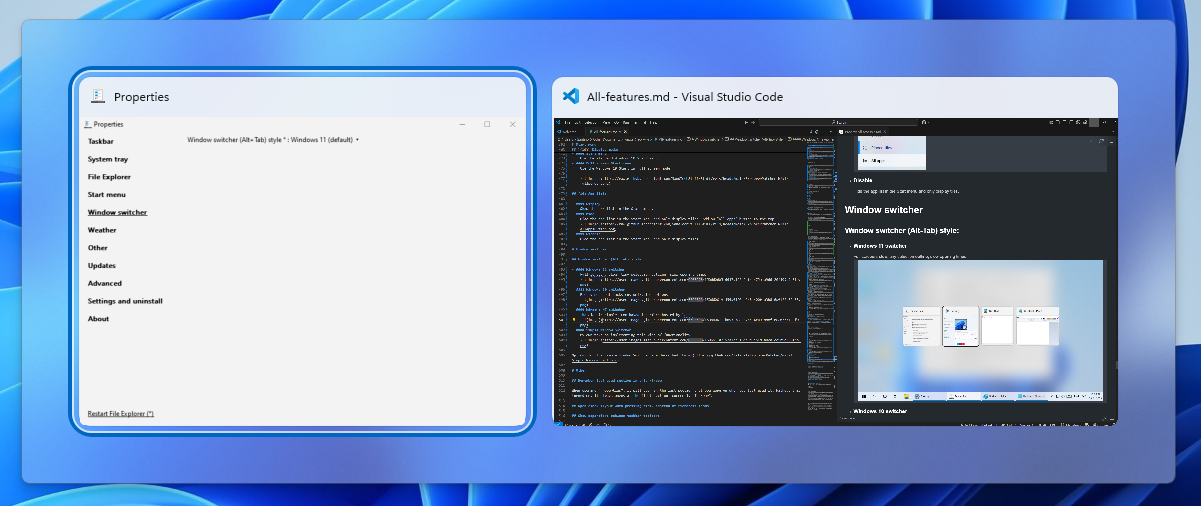
Windows 11
Use the Windows 11 Alt-Tab style. This is only available on Windows 11.
-
Windows 10
Use the Windows 10 Alt-Tab style.

-
Windows NT
Use the classic, simple icon-based interface hosted by
csrss.
-
Simple Window Switcher
Valinet's take on implementing this kind of functionality.

Options for the Simple Window Switcher are described here.
Weather
Explained in detail here.
Other
Remember last used section in this window:
When opening "Properties", it will open in the last section that you were on when you last used it. Without this turned on, it always opens at the first section, currently "Taskbar".
Open clock flyout when pressing Win+C instead of Microsoft Teams:
Pretty self-explanatory.
Show separators between taskbar toolbars:

Show Command Prompt instead of PowerShell in Win+X menu:
Pretty self-explanatory.
Add shortcut to program settings in Win+X menu:
This basically adds a link to the "Properties" window in the Win+X menu as well. The Win+X menu displays when you press that key combination or when you right click the Start button and displays a list of links to common places in the operating system.

Remove shortcut key from program settings in Win+X menu:
This removes the possibility to open the "Properties" menu that you can choose to insert in the Win+X menu by pressing the P key when the menu opened.
Disable Office hotkeys (Ctrl+Alt+Shift+Windows key combinations):
This is described in-depth here.
Disable Win+F (Feedback Hub) hotkey:
Disables the Feedback Hub opening when you press Win+F.
Disable rounded corners for application windows:
Allows you to restore sharp window corners as in Windows 10.
Default, rounded corners in Windows 11

Sharp, 90-degree angle corners, as in Windows 10

Disable quadrants when snapping windows:
Disables the ability to snap windows to the corners of the screen, and instead snaps it to the corresponding side. You can still snap them to the left, right, top, and in thirds.
Default action in the Alt+F4 dialog on the desktop:
When pressing Alt+F4 on the desktop, the "Shut Down Windows" dialog is displayed. Use this option to configure what the default in that list is:
- Switch user
- Sign out
- Sleep
- Hibernate
- Shut down (default)
- Restart
Prevent the following Control Panel links from being redirected to the Settings app:
- System / About page: This makes it so that when you right click a This PC window and choose "Properties" or you choose "Properties" from the toolbar or ribbon, it will open the legacy "System" page in the Control Panel, instead of the Settings > System > About.
- Programs and Features This makes it so that when you click "Uninstall a program" in the ribbon or toolbar of a This PC window, it will open "Programs and Features in the Control Panel, instead of Settings > Apps > Apps and features.
- Adjust date/time This makes it so that when you right click the clock and choose "Adjust date/time", it will open the legacy Control Panel interface for configuring the clock, instead of Settings > Time & language > Date & time.
- Customize notification icons This makes it so that when you right click the clock and choose "Customize notification icons", it will open the legacy Control Panel interface for configuring the notification icons, instead of Settings > System > Notifications.
Updates
This section is described here.
Advanced
This section is described here.
About
This displays general information about the program. It also allows you to manage the settings of the application, like exporting your current configuration to a file, importing a config from an existing file, or restoring the defaults of ExplorerPatcher. You can read more about this here.
Restart File Explorer
This restarts the File Explorer process, that is responsible with hosting the shell, including the desktop, taskbar, and folder windows. It is mainly useful for applying certain tweaks right away, without needing to sign out and back in or to reboot the computer.