Record and Play Character Movements_Text - SIGVerse/sigverse_unity_project GitHub Wiki
Record and Play Character Movements (Save to Text file)
This example provides the recording and playback function of a human avatar movement. The movement is recorded on a text file.
Startup Procedure
Execute the example scene according to the following steps.
- Open the SIGVerse project in Unity.
- Double-click [Assets/SIGVerse/ExampleScenes/Playbacker/Playbacker(.unity)] on the [Project] tab to open the target scene.
- Click the play button at the top center of the Unity to play the scene.
Recording to a Text File
- Select [Text Recorder] for Mode.
- Make some settings such as [Output File].
- Click the [Start] button to start recording to a text file.
- Operate the character using arrow keys.
(Click [Baby icon] to show/hide the panel.) - Click the [Stop] button to stop recording to a text file.
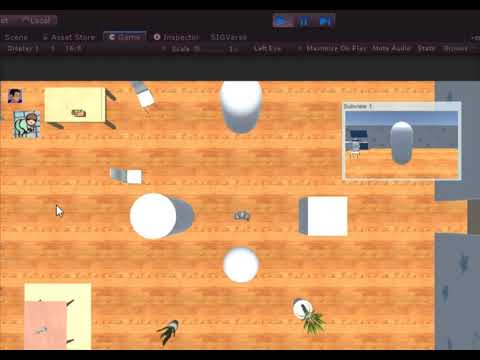
Screenshot of the example scene. (It might differ from the latest version)

Playback from the Text File
- Select [Text Player] for Mode.
- Set the file path for recording to [Input File].
- Press the [Start] button to start playback.
(Click [Baby icon] to show/hide the panel.) - When the [Stop] button is pressed or the recording time elapses, playback ends.
Screenshot of the example scene. (It might differ from the latest version)

Reference Video (It might differ from the latest version)