How to use Orna Buildings Map [en] - Rplus/Orna GitHub Wiki
https://rplus.github.io/Orna/map/
You can use this map to share nearby Orna buildings with other players. Olympic Tower only for now.
Main Interface
- Left & Top: map zoom-in / zoom-out
- Right & Top: could switch different map layers
- Left & bottom: There are multi panels in the hamburger menu: buildings, portals, settings & location button.
1. Buldings Panel
Custom filters for buidings.
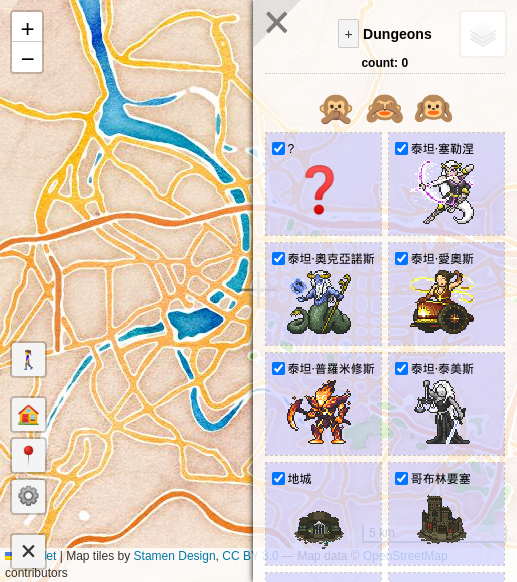
Special icon:
[ ? ]: outdated or non-confirmed data[ X ]: be marked asremovedby ohters.
You could choose to show them or not.
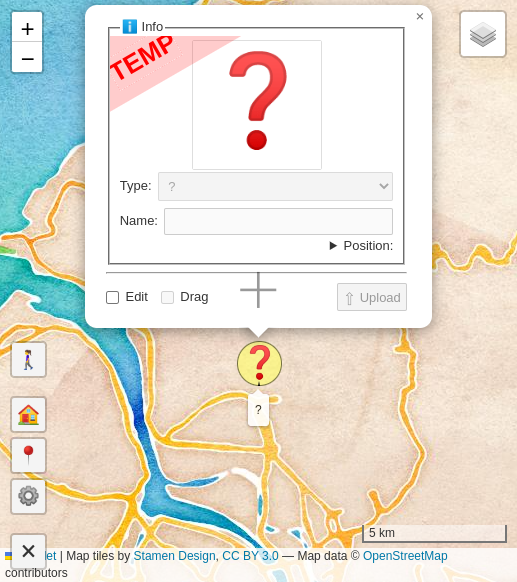
The most important thing: [ + ] button on the left of panel title
- click
[ + ]to create new building icon on map center - click the building icon to show infomation
- check the
[ Edit ]to edit info - check the
[ Drag ]to drag icon & change its position - after confirm info, click
[ Upload ]to share this buildings info with others.
ps: This data keeps on your device only before uploading.
2. Portals Panel
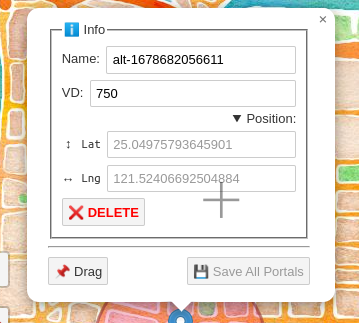
You could create portal/wv position here.
It will be nice note for your alts' wv.
The data of this part will not be uploaded. Only you could see those data.
The same, [ + ] button on the left of panel title will create a new marker on map center.
you could edit the marker info(name, view distance) and drag to change its position.
Be sure to click [ Save all ] button to save newer info after you edit.
You could delete marker by clicking [ Delete ] button in position details section.
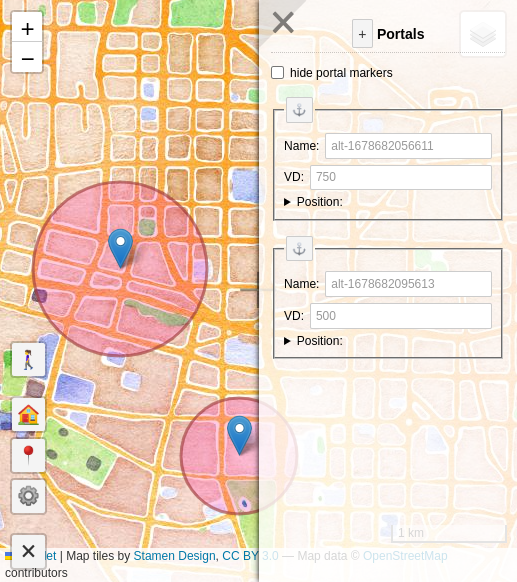
Quick move to the marker position by clicking the anchor icon on left and top side of marker section in the panel.
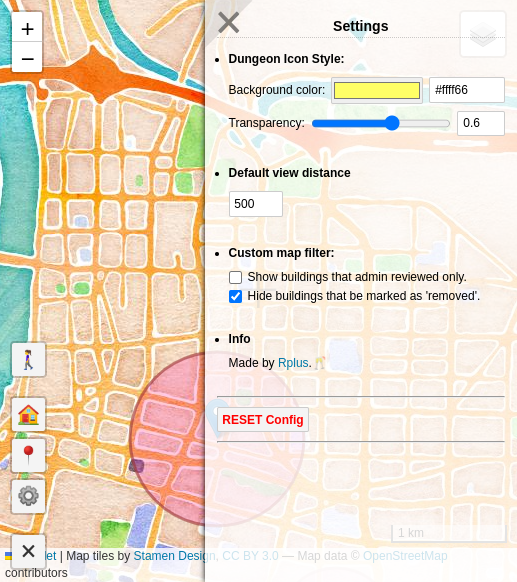
3. Custom Setting Panel
- custom building marker icon style
- default view distance
- custom marker filter:
only two filters now:- checked by admin only
(there are no one to help to check data now, so don't check this now) - ignore icons that be marked as
removed
- checked by admin only
RESET config, this might be helpful before it becomes messy.