Using the API and Power Query to analyze adjudicator feedback - Rokory/tabbycatdocs GitHub Wiki
Connect Excel with the Tabbycat API
- Download and open the Excel file.
- If prompted, Activate content.
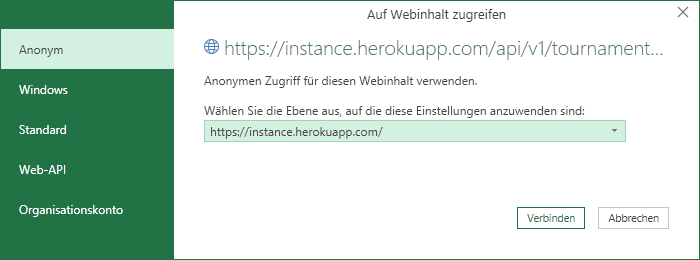
- In the dialog Auf Webinhalt zugreifen, on the left-hand side, click Anonym and Verbinden.
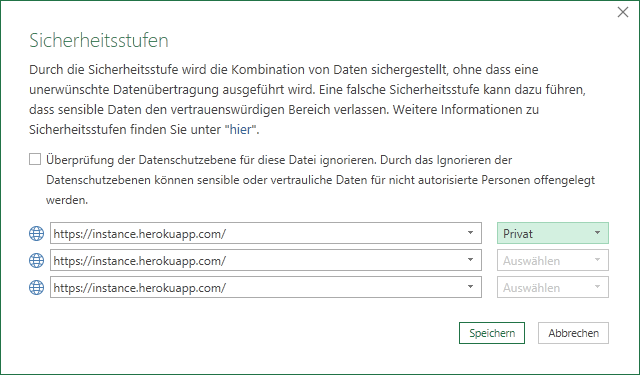
- In the dialog Sicherheitsstufen, for https://instance.herokuapp.com (or whatever is shown), select Privat.
You will receive two error messages regarding the retrieval of data failed. This is normal as you did not provide the correct parameters yet. Click OK.
- On the ribbon, click Daten, Abfragen und Verbindungen (in the group of the same name).
- In the pane Abfragen und Verbindungen, in the context menu of any connection, click Bearbeiten. The Power Query Editor opens.
- In the ribbon, click Start, Parameter verwalten.
- Edit Aktueller Wert of the three parameters hostname, tournament_slug, and token according to their descriptions, and click OK.
- In the ribbon, click Start, Schließen & laden.
- Back in Excel, in the ribbon, click Daten, Alle aktualisieren.
Analyzing the feedback data
The workbook does not store the data retrieved from the Tabbycat API. In fact, all data is cleared when you close the workbook. However, the workbook retrieves the data automatically when you open the workbook, although this may take a few seconds.
To query the current data again, on the ribbon, click Daten, Alle aktualisieren.
The Excel workbook retrieves data in two sheets:
- On the sheet feedback, you see the raw feedback data for all adjudicators and rounds. The lines are randomized based on the random number column Order. You may use this sheet to see detailed information about an adjudicator or extract feedback comments to send them by e-mail. You may also use this sheet to build custom analysis or a pivot table.
- On the sheet analysis, the average of all feedback questions with type number is calculated for each adjudicator. Use this sheet for quick analysis. You may want to click into a column and sort it in descending order.
How it works
The information in this section is provided to let you recreate the Excel workbook by hand. This is useful if you want to understand what's going on and how to customize the queries for your own requirements.
Open the Power Query-Editor
In the ribbon, click Daten, Daten abrufen (in group Daten abrufen und transformieren), Power Query-Editor starten...
Add parameters
- In Power Query-Editor, in the ribbon, click Start, Parameter verwalten (in group Parameter).
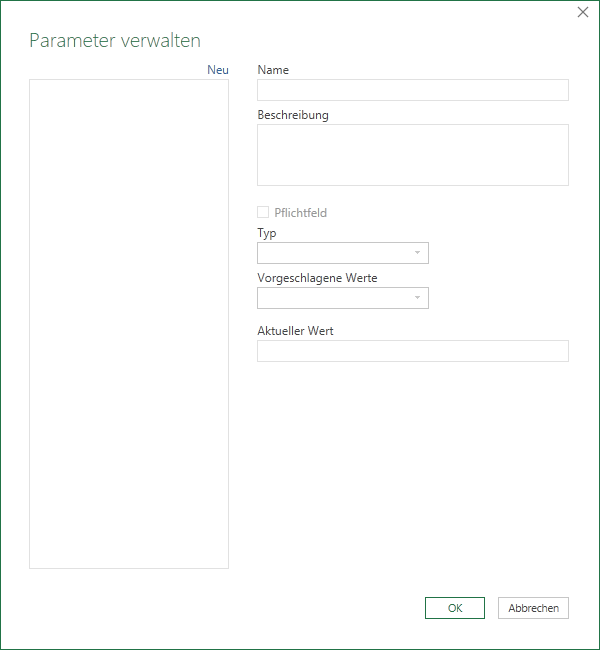
- In the dialog Parameter verwalten, click Neu.
-
In Name, type hostname. In Typ, select Text. In Aktueller Wert, enter the hostname of your Tabbycat instance. You might want to add a description too.
-
Repeat steps 2 and 3 for the parameters tournament_slug and token. For information about how to retrieve the token, see (https://tabbycat.readthedocs.io/en/stable/features/api.html).
-
Click OK.
You should see the parameters in the query pane.
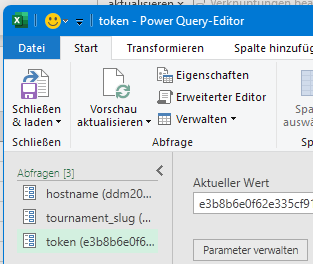
Create the queries
- In Power Query-Editor, in the ribbon, click Start, Neue Quelle (in group Neue Abfrage), Andere Quellen, Leere Abfrage.
- In the query pane, in the context-menu of the new query, click Umenennen, type adjudicators and press ENTER.
- In the ribbon, click Start, Erweiterter Editor (in group Abfrage).
- In Erweiterter Editor, replace the existing code with the query code provided below for each query and click Fertig.
Repeat these steps for the queries questions, feedback and analysis (in this order).
Query definitions
Here are the Power Query M code snippets for the queries adjudicators, questions, feedback, and analysis.
adjudicators
let
    Source = Json.Document(Web.Contents("https://" & hostname & "/api/v1/tournaments/" & tournament_slug & "/adjudicators", [Headers=[Authorization="token " & token]])),
    #"Converted to table" = Table.FromList(Source, Splitter.SplitByNothing(), null, null, ExtraValues.Error),
    #"Expanded Column1" = Table.ExpandRecordColumn(#"Converted to table", "Column1", {"url", "name"}, {"Column1.url", "Column1.name"}),
    #"Renamed columns" = Table.RenameColumns(#"Expanded Column1",{{"Column1.url", "url"}, {"Column1.name", "name"}})
in
    #"Renamed columns"
questions
let
    Source = Json.Document(Web.Contents("https://" & hostname & "/api/v1/tournaments/" & tournament_slug & "/feedback-questions", [Headers=[Authorization="token " & token]])),
    #"Converted to table" = Table.FromList(Source, Splitter.SplitByNothing(), null, null, ExtraValues.Error),
    #"Expanded Column1" = Table.ExpandRecordColumn(#"Converted to table", "Column1", {"url", "text", "name", "from_adj", "from_team"}, {"Column1.url", "Column1.text", "Column1.name", "Column1.from_adj", "Column1.from_team"}),
    #"Renamed columns" = Table.RenameColumns(#"Expanded Column1",{{"Column1.url", "url"}, {"Column1.text", "text"}, {"Column1.name", "name"}, {"Column1.from_adj", "from_adj"}, {"Column1.from_team", "from_team"}})
in
    #"Renamed columns"
feedback
let
    Source = Json.Document(Web.Contents("https://" & hostname & "/api/v1/tournaments/" & tournament_slug & "/feedback", [Headers=[Authorization="token " & token]])),
    #"Converted to table" = Table.FromList(Source, Splitter.SplitByNothing(), null, null, ExtraValues.Error),
    #"Expanded Column1" = Table.ExpandRecordColumn(#"Converted to table", "Column1", {"adjudicator", "answers", "debate"}, {"Column1.adjudicator", "Column1.answers", "Column1.debate"}),
    #"Expanded Column1.answers" = Table.ExpandListColumn(#"Expanded Column1", "Column1.answers"),
    #"Expanded Column1.answers1" = Table.ExpandRecordColumn(#"Expanded Column1.answers", "Column1.answers", {"question", "answer"}, {"Column1.answers.question", "Column1.answers.answer"}),
    #"Renamed columns" = Table.RenameColumns(#"Expanded Column1.answers1",{{"Column1.adjudicator", "adjudicator"}, {"Column1.answers.question", "question"}, {"Column1.answers.answer", "answer"}}),
    #"Joined with query adjudicators" = Table.NestedJoin(#"Renamed columns", {"adjudicator"}, adjudicators, {"url"}, "adjudicators", JoinKind.LeftOuter),
    #"Expanded adjudicators" = Table.ExpandTableColumn(#"Joined with query adjudicators", "adjudicators", {"name"}, {"adjudicators.name"}),
    #"Joined with query questions" = Table.NestedJoin(#"Expanded adjudicators", {"question"}, questions, {"url"}, "questions", JoinKind.LeftOuter),
    #"Expanded questions" = Table.ExpandTableColumn(#"Joined with query questions", "questions", {"text", "name", "from_adj", "from_team"}, {"questions.text", "questions.name", "questions.from_adj", "questions.from_team"}),
    #"Removed columns" = Table.RemoveColumns(#"Expanded questions",{"adjudicator", "question"}),
    #"Duplicated column answer" = Table.AddColumn(#"Removed columns", "answer numeric", each [answer], type any),
    #"Added custom column order" = Table.AddColumn(#"Duplicated column answer", "Order", each Number.Random()),
    #"Changed type" = Table.TransformColumnTypes(#"Added custom column order",{{"answer numeric", type number}}),
    #"Replaced errors" = Table.ReplaceErrorValues(#"Changed type", {{"answer numeric", null}}),
    #"Sorted lines" = Table.Sort(#"Replaced errors",{{"Order", Order.Ascending}}),
    #"Reordered columns" = Table.ReorderColumns(#"Sorted lines",{"adjudicators.name", "questions.text", "questions.name", "answer", "answer numeric", "questions.from_adj", "questions.from_team"})
in
    #"Reordered columns"
analysis
let
    Source = feedback,
    #"Removed columns" = Table.RemoveColumns(Source,{"Column1.debate", "questions.text", "answer", "questions.from_adj", "questions.from_team", "Order"}),
    #"Filtered lines" = Table.SelectRows(#"Removed columns", each ([answer numeric] <> null)),
    #"Pivoted column" = Table.Pivot(#"Filtered lines", List.Distinct(#"Filtered lines"[questions.name]), "questions.name", "answer numeric", List.Average)
in
    #"Pivoted column"
Load data into the Excel workbook
In Power Query-Editor, in the ribbon, click Start, Schließen und laden.
Remove personal identifiable information from the Excel workbook
- In Excel, in the ribbon, click Daten, Abfragen und Verbindungen.
- In the pane Abfragen und Verbindungen, in the context-menu of feedback, click Eigenschaften.
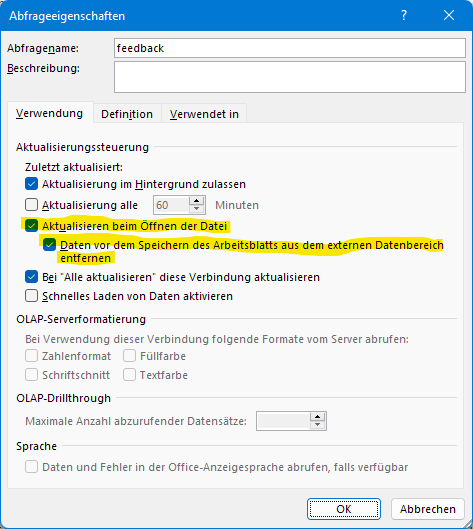
- In the dialog Abfrageeigenschaften, activate Aktualisieren beim Öffnen der Datei and Daten vor dem Speichern des Arbeitsblatts aus dem externen Datenbereich entfernen, and click OK.