On Screen Keyboard - Riqqqque/Homebase GitHub Wiki
On-Screen Keyboard
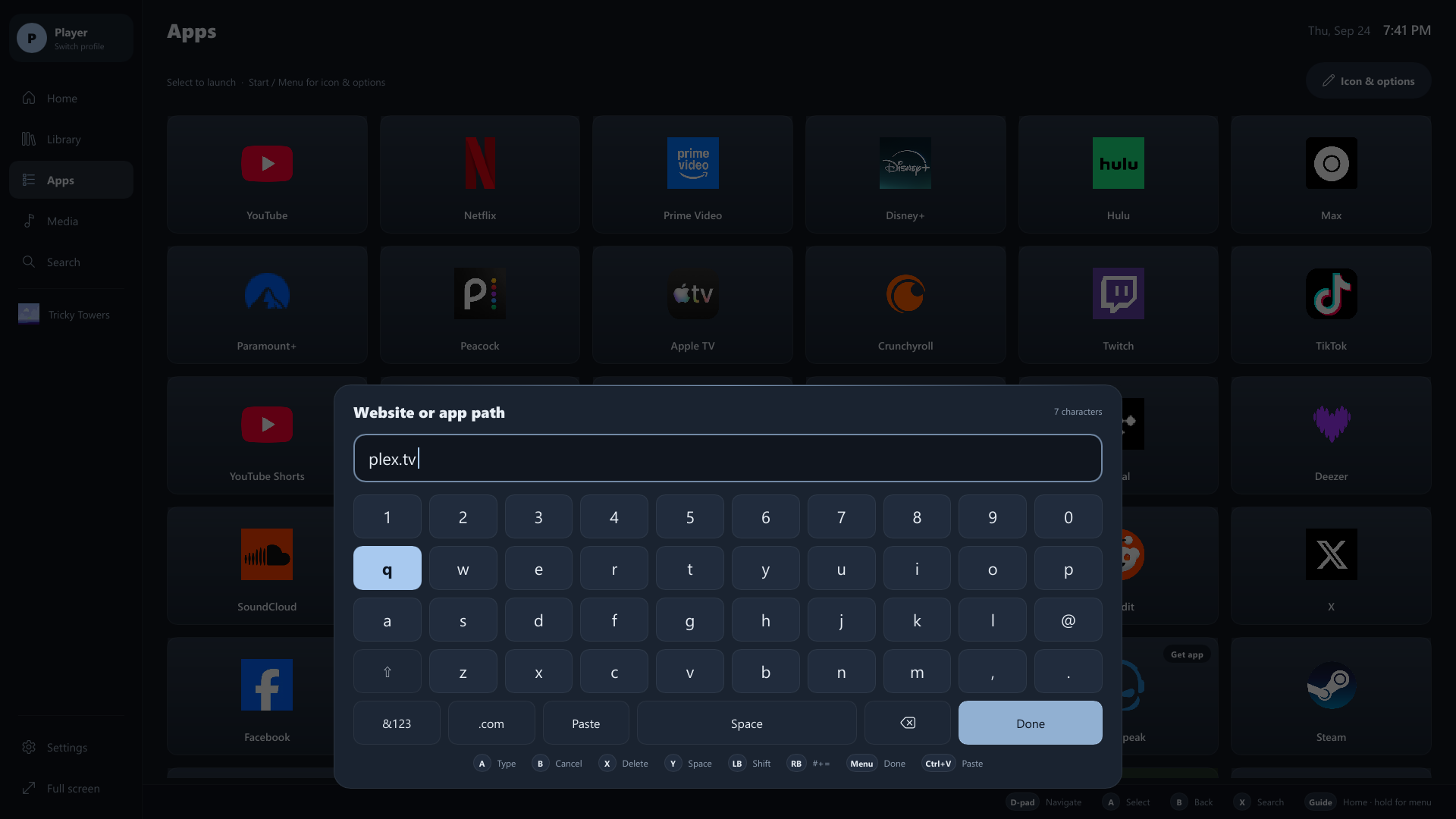
Homebase has one console-style keyboard layout, used in two places:
- In Homebase: search, Add app fields, profile names.
- In apps: a panel along the bottom of the screen that types straight into the app above it, live, while the app keeps focus.
When it appears
- Selecting any text field in Homebase opens it.
- In an app it pops up when you select a text box, or when the page puts the cursor in one by itself (sign-in codes, search pages).
- View opens it on demand in any app.
- If you close it while still in the same box, it stays closed until you move to another box or select one again.
Password boxes get the keyboard too; what you type shows as dots, and Homebase never stores it.
Controller shortcuts
| Button | Does |
|---|---|
| D-pad / left stick | Move between keys |
| A | Press the highlighted key |
| B | Close (in Homebase: cancel) |
| X | Backspace |
| Y | Space |
| LB | Shift (one letter, then back to lowercase) |
| RB | Letters / symbols |
| Start (Menu) | Enter / Done |
The bottom row has &123 (symbols), .com, Paste, Space, Backspace and Enter (Done in Homebase). Paste types whatever text is on the Windows clipboard, handy for long addresses and codes.
With a real keyboard
In Homebase's own fields you can simply type. Ctrl+V / Shift+Insert paste, Ctrl+C copies, Ctrl+X cuts, Ctrl+Backspace deletes a word, Enter finishes and Esc cancels. Arrow keys move across the on-screen keys if you'd rather use them.
Limits
The pop-up relies on apps reporting their text boxes to Windows (UI Automation). Browsers and most modern apps do; some games and older programs don't. View opens the keyboard manually in those cases.