Library and Artwork - Riqqqque/Homebase GitHub Wiki
Library and Artwork
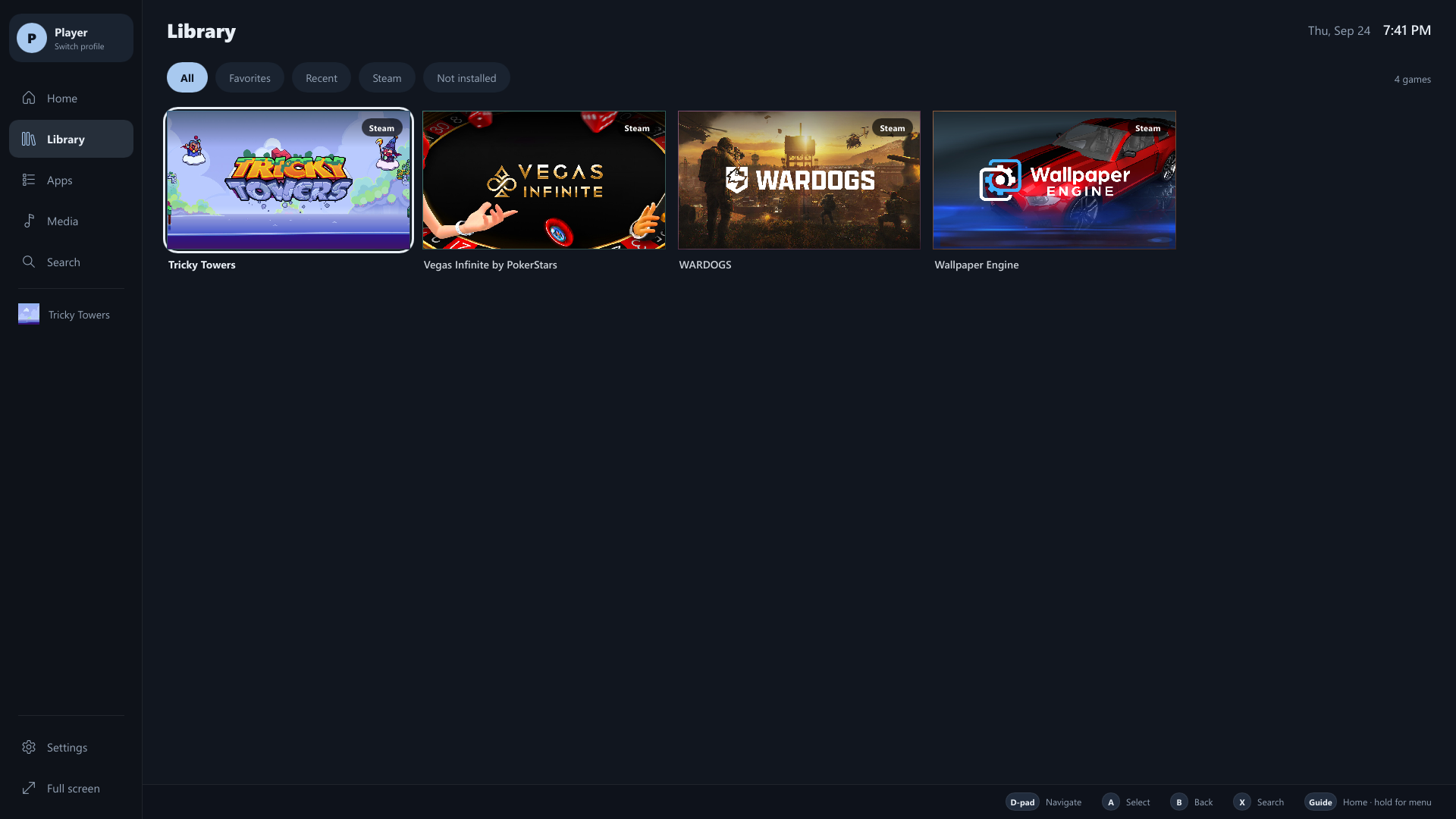
Where games come from
- Steam: installed games are read straight from your Steam library folders, no sign-in or API key needed. Tools, runtimes, redistributables and dedicated servers are left out.
- Local folders: games in the configured folders are found by scanning for their executables; installers, updaters and redistributables are skipped.
Homebase keeps looking in the background: shortly after startup, every few minutes, and right after a game closes. New installs appear on their own; Settings → Scan for games runs a scan now.
Filters
The Library has All, Favorites, Recent, one chip per store, and Not installed.
Not installed lists games you own on Steam that aren't on this PC. Press A or Start → Install and Steam opens its install window. Games you never want to see can be hidden from there, and brought back with Settings → Show hidden games.
Game details
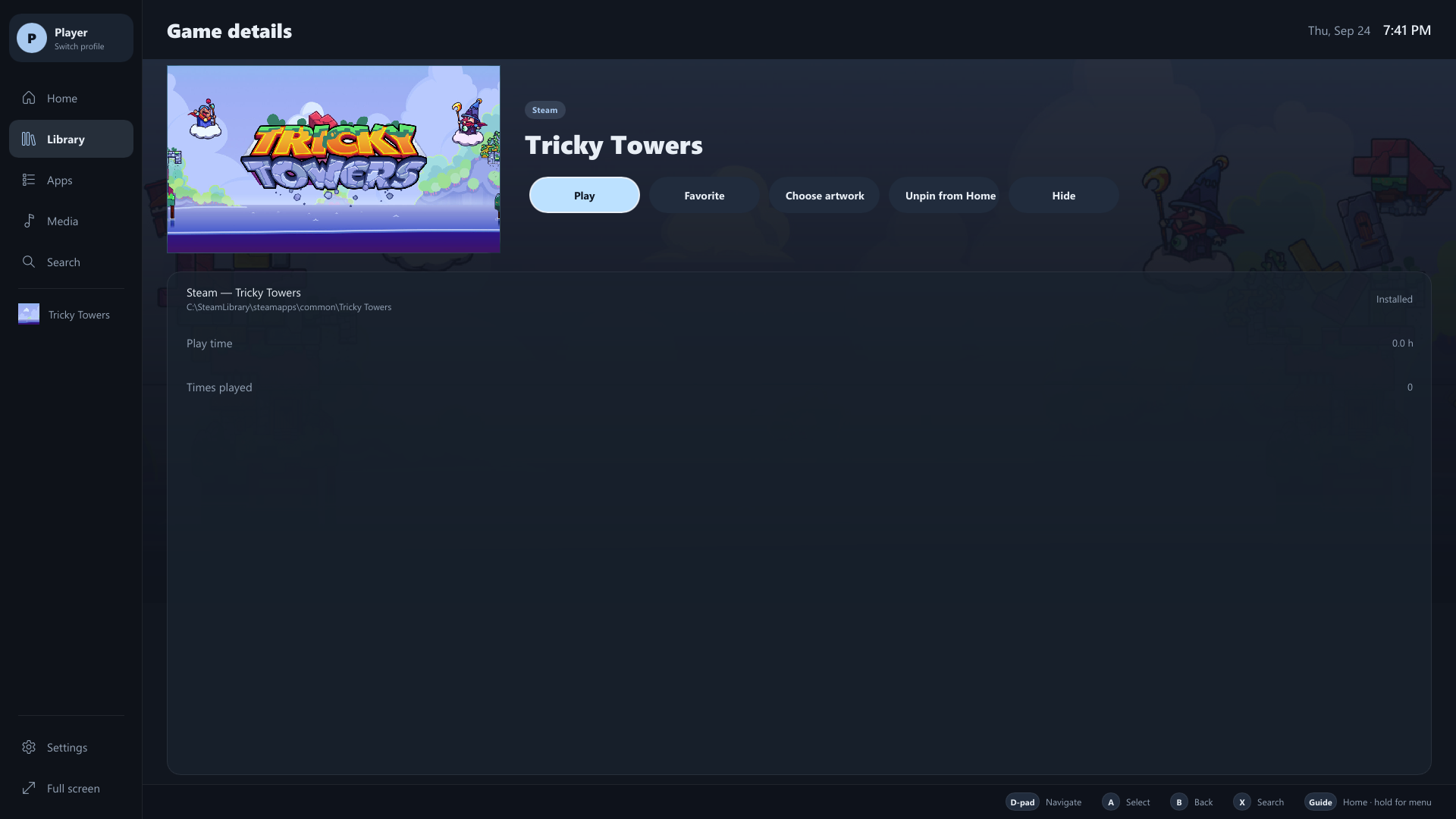
Select a game for its details: Play, Favorite, Choose artwork, pin or unpin, Hide, play time and how many times it's been played. While a game is running, the same screen and its Options offer Switch to, Close (asks the game to quit, like closing its window) and Force close (ends it right away; unsaved progress is lost).
Games without controller support
Some PC games only understand a mouse and keyboard. Highlight the game, press Start and switch Controller: Native to Controller: Mouse & keyboard. While that game is in front, the left stick moves the mouse, A and RT click, LT right-clicks, the D-pad sends arrow keys, B is Esc and View opens the on-screen keyboard. Leave games that support controllers on Native so their own controls aren't doubled.
Launchers and dialogs that appear while any game runs (an EA or Ubisoft launcher, a store sign-in) are always controllable this way.
Play time and sessions
Homebase follows the real game process, including launcher handoffs such as Steam starting the actual game. It records play time and double-checks the process identity before closing anything, so it never closes the wrong program.
Artwork
Homebase uses the best artwork it can find, in this order:
- Your own image, if you picked one.
- Steam's local library artwork (headers and covers).
- Steam's published artwork for the game's app ID, downloaded once and cached.
- The game's own high-resolution executable icon.
- A tidy letter tile.
Apps use your image, the app's own high-resolution icon, or the website's icon. To change any artwork: highlight it, press Start (or right-click), and choose Choose artwork / Choose icon. PNG, JPEG, WebP and ICO are supported.