Basic Modding - RemnantETS/AuriHellMod GitHub Wiki
Before you begin, you will need to either clone the Kai Helios Asset Editor project.
You can do this in the AuriHellMod project root via git clone https://github.com/kaiheilos/Utilities.git or download the .zip, extracting the file in the AuriHellMod project root.
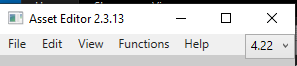
The Kai Helios Asset Editor will be used very frequently during modding. For Remnant, make sure the versioning is set to 4.22, although if read errors occur (garbled data), you can try dropping down to 4.19.
-
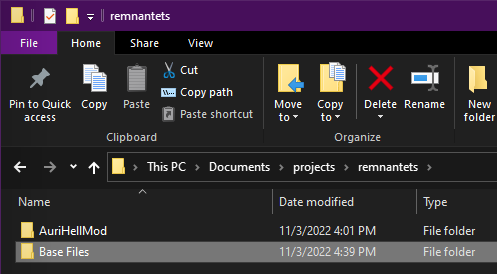
Outside of the AuriHellMod project directory, create a
/Base Filesdirectory. This directory should be treated as Read Only and used as a reference to copy and paste files over to your current working mod directory.
-
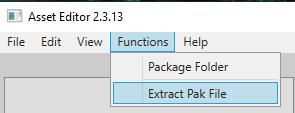
Inside of Kai Helios Asset Editor, select Extract Pak File.
-
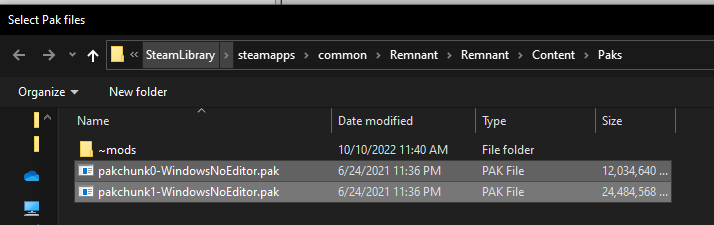
Navigate to
/Remnantinstall directory for Steam or Epic, respectively, and navigate to/Remnant/Content/Paksdirectory.
-
In the
Select Pak filesprompt, select thepakchunk0-WindowsNoEditor.pak. -
In the
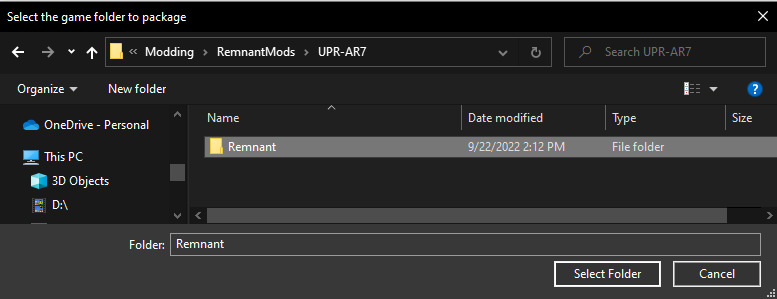
Select the game folder to packageprompt, select the/Base Filesdirectory you created in Step #1. -
Standby while the extraction takes place. You will know when the process is complete when the terminal window completes as follows below. Press any key to close the window.

-
Follow Step #2 through #5 to extract the
pakchunk1-WindowsNoEditor.pakwithin the/Base Filesdirectory. -
Standby while the extraction takes place. You will know when the process is complete when the terminal window completes as follows below. Press any key to close the window.
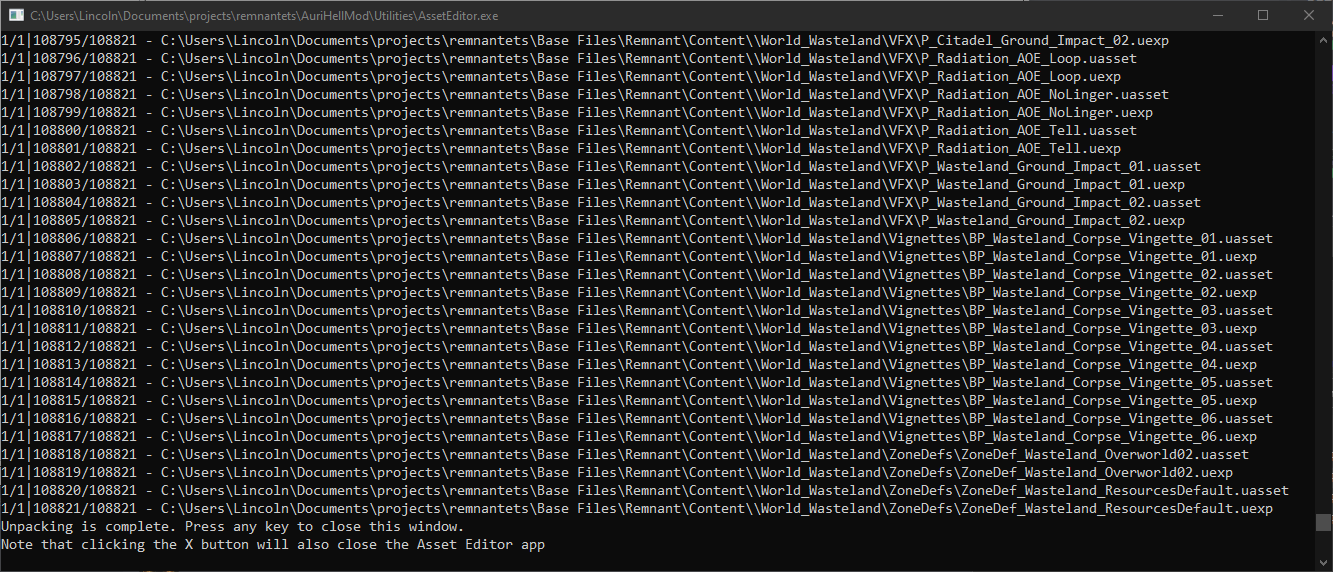
IMPORTANT: Do not extract these .pak files inside of the /Paks directory in your Remnant install folder! The result will be highly unoptimized and messy.
For any new Mod "Projects" created the development process should involve recreating the folder pathing to all editted .uasset .uexp, starting at the top level Remnant folder, these folders are vital in order to get the mod properly mounted and able to load in the game.
So if editting Braided Thorns you will create the path to ModName\Remnant\Content\World_City\Items\Trinkets\BraidedThorns and copy over Trinket_BraidedThorns.uasset and Trinket_BraidedThorns.uexp to that folder.
If you want to edit a trinkets stat type or value, you will need to view the "None" Block.
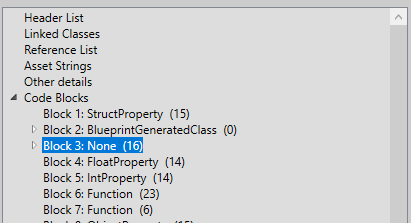
This section holds most if not all of the relevant data you will edit in the Basic Modding section.
Keep in mind the most you will be able to do is change header names and edit float values, and you CANNOT change function data, so most of what you do will feel sort of like working on preexisting templates that you slightly tweak to suit your own purpose.

These are the blue/light blue cells, these are located inside "Header List" and are referenced by their index number in necessary cells, by default the typical organization pattern is alphabetical although previously edited files may be out of order.
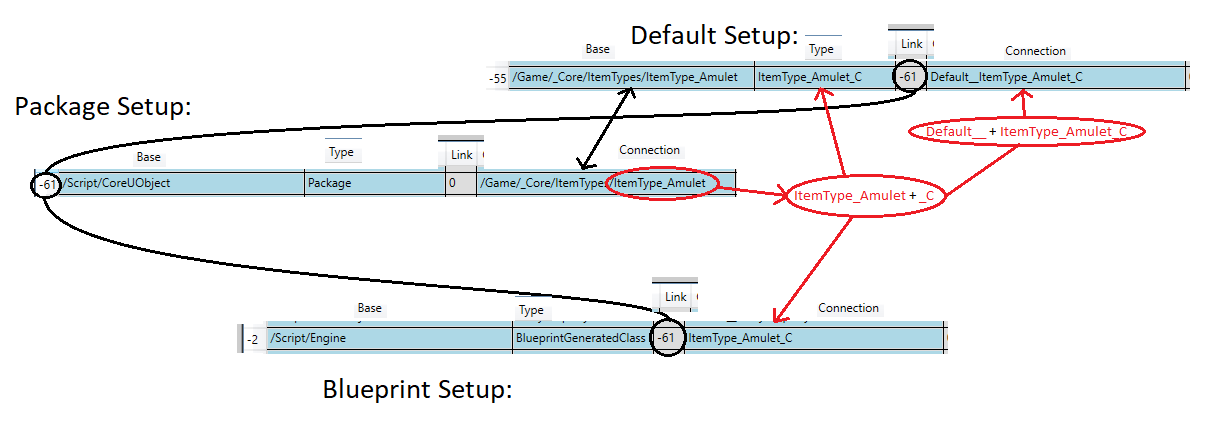
These are the neon green cells (hovering over gives the negative index of the blueprint row), these are located inside "Linked Classes" and these are slightly more complicated in that they are made up of usually 2 or 3 rows aka "linkages", a Package, a BlueprintGeneratedClass, and sometimes a Default, when editing the names/paths you must match all 2 or 3 rows or you will get "Waiting for construction" crashes.
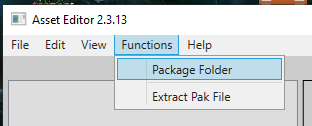
Inside of Kai Helios select Package Folder.
Select the top Remnant folder where your mod files are located.
Next to this folder you will see 500-ModName_P.pak, this is your packed mod. If all is well with your changes placing the pak inside Paks/~mods/ and booting the game will load the changes provided your changes are noticeable.