Verifying USB Connectivity - QuantAsylum/QA40x GitHub Wiki
Normally, when you receive your analyzer, you need only follow the the following steps to start making measurements:
Install the application software
The software is located HERE. The application download is under 10 Mbytes in size and makes no changes to your registry. You can run it as a portable install from a thumb drive if needed.
Run the application.
It will be listed under the Windows Start as "QA40x".
Select the correct device.
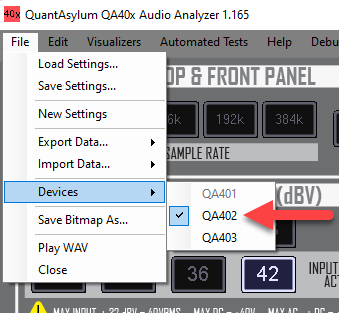
Before plugging in the hardware, you need to tell the application which hardware you plan on connecting. That is done from the File->Devices menu.
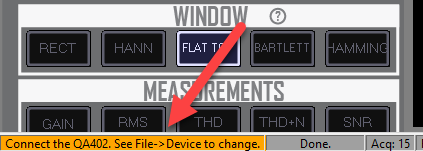
The status bar in the lower-left corner will indicate the hardware device that the application is expecting:
Plug in your hardware.
You should see the 3 front-panel LEDs on the hardware cycle for about one second, and the status bar on the lower left will indicate "Connected." And at that point, you are ready to make measurements.
Troubleshooting Connectivity
On Windows 10 and Windows 11, no drivers are needed for the hardware (see HERE for Linux). Plugging in a QA40x device (QA402, QA403, QA404, etc) will result in Windows automatically installing the default Microsoft driver for the hardware.
When plugged-in, the QA40x devices (QA402, QA403, QA404) will appear in the Windows Device Manager Tree underneath the "Universal Serial Bus devices" tag.
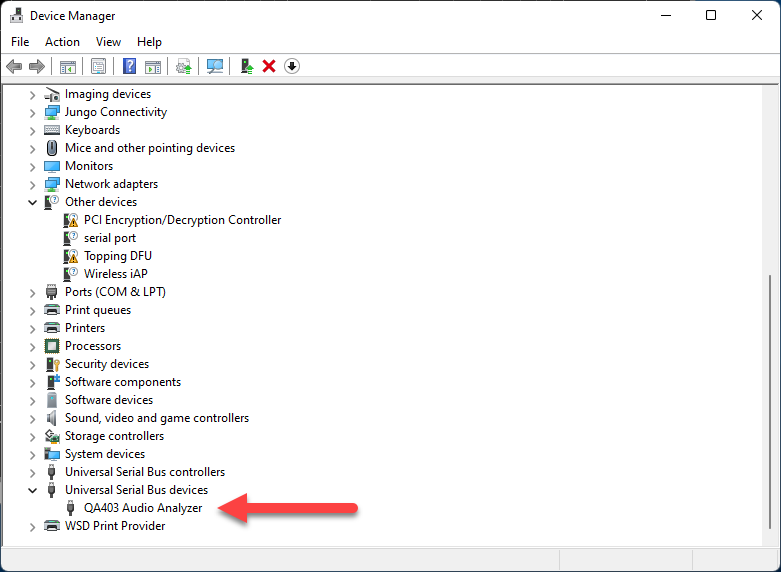
With the device manager open, when you plug and unplug the QA40x hardware, you should see a repaint of the device manager "tree" as the USB device is re-enumerated.
Additionally, you should see the 3 front panel LEDs quickly cycle for one second, followed by the ATTEN LED remaining on, and potentially the LINK LED remaining on if the application is running. The cycling LEDs indicate a valid encrypted image is present in the QA40x hardware's processor.
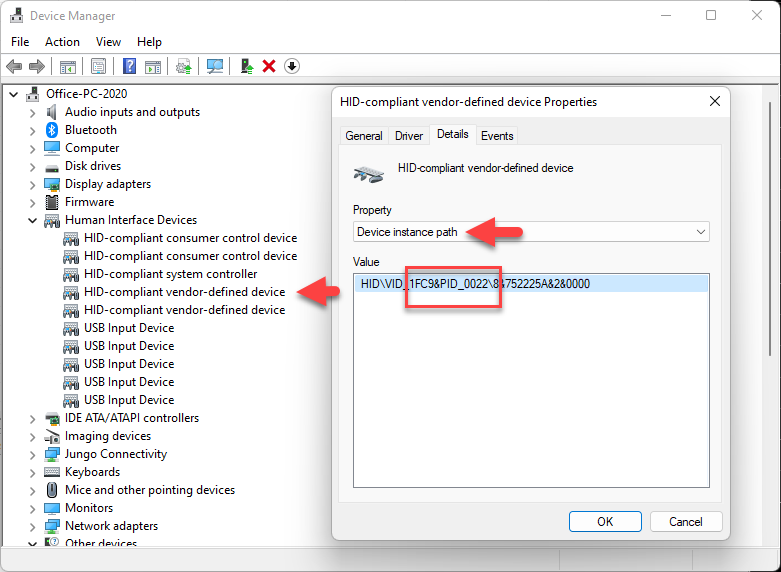
If you don't see the front-panel LEDs cycle, it could mean the hardware has become stuck in bootloader mode for some reason. In bootloader mode, the hardware will identify itself as a "HID-compliant vendor-defined device." An important indicator here is that while the front-panel LEDs will remain off, the act of plugging or un-plugging the hardware will cause a "bing bong" sound from Windows and the Device Manager "tree" will repaint itself. If this happens, you can be fairly sure that somehow the device has become stuck in bootloader mode. To further verify this, look for a "HID-compliant vendor defined device" in Device Manager, and then right-click on that device for Properties, and then select the "Device Instance Path" and you'll see a string that contains 1FC9 and 0022. These are the VID:PID for the NXP processor used in the QA40x hardware when it is in bootloader mode.
A device stuck in bootloader mode can be restored by the user in the field. Please contact the email alias "support" at QuantAsylum for further assistance.