Customize row styles - Profitbase/PowerBI-visuals-FinancialReportingMatrix GitHub Wiki
You can customize both rows from the Power BI data model and custom subtotal rows.
Apply a style to one row
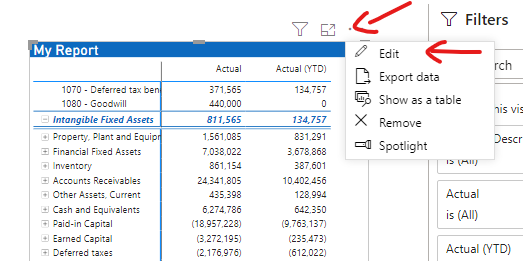
- Enter Edit mode.
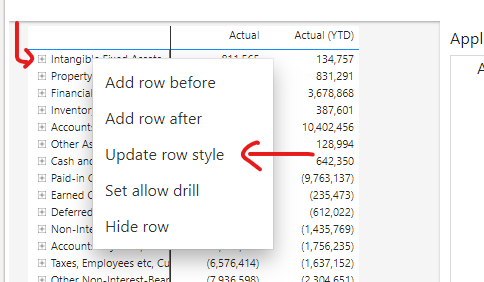
- Right-click the row and choose Update row style.
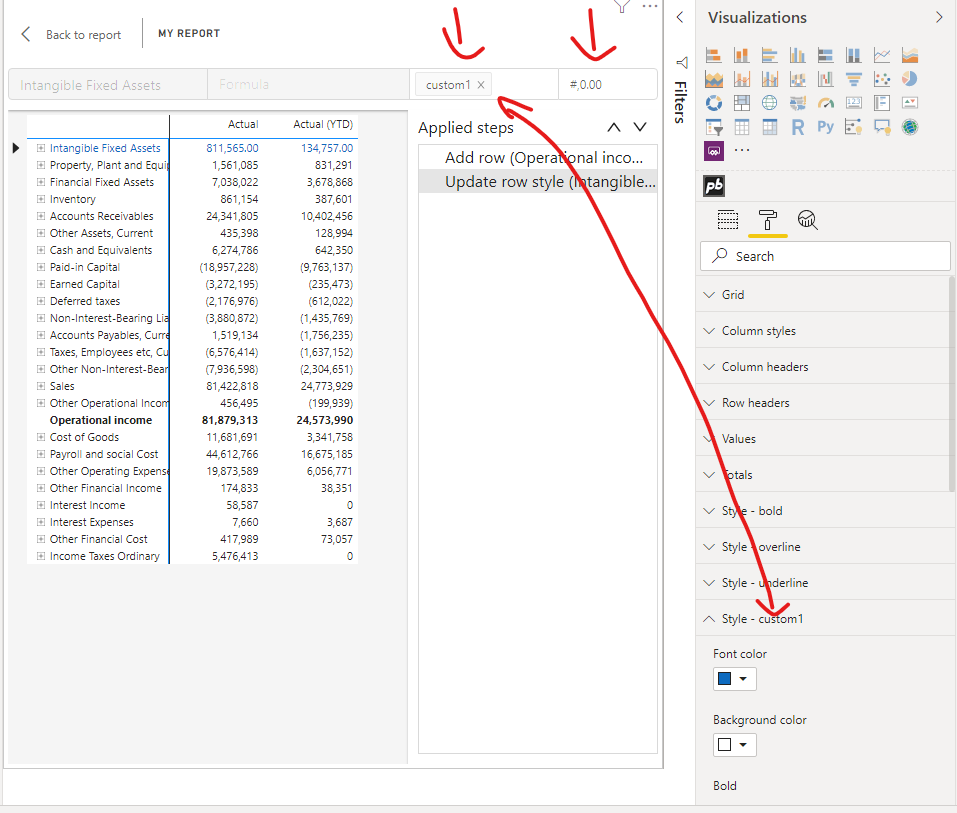
- Select a built-in or custom style in the editor above the column headers.
- Optionally select a format string for the row.
- Apply the change.
The visual supports the built-in Total, Subtotal, KPI, Bold, Overline, and Underline styles, plus six reusable custom slots: Custom 1 through Custom 6.
If you select a custom style that has not been configured yet, the visual shows a warning. Define that style in the matching Style card in the Power BI Format pane, or supply it through a report theme.
Applied steps run in order. A later column or conditional-formatting step can override a row style for the cells where the two overlap.
Update multiple rows
Available from version 8.3
In Edit mode, hold Ctrl while selecting row headers to select multiple rows. Right-click one of the selected rows and apply the required row-style change.
The resulting Applied step contains all affected rows. Because these calculations form a group, moving the step moves the entire group, and deleting it removes the change from every row in the group.