How to use the PasswordVault - PasswordVault/passwordvault GitHub Wiki
Lock Screen
You need to hold the Wio Terminal with the USB cable to the left. When you connect the Wio Terminal to the USB port of your computer or tablet where you need your passwords typed, you are greeted with a first screen on which you need to key in your master key. The master key consists of up to eight numerical digits.
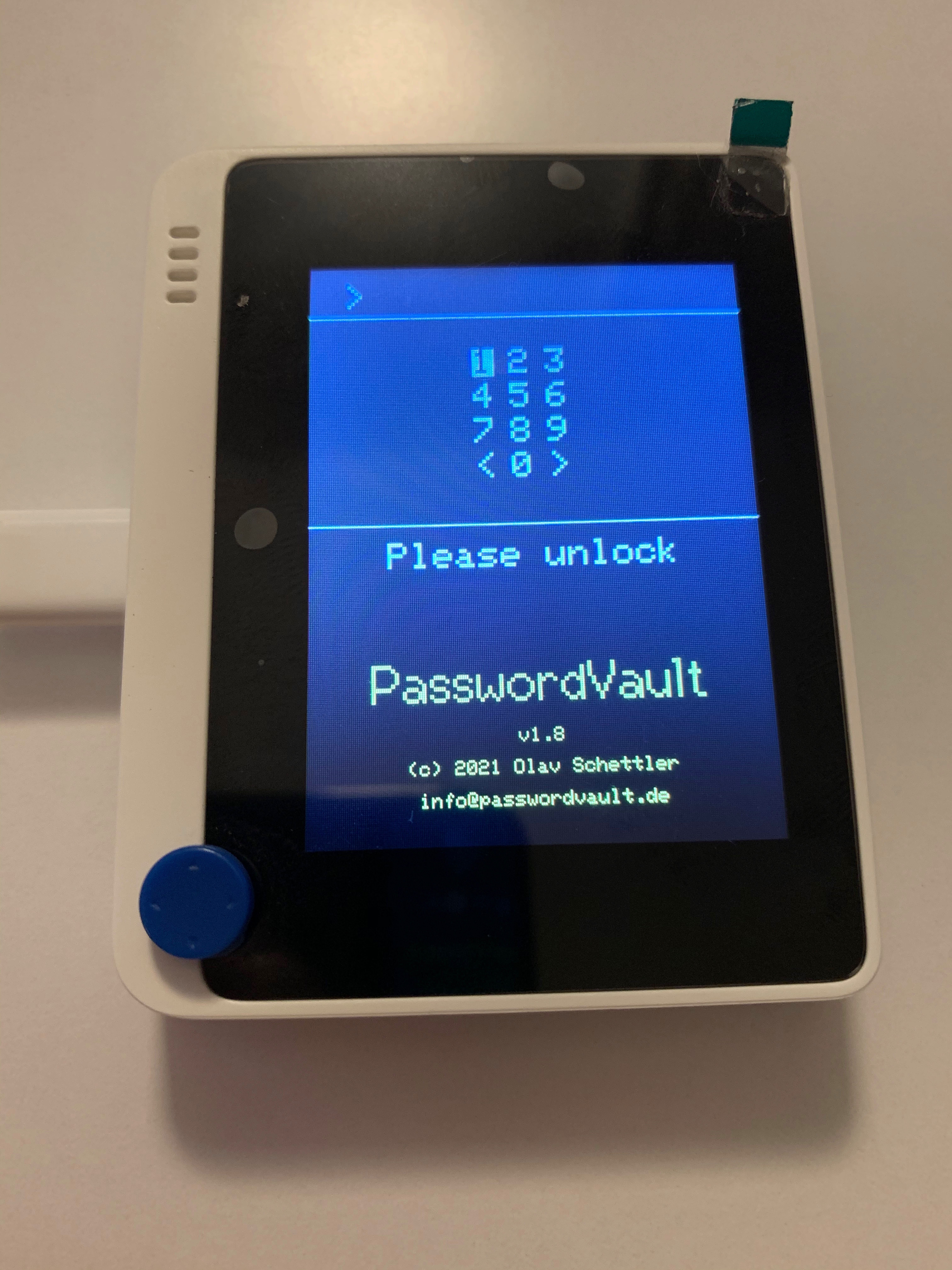
Use the joystick's up/down/left/right buttons to navigate the digits and press it to select a digit.
If you need to traverse more than one digit in a given direction, you can keep the joystick pressed in that direction. After a short delay, the joystick auto-repeats and keeps going in that direction until the last digit in this direction is reached or you let go of the joystick.
You can correct a typo by selecting the <. After entering all digits, select > to unlock your PasswordVault. If you have entered the master key correctly, the software shows the next screen. If not, the master key is cleared and you can try again.
Filter Screen
Once unlocked, you are greeted with the filter screen.
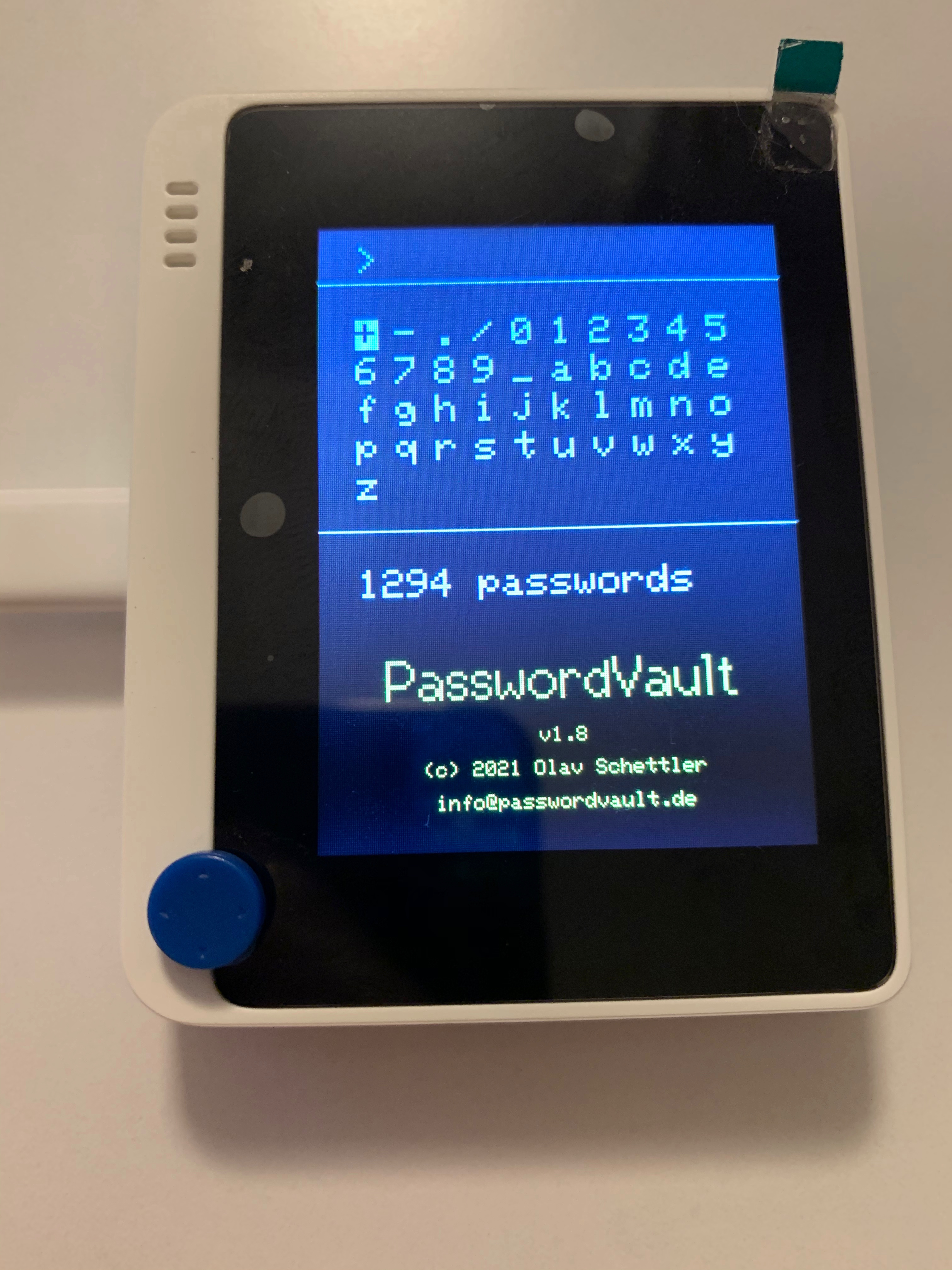
Here, you can key in search terms to quickly find your desired account password. Matching is case insensitive and starts from the beginning of the accounts' names. Only those characters are presented that are actually contained in any of your accounts' names, so some letters or digits may be missing.

While you proceed by adding more and more characters, the resulting number of filtered passwords is shown below the character table. Once you have reached about a dozen passwords, you can proceed to the next screen.
List Screen
The next screen lists your account names, either the full list or a filtered one:
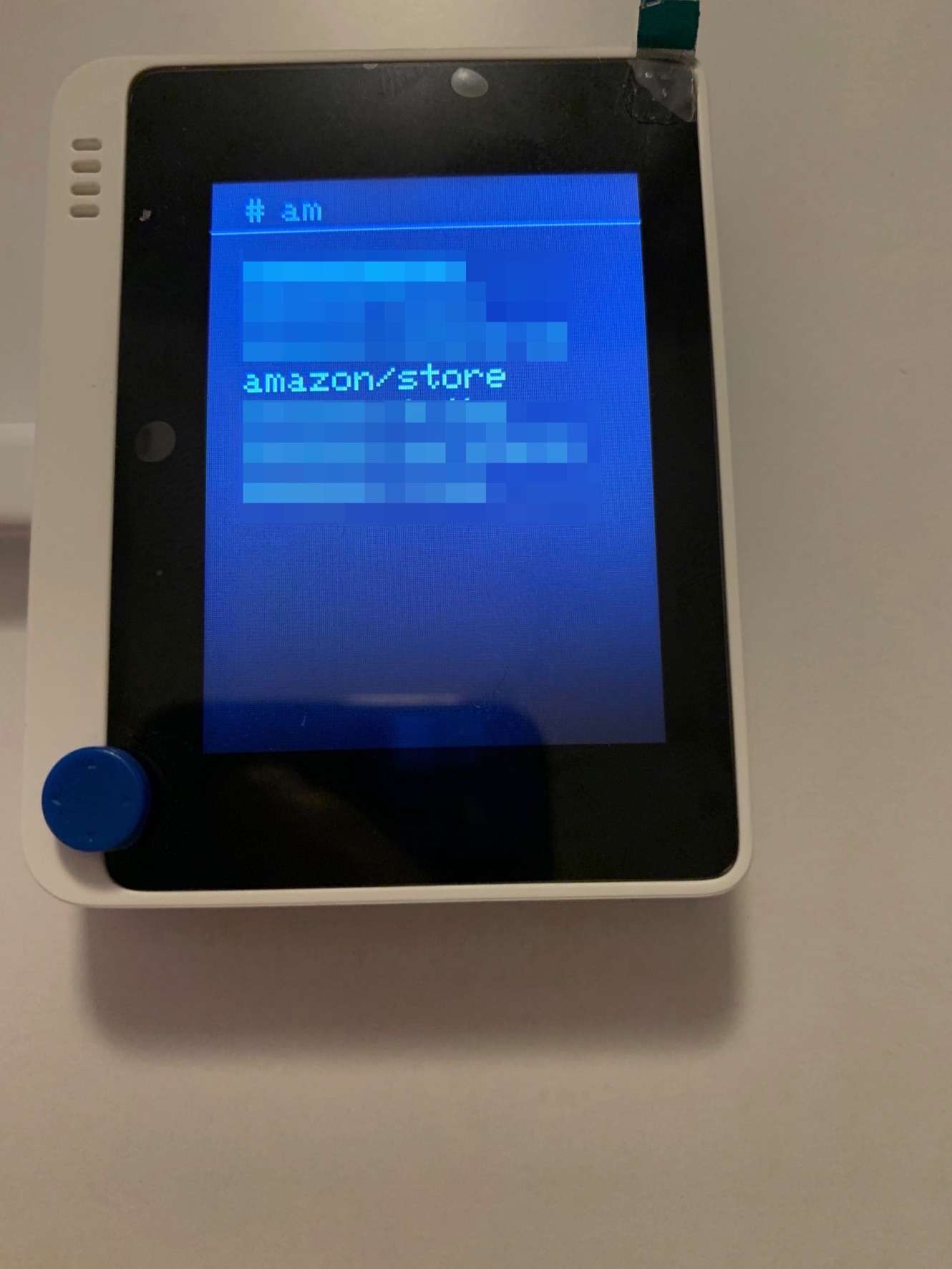
In the screenshot above, the list screen shows all accounts that start with "am". You can use the joystick's up and down buttons to browse this list. If there are more accounts than fit the screen, the list is scrolled once you reach the bottom of the screen.
You select an account by pressing the joystick. Before you do this however, make sure that on your connected computer or tablet, the keyboard focus is on the form field where you want your password typed. When you press the joystick, the password is typed by simulating a keyboard. At the same time, a detail screen with the account name and password is shown.
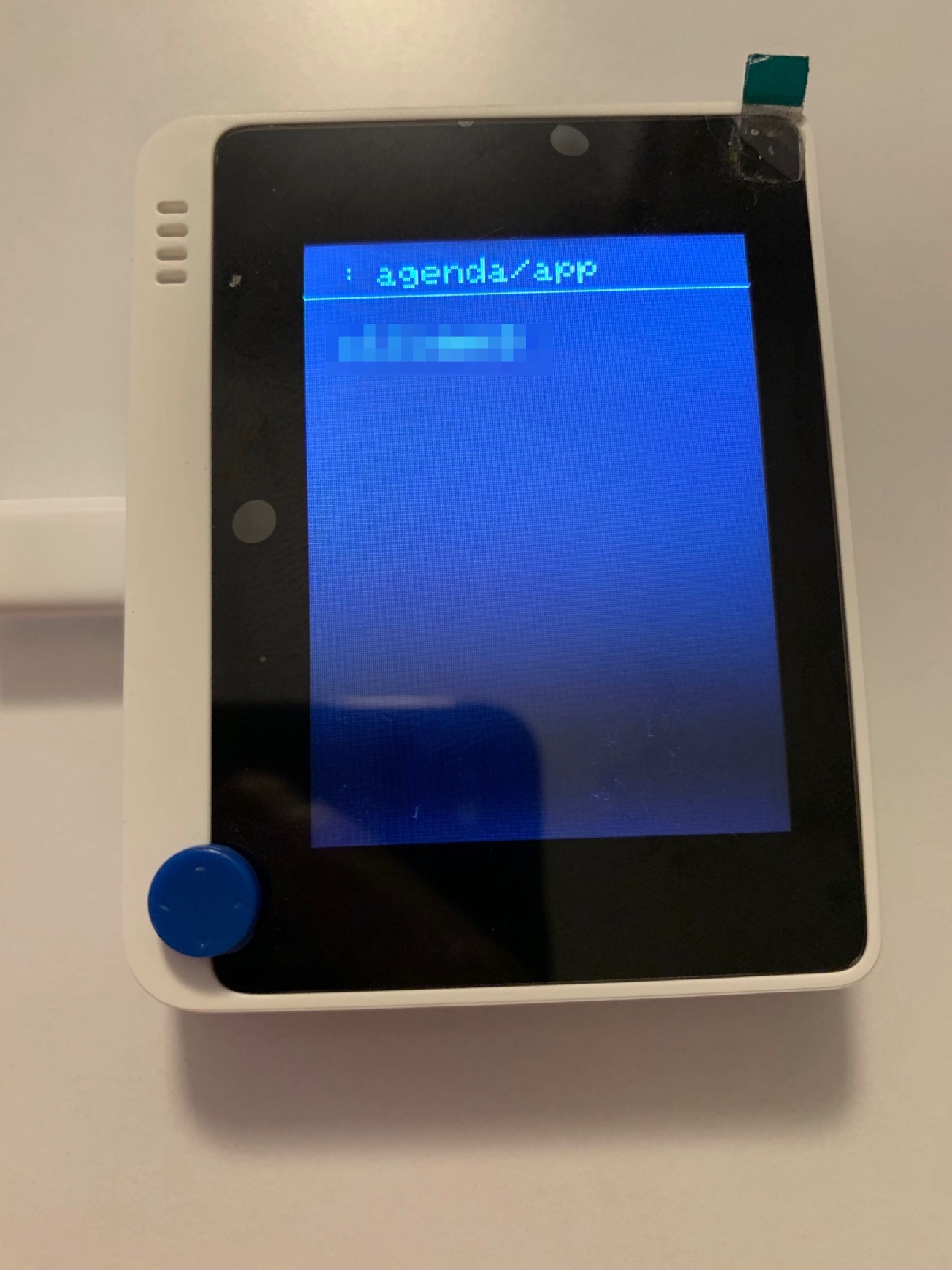
You leave this screen and return to the list by pressing the topmost button on the right of the device.
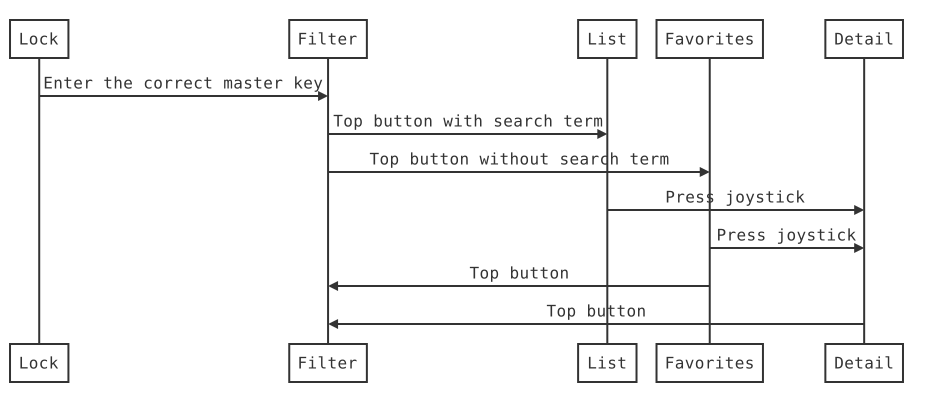
You use the same button (the other two ones have no function yet) to change screens. Every time you press it, you choose either of the filter screen, the favorite screen, or the list screen. Here is an overview:
Favorite Screen
Every time you use a password, it is added to the front of you favorites. These are listed on the favorite screen. The favorite screen behaves just like the list screen. You can browse it up and down with jousstick and select a password by pressing the joystick. The password used is moved to the front of the list.
The favorite list is stored to the SD card every time you use a new password. This way, the list is kept across uses of the device.
When you press the topmost button on the filter screen without entering any letters, you are directly presented with the favorite screen. This way, your favorites are only one click away after unlocking your device.
You can easily distinguish the list from the favorite screen. The latter one shows a *, the former one a # in the topleft corner.