Player Prefab - POINT-VR/POINT-VR-Chapter-1 GitHub Wiki
This guide is aimed towards developers and contains the following sections:
- Prefab Overview
- Summary of the Player Prefab
- How to Access the Player Prefab
- When to Edit the Player Prefab
Prefab Overview
Unity Prefabs are a great tool for re-using GameObjects throughout a scene or multiple scenes by allowing them to have multiple instances with each instance being in sync. Prefabs have a myriad of benefits over simply making copies of a GameObject:
- Prefabs allow you to instantly make changes across all instances of a Prefab by just changing the prefab asset (no need to change each copy one by one)
- Prefabs help keep cleanliness in the Editor (no duplicated objects and cluttering of scenes with redundant data)
- Prefabs keep Version Control easy (prefabs have their own .prefab files which allows for easy management of changes through Git)
- Performance Optimization, especially in larger projects
- With prefabs you can easily instantiate new GameObjects from the assets at runtime
For this reason, we use many of them throughout our project:
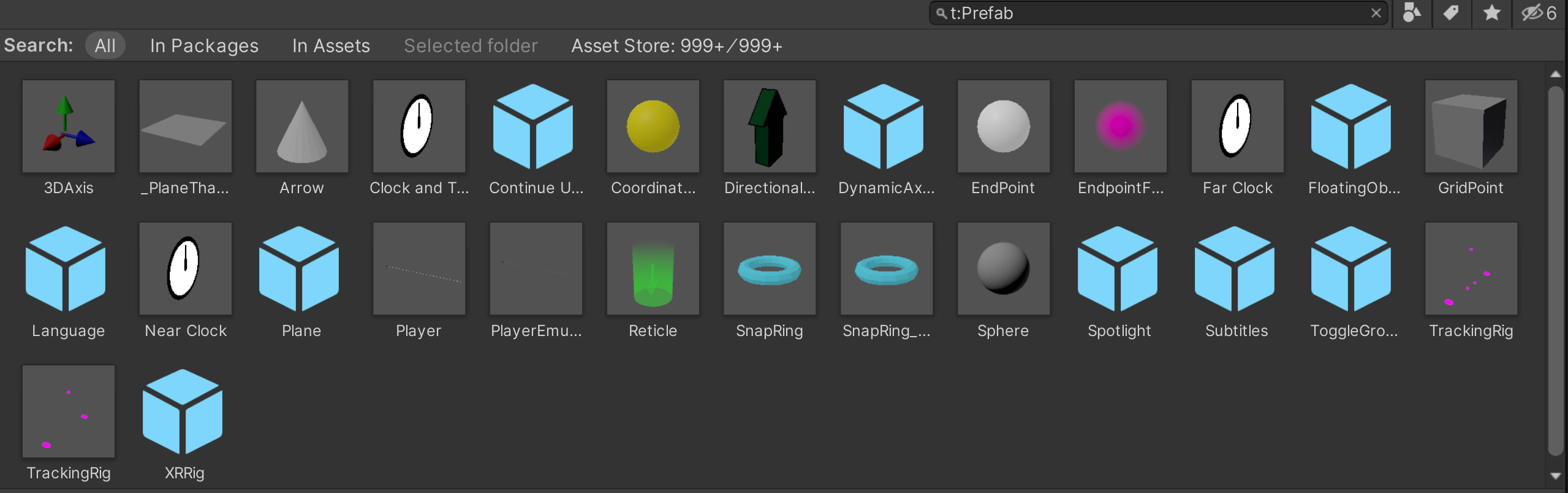
More detailed information can be found here: https://docs.unity3d.com/6000.1/Documentation/Manual/Prefabs.html
Summary of the Player Prefab
[!NOTE] More detailed information on the individual scripts making up the Player Prefab may be available on individual wiki pages in the future. When such pages are made, I will reference them here.
The Player Prefab in particular is a vital prefab that plays many roles in our simulation. It consists of a hierarchy of gameObjects stemming from the parent gameObject Player. The Player gameObject itself contains the TurnController, PauseController, and NarrationManager scripts which respectively deal with rotating the camera as you move, game pauses and the opening/closing of the menu, and ensuring the playing of audio and subtitles. It additionally contains the Scene Controller, LeftHand, RightHand, and Main Camera gameObjects as children. Their roles are highlighted below:
Scene Controller
This gameObject contains the SceneController.cs script attached to it which communicates the player's settings to the GameManager before switching scenes and then retrieves this information upon being instantiated. These settings and player data include:
- The audio source corresponding to the game's music
- The state of the UI Slider for audio
- The state of the menu toggles
LeftHand and RightHand
These gameObjects and the scripts attached to them deal with everything to do with the in-simulation controls, the highlighting of objects, the grabbing and pushing/pulling of objects, and all the other unique ways you can interact with various objects in the scenes. These interactions are enabled through the HandController.cs script, while the XRHardwareController.cs script is used to represent these gameObjects as the actual VR Controllers.
Main Camera
This gameObject as implied by its name serves as the camera which dictates the orientation of the visuals to the player when in the headset. It utilizes the XRHardwareController.cs script to represent the physical hardware of the headset in game. This gameObject also plays the following roles:
- It is where the narration audio and music in the scene play from
- It holds the menu and instructional test under its child object UI Container
- It holds the subtitles under its child object Overlay Container
How the Player Prefab enters the Scene
You may have noticed that you are unable to find the Player Prefab in the scene prior to entering Play Mode. This is due to the fact that it is "copied" into the scene at its start. In each scene there is a PlayerBase gameObject which contains the script PlayerSpawner.cs. This script instantiates a new Player object as an instance of the Player Prefab, and makes it a child of the PlayerBase gameObject as soon as the scene starts to play.
How to Access the Player Prefab
The Player Prefab can be found in general with the other prefabs in the Unity editor, in its file location, or in the scenes themselves in Play Mode
General Access Using Favorites
- Open the POINT VR project in the Unity editor
- Locate the Project window (usually located at the bottom of the Unity Editor)
- Click on the Favorites section, then select All Prefabs to view all prefab assets.
- Double click on the Player Prefab located among the other prefabs on the right
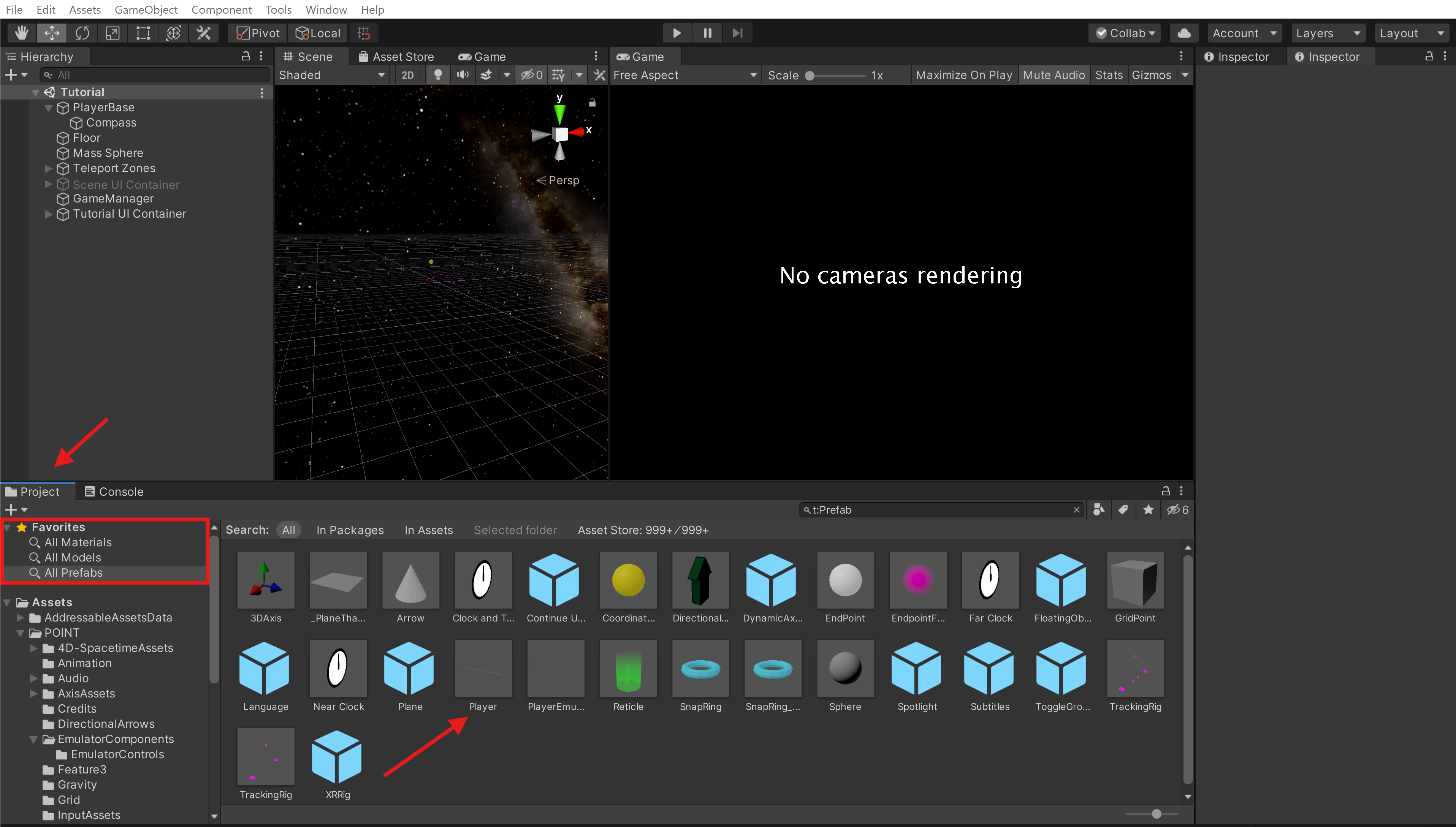
Access Through File Location
- Open the POINT VR project in the Unity editor
- Locate the Project window (usually located at the bottom of the Unity Editor)
- Expand the Assets Folder in the file hierarchy
- Expand the POINT Folder under Assets
- Click on the InputAssets folder under POINT
- Double click on the Player Prefab located among the scripts and other assets on the right
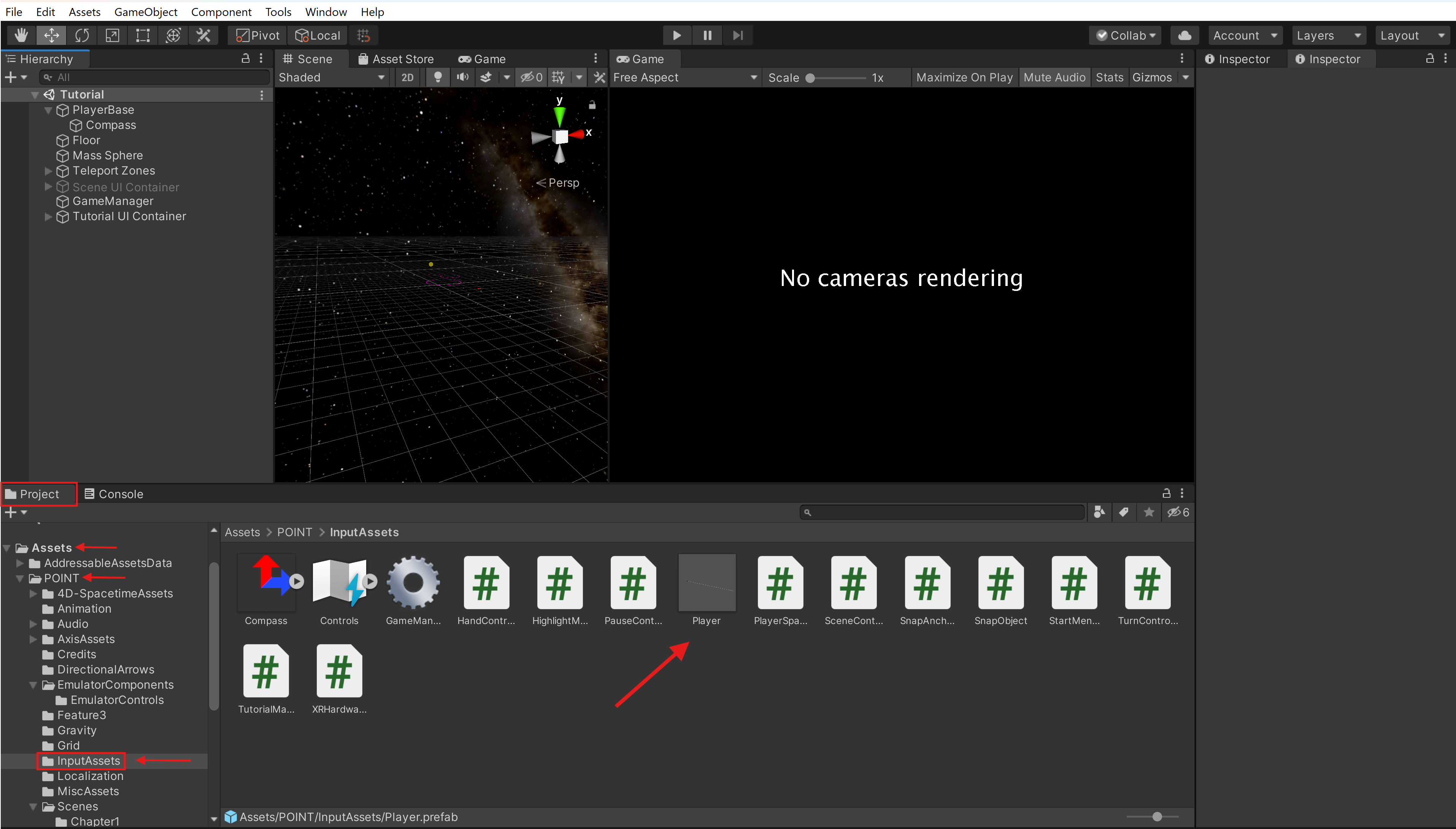
Accessing the Player Prefab in the Scene
- Open the POINT VR project in the Unity editor
- Ensure that you are in any scene, and enter Play Mode
- Locate the Hierarchy window (this is where all the gameObjects in the scene are listed)
- Expand the PlayerBase gameObject
- Click on the Player(Clone) gameObject that is a child of PlayerBase (this is the instance of the prefab used in the scene)
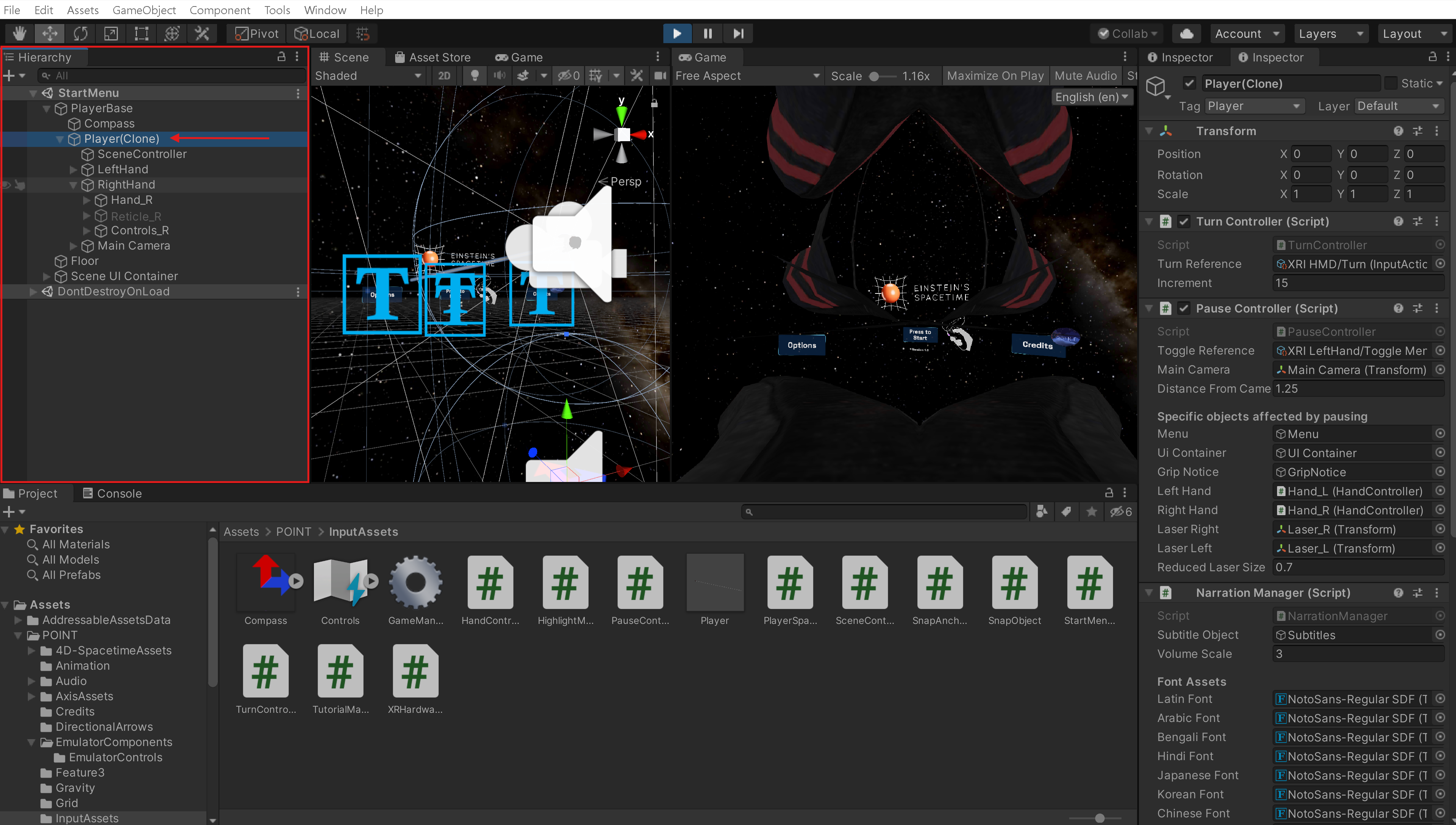
When to Edit the Player Prefab
For most project tasks, directly interacting with the Player Prefab will not be necessary, and editing it should be avoided when possible. However, certain changes will require the Player Prefab to change, and only in these cases should you push changes to the Player.prefab file. Some possible scenarios in which editing the Player Prefab is necessary include:
- Adding a new toggle or button onto the menu
- Changing the font of the subtitles
- Changing the shortening of the laser when opening/closing the menu
- Changing the distance the pause menu spawns from the camera
- Changing the audio for teleporting or clicking on an object
- Adding a new binding to the controls
The main rule of thumb when pushing changes to the Player Prefab is to ensure that the Player.prefab file is changed specifically because you intended to make a change to this prefab for a necessary reason. If you see that you have changed the file as part of a larger amount of changes and can't concretely write down why this file was changed, do not push the changes. This applies in general for any other prefab or file but it is most important for the Player Prefab.