Lab 11: User & Group Management in Azure Devops - OT-TRAINING/azure-devops-zero-to-hero GitHub Wiki
User & Group Management in Azure Devops.
You must have wondered until now that how to add a user into our Azure Devops Organization. Here in this lab we will learn how to grant the access to a user into our organization or projects and add grant access on the basis of Groups.
First of all we need to know that the user must be added into your Azure Active Directory.
Let's first create a user into our Azure Active Directory.
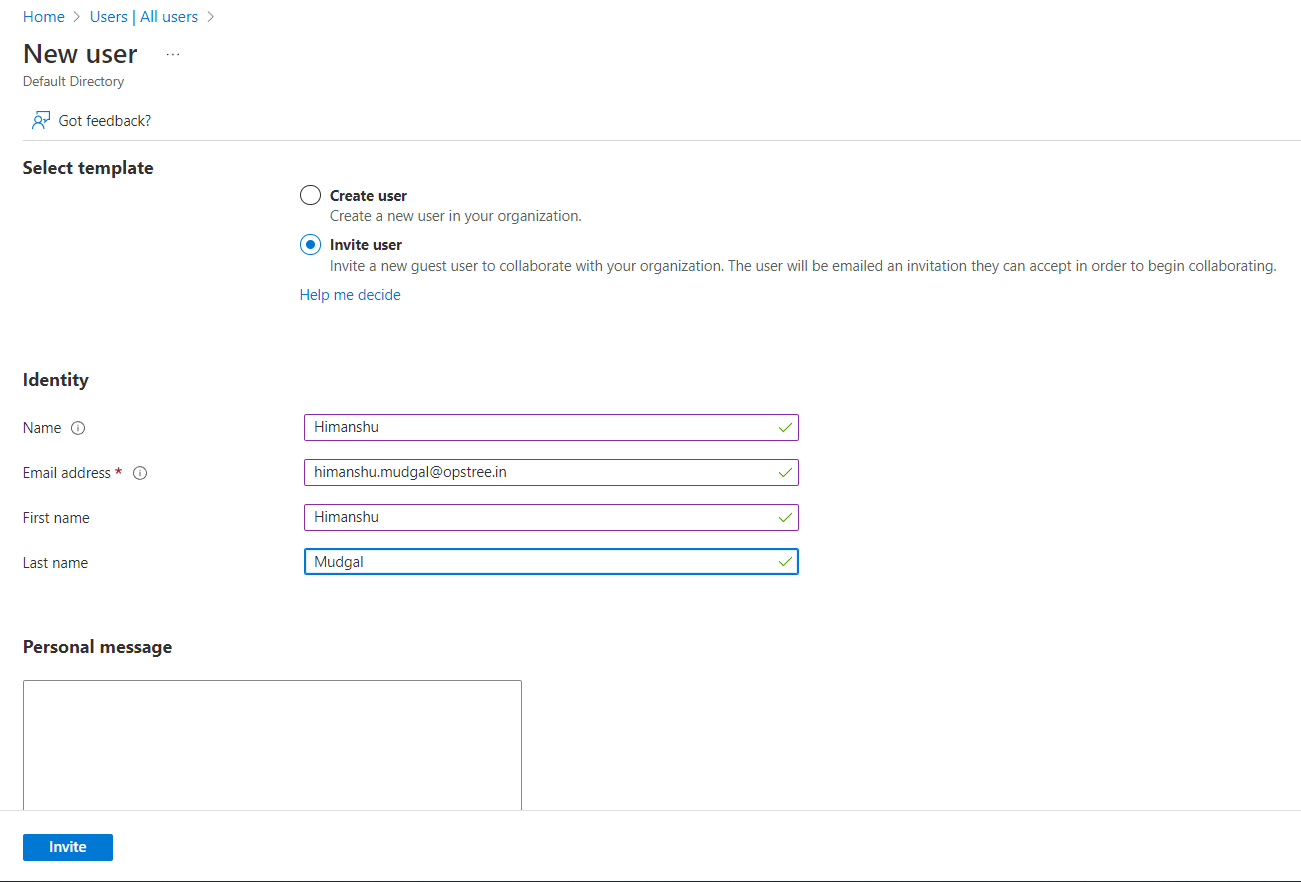
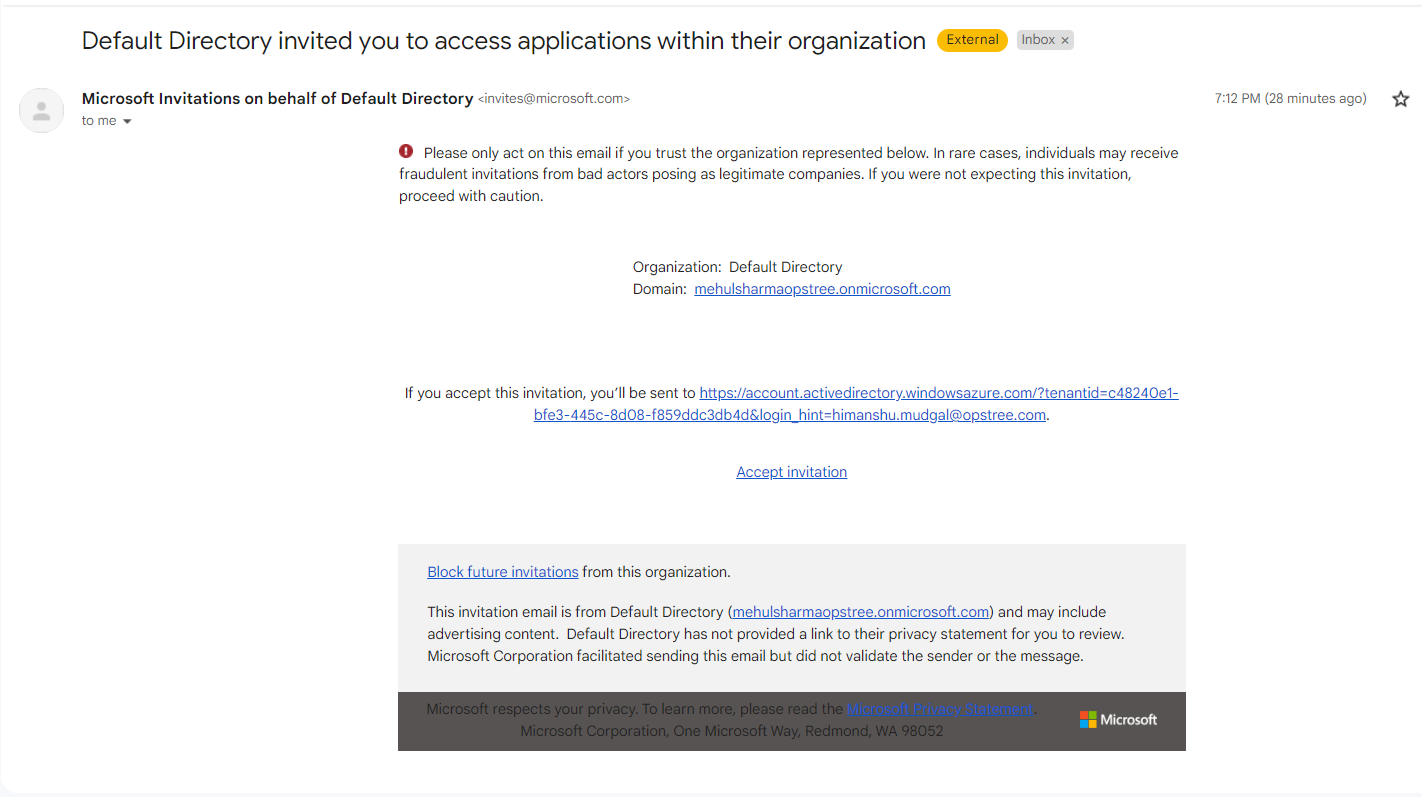
After accepting the invitation and following up with the OTP your email id will be registered into your Azure Active Directory.
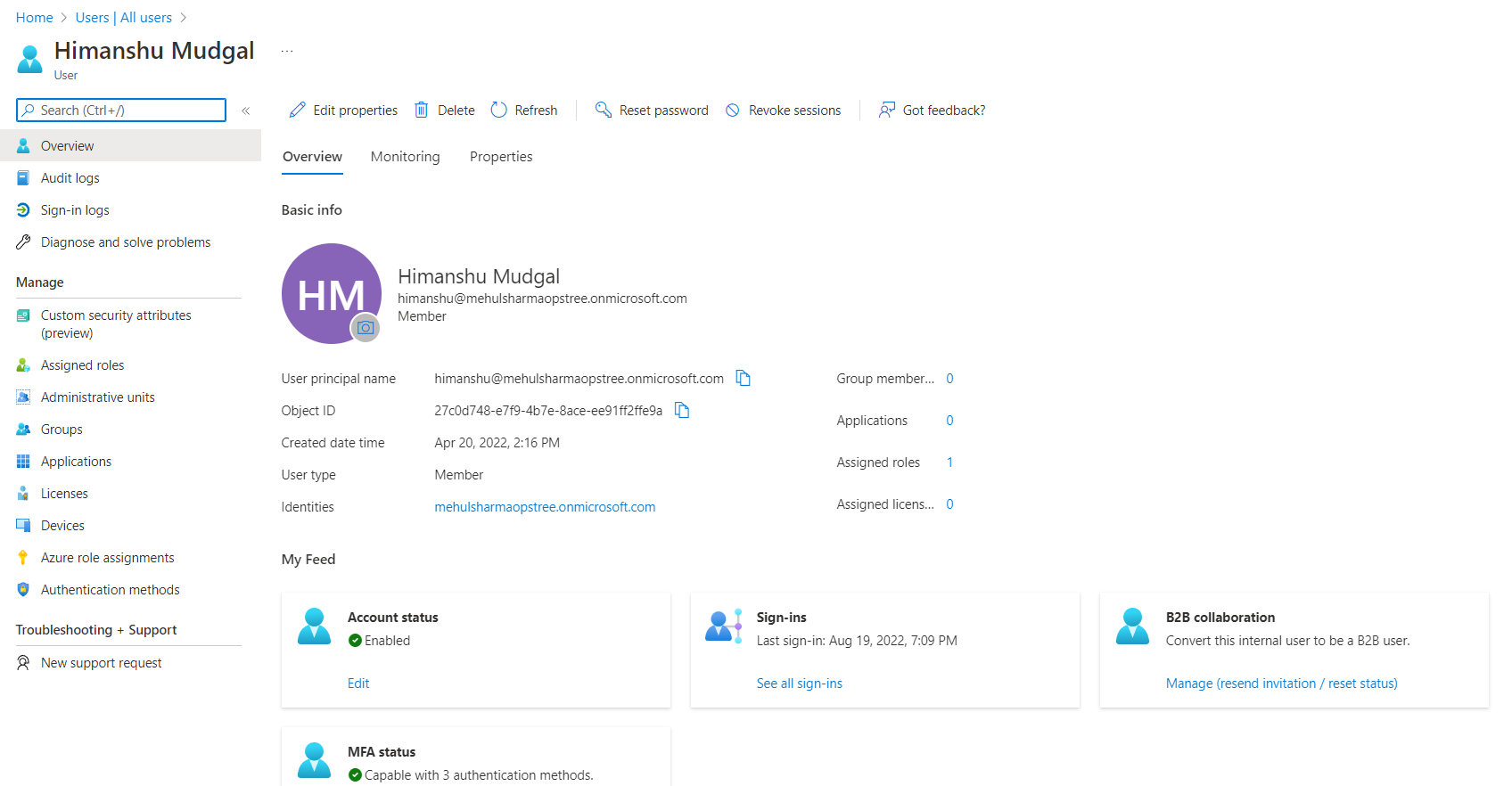
Now we will also provide the Global Administrator and Azure DevOps administrator to our newly added user.
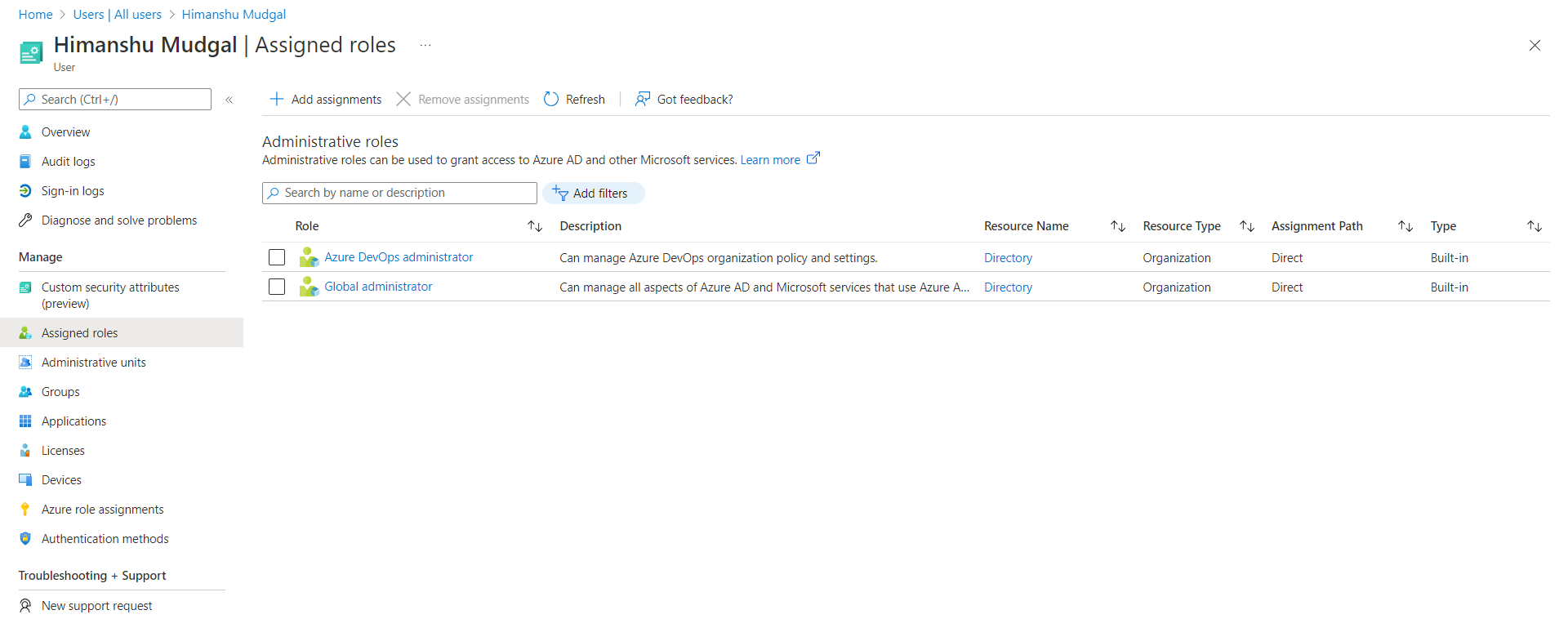
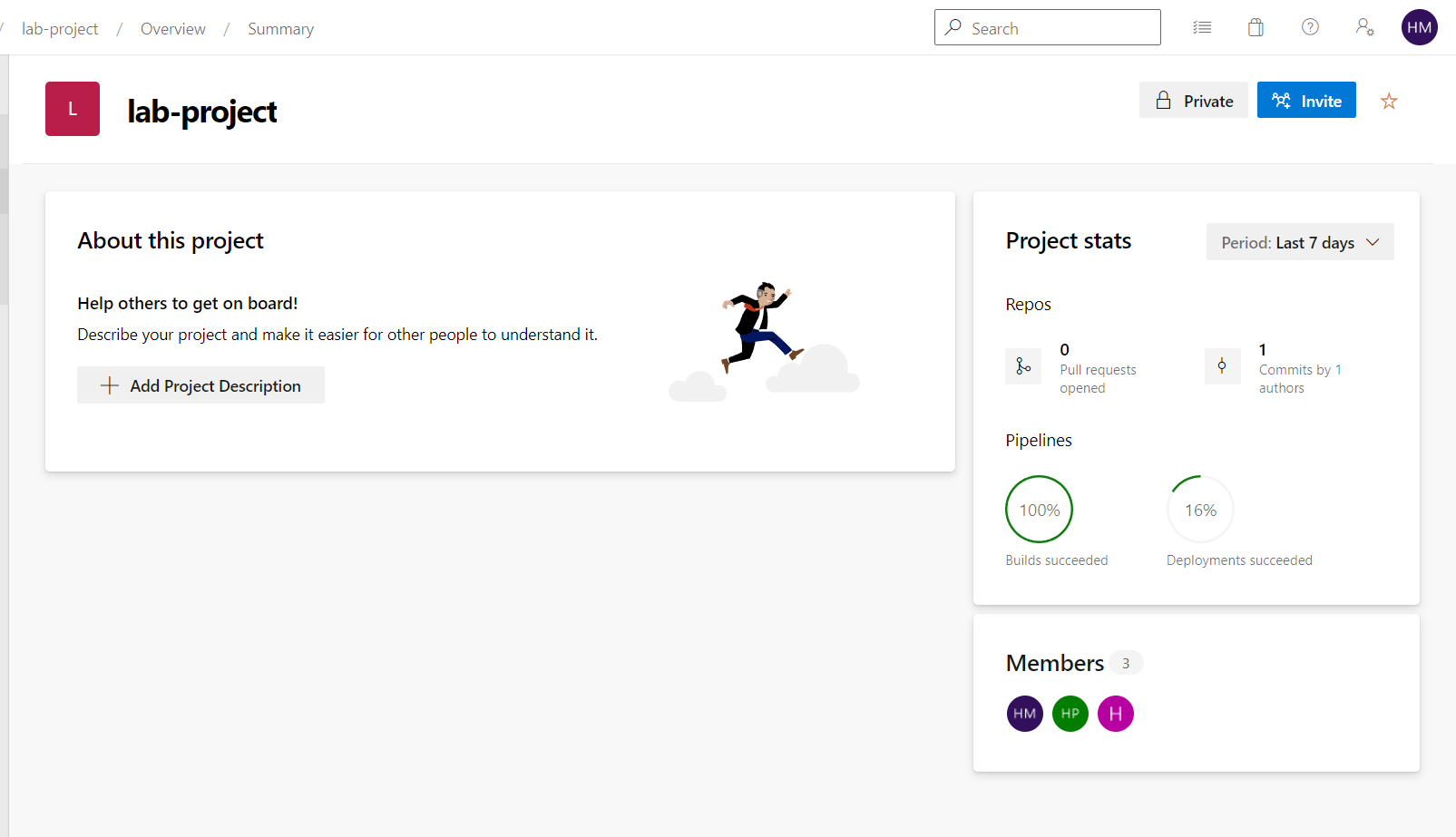
Now we'll go into or our Azure Devops Portal and go to the Invite section.
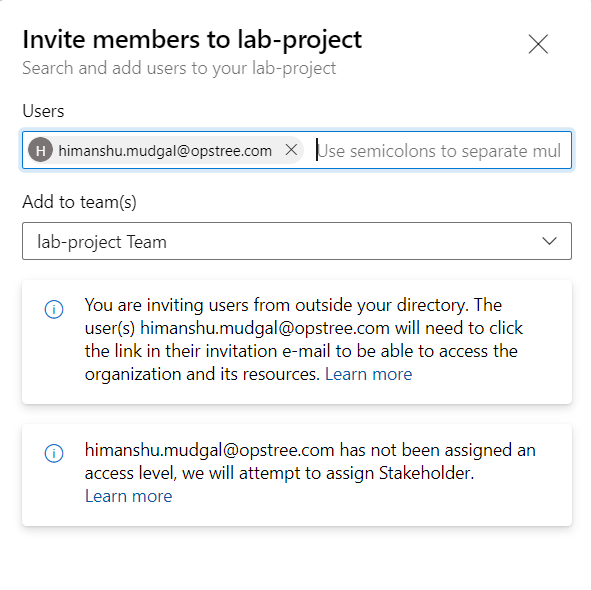
And the email id of the user and click Add.
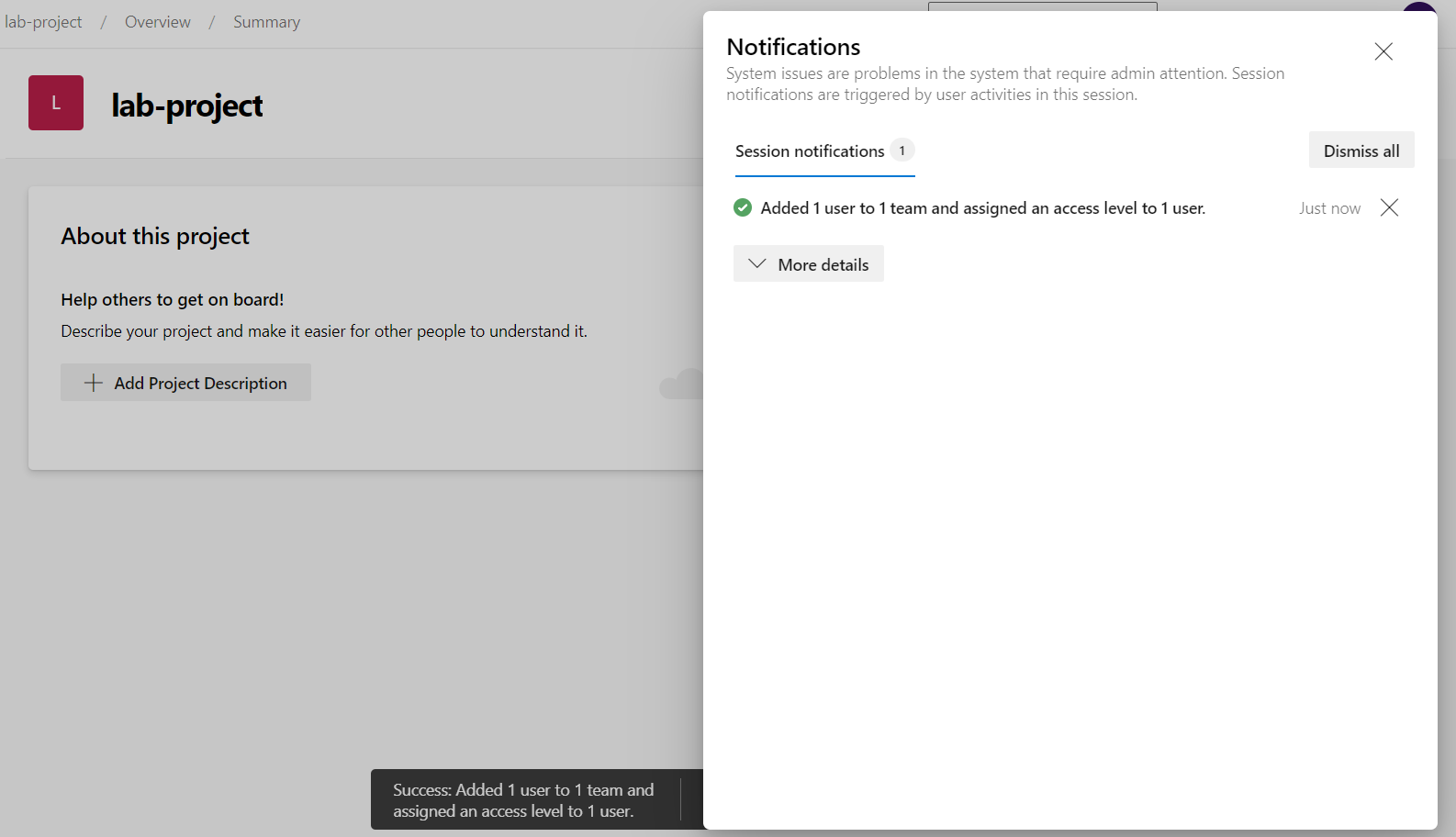
A successful notification will look like this.
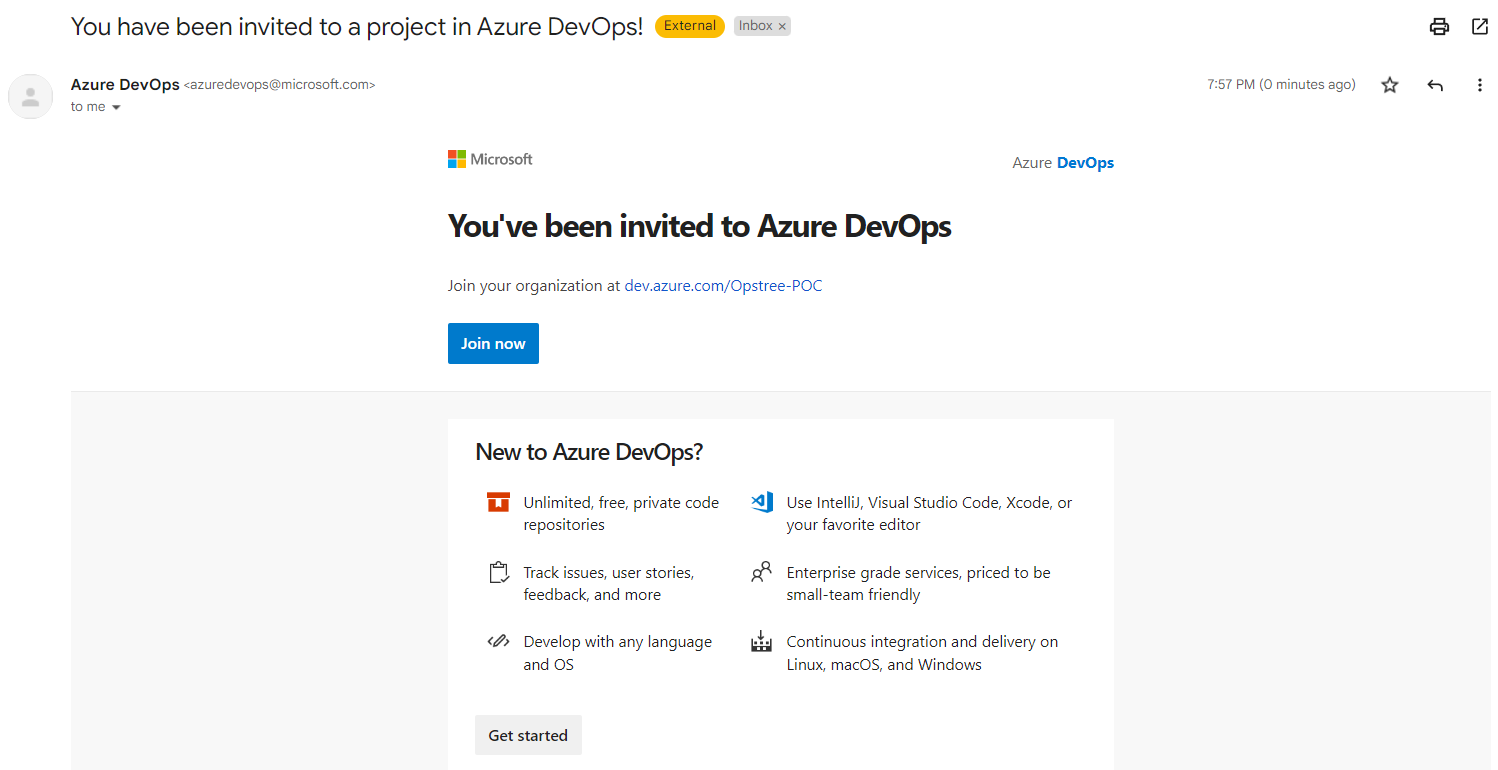
Then you'll again get an email notification, using that join the organization.
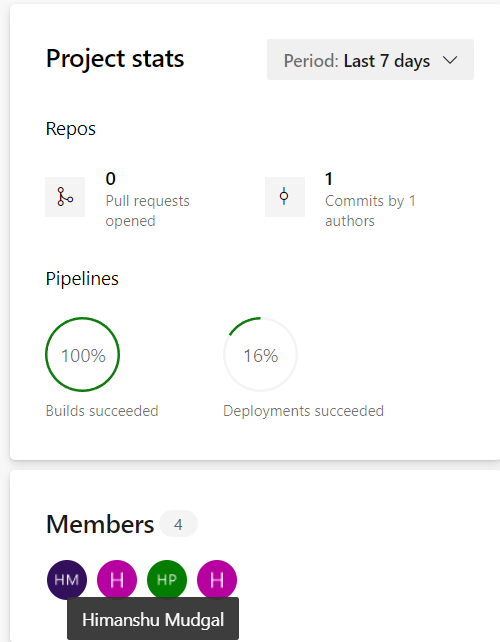
As a confirmation you can view your users in your organization home page.
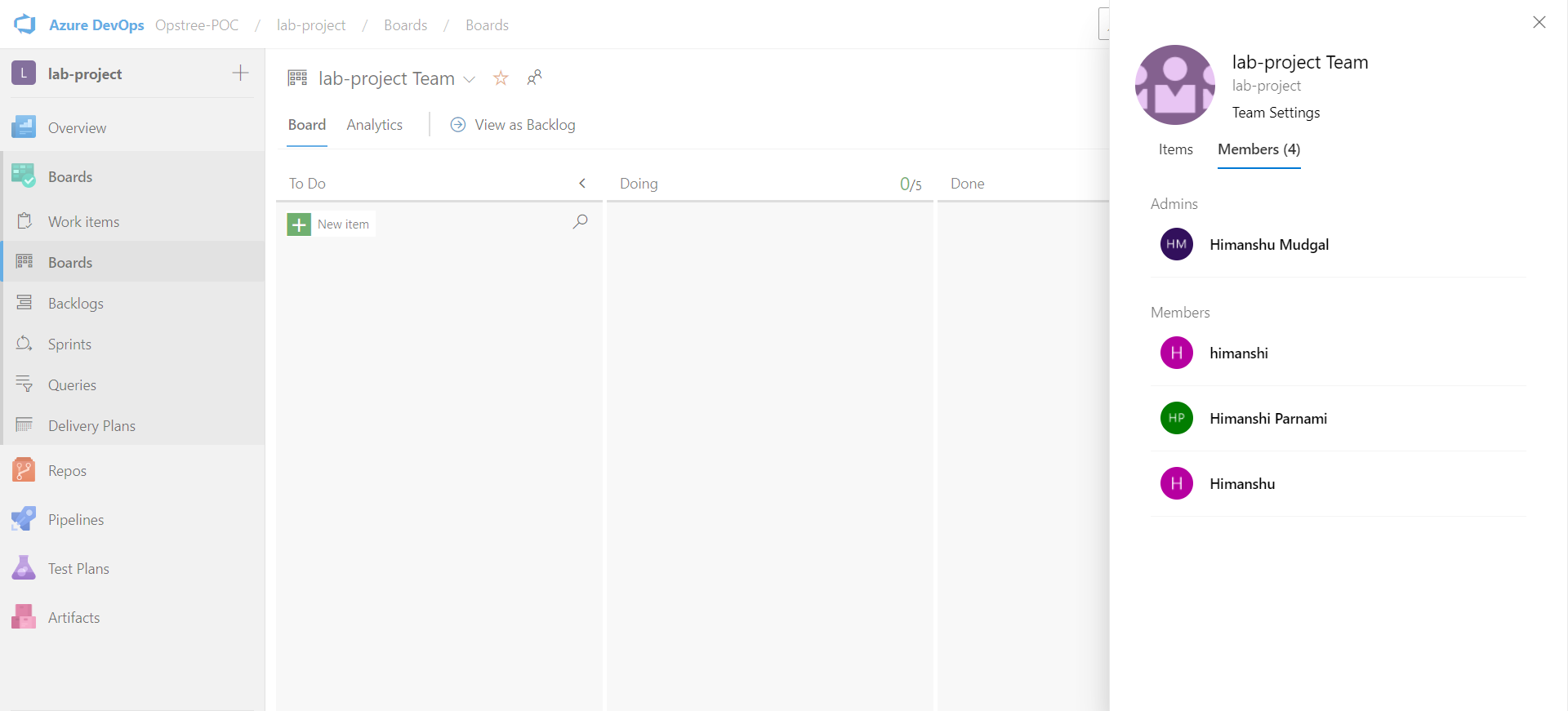
You can also view your users list from your Azure boards.
Now let's go to project settings and play with groups.
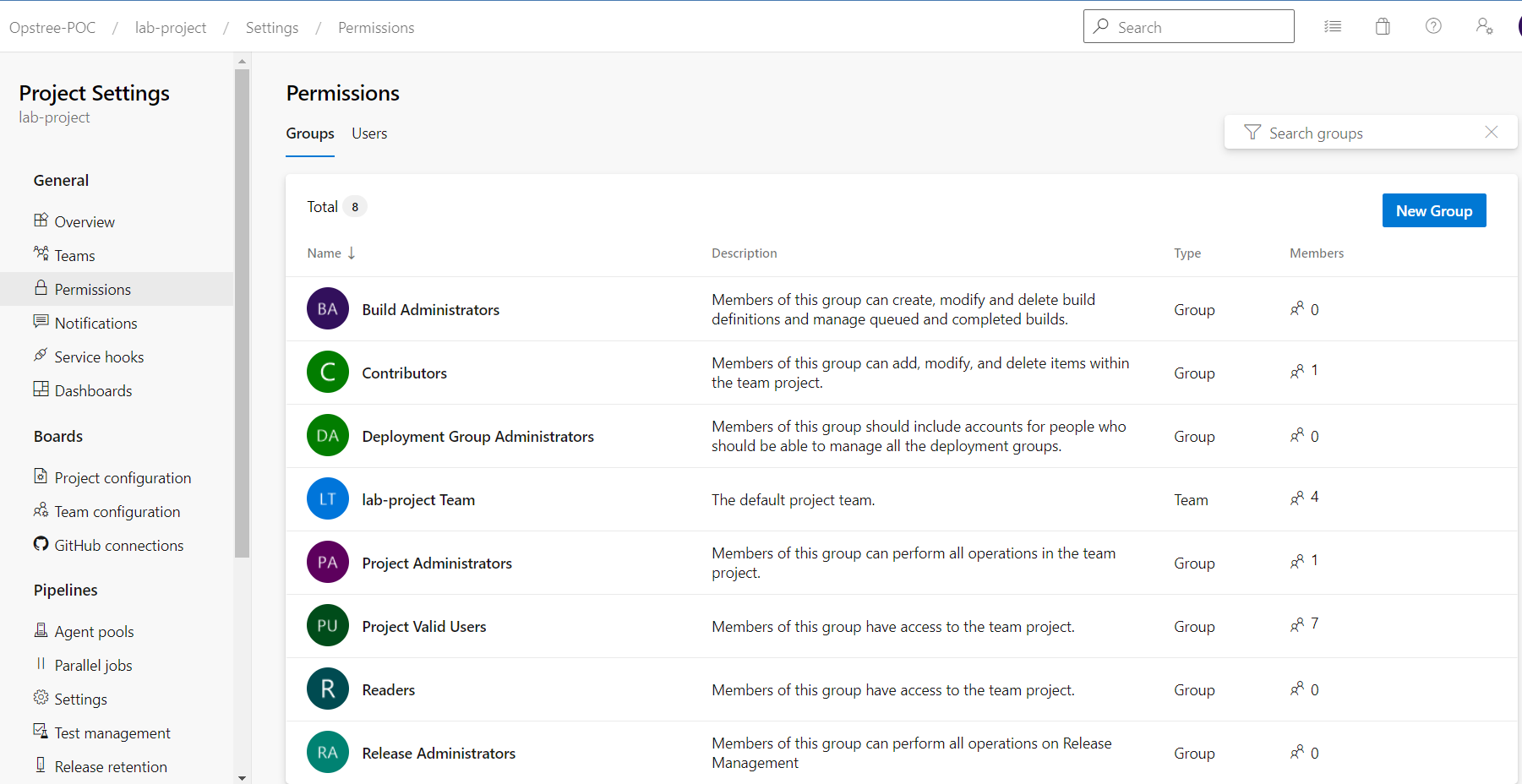
There will be some default groups that will be create with some default permissions.
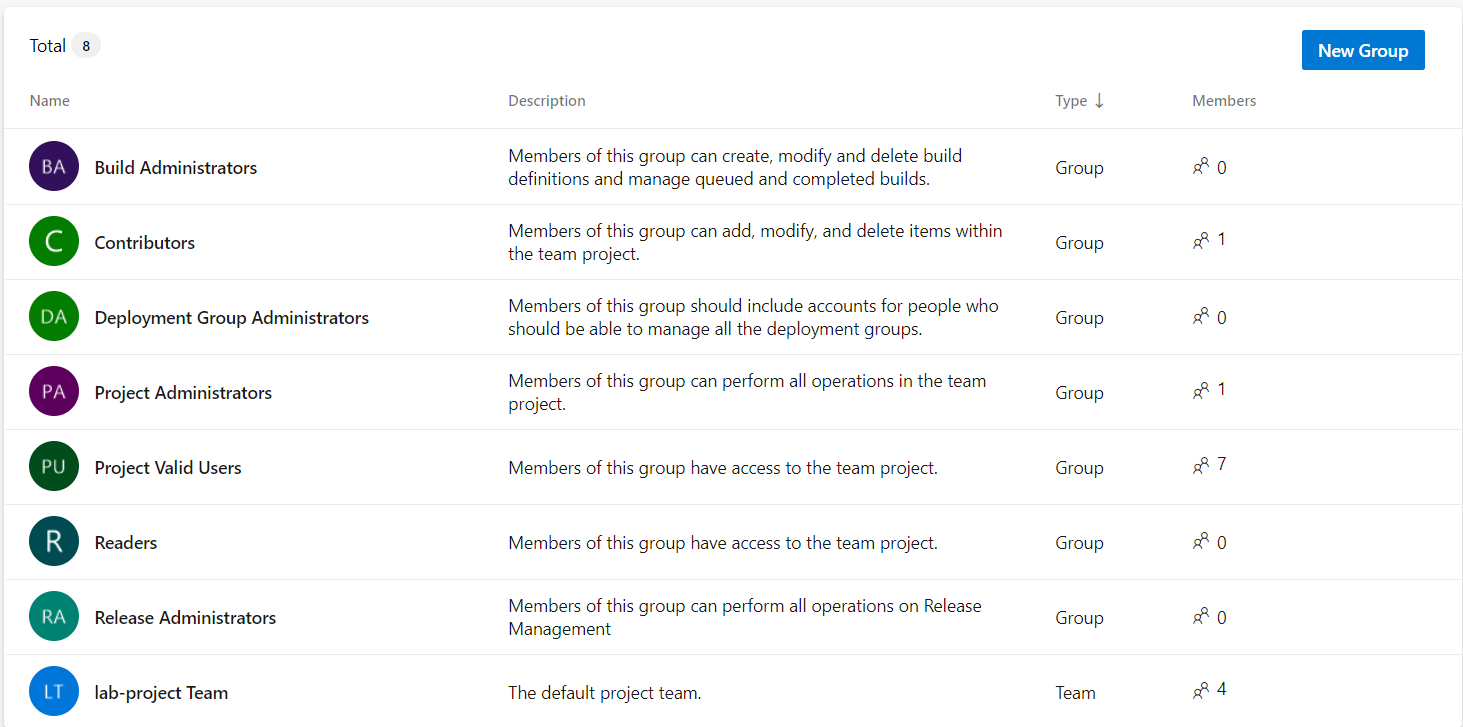
For example a Readers group will only have the access of view.
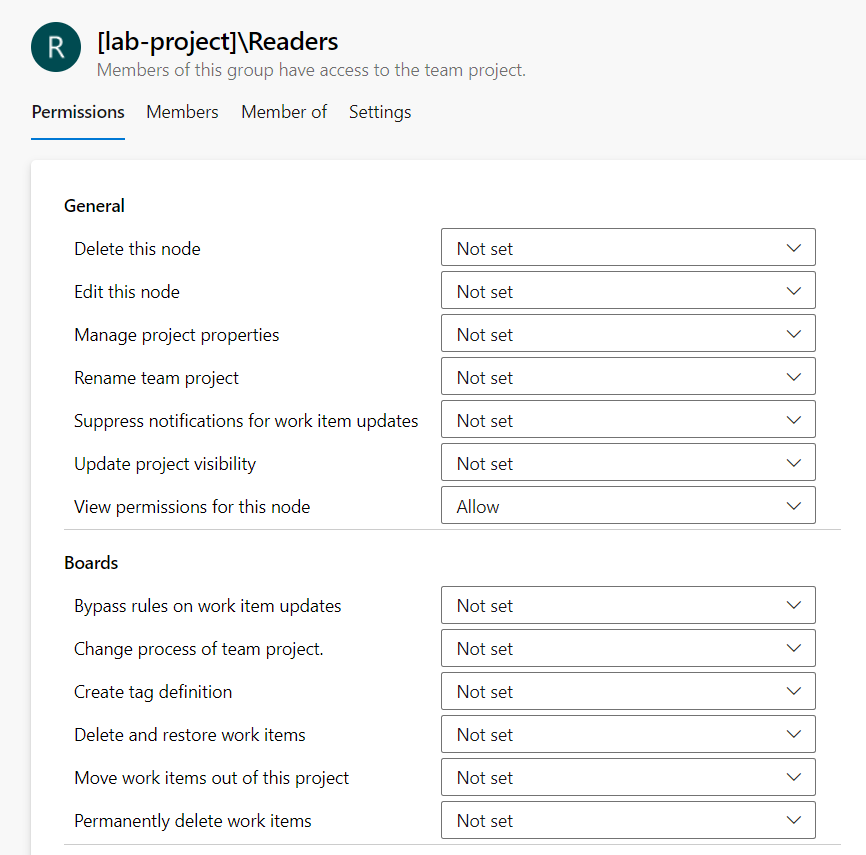
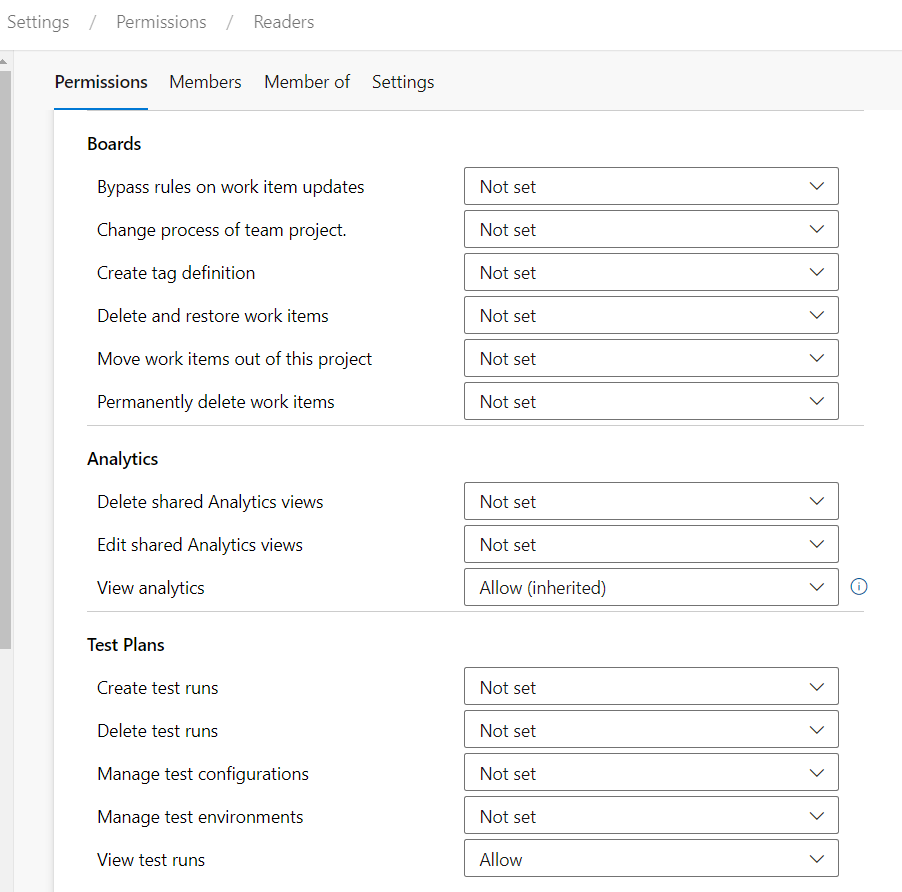
Now let's create a new group and add our new user into that group.
Go to New Group.
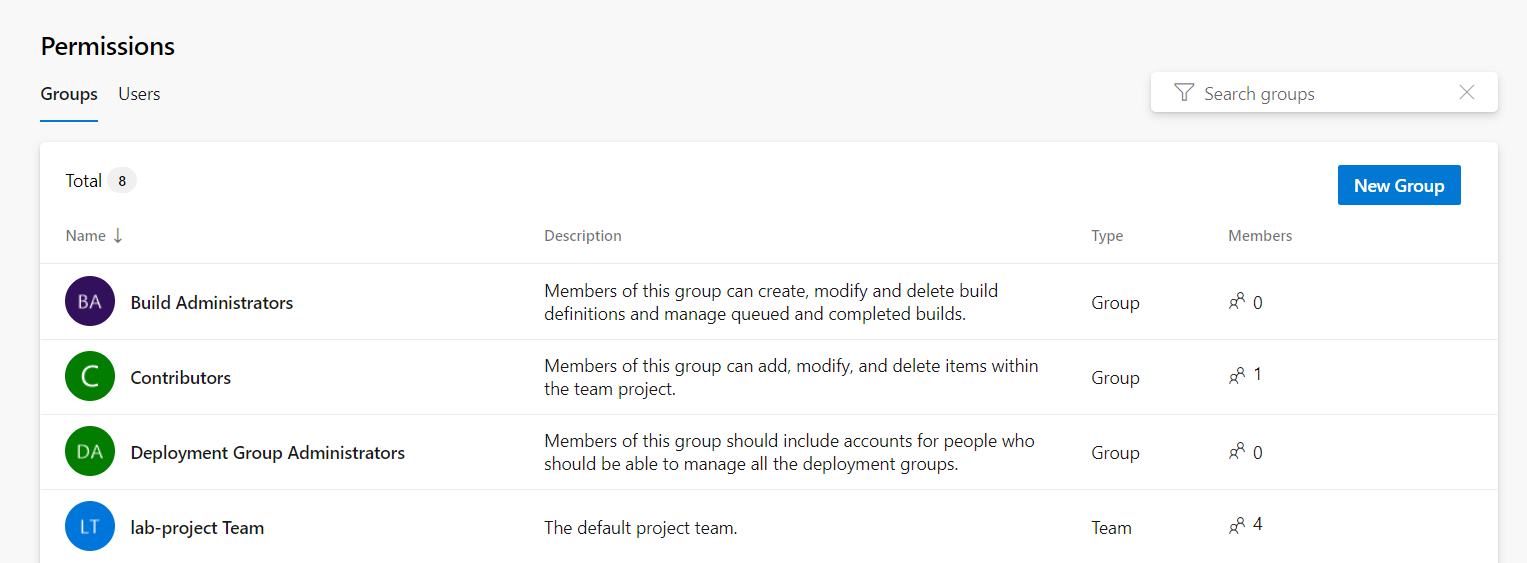
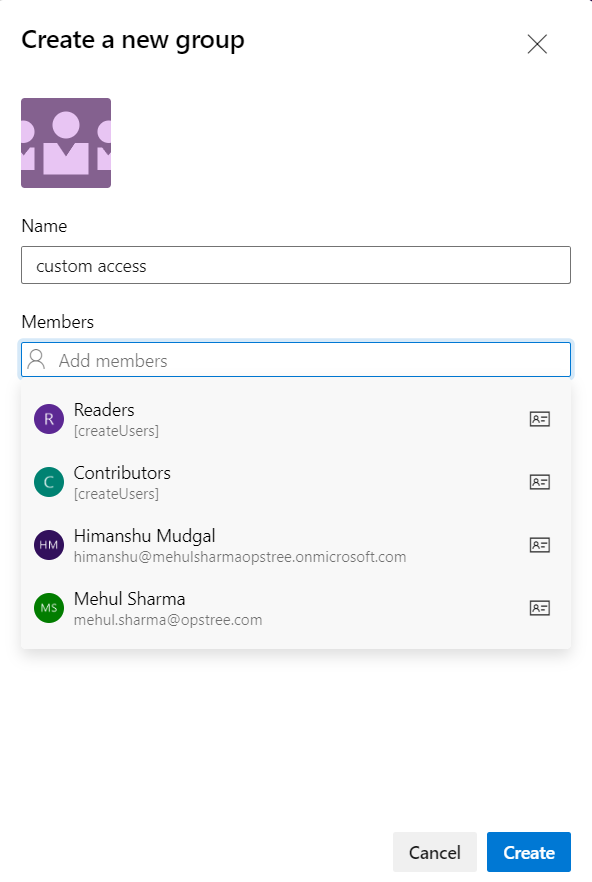
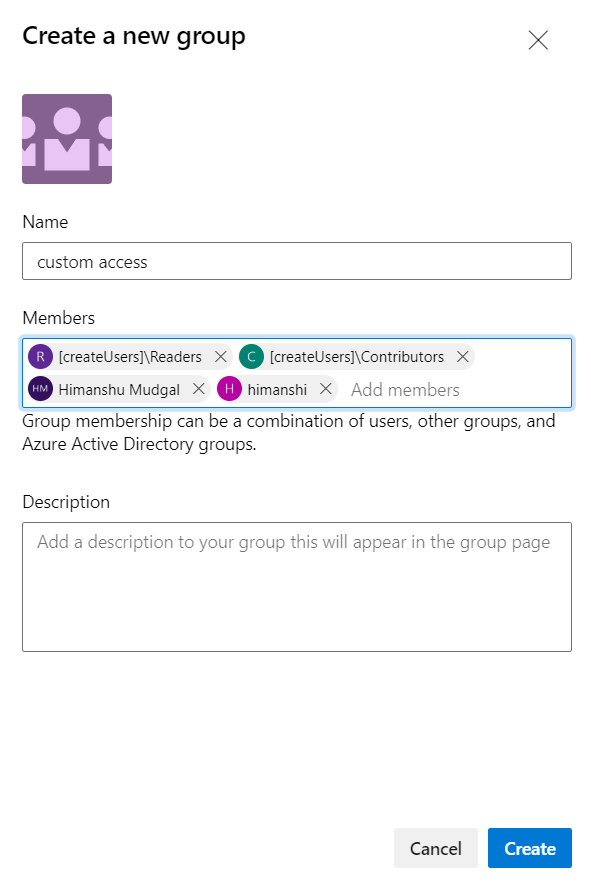
Now add few members and groups into the same groups and click create.
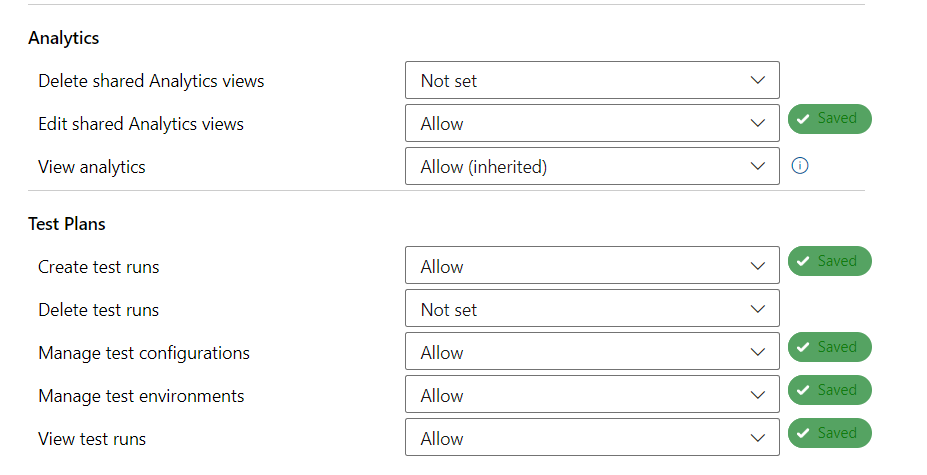
Now let's give permissions to our custom group.
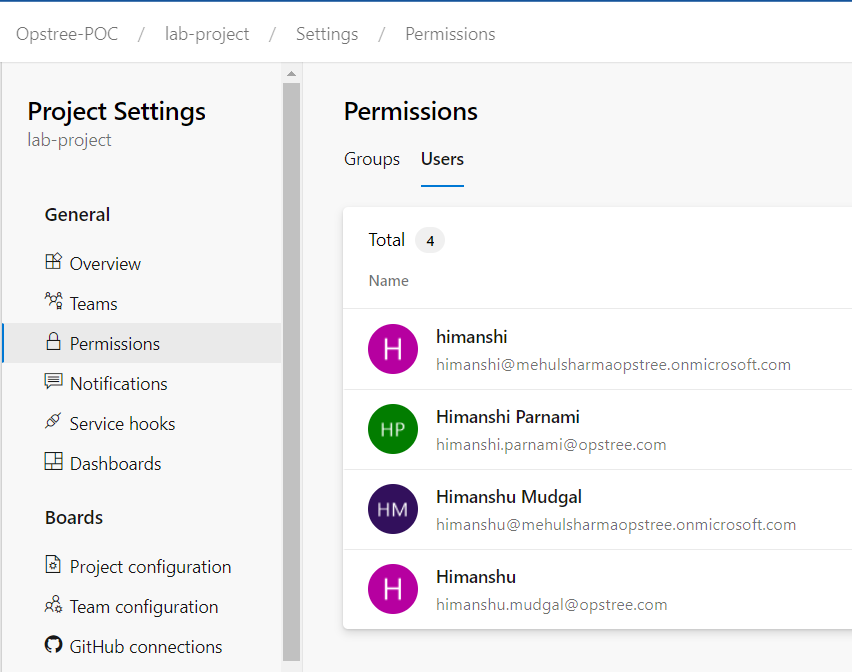
We can also directly go into our Users portal and assign them the group.
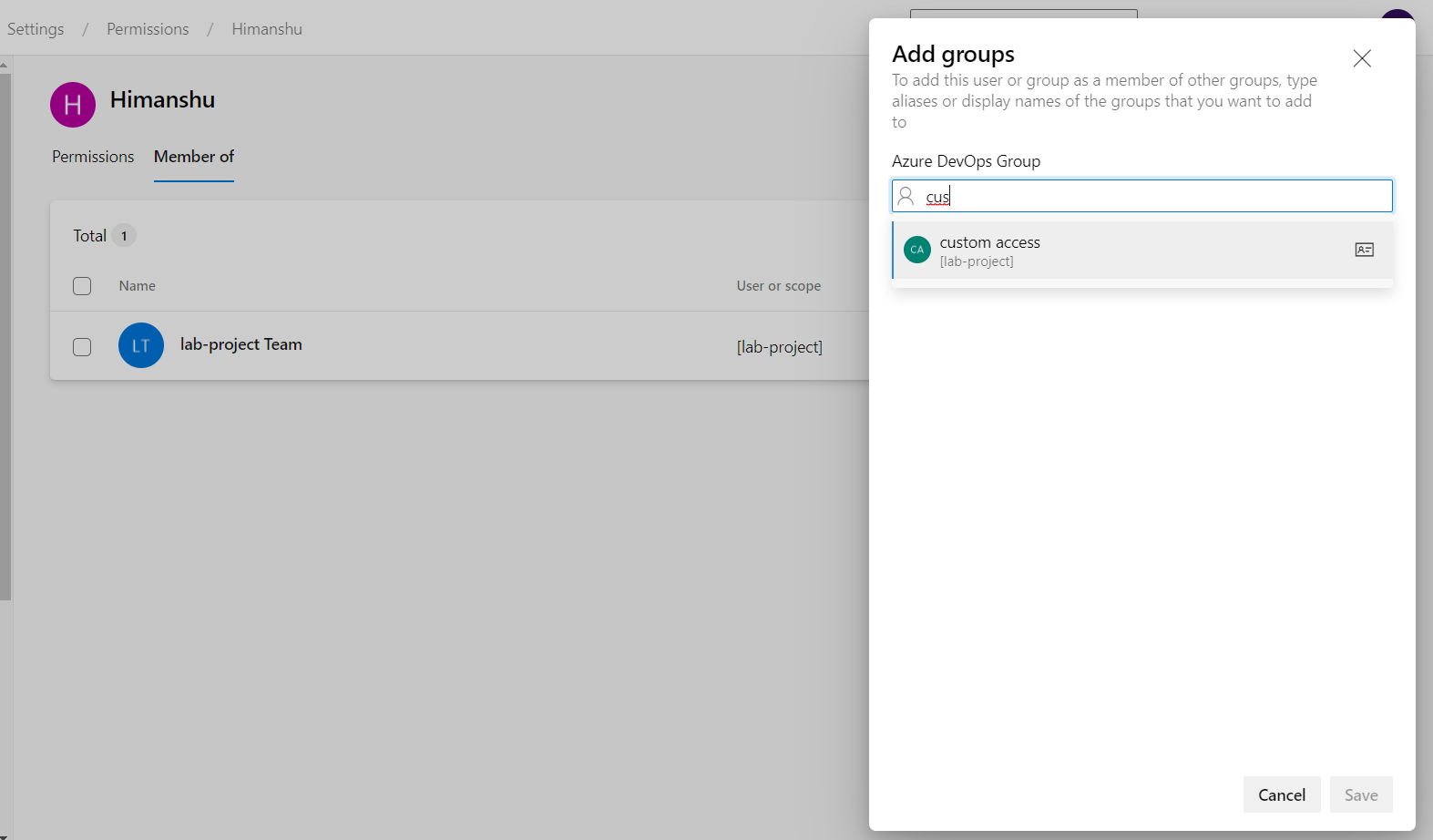
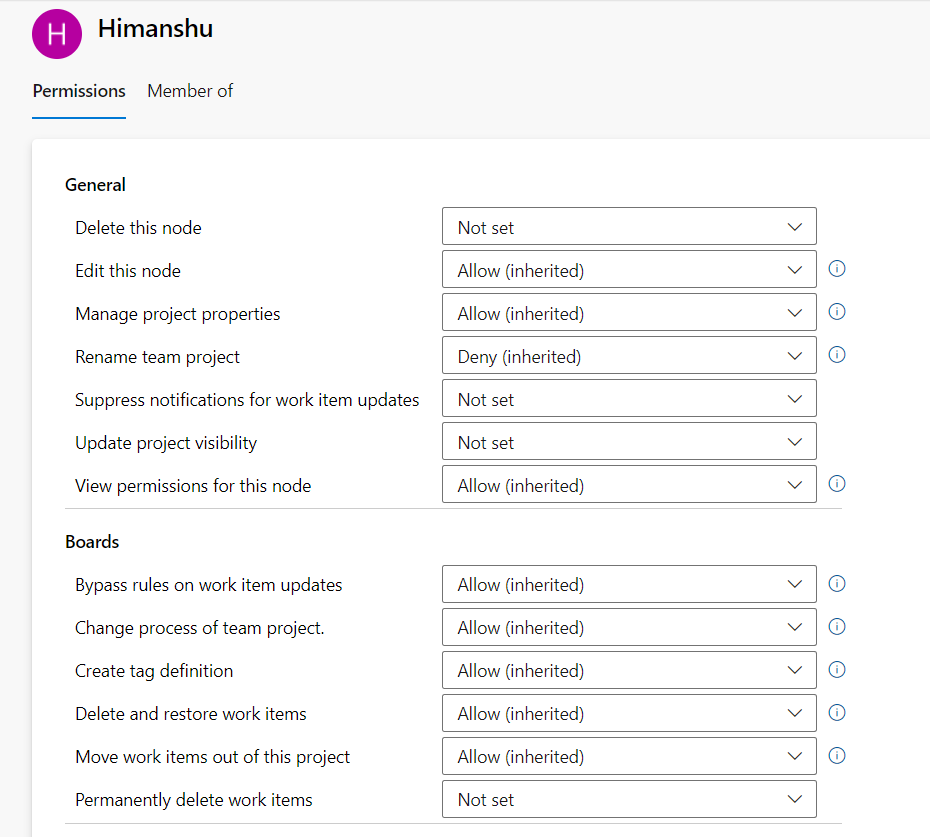
As you can see that after assigning the group to the user it's permissions will automatically upgrade to Inherited.
And that's how we can further manage the User and Groups in Azure Devops.