Lab 05: Azure YAML Pipelines - OT-TRAINING/azure-devops-zero-to-hero GitHub Wiki
Azure YAML Pipelines
Just as the Classic Editor using Azure Devops we can also use the YAML pipelines.
YAML Pipeline is almost same as the Classic Editor pipeline and fulfil the same purpose only additional feature is you can edit the pipeline in UI as well as CLI simultaneously. Also you can visualize the whole pipeline in a single window which at time is more preferable than scrolling through different tasks.
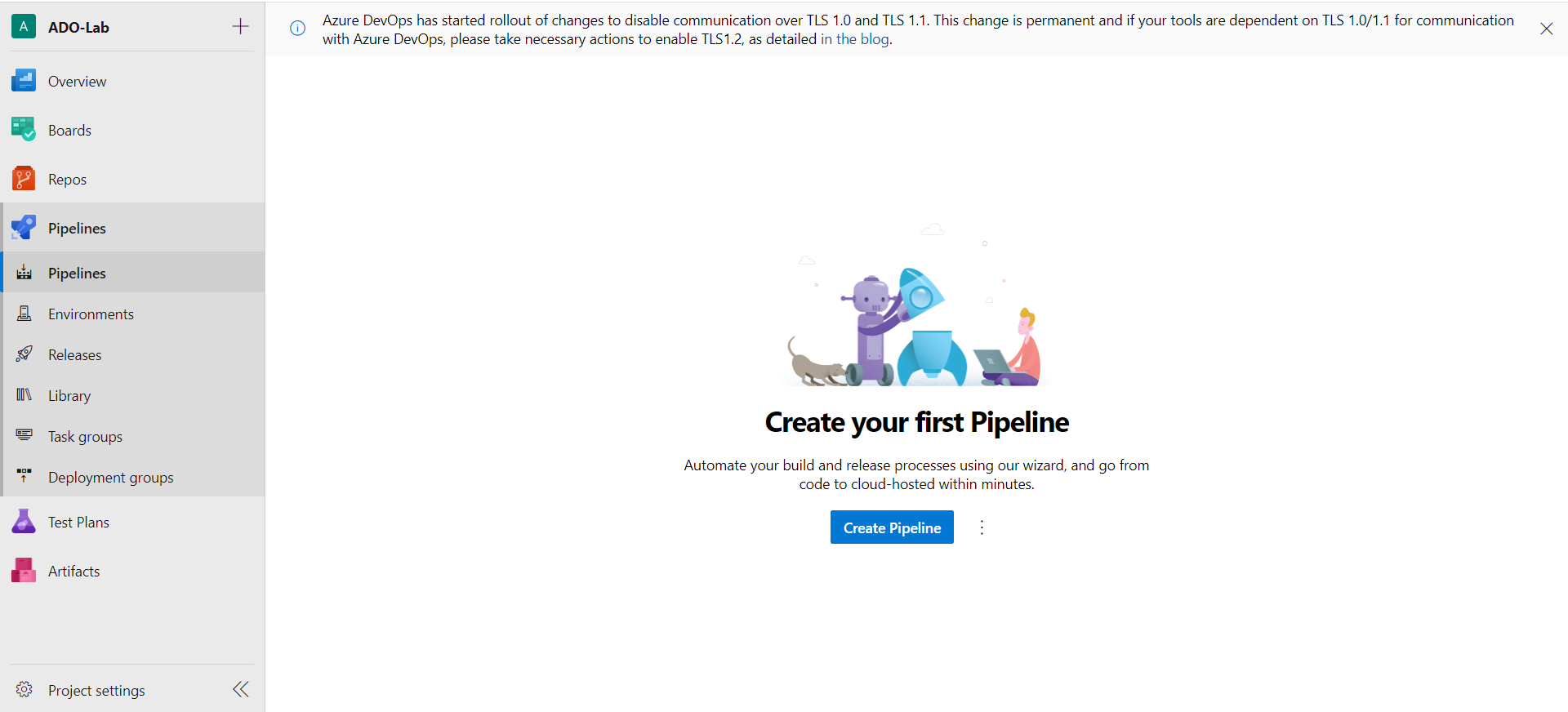
Here instead of choosing Classic Editor we'll go directly with choosing or code repository
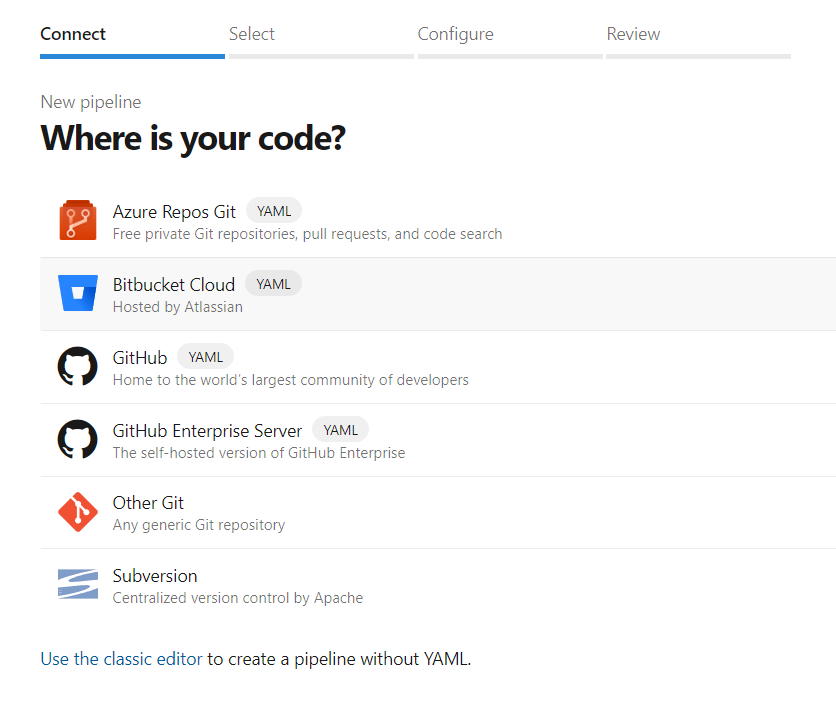
We can also go with other Git repositories that we've already discussed in our previous lab. In this lab we'll go with Azure Repos.
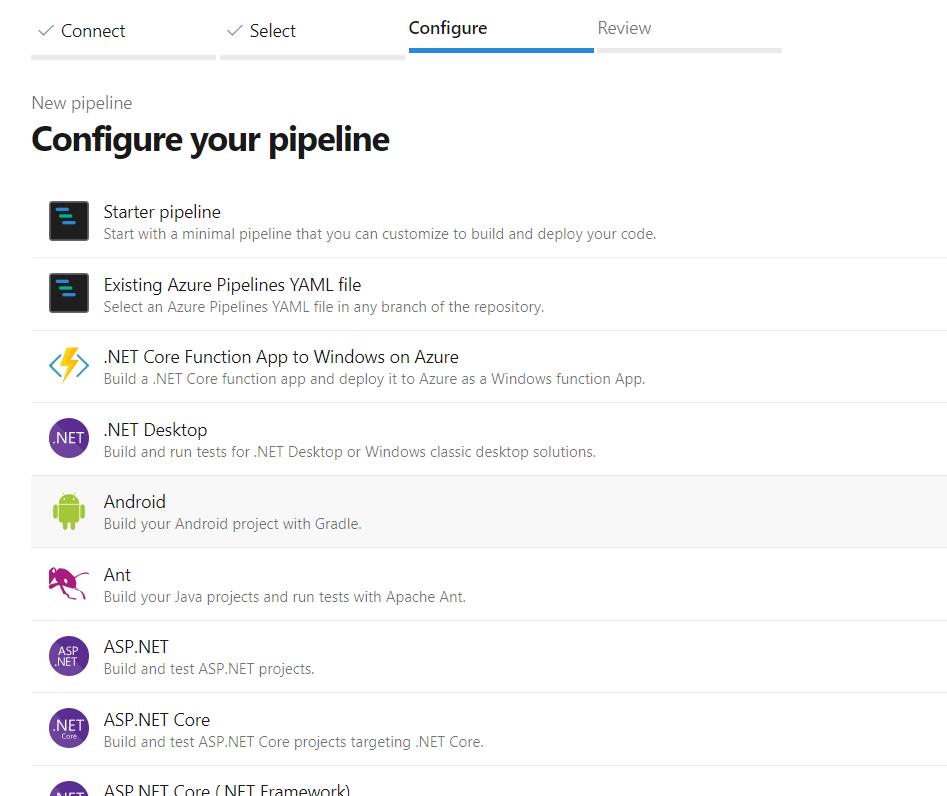
Here we'll go with a starter pipeline, though we can also use pre-configured templates as discussed in our previous lab.
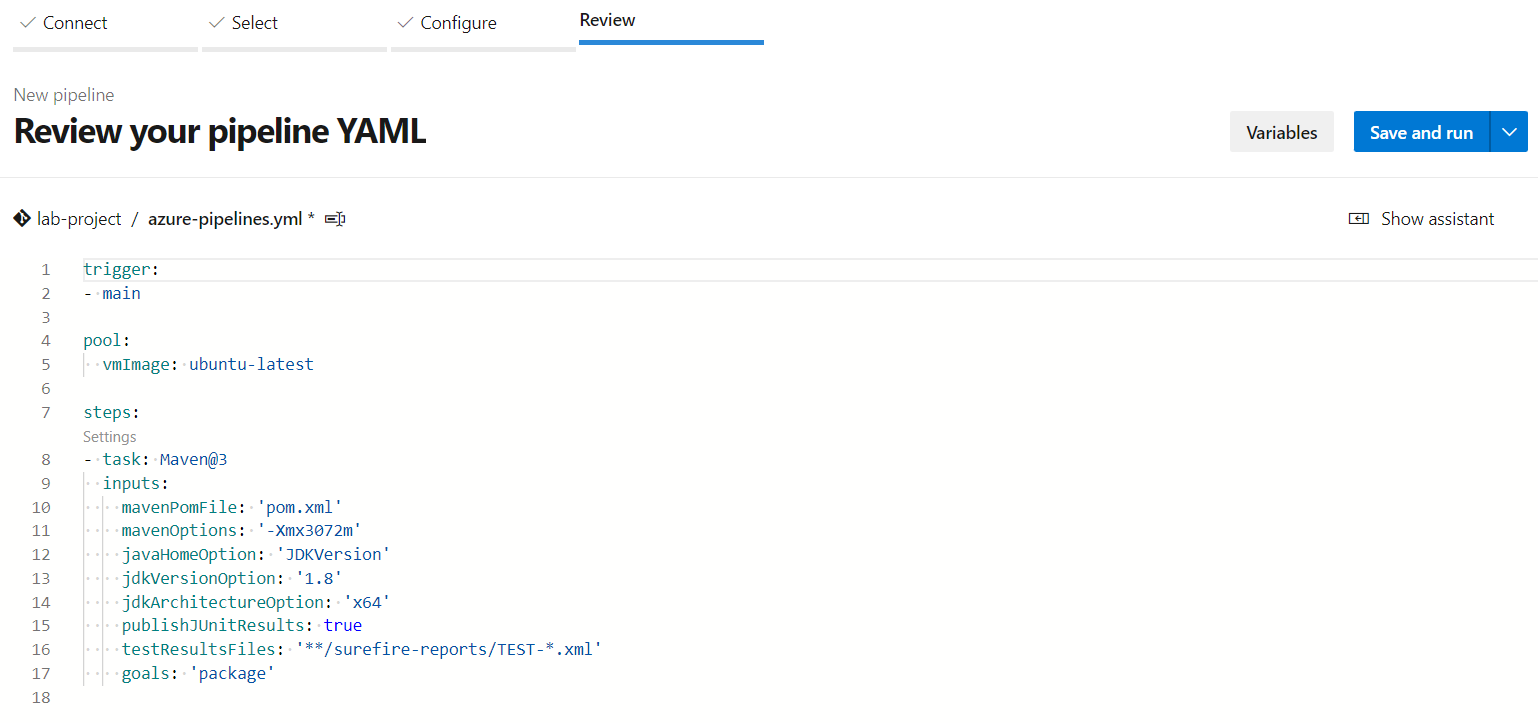
Just for an example, a Maven pipeline will look like
And a starter pipeline will look like
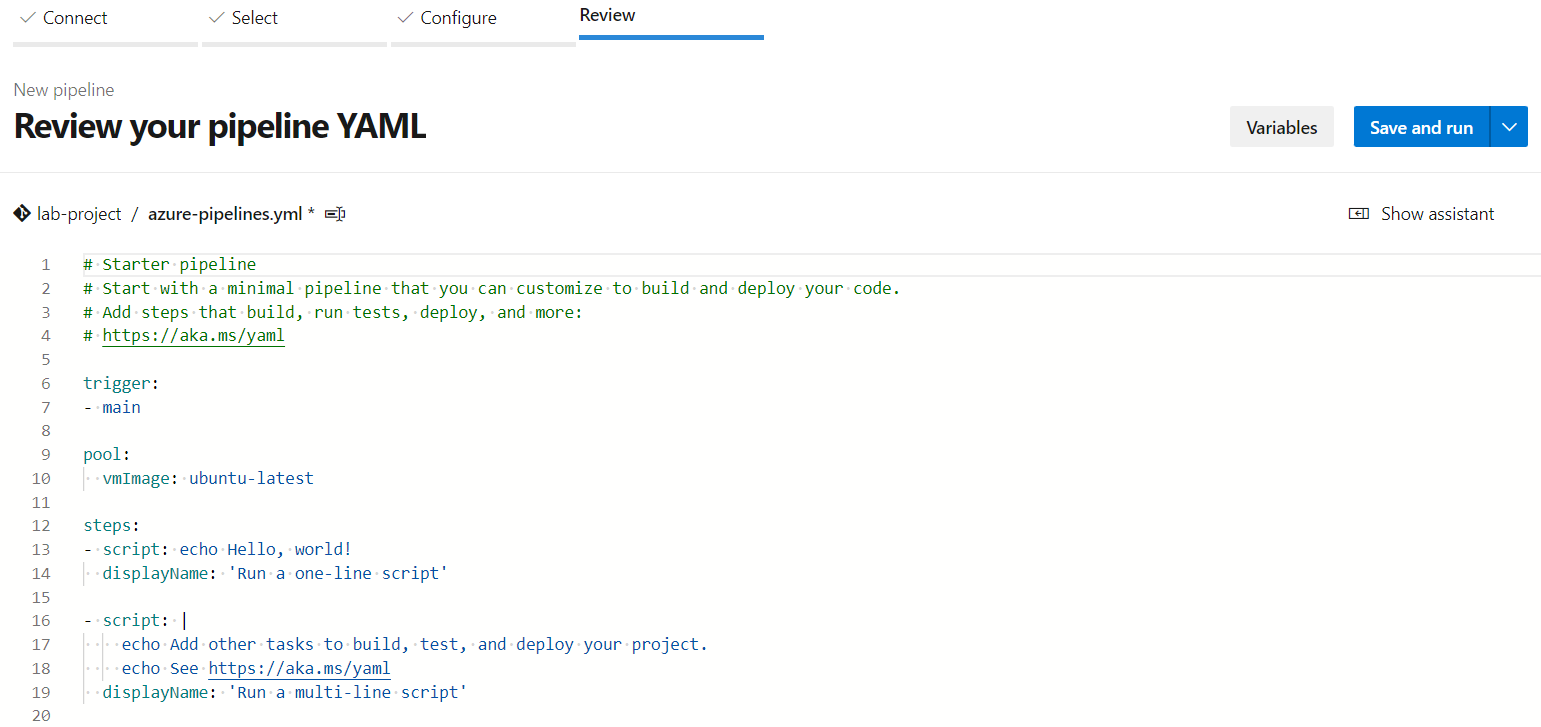
A YAML Pipeline will have
1. Trigger
Trigger will represent the branch name, it can have one or more branch name
2. Pool
As we have discussed earlier Pool will indicate the Agent Pool Name that is Microsoft Hosted Agent or Self Hosted Agents.
3. Steps
Steps of our pipeline. Steps further contains more the arguments required as per its type.
Though we can further integrate all these components in our pipeline but let's keep it simple for this time and discuss other components in other labs where we will deep dive into the YAML pipelines.
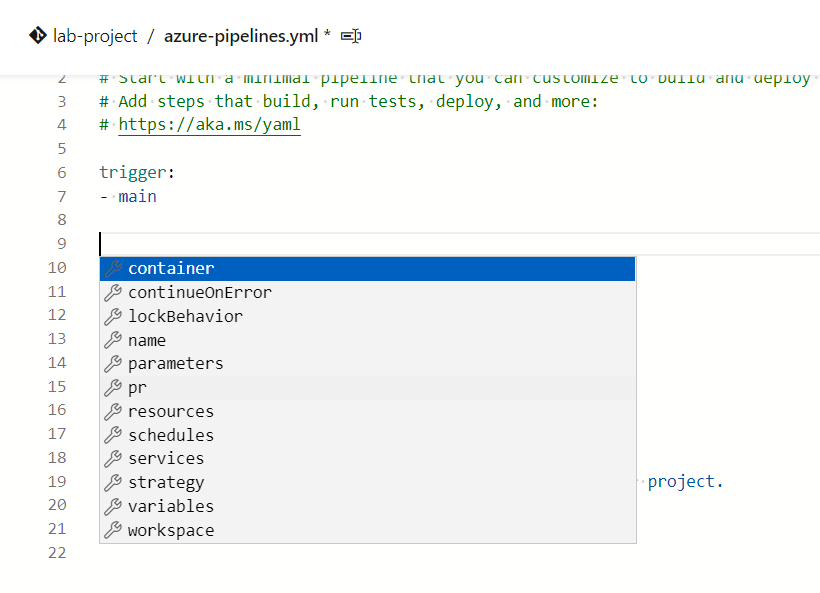
Actually there's nothing scary about these YAML pipelines. It can go as easy as the Classic Editor when we use Assistant.
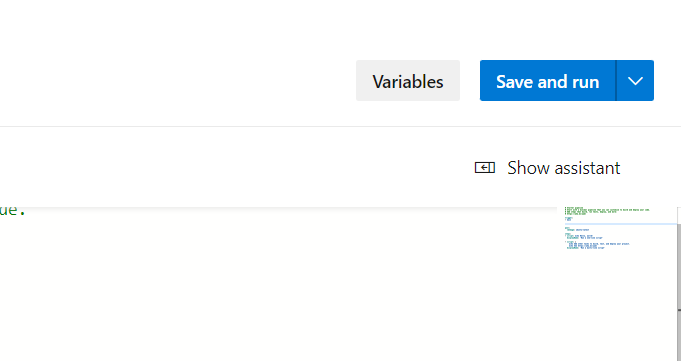
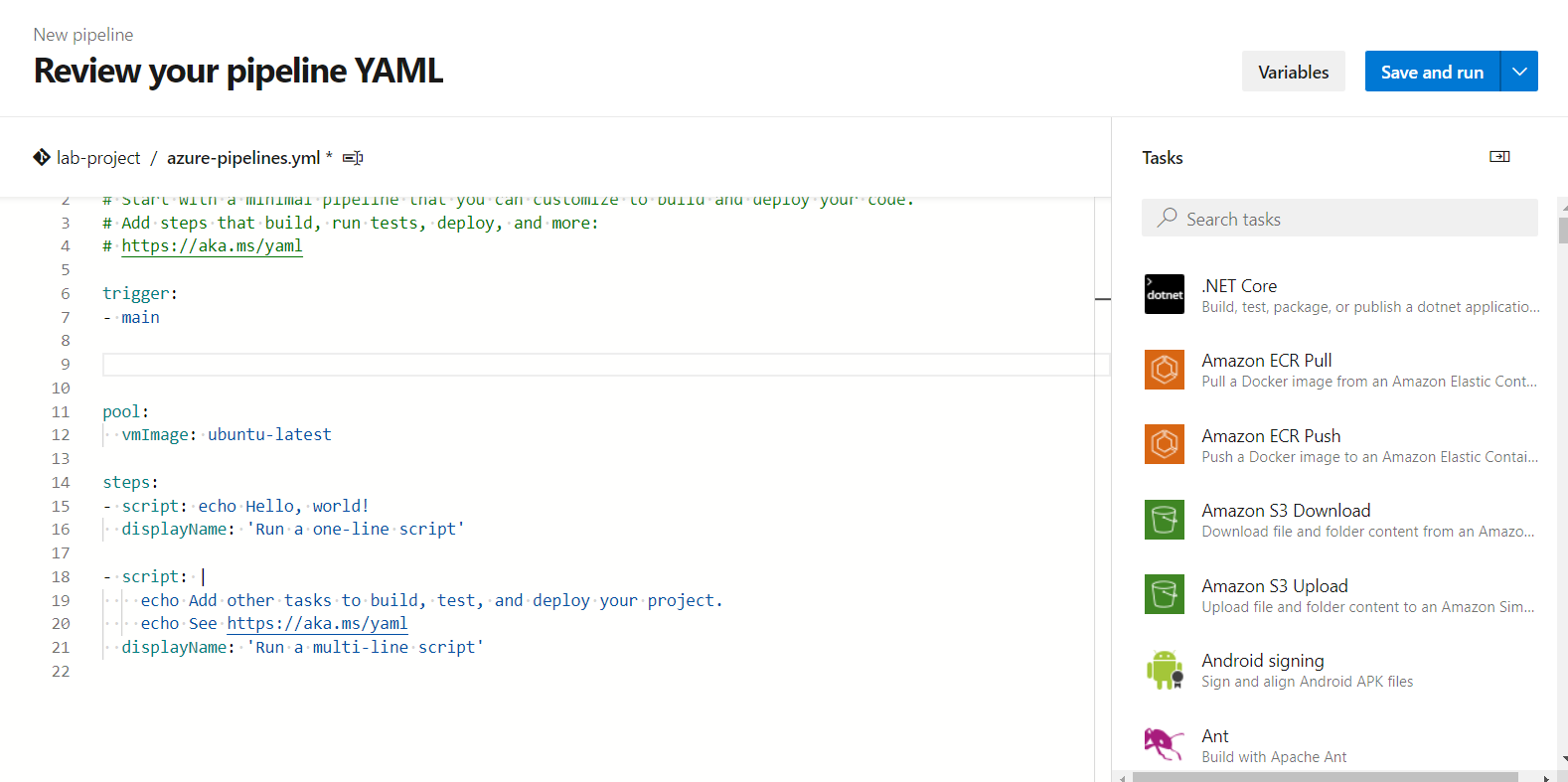
Now using the YAML pipeline let's build the same job that we've build earlier in our labs. Simply search for bash in Assistant.
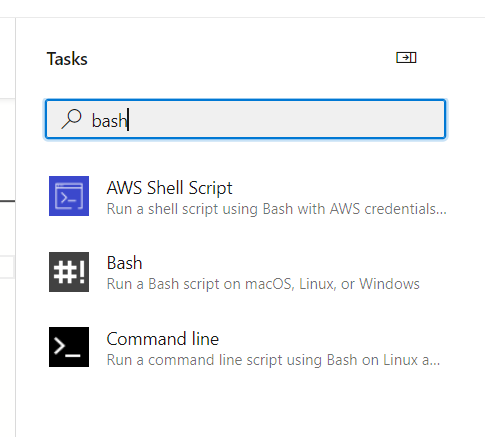
Add the commands that we want to execute and add the task.
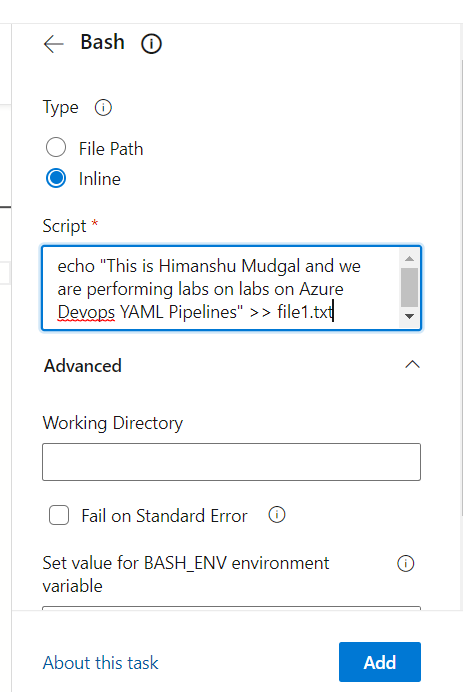
Similarly we can add more steps or tasks into our YAML Pipeline using assistant or directly using CLI
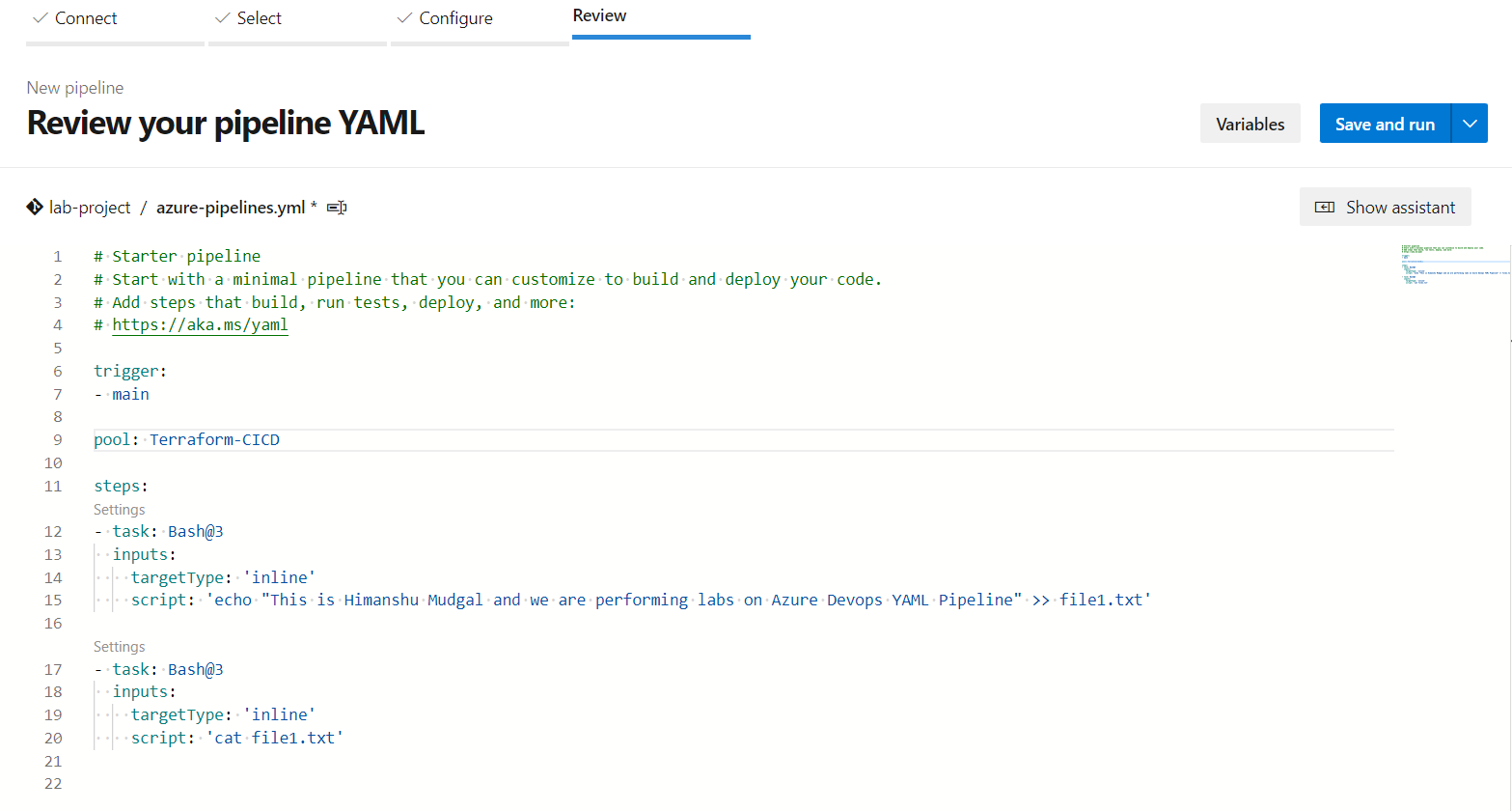
Let's Save & Run our first YAML Pipeline
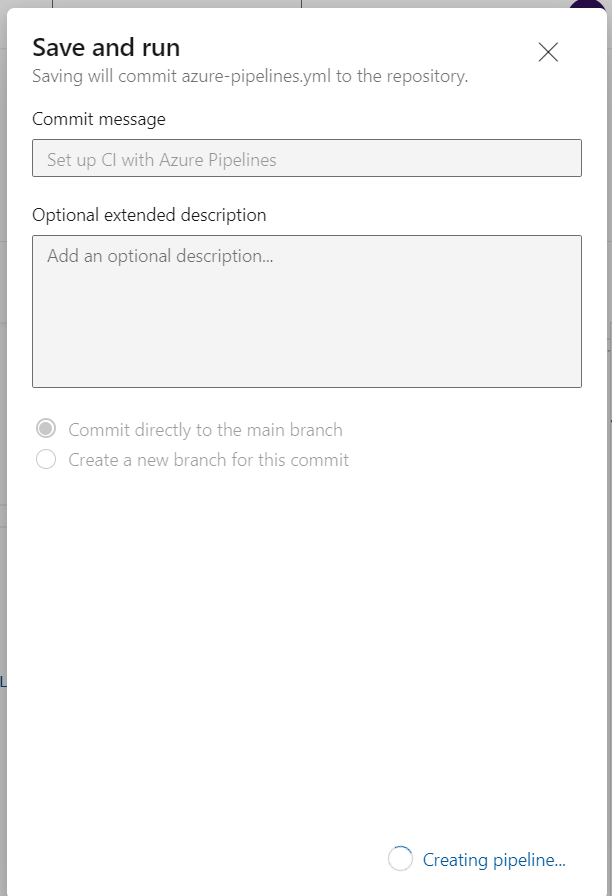
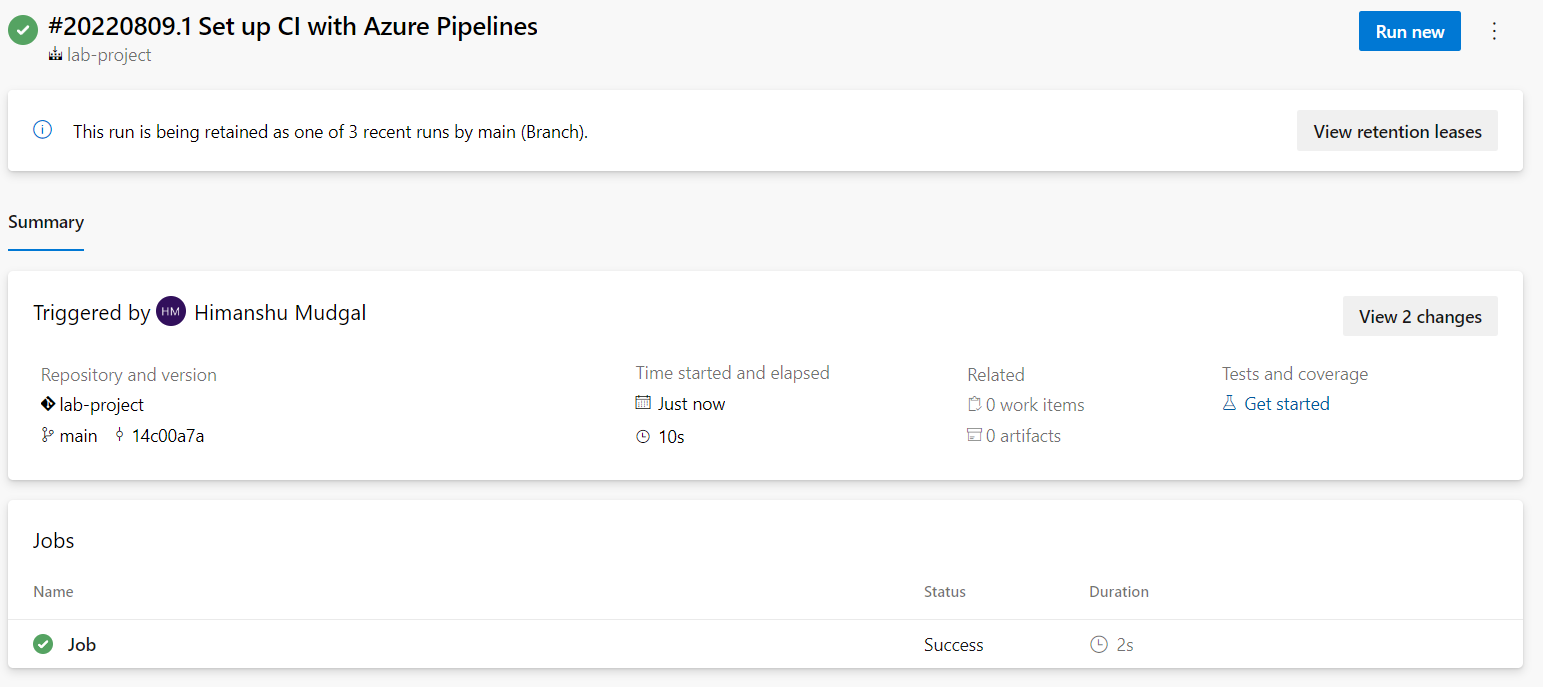
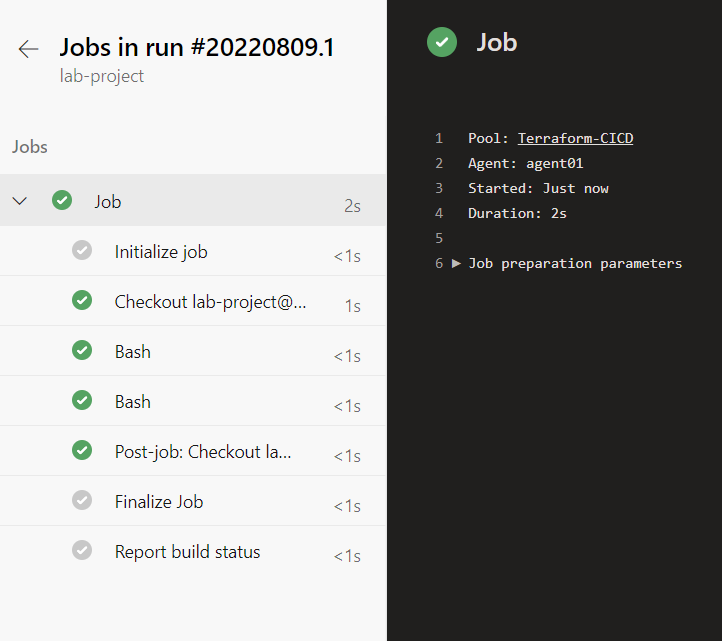
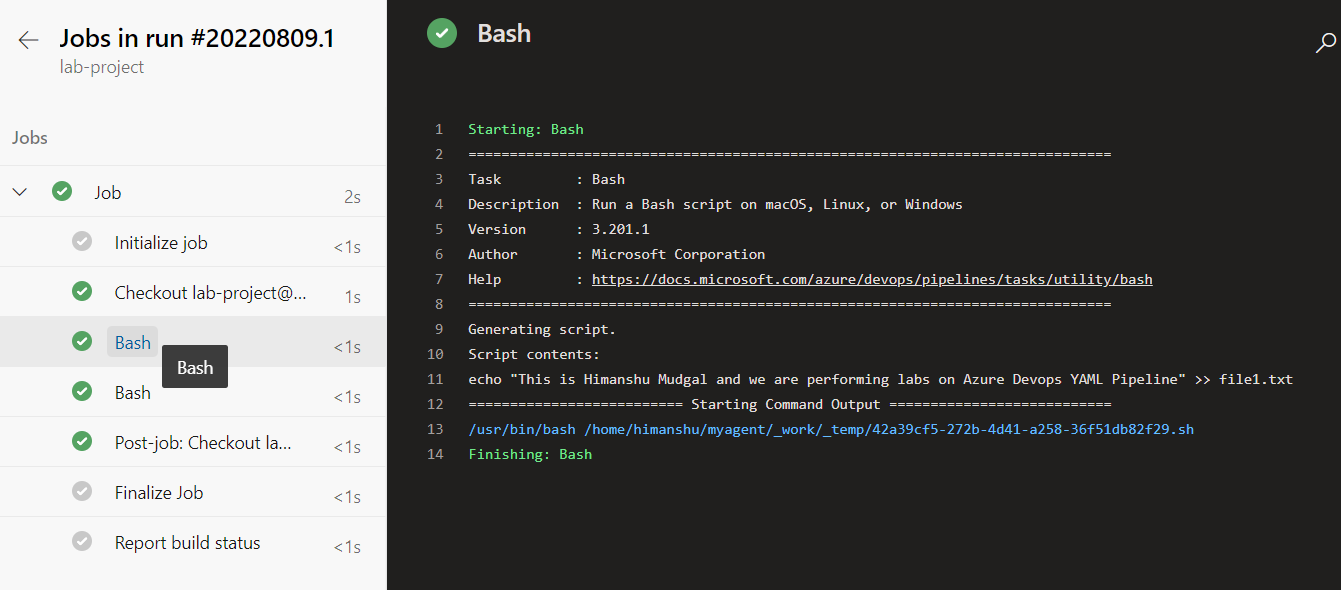
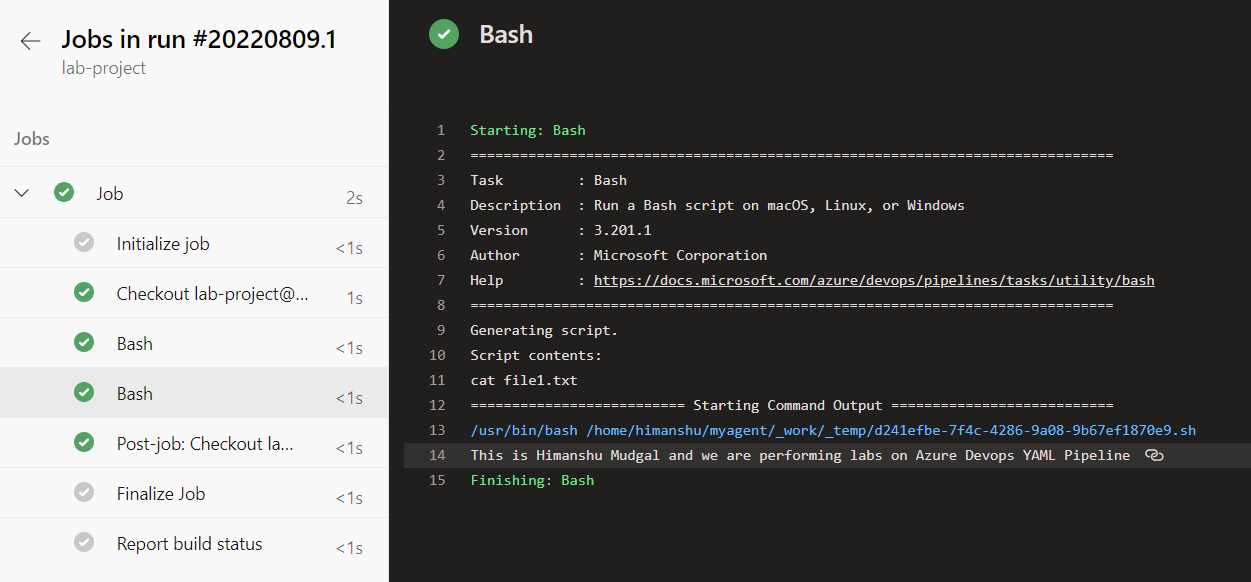
As we can see the output of successful completion of our pipeline is going to be same as the Classic Editor's output.