MFD - NikolaiVChr/f16 GitHub Wiki
Multi Function Displays
The BRT and CON switches on the MFD mount corners can be used to adjust brightness and contrast.
GAIN is only used in FCR GM mode.
Main Menu
If you click on the button for the page you are already in, you get into the main menu.
SMS Page
Clicking on button (OSB) next to a station will select Store Management System page. Each station has 2 or 3 lines of text, that details pylon mounted, rack/rail mounted on pylon and weapon(s) mounted on the rack or directly on the pylon. S-J will jettison the selected station. Not all payload types can be jettisoned, same for racks. If CAT shows greater than 1, then you should set the flightcontrols to CAT III on left panel and opposite.
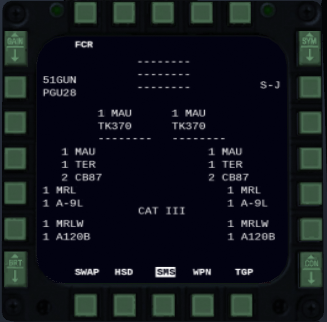
From this page S-J page can also be accessed.
S-J page
This will show jettisonable stores. By clicking on the OBS buttons stores can be selected.
Once selected, enable master-arm and jettison the selected stores by pressing trigger.
FCR Page
See Radar
HSD Page
Horizontal Situation Display. Shows route, aircraft on datalink, bullseye, threat-circles, mark points and radar target that has ground-track info.
- DEP: Depressed ownship in display.
- CEN: Centered ownship in display.
- CPL: Range will follow radar distance so that entire radar range is within the HSD.
- DCPL: Range can be set independently of radar range by clicking on the up/down arrows.
In F-16 menu you can load Lines 1 to 4 in Preplanning Dialog. Those will also be shown on the HSD.
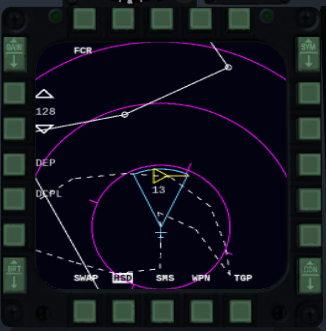
HSD cursors
When FCR is shown on the other MFD, a cursor that looks like the FCR cursor is shown on the HSD. That is called a ghost cursor, and will indicate where in the HSD the radar cursor is located. When HSD is SOI there will be a HSD cursor. That cursor is controlled same way as the FCR cursor. It can be used for these operations:
- Select steerpoints on route
- Select points on lines
- Select threat circles
- Select bullseye
- Select markpoints
- It is not able to select radar targets or DLNK targets
WPN Page
Details about current selected weapon(s), see more info on its details in the Weapons section.

TGP
See TGP
SWAP
Swap what is shown on the displays from left to right and opposite.
SOI
The Sensor of Interest (SOI) is selected using DMS (Shift + Arrow Key). DMS Forward selects HUD as SOI. DMS Aft selects the left MFD as SOI, and further DMS Aft toggles between left / right MFD. The SOI may then be manipulated with the cursor (only enabled for FCR as of now). Some pages will show the text NOT SOI when they are not soi. Pages that are soi, will have a full drawn outline on the display.