Documentation - MscrmTools/MscrmTools.SolutionLayersExplorer GitHub Wiki
Welcome to the Solution Layers Explorer documentation
Prerequisites
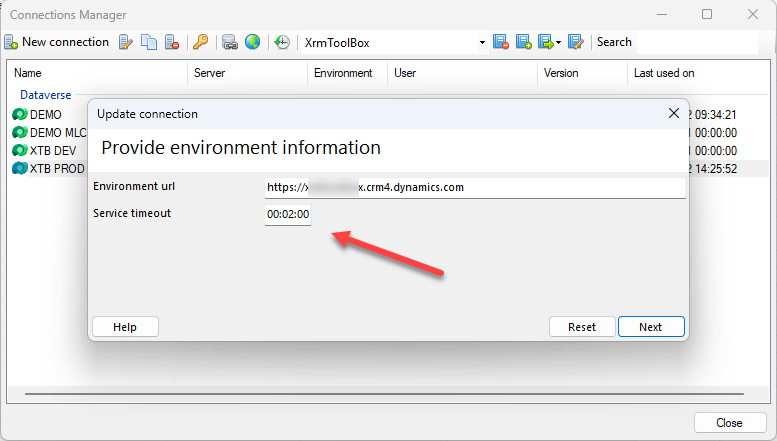
Loading unmanaged layer in the Dataverse API can be time consuming. Do not hesitate to raise the timeout of your XrmToolBox connection before using this tool.
Loading solutions
Use the button "Load solutions" to load managed solutions from the connected environment
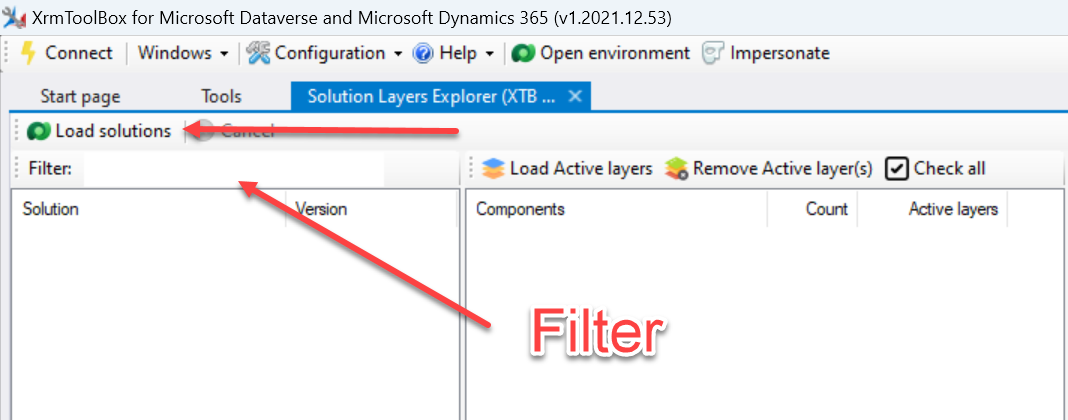
You can use the filter textbox to find the appropriate solution
Loading components
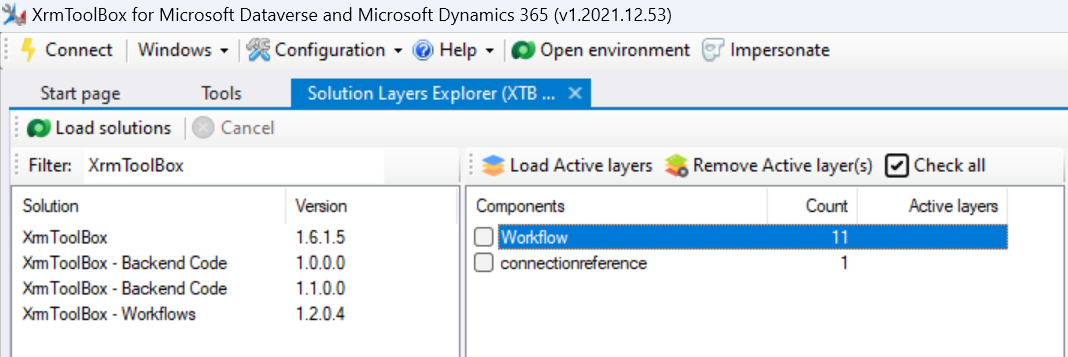
When selecting a solution, it is analyzed to determine the component types that belong to the solution
Loading active layers
You can select a single component type or tick multiple ones, then click on the button "Load Active layers". Please note that the more components, the more time it will take to retrieve active layers. Please avoid to check all component types. Once found, each component type displays the number of active layers found.
During the search, "..." are displayed
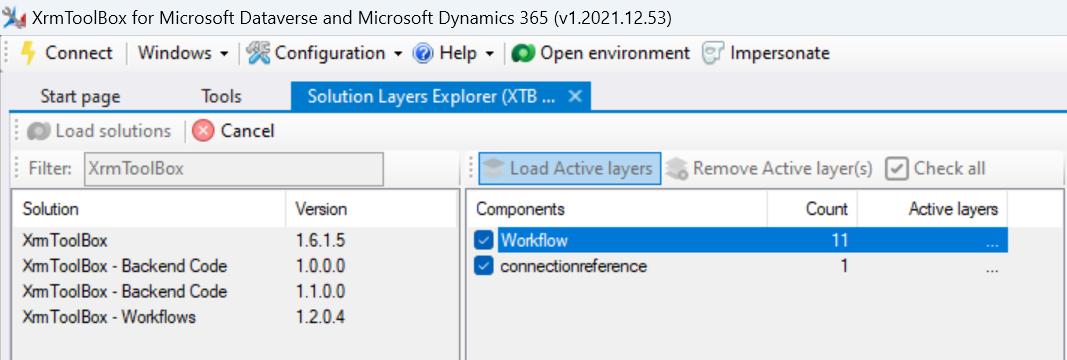
Then, the number of found active layers is displayed
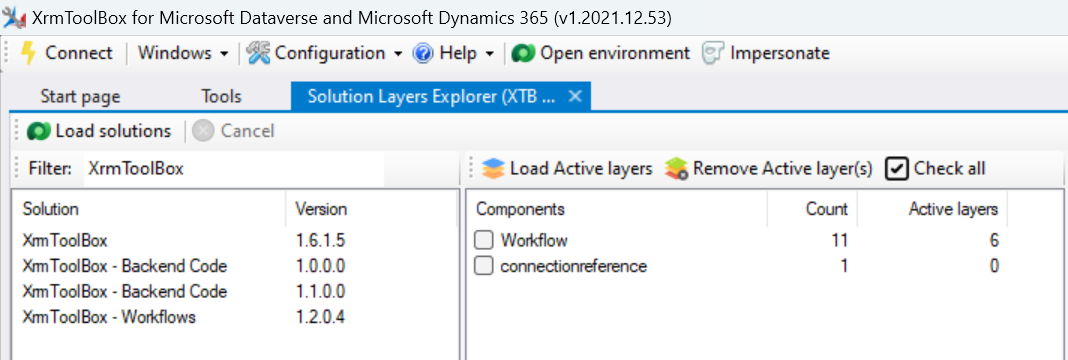
See active layers
Select a component type with active layer(s) found. The items with active layer are displayed on the right.
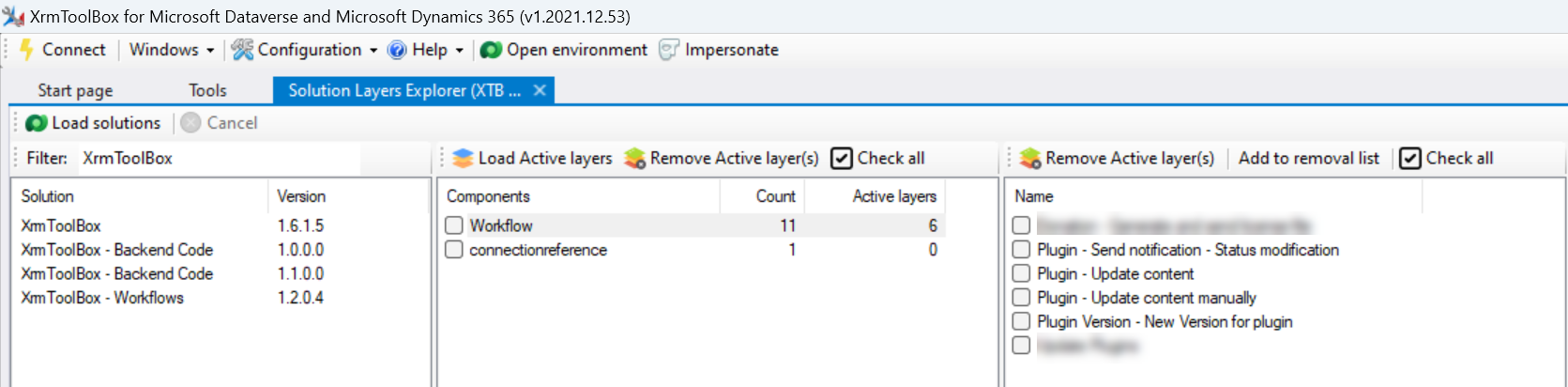
Check detail of an active layer
When selecting an item with active layer, the right panel displays raw information about the layer
- Changed properties
- All properties
- Children (which can contains additionnal info, like privileges changed for a security role)
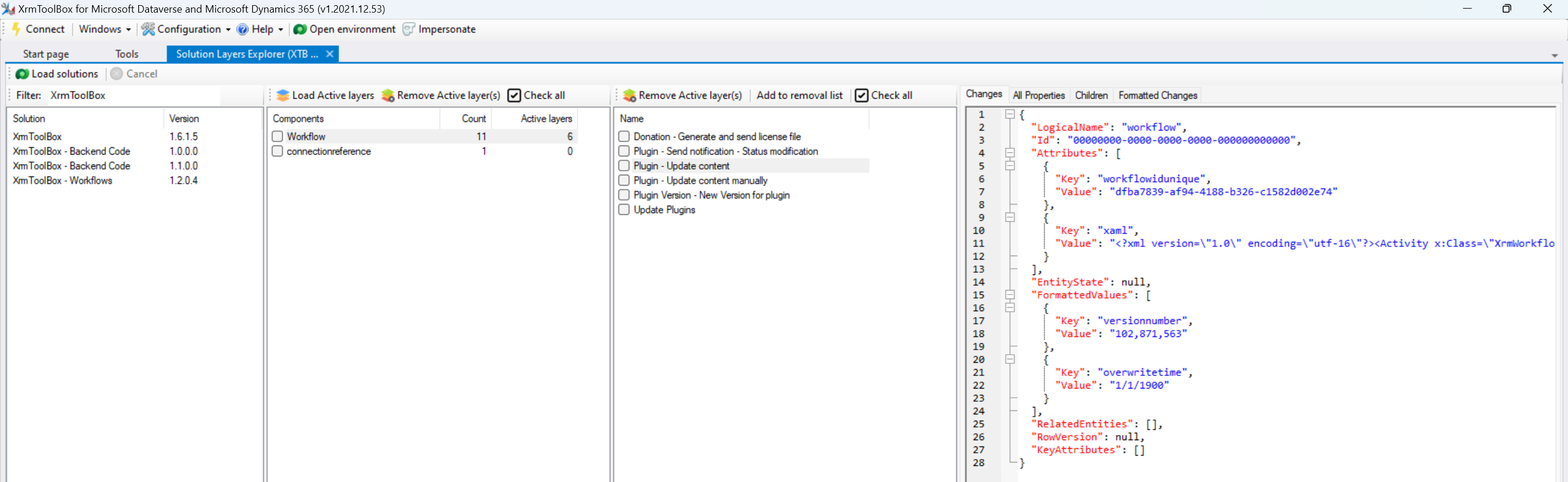
I also added a Formatted Changes tab. Indeed, knowing which property has been changed does not tell you what is the change and if it needs to be replicated in development environment and/or if it can be removed safely from the connectd environment.
This tab contains some processed information if the component type is handled specificaly by this tool.
You can also use two features useful to understand if the active layer can be removed safely or not:
- Comparing the content of the active layer of the connected environment with the content in another environment (the development environment, for example). It uses and requires the tool Advanced Component Comparer. If content are the same in both environments, it means that the change in connected environment has been replicated in the other environment. If a release occured in target environment, we can maybe assume the change has been released in a managed layer.

- Comparing the content of the active layer with another layer (generally, the top one under the active one). In this situation, you can select two layers (1/2) and you will see the list of properties (3) for the selected item. Properties different between two layers are displayed in red. Select any property and a comparison control (4) will be displayed to help you determine what are the difference and if it needs to be replicated in DEV and be released before the active layer can be deleted safely.

By default, the tool displays the comparison control using all available space in XrmToolBox. You can use the button "Remove Full Screen" (5) to go back to normal display.
Remove active layers
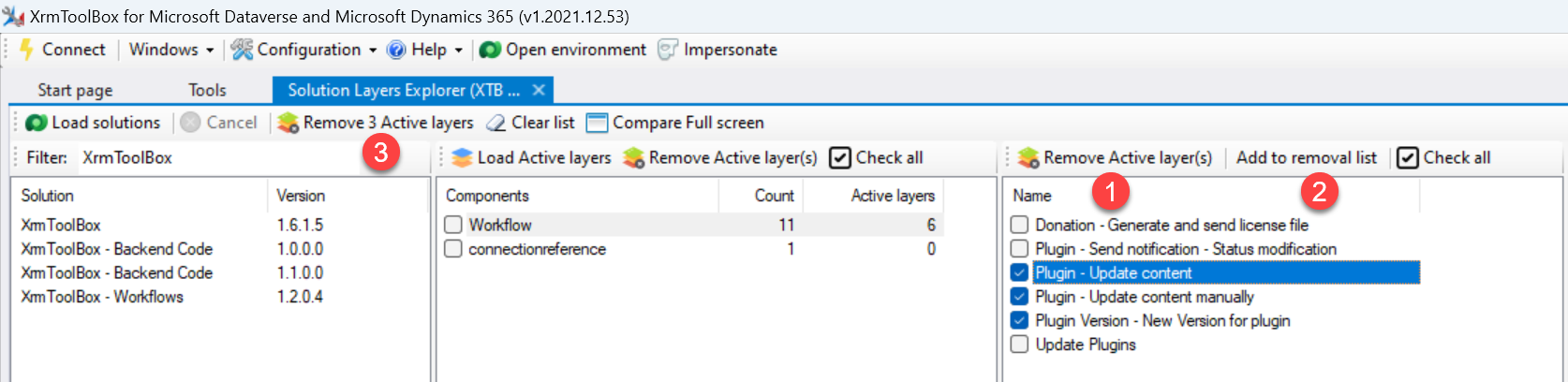
Once you determine an active layer can be remove safely from the connected environment, you can select or check item(s) and click on :
- Remove Active layer(s) to remove selected active layer(s) (1)
- Add to removal list (2) to complete a queue of items to clean. Then you can click on the button "Remove X Active layer(s)" (3) on the top toolbar to clean all queued items.