Views - MaksimAbelchuk/RnS_Docs GitHub Wiki
RnS / Report Builder has feature Views allowing to set a control zone state. I.e. reuse, save, and store a chart with particular settings. This feature is accessible only to the users with Administrator rights. There is no need to configure the defaults via chart config as this feature works via UI.
Adding admin rights in PCAS
- You need to be a member of PCAS group defined for RB administrators. The subject (User group) is defined as gn:pcas:admin.
- There shall be created PCAS policy assigned to this group with following attributes:
- Subjects: gn:pcas:admin
- Actions: an:pcas:api-token:read:all; an:pcas:api-token:revoke:all
- Resources: rn:pcas:api-token
Views types
Factory Default
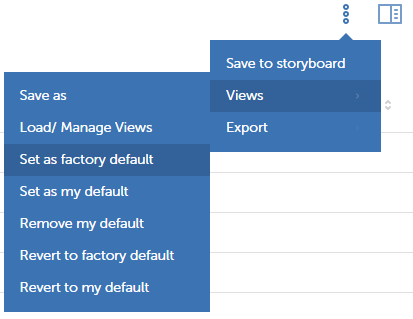
To set up a personal default, please, follow the next steps:
- Open and set up a chart view (measures, dimensions, filters, etc.)
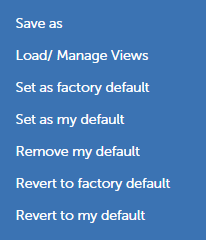
- Click on 3 dots menu
- Choose Views
- Choose Set as factory default.
Personal Default
A view of a chart that is opened when you open the chart. Personal default overwrites a factory default.
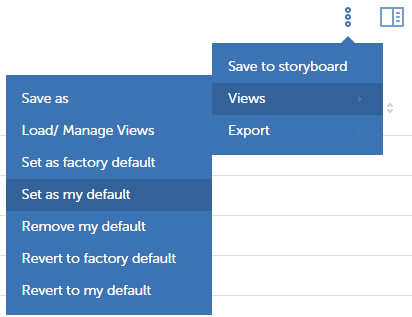
To set up a personal default, please, follow the next steps:
- Open and set up a chart view (measures, dimensions, filters, etc.)
- Click on 3 dots menu
- Choose Views
- Choose Set as my default.
Saved
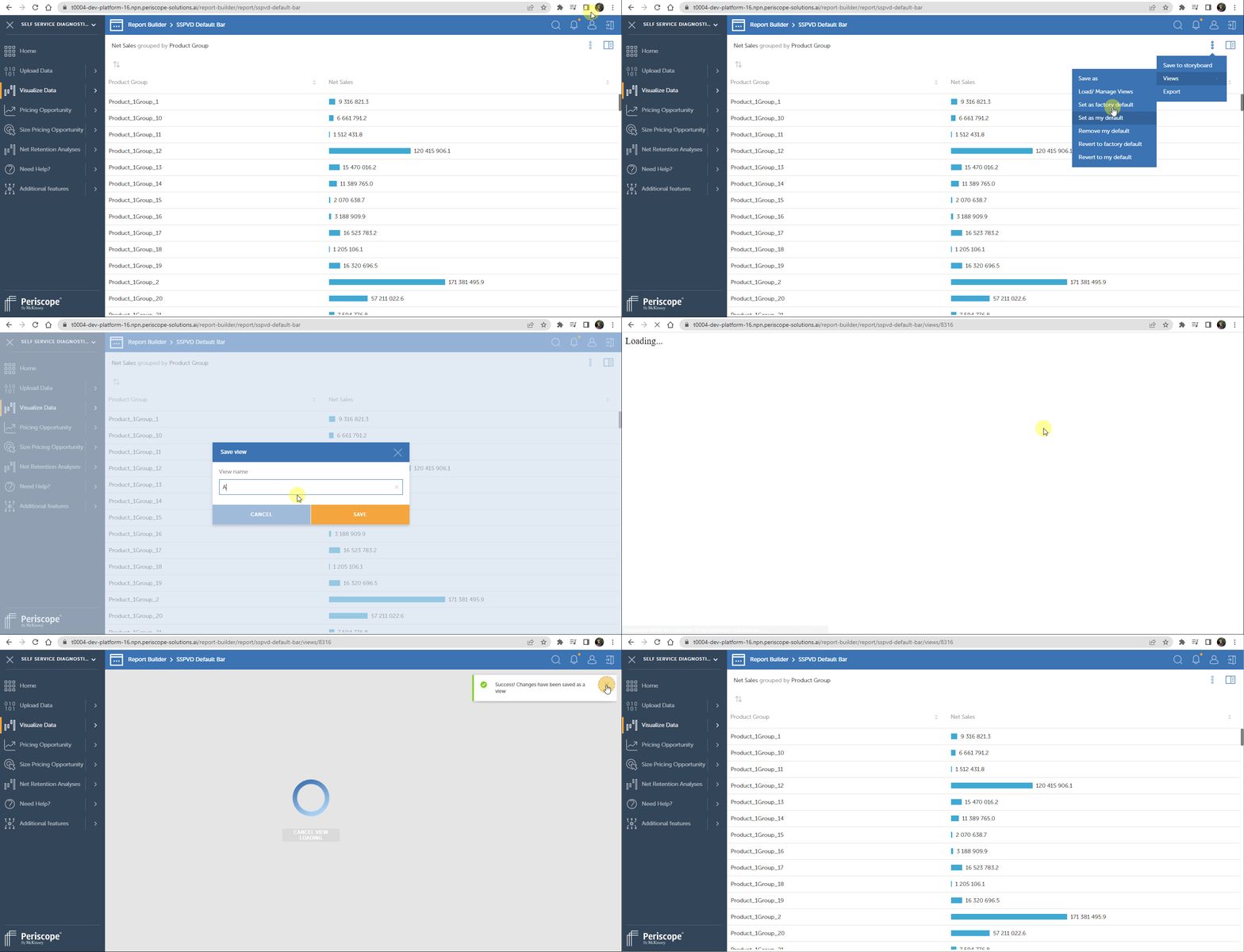
If you just have set up a control zone settings but didn't save the view, then the next time you open this chart, then the chart will open on the factory default state. To save a view:
- Build a chart by setting needed controls in Control Zone.
- Open 3 dots menu
- Choose Views
- Choose Save as
- Add view's name
- Click Save
- Then, the system will redirect you to your view; your URL will change.
Shared
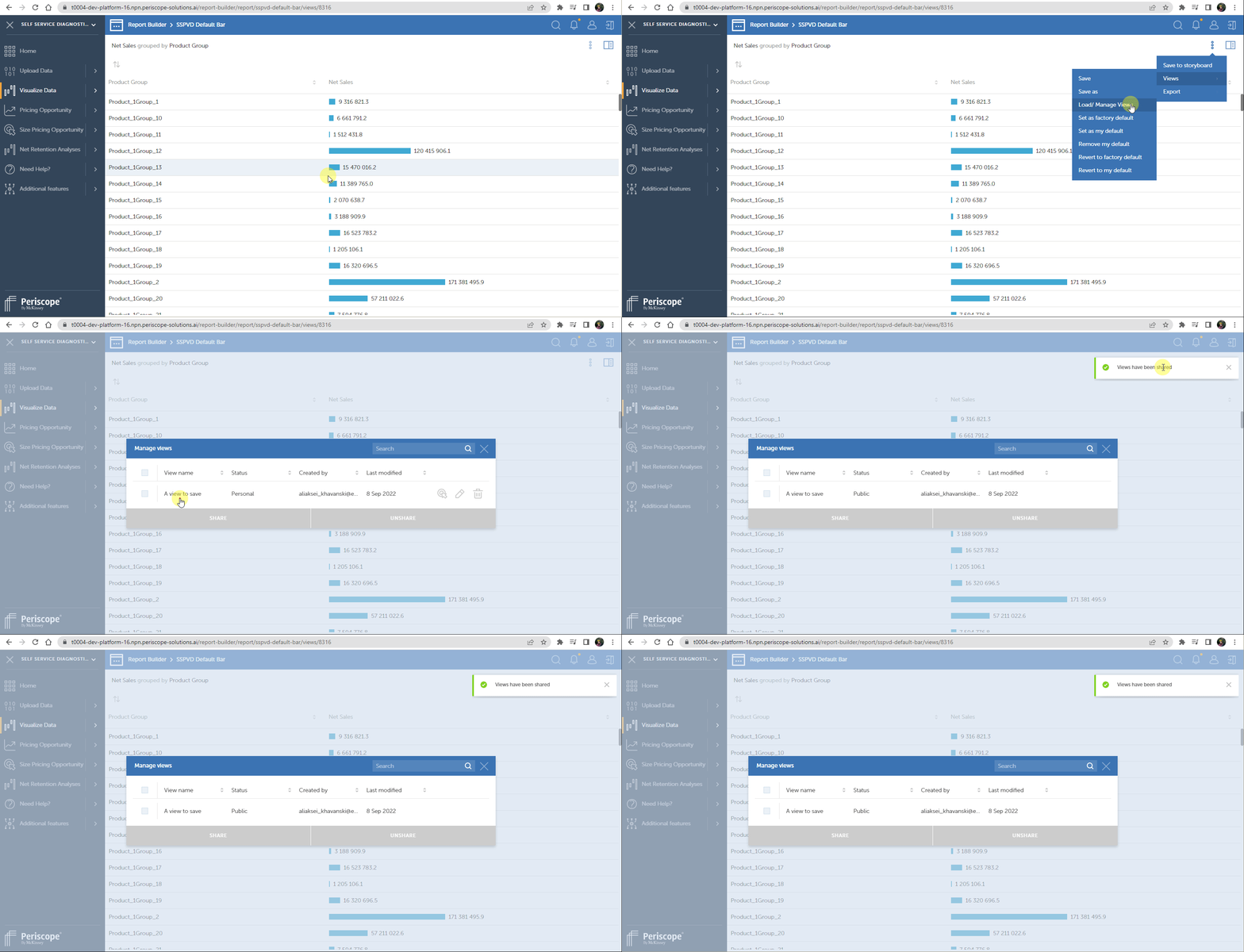
If you want to work on a view with your colleagues, then you should share this view so that other users could view it.
NOTE: To share a view you should first save a view.
To share a view, please, follow the next steps:
- Build a chart by setting needed controls in Control Zone.
- Open 3 dots menu
- Choose Views
- Click Load / Manage views
- Choose a view you want to share
- Click Share
- If you want to unshare a view follow the same steps, except click Unshare.