Creating a cross‐fading sustains patch - M52/fastsampler-downloads GitHub Wiki
Let's begin by quickly exploring the interface.
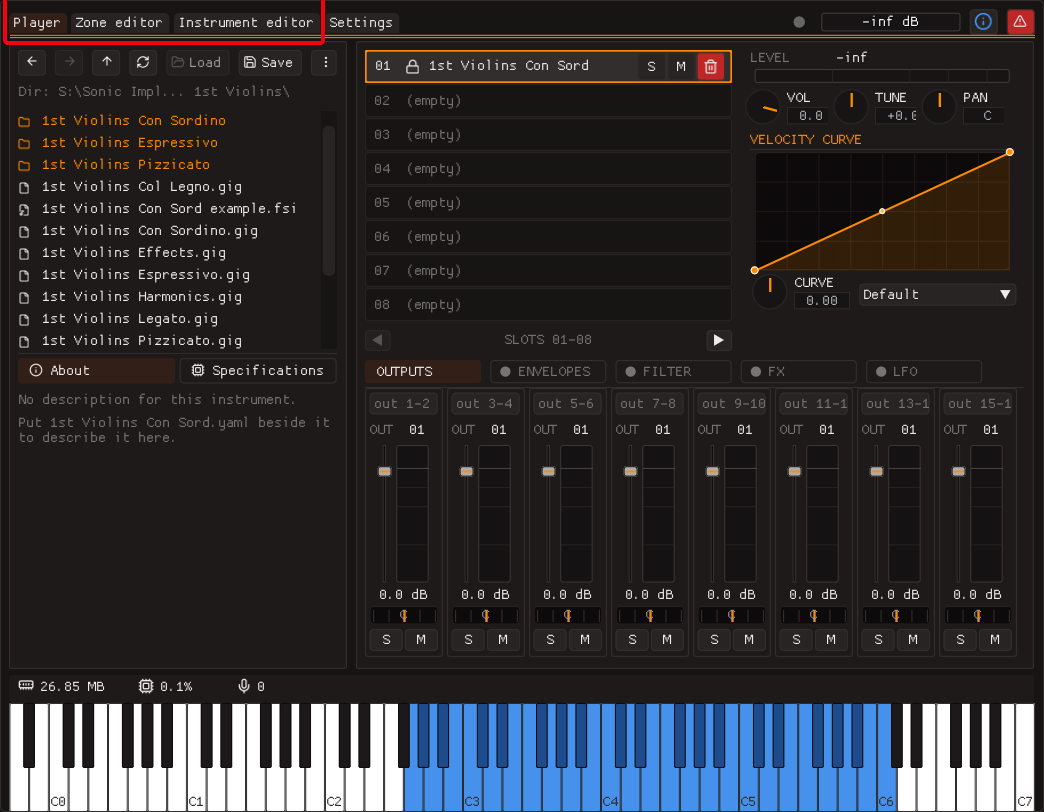
The essential features can be found in the three main tabs: the Player, the Zone Editor, and the Instrument Editor. For now, we will focus on the player tab.
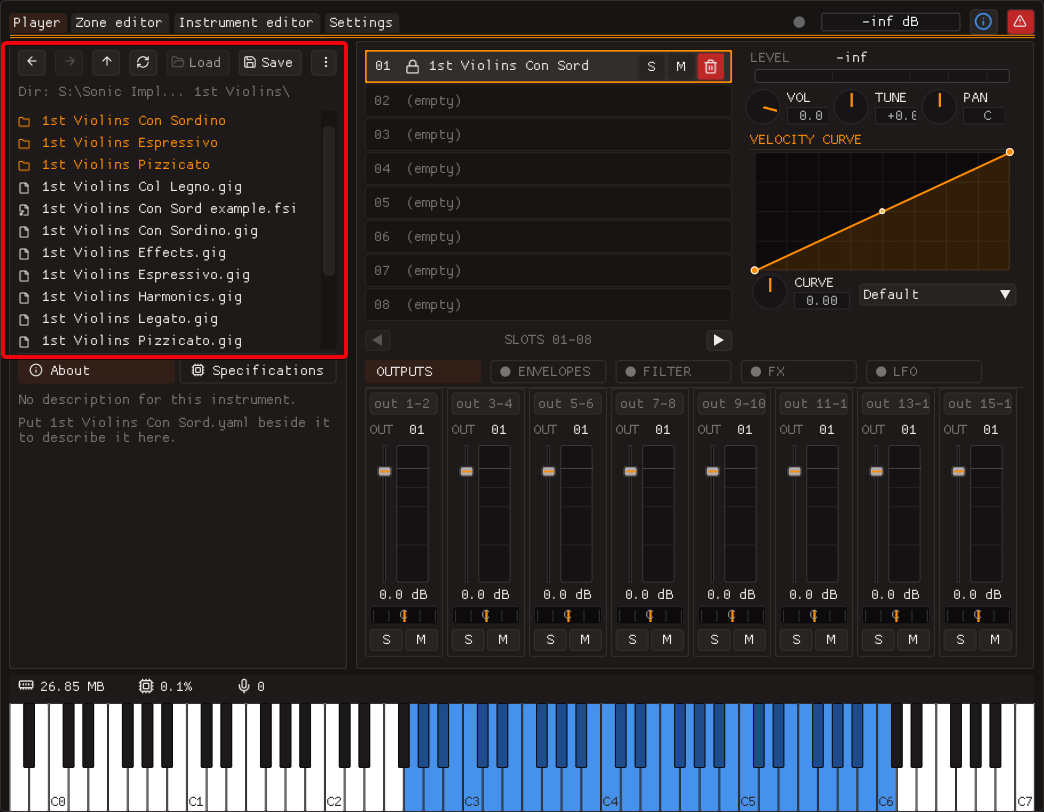
The instrument browser sits on the left-hand side and is what you'll use to locate and load instruments.
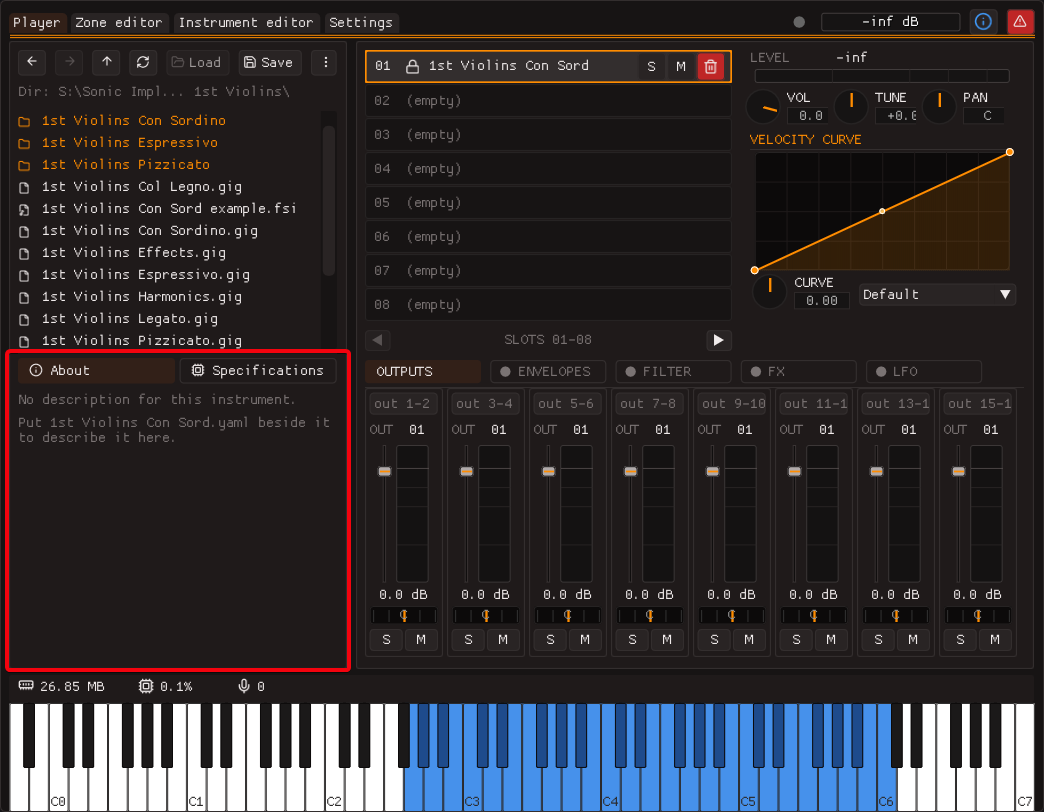
Below it is an information pane where you can read more about the instrument or its technical specifications.
In the centre is your instrument rack where you can load instruments, assign them to midi channels, solo them, mute them, delete them, or unlock them. We'll get back to unlocking instruments later. FastSampler supports 16 instruments per instance, split across 2 pages.
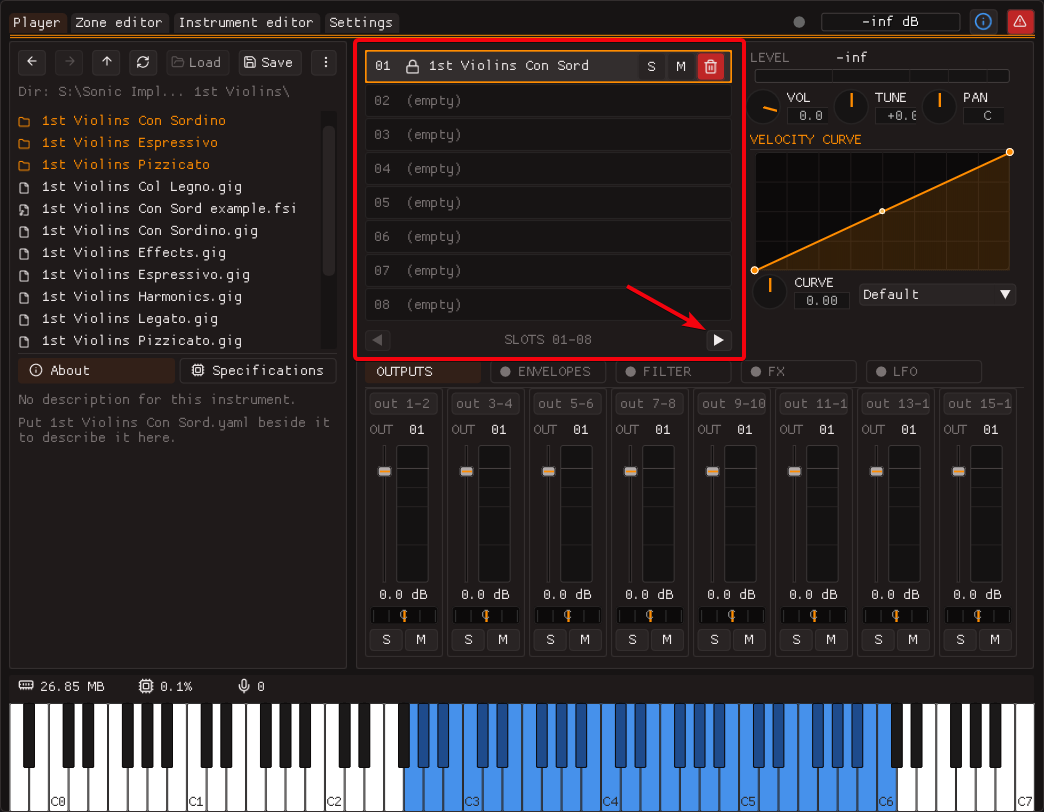
Each instrument also has its own volume, tuning, and panning controls. At the bottom there are dedicated tabs for instrument-wide effects such as: a filter, a filter envelope, dynamic just intonation, reverb, and more. The tab named 'Outputs' is where you will manage microphone positions.
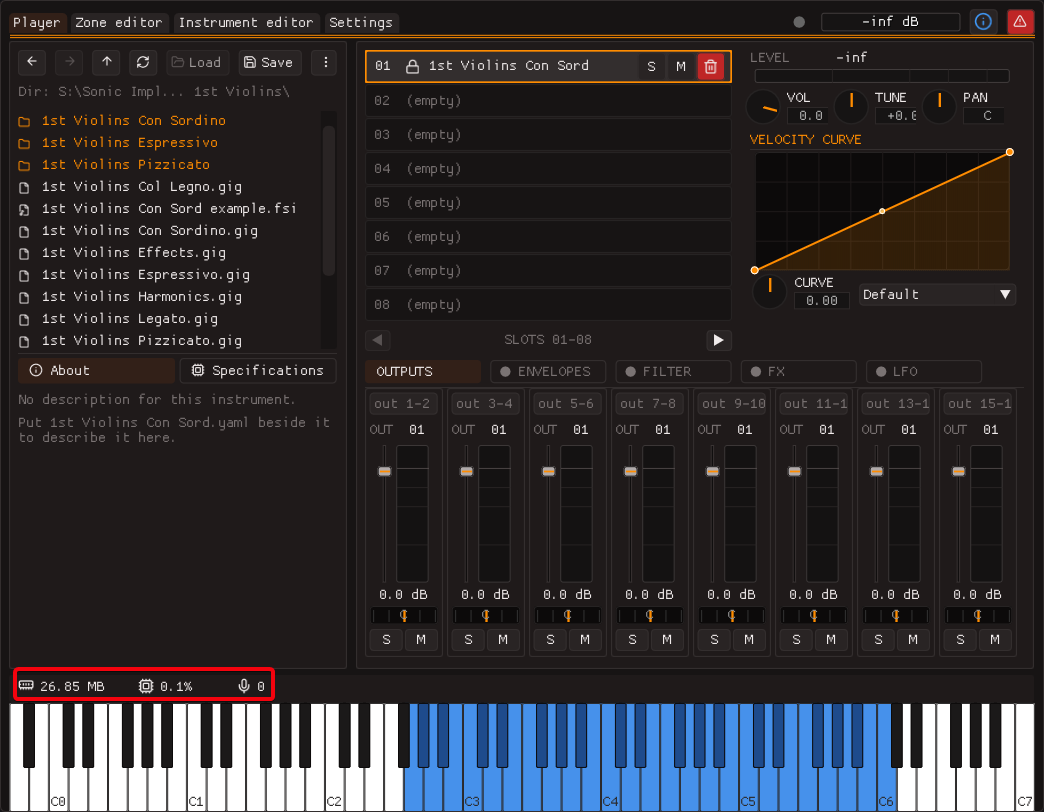
Just above the keyboard you can see the total memory used by the current instance of Fastsampler. Next to it, you can see the CPU load, as well as the active voice count.
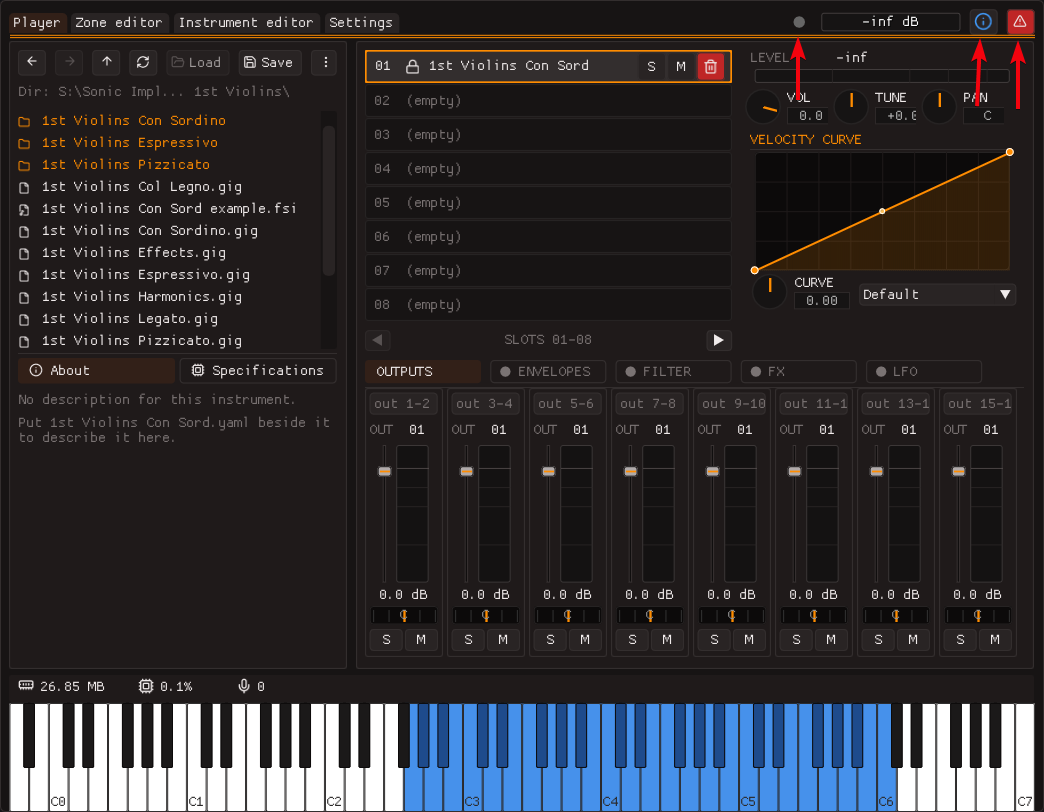
At the top you can see the instance's "busy" indicator and an information pane that shows messages such as warnings or errors. Lastly, there's a panic button in the top right which, when clicked, will immediately stop all audio and MIDI processing.