Raymarched Clouds Overview - LGhassen/EnvironmentalVisualEnhancements GitHub Wiki
This section describes how the Raymarched clouds work and some key Concepts
Overview
The clouds are modeled using a combination of 2d textures (equirectangular or cubemaps) which define where and how clouds appear, and 3d noise to add detail to the shapes created from the 2d textures. This is done for every cloud layer.
Volumetric cloud layers should not overlap (in altitudes) as then they will render incorrectly, this will be fixed in release 5.
Coverage map
This map holds the "coverage" value which defines how much cloud cover should appear at each point. A value of 0 is a clear sky, a value of 1 is fully overcast, note that values in-between don't make the cloud more or less transparent, instead they make the clouds inflate and deflate in a natural way.
You can get a feel for how this works in-game by using the painter tool
Examples from terragen but the principle is the same:
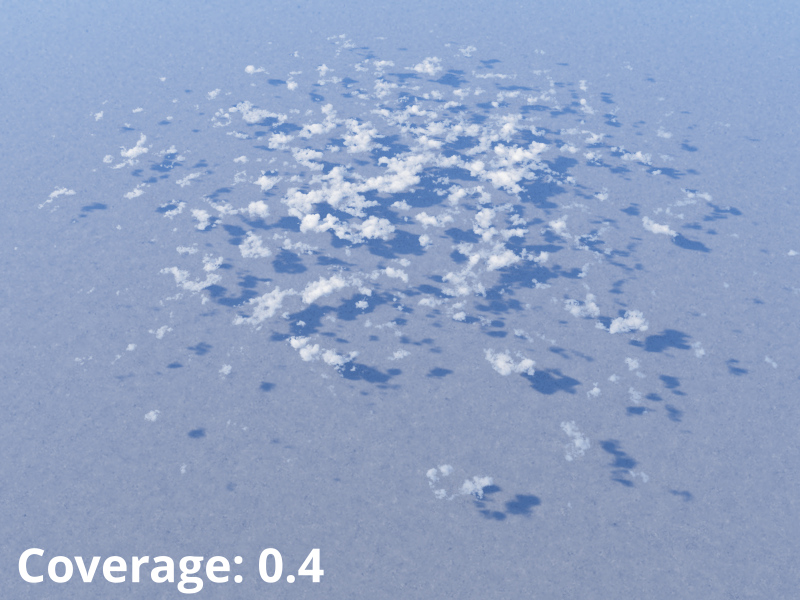
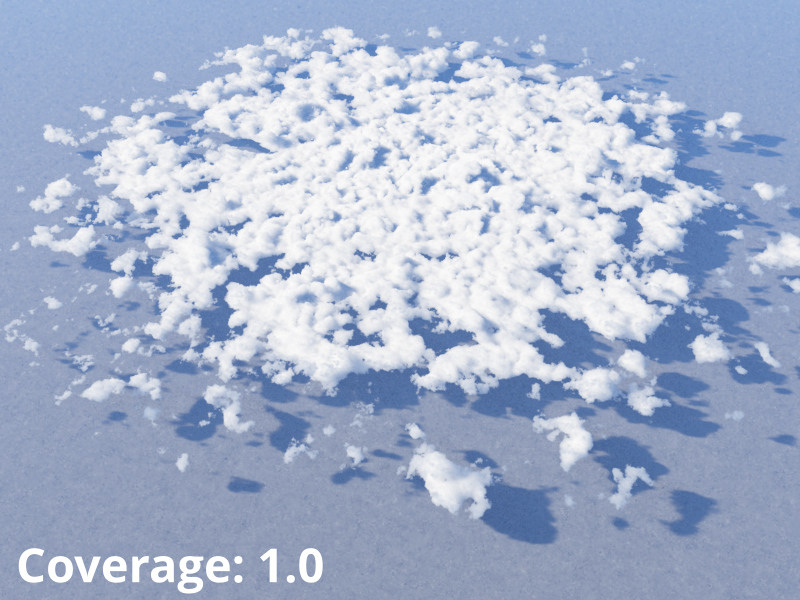
Satellite cloud maps work well as coverage maps but they can look flat and uniform inside the covered areas.
For this reason I typically layer them with noise generated with software like TerraNoise (you can generate a spherical/equirectangular noise directly with the aforementioned software, a simple perlin noise at the right frequency is enough to start, layer it in with photoshop but set the minimum value of the noise to be a middle value instead of 0 so it doesn't eat your cloud map) or paint over them by hand with the painter tool in-game. For this reason the coverage map used by the raymarched cloud layer can be distinct from the 2d MainTex used by the 2d layer.
Example: Detail of a satellite image layered with noise, this works well in-game and the noise in the 2d texture interacts with the 3d noise to produce a good level of variation:

Feel free to experiment.
Cloud type map
This map is sort of like a "biome map" of the clouds, it controls where specific types of clouds appear.
Once you've configured your cloud types (see related config section), you can paint on this map where they appear.
If you have n cloud types, then each cloud type will be indexed on the map by the value (i-1)/(n-1) * 255 where i is the index of the cloud in the list.
So accordingly if you have 4 cloud types:
- Cloud type 1 is 0
- Cloud type 2 is 85
- Cloud type 3 is 171
- Cloud type 4 is 255
Values in between cloud types are an interpolation of both (note that all the properties are interpolated, vertical profile, noise size etc).
You can have 16 cloud types max per layer, if you need to have more contact me and I can add them, though probably on a 8-bit image you won't get good results anyway with that many types.
Example:
I have 5 cloud types defined, 3 for smaller ones, and 2 for towering clouds. The brightest values on the map will cause the big clouds to appear there.
Therefore by painting this:
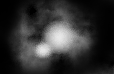
We get this:

This is easiest to understand and manipulate if you use the painter tool in-game as then you don't have to mess with intermediate values, you just select the cloud type you want and paint directly.
I typically also use noise as a base to create variation of small size clouds and then paint the big formations in-game.
3 Cloud types were used to make the volcanoes on Laythe

Cloud color map
A color map the cloud at that location will use, if used this color will be multiplied by the configurable color variable of the cloud layer.
Inter-layer shadows
A volumetric layer can receive shadows from one other layer (which can be configured). The shadows are generated via light volume or (if disabled or older version) only from the 2d coverage map of the other layer.

On thin rain/fog these shadows form godrays.

Atmospheric godrays (Added in Release 4)
A scatterer feature which requires light volume (release 4). Apart from light volume settings, other settings to improve the quality and use this on terrain will be in the scatterer settings panel in KSC menu.

Time settings
This is a new concept to make the clouds appear or disappear at certain points in time. To create things like intermittent rain, fog, cloud layers etc... This also affects the 2d layer so they are consistent with the volumetrics.
See the relevant config section here
When a cloud fully disappears it is not loaded and will not use any performance.
There are two transition modes:
- Coverage: Changes the coverage value while doing a transition, clouds appear to shrink or inflate while transitioning. Example of clouds fading in:
- Density: Clouds slowly become more or less transparent but don't change shape, I typically use this for rain/fog. Example of fog fading in:
Flowmaps (added in Release 2)
Flowmaps are used to simulate the movement of clouds. They work by encoding directional information in the RGB channels of the texture. This is then used to make the clouds move locally. This can be used to make storms, moving bands on gas giants or other moving features.


See related config section
Lightning (added in Release 2)

Lightning can be added to cloud layers, it's configurable with a bolt texture, emitted light that affects scenery and clouds, as well as near and far sounds.
Check the related config section
Particle fields (added in Release 2)
Particle fields are designed to handle lots of small particles efficiently on the GPU, for use in environmental effects such as rain, snow and dust.

See related config section
Ambient sounds (added in Release 2)
Ambient sounds can be played inside a cloud layer, can be used for rain for example.