Flowmaps (added in Release 2) - LGhassen/EnvironmentalVisualEnhancements GitHub Wiki
Flowmaps are used to simulate the movement of clouds. They work by encoding directional information in the RGB channels of the texture. This is then used to make the clouds move locally. This can be used to make storms, moving bands on gas giants or other moving features. They can be added to both volumetric and scaled 2d clouds.

In each flowmap texture, the red channel encodes movement in the tangent direction (usually west->east), green channel in bitangent direction(south->north), and blue channel in the up/normal direction. Encoded flow can be negative or positive, however [-1,1] has to be stored as [0, 1] in the image file, therefore a value of 0.5 (127 in RGBA) for any channel means zero flow in that direction.
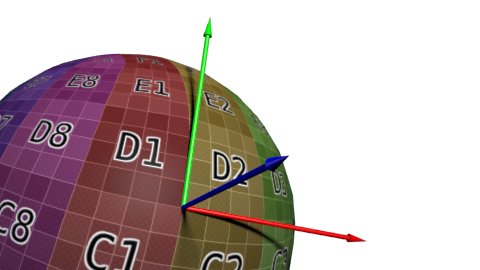
Painting a flowmap texture is challenging, think of it like trying to paint a normalmap by hand. For this reason I recommend using the in-game band and vortex tools (see related section). Alternatively, an easy trick is to generate a curl field from a black and white image (for example from a gas giant texture). Generally a curl field will make stuff flow around painted features, so if you paint a soft sphere it will generate a swirl around it.
Generating a curl field is very easy:
- Generate a normalmap using a normalmap generator, you may have to blur the input image if you have a lot of high-frequency detail.
- Rotate the X and Y vectors by 90°, to accomplish this rotation just switch the R and G channels of your image, then you might have to invert either channel depending on how your normalmap was generated. Typically I've used https://cpetry.github.io/NormalMap-Online/ and only had to switch the R and G channels

From left to right: Input, normal vectors, curl vectors
For the raymarched volumetric clouds only the noise will be moved, coverage, cloud type and colormap information stays as is.
For the 2d clouds the main texture will be moved, bands can be painted in map view with the appropriate painting mode.
DDS compression will really mess up flowmaps and introduce artifacts, to avoid this rename your *.png file to *.truecolor and it will be loaded in-game without compression. You could also look into compressing them as BC3 but I haven't tested it.
Another thing to keep in mind is that flowmaps and noise detiling aren't compatible due to technical and performance reasons, therefore using a flowmap disables detiling by default. However they can be still enabled on a case by case basis but any given area on the cloud layer can only use either flow or detiling, this will cause visible seams between areas with flow and areas without (with have detiling), however this is fine if they are painted on disconnected areas (with empty coverage in-between), so for example I use this on the main layer on Kerbin to make some isolated hurricanes rotate, while the main layer can keep detiling, however on Jool where the bottom layer is all connected I disable detiling to avoid seams.
Configuration
There is an optional node in layerRaymarchedVolume for adding flowmaps.
-
Texture: The path to the flowmap, remember to use .truecolor if you get compression artifacts. Support for cubemaps here was added in release 3.
-
Speed: This is the speed at which the flow moves. The flow will loop every 1/speed seconds. In the future the loop will be hidden better.
-
Displacement: By how much to move the clouds over the full duration of the effect. For volumetrics a value close to the base noise tiling seems to work well.
-
UseUntilingOnZeroFlowAreas: The option to enable both flowmap and untiling on the same layer. You should only use thisif flow and zero-flow areas do not touch (seaprated by zero-coverage areas) or you get seams.
A similar node is present on the layer2D but without UseUntilingOnZeroFlowAreas