Subtitles - KuchiSofts/vlc-redesign GitHub Wiki
VLC Redesign shows subtitles in your language by itself: from the video, from a file next to it, or found online. It learns the languages you pick, remembers the subtitle of each file and the timing of each series, and lets you fix early or late subtitles, and move or resize them, while you watch.
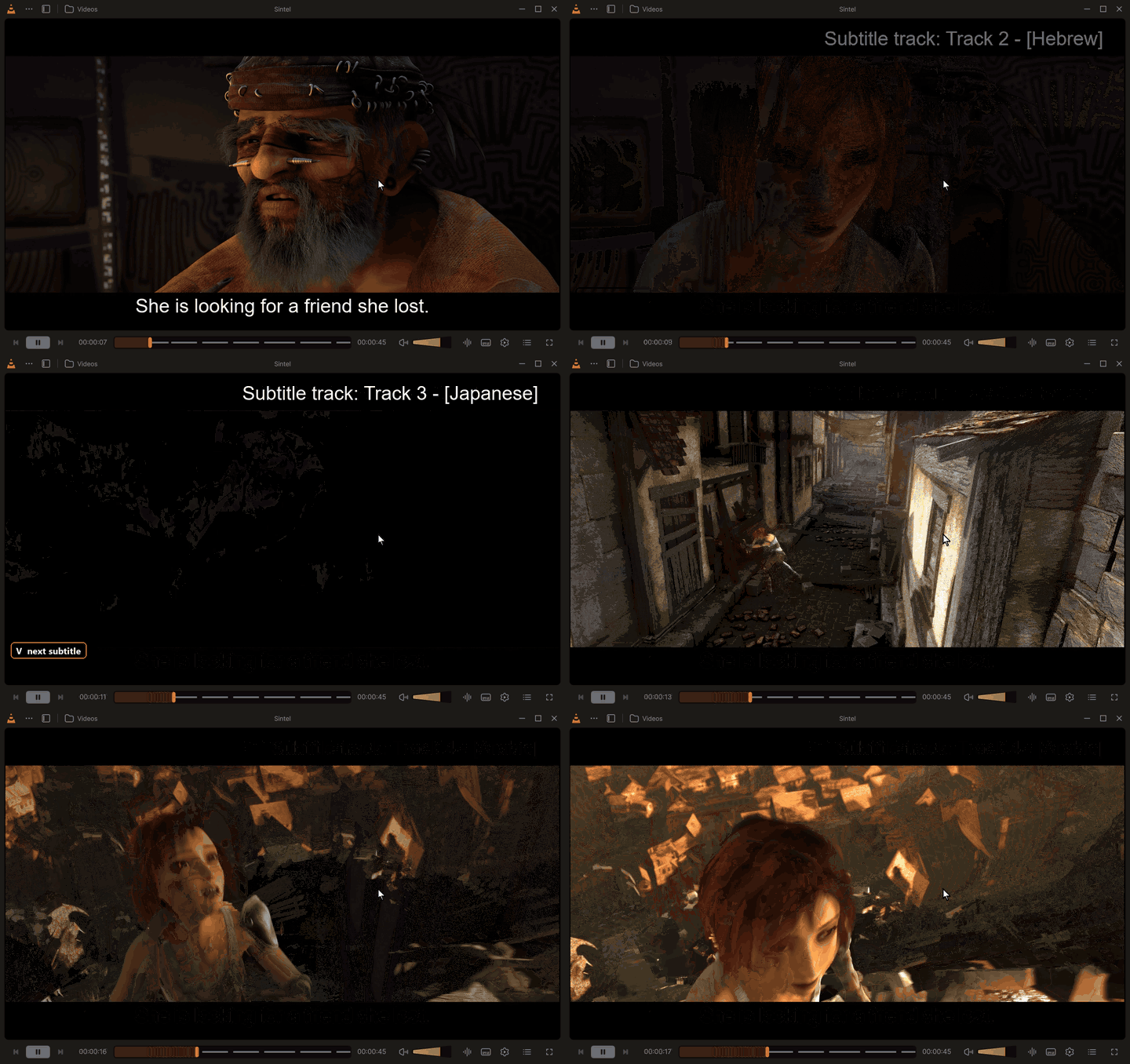
English, Hebrew, Japanese and Arabic subtitles in turn with V: sharp, and Hebrew and Arabic in the right order, with their brackets and punctuation. Click for the MP4 · every clip: Feature tour.
Everything here happens in the Subtitles tab of the Languages and tracks panel. The look of the subtitles (font, colours, outline, shadow, box) and the languages are also in Settings: Subtitles.
Three languages decide which subtitles show by themselves:
| Language | Where it is set | Until you choose |
|---|---|---|
| Default | Preferred language in Settings: Subtitles, the installer and the first-run setup | The language of Windows |
| Second | Second language (when there are none in the preferred one), same places | English (none when the default one is English) |
| Learned | Nothing to set: the language you pick most by hand (see Learning your languages) | None |
When a video opens, VLC shows its track in the default language; if it has none, in the second one; if it has neither, in the learned one. When the video has none of them, the online search looks for them (see Subtitles found online).
Before you choose any subtitle language, a video's own track in the language of Windows is shown, except for English: an English film would otherwise always show its English subtitles.
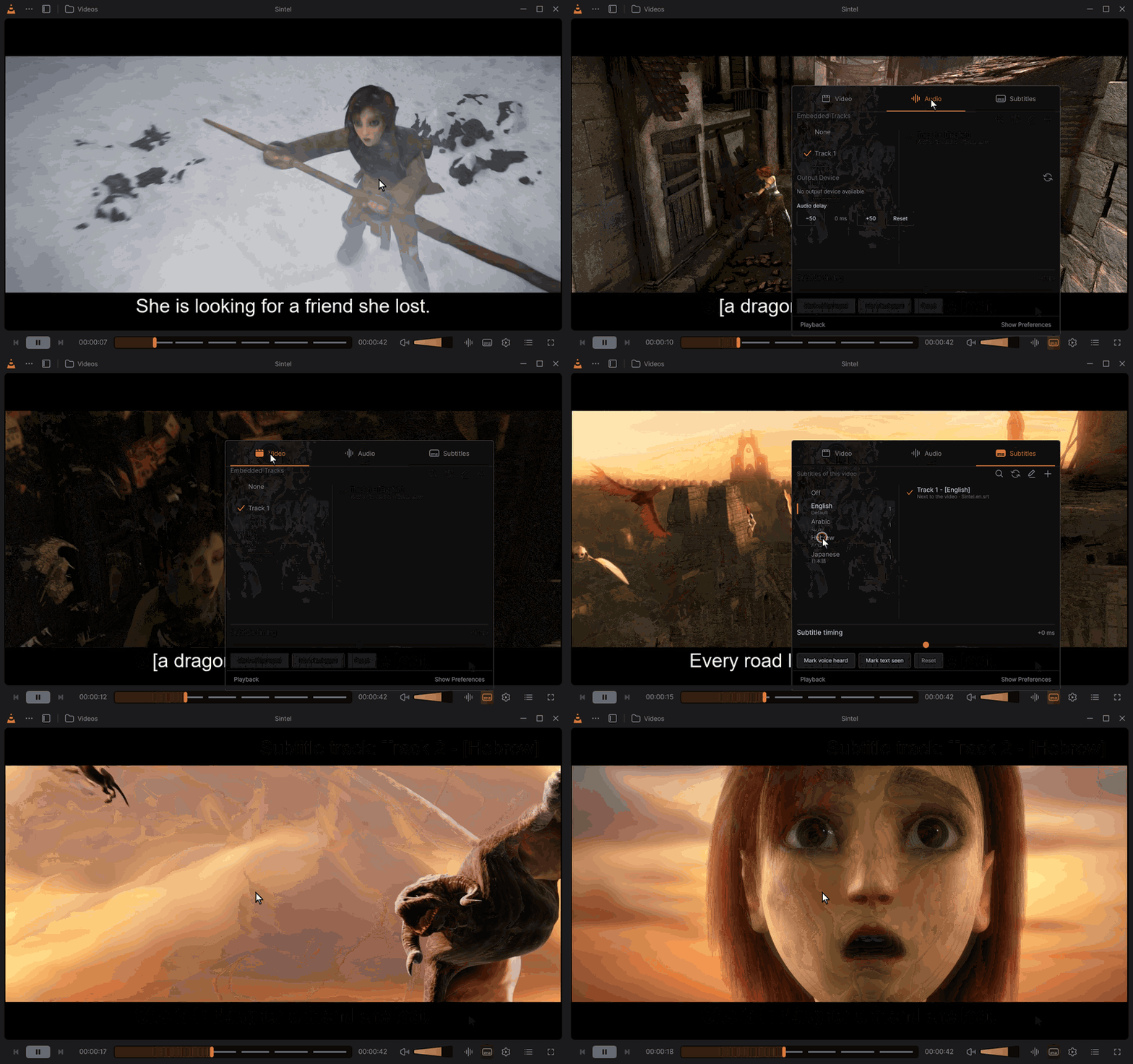
The Video, Audio and Subtitles tabs of the panel; the subtitle languages of the video, each in its own language; Hebrew picked. Click for the MP4 · every clip: Feature tour.
Languages and tracks in the control bar opens a panel above the button with three tabs, Video, Audio and Subtitles; it opens on Subtitles. A second click on the button, a click outside the panel or Esc closes it, without pausing the video.

From top to bottom:
-
The header: what the online search is doing or found (Subtitles of this video, Identifying the video…, Searching OpenSubtitles, Wizdom…, Breaking Bad · S01E02 · 24 found), and four buttons:
Button What it does Magnifier (The video is another one: search by its title) Opens the title search (see Wrong title). Arrows (Search subtitles online / Search subtitles online again) Runs the online search now. Pencil (Add subtitles to the library) The subtitle window of the library (see Attach subtitles for good). Dimmed for a stream or without the media library: Library association needs a local media file and media library. + (Load a subtitle file for playback) Opens a subtitle file for this playback only. -
The languages on the left, and the subtitles of the language chosen on the right.
-
Subtitle timing: the delay slider and the sync buttons, then Series preset.
-
Position and size.
A language or a subtitle you click shows at once on the video.
The list starts with Off (no subtitles). Then come the languages this video has, in its own tracks or among the subtitles found online, in this order:
| Order | Marker | Which languages |
|---|---|---|
| 1 | Default | Your default language. |
| 2 | Second | Your second language. |
| 3 | Often used | The languages you pick yourself, the most picked first. A language rises here from the first pick; the marker shows from the second pick in a row. |
| 4 | The other languages of the video's own tracks, by name. | |
| 5 | The other languages found online, by name. | |
| last | Unknown language: tracks that name no language. |
Each row shows the language's name in the language of the interface, its own name for itself (Deutsch, Français), and how many subtitles it has. A language you have no subtitle in does not show: there is nothing to pick.
The list on the right holds the subtitles of the language chosen: the video's own first, then those found online. The one showing has a check. Under each, where it comes from:
| Label | Where it comes from |
|---|---|
| In the video | A track of the file itself. |
| Next to the video · file | A subtitle file VLC found next to the video, or in the folders of Load subtitles from these folders. |
| Opened · file (or Opened file) | A file you opened yourself. |
| Downloaded from service | A subtitle downloaded earlier: from the cache. |
| service · downloads | A subtitle found online, not downloaded yet: its service and how many times it was downloaded (12k downloads). |
Badges: For this file (made for this very file: the same fingerprint), HI (For the hearing impaired), Foreign parts only (only the lines of foreign speech).
Click a subtitle to show it. One found online is downloaded first (Downloading…).
Each time you pick a subtitle language by hand (a language row or one of its subtitles), it counts for that language, once per video. Every pick is worth 1, and each pick also makes the earlier ones fade: all the scores are multiplied by 0.9 first. So what you picked recently counts most.
- It rises. A language you pick moves up the list, under your default and second languages.
- It is marked. From a score of 1.5 (two picks in a row) it reads Often used.
- It is chosen for you. From a score of 2.5 (three picks in a row) it becomes the learned language, the third automatic one. A video with no track in your default or second language shows its track in the learned language by itself; and when the online search finds nothing in your default or second language either, it loads the best subtitle in the learned one.
- It fades. If you stop picking it, other picks make it fade, and the language you pick now takes its place. Only one language is learned at a time: the one with the highest score.
Your default and second languages never count as learned: they already come first.
Example: you watch with German subtitles three times. German is now marked Often used and is chosen for a film that has no subtitles in your default or second language.
Films often come in a folder with subtitle files of their own. VLC Redesign uses them, and is not fooled by the files that are not really subtitles:
-
A Subs or Subtitles folder. When the video is the only one in its folder, a file in your language in its
SubsorSubtitlesfolder (Hebrew.heb.srt,English (SDH).eng.srt, named by language rather than after the film) shows by itself, and nothing is searched online for that language. The plain one comes before the one for the hearing impaired (SDH, HI, CC). -
An advert or forced lines are not your subtitles. Some sites put a small
.srtnamed after the film next to it, with only their advert ("Downloaded from ...") or a line or two; files of only the forced lines (signs and foreign words) are common too. Such a file, a subtitle with under one line per five minutes of a film of 20 minutes or more, or with forced in its name, does not count as your language: the online search still runs. A short film's own small subtitle always counts. -
Hebrew and Arabic punctuation in its place. Many subtitle sites write a line's final punctuation first and
its dialogue dash last (
.שלום,?מה-), for players that lay every line out left to right. VLC Redesign moves them back (שלום.,-מה?), only in the files written that way. With Text direction set to Left to right, lines stay as their file has them.
The same on Android and on the Samsung TV app.
When a video opens with no subtitles in your languages, VLC Redesign looks for some online (once its picture shows, a moment after it starts) and loads the best one: in your default language, else the second one, else the learned one. This is Find subtitles online when a video has none in these languages (Settings: Subtitles), asked by the installer and the first-run setup. With it off, the search runs only when you click the search button of the header.
How it works:
-
The video is identified. Its file name gives the title, the year, and the season and episode (
S01E02,1x02, Season 1 Episode 2; the folder too, as in Show Name/Season 1/02.mkv). IMDb's suggestions, then Wikidata, then Stremio's Cinemeta give its IMDb id. The header shows Identifying the video…, then the title found (Breaking Bad · S01E02). - The services are asked together (Searching OpenSubtitles, Wizdom…), for the languages to search (below). Their subtitles are listed as they come, those made for this very file first (3 found for this file); the line under the title says what each service found (OpenSubtitles 7 · SubSource 3 · Wizdom 4), a dash for one that didn't answer or refused your key (the reason in its tooltip).
- A click loads one. It is downloaded, unpacked (only its subtitles, 16 MB at most), converted to UTF-8, kept in the cache and remembered for the file (Downloading…).
The services, in the order of Settings › Subtitles › Subtitle services. The four without an account are on at first; the others are off until you give them your own free key (they turn on by themselves the first time Test finds it works):
| Service | What it has | Needs |
|---|---|---|
| OpenSubtitles | All languages, movies and series; finds those made for your very file. | nothing |
| OpenSubtitles.com | All languages, movies and series (the newer OpenSubtitles). | your free key; your account for more downloads a day |
| SubSource | Many languages, strong in Arabic (#70). | your free key |
| SubDL | Many languages: the archive of Subscene. | your free key |
| Wizdom | Hebrew, movies and series. Asked only when Hebrew is one of your languages to search. | nothing |
| Addic7ed | Series, many languages (through Gestdown). | nothing |
| YIFY Subtitles | Movies, many languages. | nothing |
| Titlovi | Croatian, Serbian, Bosnian, Slovenian, Macedonian. | your free account |
| Assrt | Chinese (simplified and traditional). | your free token |
| Jimaku | Anime, Japanese. | your free key |
| BetaSeries | Series, French. | your free key |
| Subs.ro | Romanian. | your free key |
| Napisy24 | Polish; finds those made for your very file. | your free account |
| Legendas.net | Portuguese (Brazil). | your free account (its email) |
The services of one language (Wizdom, Titlovi, Assrt, Jimaku, BetaSeries, Subs.ro, Napisy24, Legendas.net) are asked only when one of their languages is one of your languages to search; each row says which.
Checked and not added: Podnapisi (its address is gone), Subscene (closed: SubDL and SubSource keep its archive), Subf2m (hides its subtitle links from programs), BSPlayer (plain HTTP only, and it failed), Ktuvit (Hebrew: it didn't answer on 2026-11-08), Titulky and Legendas.tv (pages behind a sign-in, no interface for programs).
Settings › Subtitles › Languages to search lists the languages the services are asked for, in the order of the results: your preferred and second languages (always there, the preferred one always on), and those you add with Add a language (a list to type in: a language's name in English, in its own language, or its code). Each has a switch, Move up and Move down, and Remove (not the preferred one). The languages you often pick by hand are added off, for you to turn on.
Every other language too (off at first) asks the services for every language as well; off, they are asked only for the languages on, which makes the search faster (Fewer languages: a faster search). The search that runs by itself when a video has none in your languages uses the same list.
Settings › Subtitles › Subtitle services: each service with what it has and its switch.
- A service that takes a key or an account shows its fields when it is on or has them: Your free key (hidden, with Show), User name and Password where it takes them ((optional) when the key alone is enough). Test (or Sign in) asks it once: Key works, Signed in as …, Key refused, Wrong user name or password, Busy: try again in a minute or No answer, try again. Clear (or Sign out) forgets them. Get a free key (or Create a free account) opens the page where it is made. Turning one on without them puts you in its first field.
- A service of one language says so: Asked only when Hebrew is one of your subtitle languages.
- What a search found shows on its row until it changes: Key refused: check it, Sign-in refused: check it (until the key or the account changes, or a search works), Busy: try again in a minute (a minute).
- Remove (the ✕ of a row) takes a service out of the list: it is never asked. Add a service lists the ones removed, to bring them back. Off is not removed: a service off stays in the list.
The keys and passwords stay on the computer, in the settings of VLC Redesign (on Windows sealed for your user on this PC, so a copy of the settings elsewhere can't read them), and are sent only to their own service. They are never written to the log.
| Service | How to get it |
|---|---|
| OpenSubtitles.com | See A free OpenSubtitles.com key. |
| SubSource | Sign up on subsource.net, then on your dashboard's API tab choose Create an API key and copy it into Your free key. A free key asks up to 60 times a minute, 7,200 a day. |
| SubDL | Sign up on subdl.com, then open subdl.com/panel/api (API in your panel) and copy your API key into Your free key. |
| Titlovi | Create an account on titlovi.com and confirm it; then Sign in with its user name and password. |
| Assrt | Sign up on assrt.net; your API token is in your user panel (assrt.net/usercp.php). Copy it into Your free key. |
| Jimaku | Sign in on jimaku.cc and open your account page (jimaku.cc/account): generate an API key there. |
| BetaSeries | Create an account on betaseries.com, then ask for an API key at betaseries.com/api (free for personal use). |
| Subs.ro | Create an account on subs.ro, then get your API key at subs.ro/api. |
| Napisy24 | Create an account on napisy24.pl; then Sign in with its user name and password. |
| Legendas.net | Create an account on legendas.net; then Sign in with its email and password. |
What is sent: the video's title, its IMDb id, its file name and a fingerprint of the file (its size and its first and last 64 KB), nothing else. The cache keeps the subtitles of the last 500 media and drops those not used for 60 days.
Click the magnifier of the header (The video is another one: search by its title): a field opens, Title of the movie or series, with the titles that match as you type. Pick the right one; the search runs again for it, and the choice is remembered for the file.
Subtitle timing shows the delay (+250 ms) and a slider from −10 s to +10 s in steps of 50 ms: earlier on the left, later on the right. Then three buttons fix a delay by ear:
- Mark voice heard: click it when you hear a line spoken (it reads Voice marked).
- Mark text seen: click it when you see that line's text (it reads Text marked).
- Once both are marked, in either order, the subtitles move by the time between the two clicks.
Click a marked button again to unmark it. Reset puts the delay back to 0.
The keys do the same: Shift+H (the voice), Shift+J (the text), Shift+K (apply), Ctrl+Shift+K (reset). H and G move the subtitles later or earlier step by step. A delay for every video is Subtitle delay in Settings: Subtitles.
Series preset, under the timeline, keeps the choices of a series for its other episodes.
- Save keeps, from the episode playing: the audio track, the subtitle track (or Off), the subtitle delay, the delay of the second subtitles and the subtitle speed. The panel reads Saved for episodes of breaking bad., then Applies to episodes of breaking bad.
- The next episodes of the series apply it by themselves (Series preset applied.). If a track it names is not in an episode: A saved audio or subtitle track is unavailable in this episode.
- Remove forgets it (Series preset removed.).
A series is the folder of the file plus the name before its S01E02 (in lower case, dots and dashes read as
spaces). A file without such a name counts its whole folder as the series. Presets need a local file: Play a
local episode to save its track and timing choices.
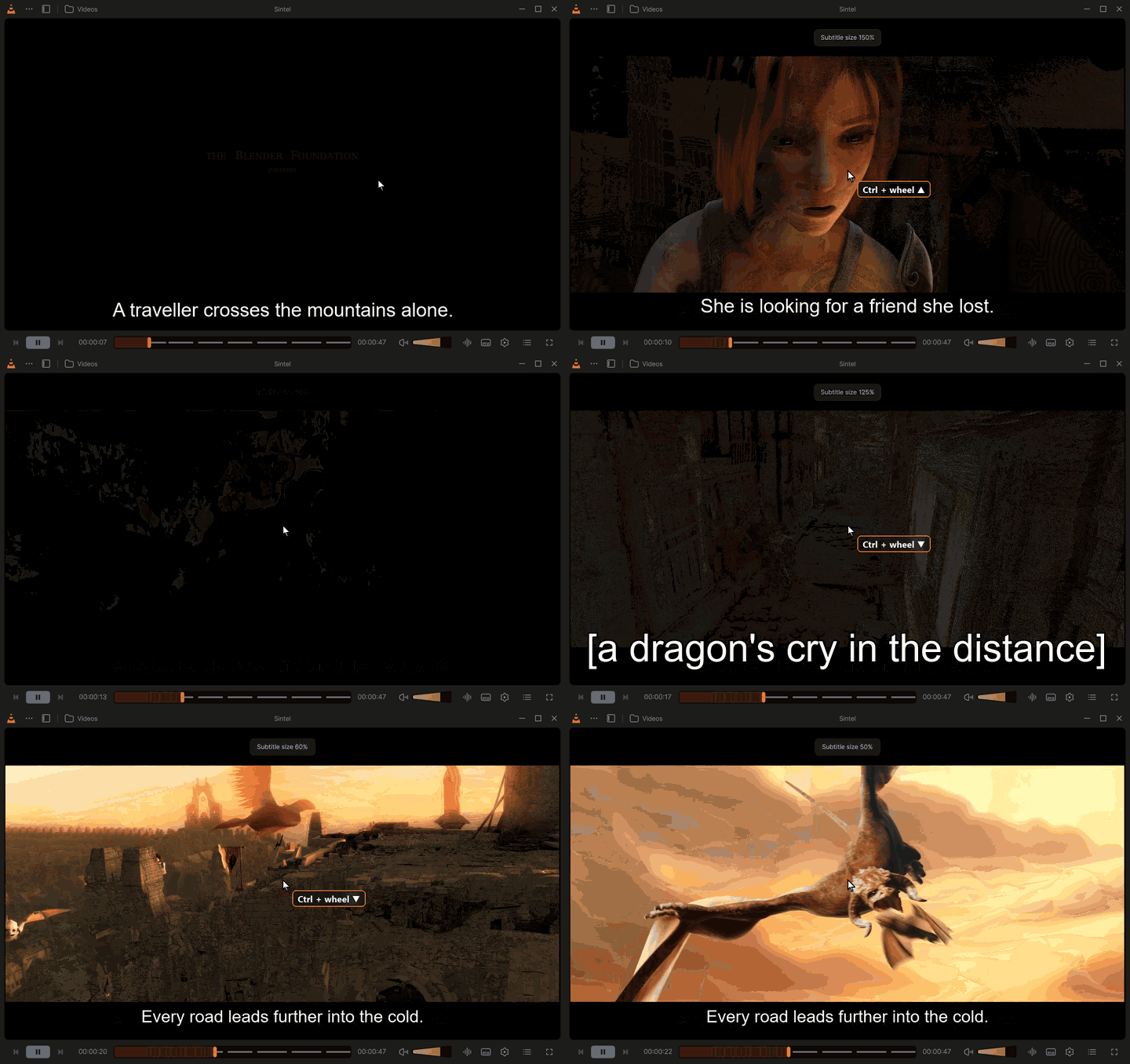
Ctrl + mouse wheel over the video: the subtitle size up to 200 %, then down to 50 %, from the next line on. Click for the MP4 · every clip: Feature tour.

Position and size, at the end of the Subtitles tab:
| Row | − / + | Range | Reset |
|---|---|---|---|
| Position | Move the subtitles down / Move the subtitles up, 1 % of the picture's height a click | −20 % (lower) to +60 % (higher); Usual at 0 | Back to Usual |
| Size | Smaller subtitles / Larger subtitles, 10 % a click near 100 %, then 25 % (the steps of Ctrl+wheel) | 25 % to 500 %; 100 % as usual | Back to 100 % |
- The buttons repeat while held.
- The subtitles move and grow on the video as you click, and the panel fades meanwhile so you see them behind it.
- The change stays for the next videos and the next starts.

Keys: Shift+Up / Shift+Down move them (1 % a press, same range); Ctrl+wheel over the video makes them larger or smaller, as in classic VLC: 10 % a turn near 100 %, then 25 %, from 25 % to 500 %, with a short Subtitle size 120% message; Ctrl+0 goes back to 100 %. Elsewhere in the window Ctrl+wheel zooms the whole interface. ASS/SSA subtitles follow the size while they play. The same position is Vertical position in Settings: Subtitles.
While the Continue where you left off? card shows, the subtitles rise above it and the controls, and go back down when it closes.
Settings: Subtitles › Appearance: the font (a list of the fonts installed), the size (relative or in pixels), bold, the text colour and opacity, the outline, the shadow, a box behind the text, and the vertical position. A change reaches the video playing from its next line.
With Show both languages at once (dual subtitles) (Settings: Subtitles, once a second language is chosen), the subtitles of the default language and those of the second one show together; the second one is found online too when the video lacks it. Ctrl+Shift+V (Toggle secondary subtitle control) makes the subtitle keys (delay, position) act on the second subtitles; the series preset keeps their delay too.
The pencil of the header (Add subtitles to the library), or Add Subtitle Tracks in the right-click menu of a video, folder or playlist of the library, opens the subtitle window of the library:
- From Computer (files you choose), From Link (a Direct HTTPS link to a subtitle file) or From OpenSubtitles (a search with your own OpenSubtitles API key, Username and Password: see A free OpenSubtitles.com key).
- To This File, To This Folder or To This Playlist.
The subtitles attached play with the media every time. Add Audio Tracks does the same for audio files. It needs a local file and the media library.
The online search of the player needs no account. OpenSubtitles.com, the newer OpenSubtitles, asks for a key of your own; it is free:
- Sign up on opensubtitles.com (a free account).
- Open API consumers: opensubtitles.com/en/consumers.
- Choose New consumer, give it a name (VLC Redesign) and save it.
- Copy its API key into VLC Redesign, with the account's username and password: they raise how many subtitles you can download a day (a free account has a daily limit).
Where it goes:
| App | Where |
|---|---|
| Windows, Linux, macOS | Settings › Subtitles › Subtitle services › OpenSubtitles.com: Your free key, User name (optional), Password (optional), Test and Get a free key. Add subtitles to the library › From OpenSubtitles uses the same key and account (one key for both). |
| Android (phone, tablet, Android TV) | Settings › Subtitles › Subtitle services: OpenSubtitles API key, Username, Password, and How to get a free key (Open goes to the page). With a key, OpenSubtitles.com is asked too in the online search. |
| Samsung TV (Juxto Media Player) | Settings › Subtitles: the same fields and the same steps (the address is shown as text) |
The key and the account stay on the device, in the app's own settings (on Windows sealed for your user on this PC); they are sent only to OpenSubtitles.com.
The Android app (phones, tablets, Android TV) and the Samsung TV app find subtitles online as the desktop does (#67): the same services without an account (OpenSubtitles, Wizdom, Addic7ed, YIFY Subtitles), the same identification of the video (IMDb, Wikidata, Cinemeta) and the same order of the results.
- Android: the languages and tracks panel › Subtitles › ⋯ › Search subtitles online: what the video was taken for (Elephants Dream (2006) · 30 found), the subtitles by language, each with its service, For this file and its downloads. A tap downloads it, shows it and keeps it for the file. The video is another one: search by its title finds the right one. Settings › Subtitles has the second language, Find subtitles online when a video has none in these languages (asked in the welcome's privacy step), each service and the OpenSubtitles.com key. When it finds one by itself: English · Downloaded from OpenSubtitles.
- Samsung TV: the subtitles panel of the player has the same list, OK to load one; Settings › Subtitles the same choices.
| What | How long |
|---|---|
| The subtitle chosen for a file (a track, a file or one found online), shown again the next time; from the cache when it was downloaded | The last 500 media |
| The title chosen for the online search of a file | The last 500 media |
| The track and timing choices of a series | Until you remove the preset |
| The size and position of the subtitles | For every video, until you change them |
| The languages you pick (learning) | Fading with each new pick |
| Key | Action |
|---|---|
| V / Alt+V | Next / previous subtitle track |
| Shift+V | Subtitles on or off |
| H / G | Subtitle delay up / down |
| Shift+Up / Shift+Down | Subtitles higher / lower |
| Ctrl+wheel over the video | Subtitles larger / smaller (elsewhere in the window it zooms the interface) |
| Ctrl+0 | Normal size (taken by play the tenth media played last while the media library is on: see Keyboard shortcuts) |
| Shift+H, Shift+J, Shift+K, Ctrl+Shift+K | Sync: mark the voice, mark the text, apply, reset |
| Ctrl+Shift+V | Toggle secondary subtitle control |
All of them can be changed: see Keyboard shortcuts.
- No subtitles show. Check Off is not chosen in the list, and Shift+V (subtitles on or off). A video without subtitles in your languages needs the online search on, or a click on the search button.
- The wrong film's subtitles. The title was taken for another one: use the magnifier of the header.
- Out of sync. Use Mark voice heard / Mark text seen; for a whole series, Save a series preset.
- Too small or in the way. Use Position and size; the change stays for every video.
- A language keeps coming back. It was learned from your picks; pick the one you want a few times and it takes over.
The player · Settings: Subtitles · Languages · Keyboard shortcuts · Home