Settings Interface - KuchiSofts/vlc-redesign GitHub Wiki
Settings: Interface
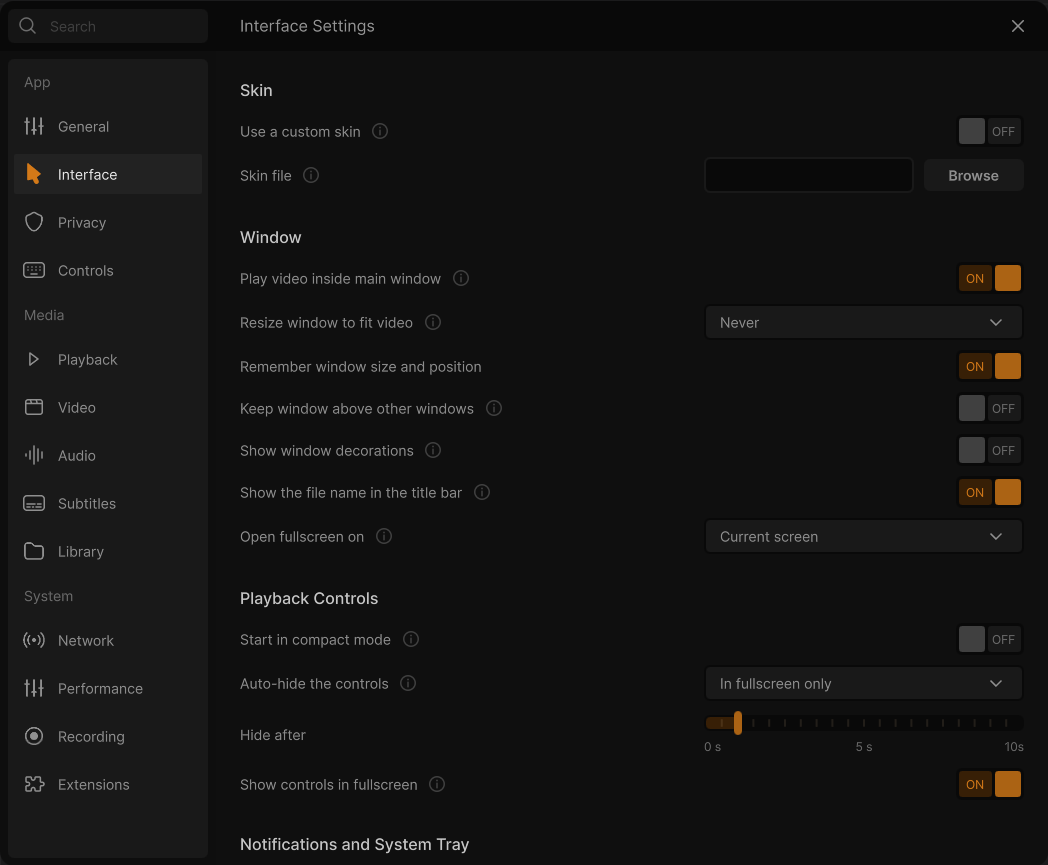
⋯ → Settings → Interface (Ctrl+P; the header reads Interface Settings). The main window,
the playback controls, notifications and the tray icon, the play queue as a tree, the player bar, text contrast,
and VLC's classic skins. Every row applies when the Settings window closes, except Use a custom skin. See
how the Settings window works.
Skin
Shown only in builds that include VLC's skins2 interface. A skin replaces this interface entirely: VLC starts
with one or the other.
Option
Choices / default
What it does
VLC option
Use a custom skin
Toggle. Default: off.
Starts VLC with the skin chosen below instead of this interface. Shows Applies the next time VLC starts once changed. Turning it off brings back the default interface.
intf (on = skins2)
Skin file
Path field with Browse (Choose a skin, filter Skin files (*.vlt *.wsz *.xml)). Default: empty.
The skin the skins interface opens.
skins2-last
To come back from a skin, start VLC once with --intf=qt (for example from a shortcut), open Settings and turn
Use a custom skin off.
How large the pages, texts and controls are drawn; applies at once. Automatic picks the size that suits the screen the window is on: 100 % when the system already scales that screen, larger only on a dense screen the system does not scale. The zoom keys step through the same choices. Windows, dialogs and menus stay inside the screen at every size and scroll when they are taller than the window. New in 0.6.0.
redesign/interface-size (0 = Automatic)
Play video inside main window
Toggle. Default: on.
On: the video plays inside the main window. Off: each video opens in a separate window. Applies to the next video.
embedded-video
Resize window to fit video
Dropdown: Never / Always. Default: Never.
Always: the window resizes to the video's own size when a video starts (never larger than the screen). Never: the window keeps the size you gave it and the video fits in it.
qt-video-autoresize
Remember window size and position
Toggle. Default: on.
Opens the window where it was, at the size it had, when VLC was last closed.
Keeps the VLC window on top of every other window.
video-on-top
Show window decorations
Toggle. Default: off on Windows (on elsewhere).
On: the system's title bar and frame. Off: no system title bar; the window buttons are drawn in the interface (client-side decoration), as in the design.
qt-titlebar
Show the file name in the title bar
Toggle. Default: on.
Shows the name of the playing song or video in the window title (and the taskbar).
qt-name-in-title
Open fullscreen on
Dropdown: Current screen, then Screen 1 (name), Screen 2 (name)… Default: Current screen.
The monitor used for fullscreen video. Current screen uses the screen the window is on. A screen that is no longer connected stays listed as Screen N.
qt-fullscreen-screennumber (−1, 0, 1…)
Playback Controls
Option
Choices / default
What it does
VLC option
Start in compact mode
Toggle. Default: off.
Opens VLC in the compact (minimal) view. Changing it also switches the view at once.
qt-minimal-view
Auto-hide the controls
Dropdown: Always / In fullscreen only. Default: In fullscreen only.
In fullscreen only: in a window, the bars sit above and below the video and stay; they only hide in fullscreen. Always: the bars float over the video and hide in a window too.
qt-pin-controls (In fullscreen only = on)
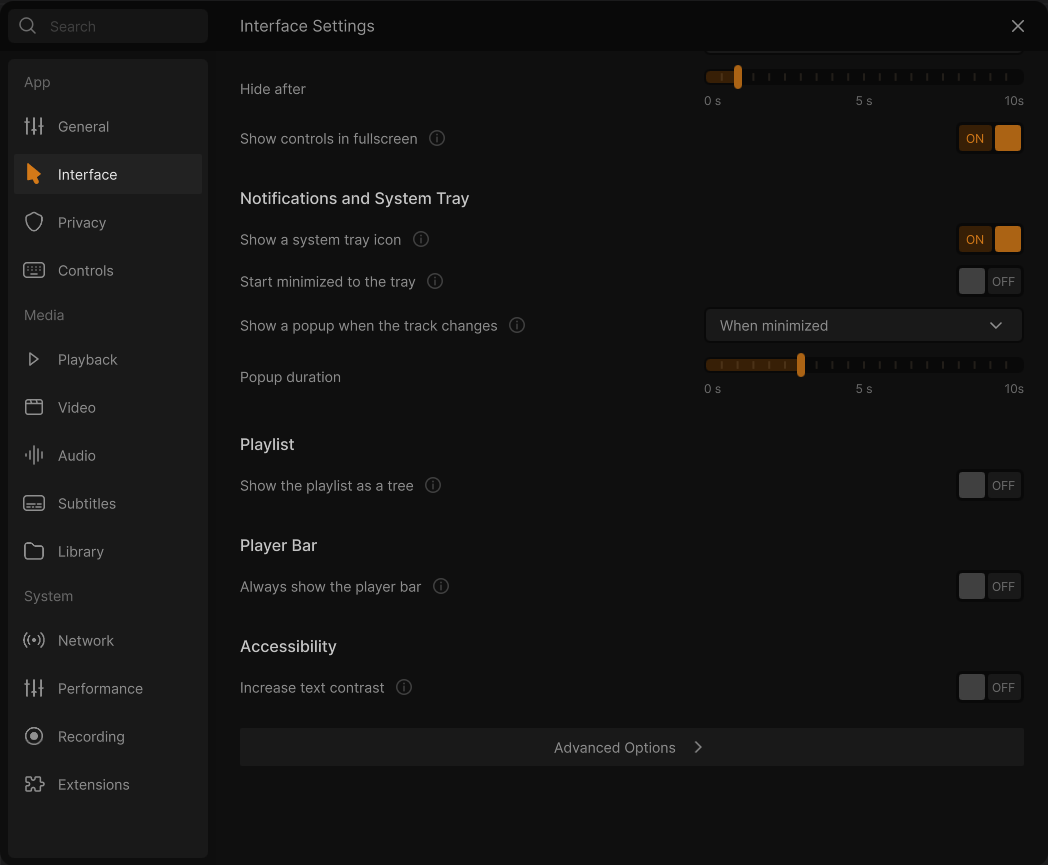
Hide after
Slider 0 s to 10 s, in steps of 0.5 s (labels 0 s, 5 s, 10s). Default: 1 s.
How long the mouse must stay still before the pointer and the controls hide.
mouse-hide-timeout (ms)
Show controls in fullscreen
Toggle. Default: on.
On: moving the mouse in fullscreen shows the controls. Off: only the keyboard shows them (I). Skins read it for their fullscreen controller too.
qt-fs-controller
When you use a shortcut in full screen
Dropdown: Show the controls / Show only the progress / Show only a message. Default: Show the controls. Under it: "Moving the mouse or pressing Tab still shows the controls."
What a key of VLC's shortcuts (seek, jump, pause, speed, frame step, delays, tracks, subtitle size and position, aspect ratio, zoom…) shows in fullscreen. Show the controls: the bars, as before. Show only the progress: a thin line of the progress on the bottom edge (the played part in your accent colour) and a message at the top centre, never over the subtitles, that grows with the screen (24 px text at 1080p, never under 18 px): what the key did and the time (+30 s 00:02:50 / 00:25:40, Paused, 1.5×, or what VLC says, such as Subtitle track: English). Show only a message: that message alone. Jumps in a row add up (+1:10 past a minute; the other way starts again); the message goes 1.5 s after the last key; the volume keys show the volume indicator (Settings › Audio). VLC's own message on the video is not drawn meanwhile: one message, never two. The mouse, Tab, Enter, the menu key and I still show the controls; a key that an open panel, the queue, the library or Live TV's list uses works as before (Live TV's channel keys keep their banner). In a window nothing changes. Right to left, the words follow the language while the times and the line run like the seek bar. Requested in #72.
qt-fs-shortcut-feedback (0, 1, 2)
Notifications and System Tray
Option
Choices / default
What it does
VLC option
Show a system tray icon
Toggle. Default: on.
A VLC icon in the notification area of the taskbar (on macOS, in the menu bar), with a menu for basic playback control and, while the window is hidden, Show VLC Redesign (on macOS a click on the Dock icon shows it too). It appears or goes at once.
qt-system-tray
Start minimized to the tray
Toggle. Default: off.
VLC starts with only its tray icon, without showing its window.
qt-start-minimized
Show a popup when the track changes
Dropdown: Never / When minimized / Always. Default: When minimized.
A notification with the artist and title when the playing item changes. When minimized: only while the window is minimized or hidden. Needs the tray icon.
qt-notification (0, 1, 2)
Popup duration
Slider 0 s to 10 s, in steps of 0.5 s. Default: 3 s.
The play queue shows its media under the folder (or the website) they come from, as headings. Rows still move, select and drop as before.
playlist-tree
Player Bar
Option
Choices / default
What it does
VLC option
Always show the player bar
Toggle. Default: off.
Keeps the player bar at the bottom of Home and the library while nothing plays (its times read --:--). Its Play button starts the play queue, or opens files when the queue is empty; its cover opens the empty player.
Draws the dim texts of the design (hints, descriptions, watched items) brighter in the dark theme (#8A8A8A) and darker in the light theme (#333333), to the 4.5:1 contrast of WCAG AA. The (i) icons get at least 3:1. See Colours and themes.
redesign/increase-contrast (interface setting)
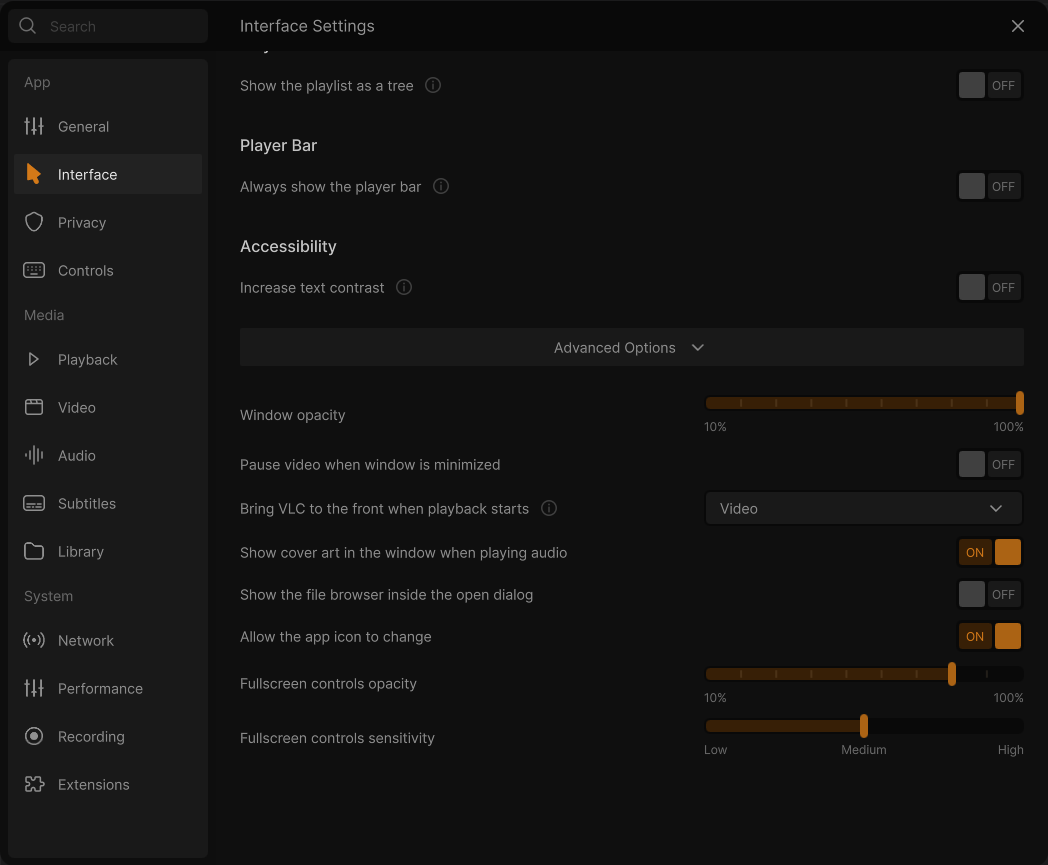
Advanced Options
Option
Choices / default
What it does
VLC option
Window opacity
Slider 10 % to 100 %. Default: 100 %.
The opacity of the main window. Applies at once.
qt-opacity (0.1 to 1)
Pause video when window is minimized
Toggle. Default: off.
Pauses playback when the window is minimized.
qt-pause-minimized
Bring VLC to the front when playback starts
Dropdown: Never / Video / Audio / Audio and video. Default: Video.
Shows and raises the window when that kind of media starts playing.
qt-auto-raise (0 to 3)
Show cover art in the window when playing audio
Toggle. Default: on.
Shows the cover art of the playing audio in the player (the cone in the compact view). Off: a plain placeholder takes its place, which also avoids screen burn-in.
qt-bgcone
Show the file browser inside the open dialog
Toggle. Default: off.
The Open dialog shows VLC's own file browser instead of the Windows file dialog.
qt-embedded-open
Allow the app icon to change
Toggle. Default: on.
Kept from the design; the app icon is the designer's logo all year in VLC Redesign (no seasonal cone), so it changes nothing.
qt-icon-change
Fullscreen controls opacity
Slider 10 % to 100 %. Default: 80 %.
The opacity of the controls shown in fullscreen.
qt-fs-opacity (0.1 to 1)
Fullscreen controls sensitivity
Slider Low / Medium / High. Default: Medium.
How far the mouse must move before the fullscreen controls appear: Low = 12 pixels, Medium = 3, High = 1. Dimmed while Show controls in fullscreen is off.
qt-fs-sensitivity (pixels)
Good to know
Controls keep hiding the subtitles or the picture? Keep Auto-hide the controls on In fullscreen only:
in a window the bars then sit outside the video.
The controls pop up when the mouse is merely touched in fullscreen: set Fullscreen controls sensitivity
to Low, or raise Hide after.
No track-change popups: they need Show a system tray icon on; with When minimized they only show while
the window is minimized or hidden.
Two monitors:Open fullscreen on sends fullscreen video to the other screen while you keep working on this one.
A skin and nothing else: after Use a custom skin, VLC starts with the skin only; this Settings window is
not part of the skin.